הקדמה
The MCHOSE V9 PRO Wireless Gaming Headset delivers an immersive audio experience with 7.1 surround sound, low-latency wireless connectivity, and an AI noise-canceling microphone. This manual provides detailed instructions for setup, operation, and maintenance to ensure optimal performance.
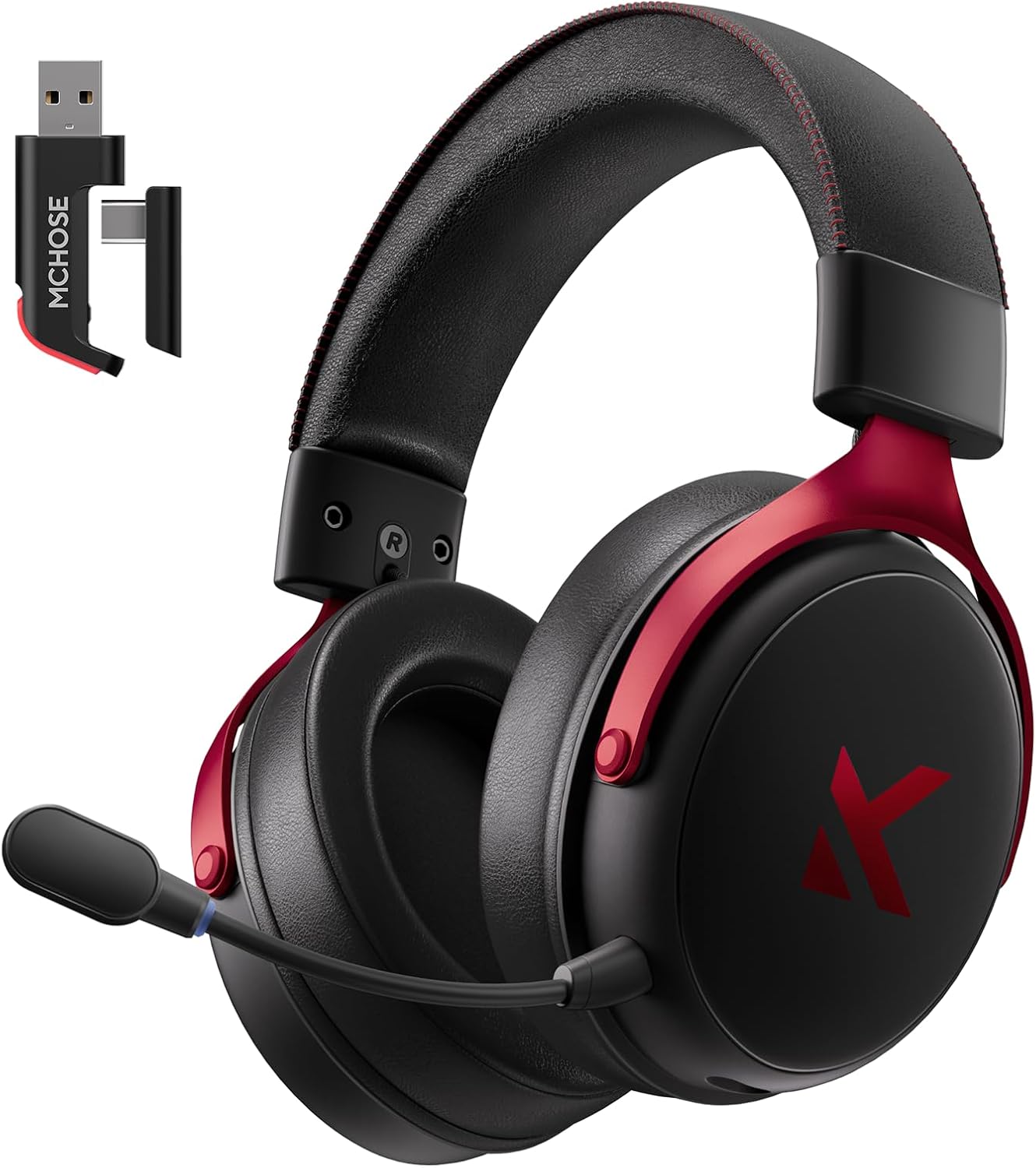
Image: MCHOSE V9 PRO Wireless Gaming Headset with its 2.4GHz USB receiver.
פּעקל אינהאַלט
באַשטעטיקט אַז אַלע זאכן וואָס זענען אויסגערעכנט אונטן זענען אַרייַנגערעכנט אין אייער פּעקל:
- MCHOSE V9 PRO Wireless Gaming Headset
- 2.5GHz Receiver (USB-A & Type-C compatible)
- וסב-C טשאַרדזשינג קאַבלע
- דעטאַטשאַבלע מיקראָפאָן
- Foam Windscreen (pre-installed on microphone)
- באַניצער מאַנואַל

Image: Diagram illustrating the headset, receiver, cables, microphone, and user manual.
פּראָדוקט איבערview
קאָנטראָלס און ינדיקאַטאָרס

Image: Handy guide showing the location and function of buttons and indicator lights on the headset.
- מאַכט קנעפּל: Long press for approximately 3 seconds to power on/off.
- קשר מאָדע באַשטימען: Double-click the power button to switch between 2.4GHz wireless, Bluetooth, and wired modes.
- שפּיל / מוזיק מאָדע באַשטימען: Triple-click the power button to switch between Game Mode 1, Game Mode 2, and Music Mode.
- שפּיל / פּויזע: איין גיט די מאַכט קנעפּל.
- ענטפֿערן / סוף רופן: איין גיט די מאַכט קנעפּל.
- אָפּוואַרפן רופן: Long press the power button for approximately 1.5 seconds.
- מיקראָפאָן קנעפּל: איין גיט צו באַשטימען די מיקראָפאָן אויף / אַוועק.
- באַנד ראָד: Slide upwards to increase volume, slide downwards to decrease volume.
ינדיקאַטאָר ליגהץ
- Bluetooth (BT) Waiting for Connection: רויט און בלוי לייץ פלאַש אָלטערנאַטלי.
- 2.4G Waiting for Connection: Red and green lights flash alternately.
- טשאַרדזשינג: רויט ליכט סטייז אויף.
- גאָר באפוילן: בלויע ליכט בלייבט אָן.
- 2.4G Mode Active: גרין ליכט.
- Bluetooth Mode Active: בלוי ליכט.
- Microphone Active: Blue light on microphone tip.
סעטאַפּ און קאַנעקשאַן
2.4GHz Wireless Connection (PC, PS5, PS4, Switch)
- Remove the 2.4GHz USB receiver from its storage slot on the headset.
- Plug the 2.4GHz receiver into an available USB-A port on your computer or gaming console. For devices with only USB-C ports, detach the USB-A adapter from the receiver and plug in the USB-C end.
- Press and hold the power button on the headset for approximately 3 seconds to power it on.
- Double-click the power button to ensure the headset is in 2.4GHz wireless mode (indicated by a green light). The headset should automatically connect to the receiver.
Bluetooth Wireless Connection (Mobile Phone, Tablet, PC, Switch)
- Press and hold the power button on the headset for approximately 3 seconds to power it on.
- Double-click the power button to switch the headset to Bluetooth mode (indicated by a blue light flashing alternately with red).
- On your device (phone, tablet, PC, Switch), navigate to Bluetooth settings and search for "MCHOSE V9 PRO".
- Select the headset to pair. Once connected, the blue light will remain steady.
Wired Connection (PC, PS5, PS4, Switch, Mobile Phone, Tablet)
The headset supports a wired connection via the included USB-C cable. This mode is primarily for charging and can also be used for audio if wireless options are not preferred or available.
- Connect the USB-C cable to the headset's charging port.
- פאַרבינדן די אנדערע סוף פון די וסב-C קאַבלע צו דיין מיטל.
- The headset will function as a wired device.
מיקראָפאָן סעטאַפּ
- Plug the detachable microphone into the designated port on the left earcup of the headset. Ensure it is securely inserted.
- אַדזשאַסטירן די פּאָזיציע פֿון מיקראָפֿאָן פֿאַר אָפּטימאַלער שטימע אויפֿנאַם.
- Single-click the microphone button on the headset to toggle the microphone on or off. A blue light on the microphone tip indicates it is active.
Video: This video demonstrates the initial setup of the MCHOSE V9 PRO Wireless Gaming Headset, including connecting the 2.4GHz receiver, powering on, switching modes, and attaching the microphone.
Software Installation and Customization (MCHOSE HUB)
The MCHOSE HUB software allows for advanced customization of your headset's audio settings. It is compatible with Windows 10 and above.
ינסטאַללאַטיאָן סטעפּס
- Visit the official MCHOSE webפּלאַץ (mchose.store).
- Navigate to the 'Support' section and click on 'Drivers & Firmwares'.
- Locate the 'V9 / V9 Pro Driver' and download the desktop driver.
- Before installing the driver, ensure the 2.4GHz receiver is plugged into your computer.
- Install the downloaded driver and follow the on-screen instructions.
- Once installed, open the MCHOSE HUB application. You can switch the application language to English from the settings.
Video: This video guides you through the process of connecting and installing the MCHOSE desktop driver for your headset.
Audio Equalizer Customization
The MCHOSE HUB features a customizable equalizer to fine-tune your audio output.
- In the MCHOSE HUB, right-click on 'Speakers' and select 'Equalizer'.
- Enable the equalizer.
- Adjust the frequency bands as needed to create your desired sound profile.
- You can save your custom settings as a preset or choose from official presets like Dance, Rap, Metal, Jazz, etc.
- You can also restore the default equalizer settings.

Image: Screenshot of the MCHOSE HUB software interface displaying the audio equalizer settings.
7.1 אַרומרינגלען סאָונד
Enable 7.1 surround sound for enhanced spatial awareness in games and movies.
- In the MCHOSE HUB, right-click on 'Speakers' and select 'Xear Surround Headphone'.
- Enable Xear Surround.
- Choose between 'Music/Gaming mode' or 'Movie mode' based on your content.
- Adjust the 'Room Size' for optimal effect.

Image: Visual representation of 7.1 surround sound technology with the MCHOSE V9 PRO headset.
Voice Effects (Magic Voice)
The software includes various voice effects for fun or specific communication needs.
- In the MCHOSE HUB, right-click on 'Mic' and select 'Xear Magic Voice'.
- Enable 'Magic Voice' and choose from different voice effects.
AI Noise Reduction for Microphone
Enhance microphone clarity by enabling AI noise reduction.
- In the MCHOSE HUB, right-click on 'Mic' and select 'AI NoiseReduction'.
- Enable 'AI NoiseReduction' to filter out background noise.
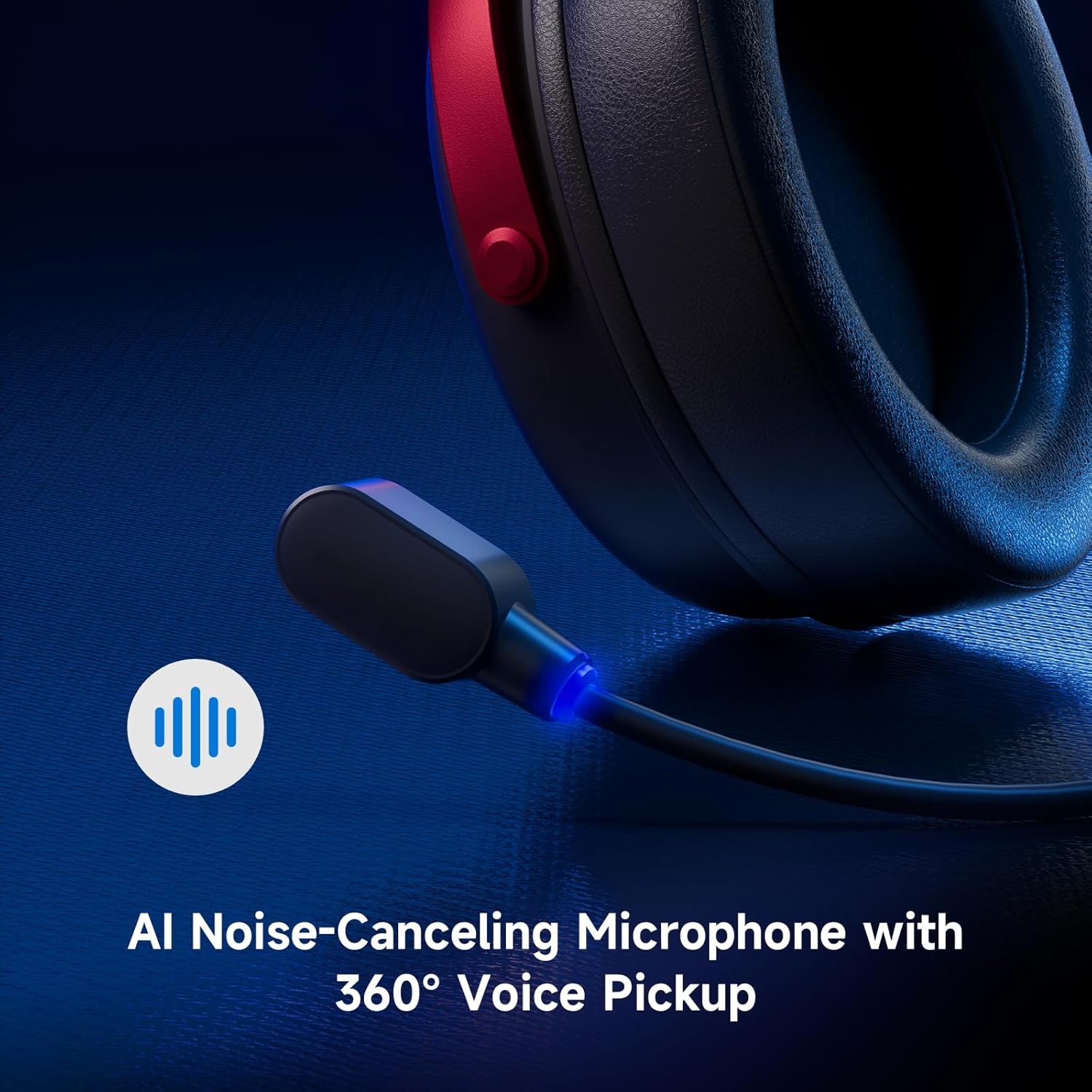
Image: Close-up of the AI Noise-Canceling Microphone on the MCHOSE V9 PRO headset.
אַפּערייטינג ינסטראַקשאַנז
מאַכט אויף / אַוועק
To power on the headset, press and hold the power button for approximately 3 seconds. To power off, repeat the action.
באַשטימען מאָדעס
Double-click the power button to cycle through 2.4GHz wireless, Bluetooth, and wired connection modes. The indicator light color will change accordingly (Green for 2.4GHz, Blue for Bluetooth).
Triple-click the power button to switch between Game Mode 1, Game Mode 2, and Music Mode, optimizing audio profileס פֿאַר פֿאַרשידענע אינהאַלט.
באַנד קאָנטראָל
Use the volume wheel located on the earcup to adjust the audio output level. Slide up to increase volume, slide down to decrease volume.
מיקראָפאָן מוט
Single-click the microphone button to mute or unmute the microphone. The blue light on the microphone tip indicates its active status.
וישאַלט
- רייניקונג: ניצט אַ ווייכע, טרוקענע שטאָף צו רייניקן די כעדסעט. פֿאַרמייַדט ניצן שטרענגע כעמיקאַלן אָדער שרײַבנדיקע מאַטעריאַלן.
- סטאָרידזש: האַלט די כעדסעט אין אַ קיל, טרוקן אָרט אַוועק פון דירעקט זונשייַן און עקסטרעמע טעמפּעראַטורן.
- באַטערי זאָרגן: For optimal battery life, avoid fully discharging the headset frequently. Charge it regularly.
- מיקראָפאָן: Handle the detachable microphone carefully. Ensure the foam windscreen is properly seated.
טראָובלעשאָאָטינג
- קיין קלאַנג/נידעריק באַנד:
- Check headset volume wheel and device volume settings.
- Ensure the headset is correctly connected (2.4GHz receiver, Bluetooth, or wired).
- באַשטעטיקן אַז די ריכטיקע אַודיאָ אַרויסגאַנג מיטל איז אויסגעקליבן אין אייער קאָמפּיוטער'ס געזונט סעטטינגס.
- מיקראָפאָן איז נישט ארבעטן:
- Ensure the microphone is securely plugged into the headset.
- Check if the microphone is muted (blue light on tip should be on).
- Verify the correct microphone input device is selected in your device's sound settings.
- If using MCHOSE HUB, check AI Noise Reduction settings.
- Connection Issues (2.4GHz/Bluetooth):
- Ensure the headset is in the correct connection mode (green light for 2.4GHz, blue for Bluetooth).
- פֿאַר 2.4GHz, פּרוּווט אַרײַנשטעקן דעם ריסיווער אין אַן אַנדער USB פּאָרט.
- For Bluetooth, try unpairing and re-pairing the headset with your device.
- מאַכן זיכער אַז די כעדסעט איז טשאַרדזשינג.
- Software Not Detecting Headset:
- Ensure the 2.4GHz receiver is plugged into the computer before launching the MCHOSE HUB.
- Restart the MCHOSE HUB application and/or your computer.
ספּעסאַפאַקיישאַנז
| מאָדעל נאָמען | וו9 פּראָ |
| סאָרט | MCHOSE |
| קאַנעקטיוויטי טעכנאָלאָגיע | 2.4GHz Wireless, Bluetooth (BT 5.1), Wired |
| אַודיאָ דריווערס | 53mm Neodymium Drivers with Bio-cellulose Diaphragm |
| אַרומרינגלען סאָונד | 7.1 אַרומרינגלען סאָונד |
| מיקראָפאָן | AI Noise-Canceling Microphone with 360° Voice Pickup |
| וויירלעס לעיטענסי | 15ms (TOPSPEED 2.4GHz) |
| באַטערי לעבן | שפּיל צייט אַרויף צו 250 שעה |
| בלועטאָאָטה ווערסיע | 5.1 |
| בלועטאָאָטה קייט | אַרויף צו 40 מעטער |
| קאַמפּאַטאַבאַל דעוויסעס | PC, Laptop, Switch, PS5, PS4, Mobile Phone, Tablet |
| וואָג | 0.60 לבס (בעערעך 275 ג) |
| מאַטעריאַל | Metal, Plastic, Polyurethane (PU) |
| אויער פּלייסמאַנט | איבער אויער |
וואָראַנטי און שטיצן
MCHOSE products are designed for quality and reliability. For warranty information, technical support, or to contact customer service, please visit the official MCHOSE webפּלאַץ בייַ mchose.store. You can find detailed warranty policies and support contact information in the 'Support' section of the webפּלאַץ.