הקדמה
This manual provides essential information for the setup, operation, maintenance, and troubleshooting of your Onn 22 inch 1080P 100 Hz FHD LED Monitor. Please read this guide thoroughly before using the product to ensure optimal performance and safety.
The Onn 22 inch FHD LED Monitor is designed for a variety of applications, offering a vivid 1920x1080 resolution, a 100Hz refresh rate, and a 6.5ms response time for efficient performance. Its slim profile and T-shaped base are ideal for saving desk space.
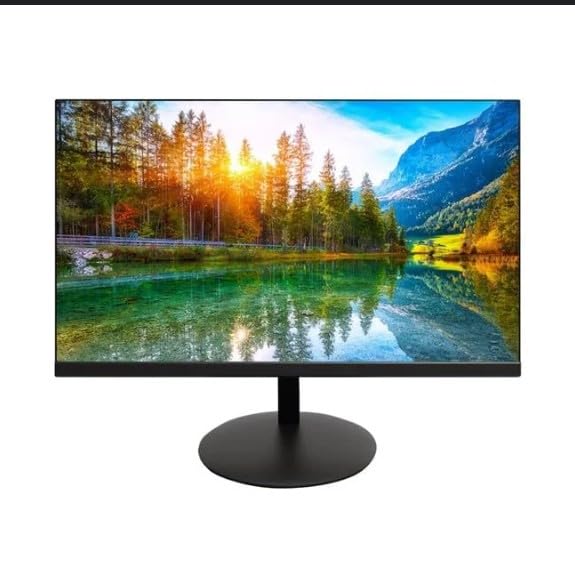
The image shows the Onn 22 inch FHD LED Monitor, highlighting its 100Hz refresh rate and 1080p resolution. The monitor features a slim design and a T-shaped base.
סעטאַפּ אינסטרוקציעס
- אויספּאַקן: Carefully remove the monitor and all accessories from the packaging. Ensure all components are present: monitor, T-shaped base, HDMI cable, and power adapter.
- אַסעמבאַל די שטיין: Attach the T-shaped base to the monitor. The design is screw-less for easy assembly. Ensure it is securely fastened.
- קאַנעקטינג צו אַ מיטל:
The monitor supports both HDMI and VGA inputs. Connect the provided HDMI cable from your computer's HDMI output to the HDMI IN port on the monitor. Alternatively, use a VGA cable for VGA input.

This image displays the rear panel of the Onn monitor, illustrating the available input ports: HDMI IN, VGA IN, and the DC 12V power input. These ports are essential for connecting the monitor to a computer or other devices.
- מאַכט קשר: Connect the power adapter to the DC 12V input port on the monitor, then plug the adapter into a power outlet.
- אַדזשאַסטינג די מאָניטאָר: The monitor is capable of swivel, tilt, rotation, and height adjustment. Adjust the screen to your preferred viewינג ווינקל פֿאַר ערגאַנאַמיק טרייסט.
- צווייענדיק מאָניטאָר סעטאַפּ: This monitor is suitable for a fully functioning dual monitor setup. Connect a second monitor using the appropriate cables and configure your operating system's display settings.
אַפּערייטינג ינסטראַקשאַנז
- מאַכט אויף / אַוועק: Press the power button, usually located on the bottom or back of the monitor, to turn it on or off.
- אַרייַנשרייַב סעלעקציע: If the monitor does not automatically detect the input source, use the On-Screen Display (OSD) menu buttons to manually select between HDMI and VGA inputs.
- OSD מעניו נאַוויגאַציע: Use the physical buttons on the monitor (typically on the back or bottom edge) to navigate the OSD menu. This allows you to adjust settings such as brightness, contrast, color temperature, and input source.
- רעזאָלוציע און רעפרעש קורס: The monitor supports a native resolution of 1920x1080 at a 100Hz refresh rate. Ensure your computer's display settings are configured to these specifications for the best visual experience.
- אַדאַפּטיוו סינק: The monitor features Adaptive Sync for gaming, which helps to reduce screen tearing and stuttering. Ensure this feature is enabled in your graphics card settings if supported.
וישאַלט
- רייניקונג די פאַרשטעלן: ווישט אָפּ דעם עקראַן מיט אַ ווייכן, לינט-פֿרײַעם שטאָף. פֿאַר שווערע פֿלעקן, ווישט לײַכט.ampen the cloth with water or a non-abrasive, monitor-specific cleaning solution. Avoid spraying liquids directly onto the screen.
- רייניקונג פון די Casing: ניצט אַ ווייכע, טרוקענע שטאָף צו רייניקן דעם מאָניטאָרasinז. ניצט נישט שטאַרקע דיטערדזשענטן אדער סאָלווענטן, ווייל זיי קענען שעדיקן די ענדיקונג.
- ווענטילאַטיאָן: זיכערט זיך אז די מאָניטאָר'ס ווענטילאַציע עפענונגען זענען נישט פארשטאפט צו פארמיידן איבערהיצונג.
- סטאָרידזש: ווען נישט אין באַנוץ פֿאַר לענגערע פּעריאָדן, זאָל מען האַלטן דעם מאָניטאָר אין אַ קיל, טרוקן אָרט, אַוועק פֿון דירעקטער זון און עקסטרעמע טעמפּעראַטורן.
טראָובלעשאָאָטינג
- קיין מאַכט:
- קוק אויב די מאַכט קאַבלע איז סיקיורלי פארבונדן צו די מאָניטאָר און די מאַכט ווענטיל.
- באַשטעטיקן אַז די מאַכט ווענטיל איז פאַנגקשאַנינג ריכטיק.
- קיין סיגנאַל:
- Ensure the video cable (HDMI or VGA) is firmly connected to both the monitor and the computer.
- אויסקלייבן די ריכטיקע אינפוט מקור ניצנדיק דעם מאָניטאָר'ס OSD מעניו.
- קאָנטראָלירט צי אייער קאָמפּיוטער איז אנגעצונדן און נישט אין שלאָף מאָדע.
- Flickering Screen or Poor Image Quality:
- קאָנטראָלירט דעם ווידעא קאַבל פֿאַר שעדיקן אָדער לויזע פֿאַרבינדונגען.
- Adjust the resolution and refresh rate settings on your computer to match the monitor's specifications (1920x1080, 100Hz).
- צוריקשטעלן מאָניטאָר סעטטינגס צו פֿאַבריק דיפאָלץ דורך די OSD מעניו.
- קנעפּלעך ניט ריספּאַנדינג:
- Unplug the monitor from the power outlet, wait for 30 seconds, and then plug it back in.
If problems persist, please refer to the support information provided in the "Support and Warranty" section.
ספּעסאַפאַקיישאַנז
| סאָרט | Onn |
| מאָדעל נומער | 100140681 |
| מאָדעל נאָמען | אָטטאָ |
| פאַרשטעלן גרייס | 21.5 אינטשעס |
| ווייַז טיפּ | לעד, על-סי-די |
| האַכלאָטע | 1920 x 1080 (FHD 1080p) |
| דערפרישן קורס | 100 הז |
| ענטפער צייט | 6.5 מיליסעקאַנדז |
| ייַזנוואַרג צובינד | הדמי, ווגאַ |
| ספּעציעלע פֿעיִקייטן | הייך אַדזשאַסטמאַנט |
| Viewינג אַנגלע | 160 דיגריז |
| אַספּעקט פאַרהעלטעניש | 16:9 |
| פּראָדוקט דימענשאַנז | 49.2 X 20 X 37.2 סענטימעטער; 3.24 קג |
שטיצן און וואָראַנטי
For technical support, product inquiries, or warranty information, please visit the official Onn support webפּלאַץ אָדער קאָנטאַקט זייער קונה דינסט.
- אַפישאַל שטיצן Webפּלאַץ: onnsupport.ca
- וואָראַנטי: Specific warranty details may vary by region and purchase date. Please refer to the documentation included with your product or visit the support webוועבזייטל פֿאַר די מערסט אַקטועלע וואָראַנטי אינפֿאָרמאַציע.


