1. הקדמה
Thank you for choosing the ZEBRONICS Groot Wireless Mouse. This manual provides detailed instructions for setting up, operating, and maintaining your new wireless mouse. The Zeb-Groot offers versatile connectivity with both 2.4GHz and Bluetooth modes, silent operation, and an ergonomic design for comfortable use.

Image: The ZEBRONICS Groot Wireless Mouse in blue, shown alongside its compact USB nano receiver.
2. וואָס איז אין דער קעסטל
ביטע טשעק די אינהאַלט פון דעם פּעקל:
- Mouse - 1 unit
- Nano Receiver - 1 unit
- Quick User Guide - 1 unit
3. פּראָדוקט איבערview
Familiarize yourself with the components of your ZEBRONICS Groot Wireless Mouse.

בילד: אויבן view of the mouse highlighting the Left Button, Right Button, and Scroll Wheel.

Image: Underside of the mouse, indicating the AA battery slot, On/Off switch, Bluetooth receiver indicator, Nano receiver indicator, and the storage slot for the USB nano receiver.
- לינקס קנעפּל: נאָרמאַלע לינקס-קליק פונקציע.
- רעכט קנעפּל: נאָרמאַלע רעכט-קליק פונקציע.
- סקראָל ראָד: פֿאַר סקראָלן און מיטל-קליק פונקציע.
- אָנ / אַוועק באַשטימען: Located on the bottom of the mouse to conserve battery.
- מאָדע באַשטימען קנעפּל: This button, often integrated with the power switch or a separate button on the underside, allows switching between 2.4GHz and Bluetooth modes.
- AA באַטעריע אָפּטייל: For inserting the required AA battery.
- USB Nano Receiver Storage: Slot for storing the 2.4GHz USB receiver when not in use.
4. סעטאַפּ אינסטרוקציעס
4.1. ינסטאָלינג די באַטאַרייע
- עפֿנט דעם דעקל פֿונעם באַטעריע־אָפּטייל אויף דער אונטערשטער זײַט פֿון דער מויז.
- אַרײַנשטעלן איין AA באַטעריע, און זיכער מאַכן אַז די פּאָלאַריטעט איז ריכטיק (+/-).
- נאָענט די דעקן פון די באַטאַרייע אָפּטייל.
4.2. Connecting via 2.4GHz Wireless (USB Nano Receiver)
- Remove the USB nano receiver from its storage slot on the bottom of the mouse.
- שטעקט אריין דעם USB נאַנאָ ריסיווער אין אַ פאַראַן USB פּאָרט אויף אייער קאָמפּיוטער.
- Turn on the mouse using the On/Off switch on the bottom.
- The mouse should automatically connect. If not, ensure the mouse is in 2.4GHz mode (check indicator light if available).

Image: A user inserting the USB nano receiver into a laptop's USB port for 2.4GHz wireless connection.
4.3. קאַנעקטינג דורך בלועטאָאָטה
- קער אויף די מויז ניצן די אויף / אַוועק באַשטימען.
- Switch the mouse to Bluetooth mode. This is typically done by pressing and holding a button on the mouse (often the mode switch button on the bottom or a dedicated button) until the Bluetooth indicator light starts blinking.
- אויף אייער קאָמפּיוטער אָדער מיטל, גייט צו בלועטוט סעטטינגס.
- זוכן פֿאַר new devices and select "ZEB-Groot" (or similar) from the list.
- Follow any on-screen prompts to complete the pairing process. The indicator light will become solid once connected.
Tip: If you experience issues, ensure your device's Bluetooth is enabled and the mouse is in pairing mode (blinking indicator).
5. אַפּערייטינג ינסטרוקטיאָנס
5.1. Dual Mode Functionality
The ZEBRONICS Groot mouse supports both 2.4GHz wireless and Bluetooth connectivity, allowing you to switch between two devices seamlessly.
- 2.4GHz מאָדע: Use with the USB nano receiver for a stable, plug-and-play connection.
- בלועטאָאָטה מאָדע: Connect wirelessly to Bluetooth-enabled devices without needing a USB port.
To switch between modes, locate the mode switch button (often on the bottom of the mouse) and press it. An indicator light will typically show the active mode.

Image: The ZEBRONICS Groot mouse positioned next to a laptop, emphasizing its dual mode capability for uninterrupted work via 2.4GHz and Bluetooth connections.
5.2. DPI Adjustment (1600 DPI)
The mouse operates at 1600 DPI (Dots Per Inch), providing smooth and precise cursor movements. This fixed DPI setting is optimized for general use, offering a balance between speed and accuracy.
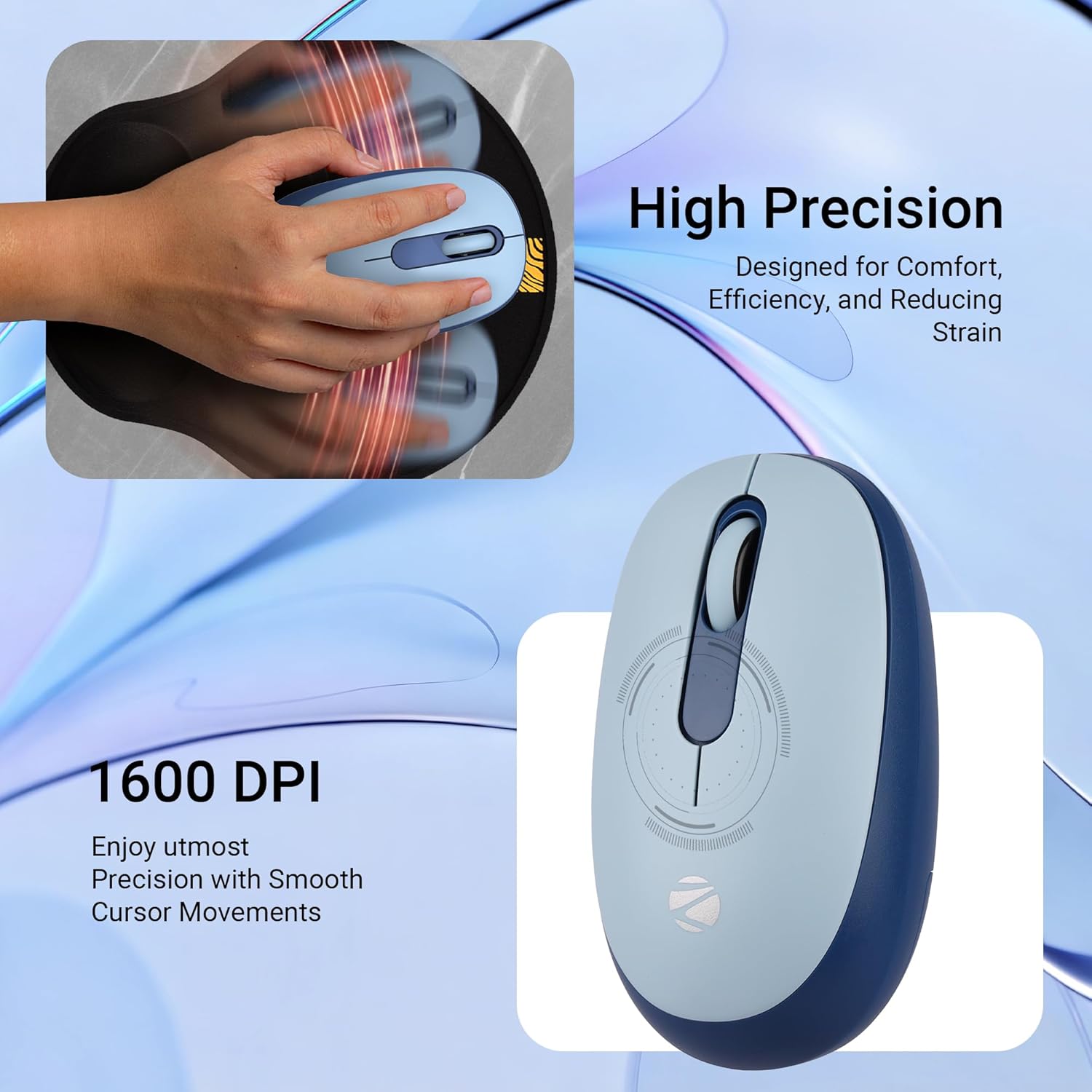
בילד: א דעטאַלירטע view of the mouse highlighting its 1600 DPI capability for high precision and smooth cursor movements.
5.3. Silent Operation
The ZEBRONICS Groot mouse features silent click buttons, reducing noise during use. This is ideal for quiet environments such as libraries, offices, or late-night work sessions.
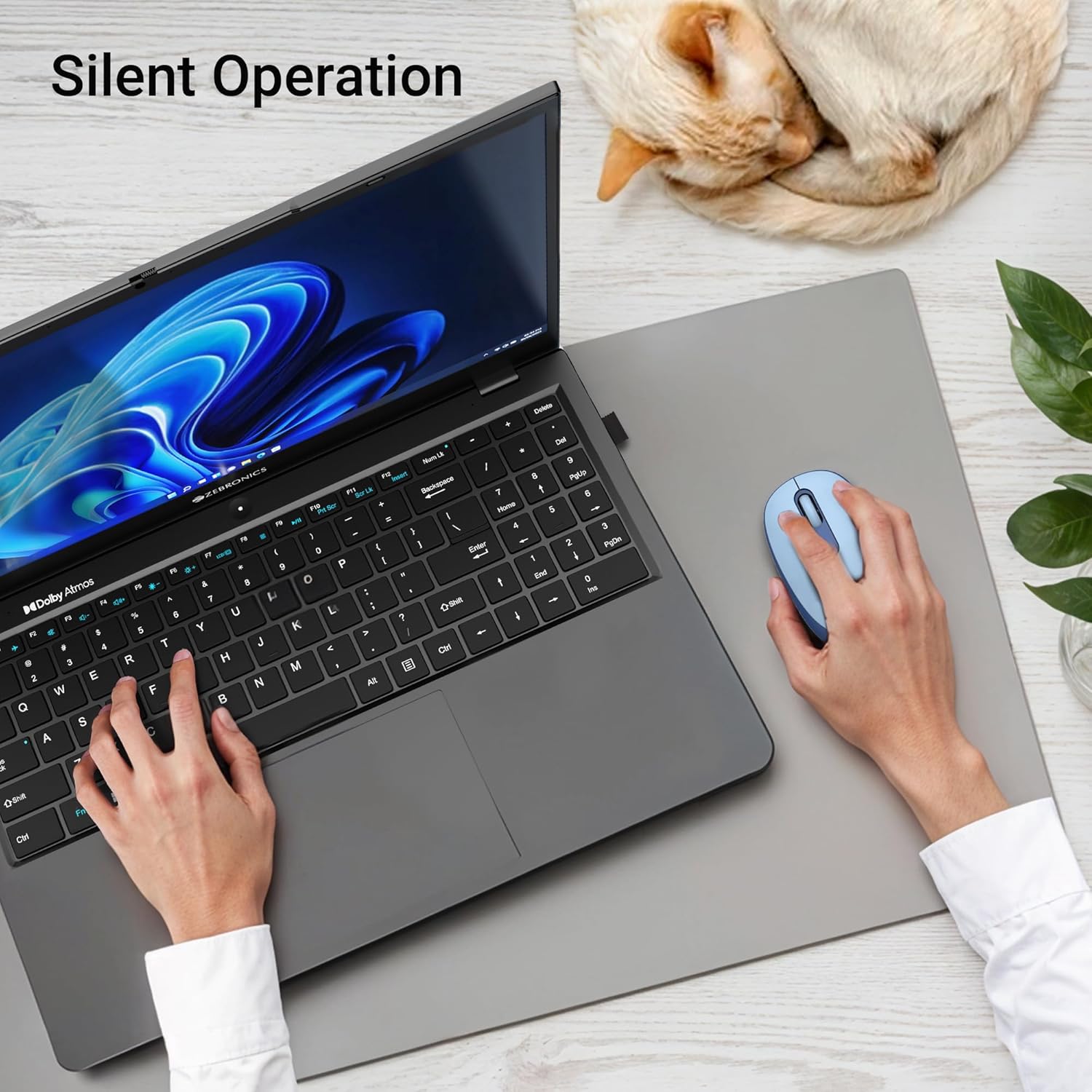
Image: A user operating the mouse silently next to a laptop, with a cat sleeping peacefully in the background, demonstrating the silent click feature.
5.4. מאַכט מאַנאַגעמענט
Use the On/Off switch on the bottom of the mouse to conserve battery life when not in use. The mouse also features an automatic sleep mode to save power during periods of inactivity.
6. וישאַלט
- רייניקונג: ניצט אַ ווייכע, טרוקענע שטאָף צו רייניקן די מויז. פֿאַרמייַדט ניצן שטרענגע כעמיקאַלן אָדער שרײַבנדיקע מאַטעריאַלן.
- באַטערי פאַרבייַט: Replace the AA battery when the mouse performance degrades or the indicator light (if present) signals low battery.
- סטאָרידזש: When transporting or storing the mouse, ensure the USB nano receiver is securely placed in its storage slot to prevent loss. Turn off the mouse to save battery.
7. טראָובלעשאָאָטינג
| פּראָבלעם | לייזונג |
|---|---|
| Mouse not responding (2.4GHz) |
|
| מויז פֿאַרבינדט זיך נישט (בלוטעט) |
|
| קורסאָר באַוועגונג איז נישט סטאַביל אָדער פּאַמעלעך |
|
| מויז גייט צו שנעל שלאפן |
|
8. ספּעסאַפאַקיישאַנז
| שטריך | דעטאַל |
|---|---|
| סאָרט | זעבראָניקס |
| מאָדעל | Zeb-Groot |
| קאַנעקטיוויטי טעכנאָלאָגיע | Bluetooth, 2.4GHz USB |
| באַוועגונג דעטעקטיאָן | אָפּטיש |
| דפּי | 1600 דפּי |
| קנעפּלעך | 3 (לינקס, רעכט, מעגילע ראָד) |
| ספּעציעלע פֿעיִקייטן | Silent Operation, Ergonomic Design |
| מאַכט מקור | Battery Powered (1x AA) |
| אַפּערייטינג סיסטעם קאַמפּאַטאַבילאַטי | Mac OS (and generally Windows, Linux) |
| פּראָדוקט דימענשאַנז | 6.1 x 10.1 x 0.1 ס״מ (אומגעפער) |
| פּונקט וואָג | 56.6 גראַם (אומגעפער) |
| לאַנד פון אָריגין | כינע |
9. וואָראַנטי און שטיצן
9.1. וואָראַנטי אינפֿאָרמאַציע
The ZEBRONICS Groot Wireless Mouse comes with a 2 יאָר וואָראַנטי from the date of purchase. This warranty covers manufacturing defects and ensures efficient working of the product. Please retain your purchase receipt for warranty claims.
9.2. קונה שטיצן
For any technical assistance, troubleshooting, or warranty-related queries, please contact ZEBRONICS customer support:
- פאַבריקאַנט: Zebronics India Private Limited
- אַדרעס: No.13/7, Smith Road, Royapettah, Chennai - 600 002
- Webפּלאַץ: www.zebronics.com (ביטע באַזוכט די באַאַמטער website for the latest contact information and support resources.)
When contacting support, please have your product model (Zeb-Groot) and proof of purchase ready.


