1. פּראָדוקט איבערview
The ShanWan Q37 Wireless Bluetooth Controller is a versatile gaming accessory designed for multi-platform compatibility. It offers a rich gaming experience with features like customizable buttons, macro functions, motion controls, linear motor vibration, and precise joysticks and triggers. This manual provides detailed instructions for setup, operation, and maintenance of your controller.

בילד: פראָנט view of the ShanWan Q37 Wireless Bluetooth Controller in blue.
2. ערשט סעטאַפּ
2.1 טשאַרדזשינג די קאָנטראָללער
Before first use, fully charge the controller. Connect the provided USB-C cable to the controller's charging port and the other end to a USB power source (e.g., computer, wall adapter). The indicator lights will show charging status and turn off when fully charged.
2.2 פּאָרינג אינסטרוקציעס
The ShanWan Q37 controller supports various platforms. Follow the specific pairing instructions for your device:
- Nintendo Switch/Switch 2: Turn on your Switch console. On the HOME Menu, select 'Controllers' > 'Change Grip/Order'. Press and hold the pairing button on the controller until the indicator lights flash rapidly. Once paired, the corresponding player LED(s) will light up.
- פּיסי (ווינדאָוז): Connect via Bluetooth in your PC's settings. Alternatively, connect directly using a USB-C cable for wired mode.
- Android/iOS/iPad/macOS: Enable Bluetooth on your device and search for 'ShanWan Q37'. Select it to pair.
- דאַמף דעק: Follow standard Bluetooth pairing procedures for Steam Deck.
2.3 Firmware Update for Switch 2 Compatibility
For full compatibility with Switch 2 and to customize buttons, you may need to download the official 'Gamepad Space' software to upgrade the controller's firmware. Visit the official ShanWan website for the latest software version and instructions.
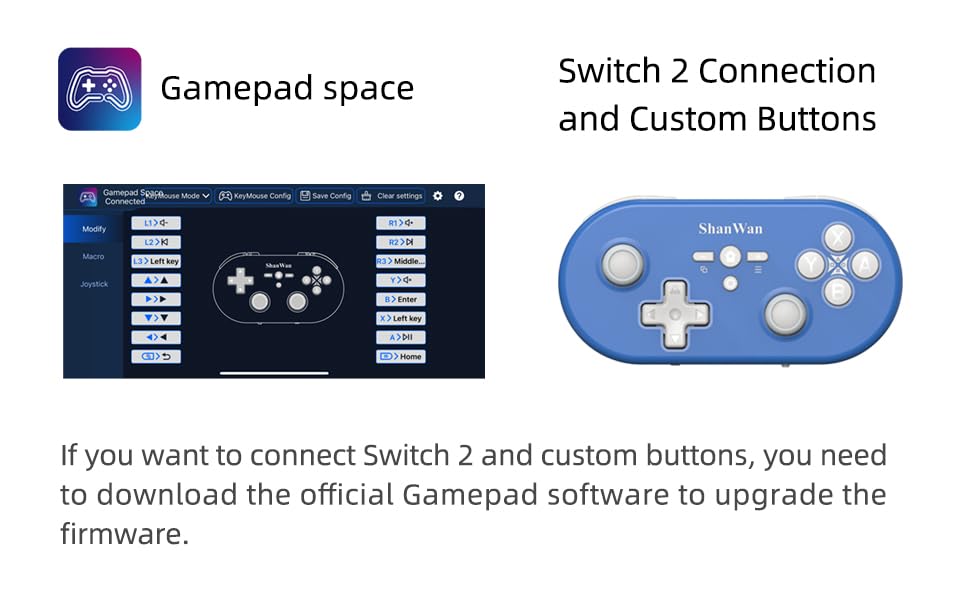
Image: Screenshot of the 'Gamepad Space' software interface for button customization and firmware updates, alongside the controller.
3. אַפּערייטינג ינסטרוקטיאָנס
3.1 קנעפּל אויסלייג און פונקציעס
The controller features standard gaming buttons including A/B/X/Y, D-pad, L/R, L2/R2, joysticks, and function buttons (e.g., Home, Share, Plus, Minus).
3.2 Three-Position Mode Switch
The controller is equipped with a three-position mode switch (X, S, P) allowing seamless switching between different platforms:
- X-block: For PC/Android/iOS Native Games.
- S-block: For Nintendo Switch.
- P-block: For PS4 Console (Note: PS4 compatibility may require specific setup or adapter, refer to official webפּלאַץ פֿאַר פרטים).

Image: Diagram illustrating the three-position mode switch (X, S, P) and their corresponding platform functionalities.
3.3 Software Customization (Gamepad Space)
Download the official 'Gamepad Space' software to:
- Customize button mappings.
- Set macro functions for complex commands.
- Calibrate joysticks for optimal precision.
3.4 ספּעציעלע פאַנגקשאַנז
- One-click Reconnection: Quickly reconnect to previously paired devices.
- Switch Screenshot: Dedicated button for capturing screenshots on Nintendo Switch.
4. שליסל פֿעיִקייטן
- 6-axis Gyro Motion Control: Provides precise motion sensing for compatible games, enhancing immersive gameplay.
- Adjustable Dual Motor Vibration: Experience immersive haptic feedback with customizable vibration intensity.
- Customizable Buttons and Macros: Personalize your gaming experience by remapping buttons and setting up complex macro sequences via the 'Gamepad Space' software.
- Soft Rubber Non-slip Grip: Designed for comfortable and secure handling during extended gaming sessions.
- אָפּרופיק ריר קנעפּלעך: Engineered for optimal tactile feedback and durability.

Image: Illustration of the 6-axis body gyroscope in action.

Image: Illustration of the dual motor vibration feature.
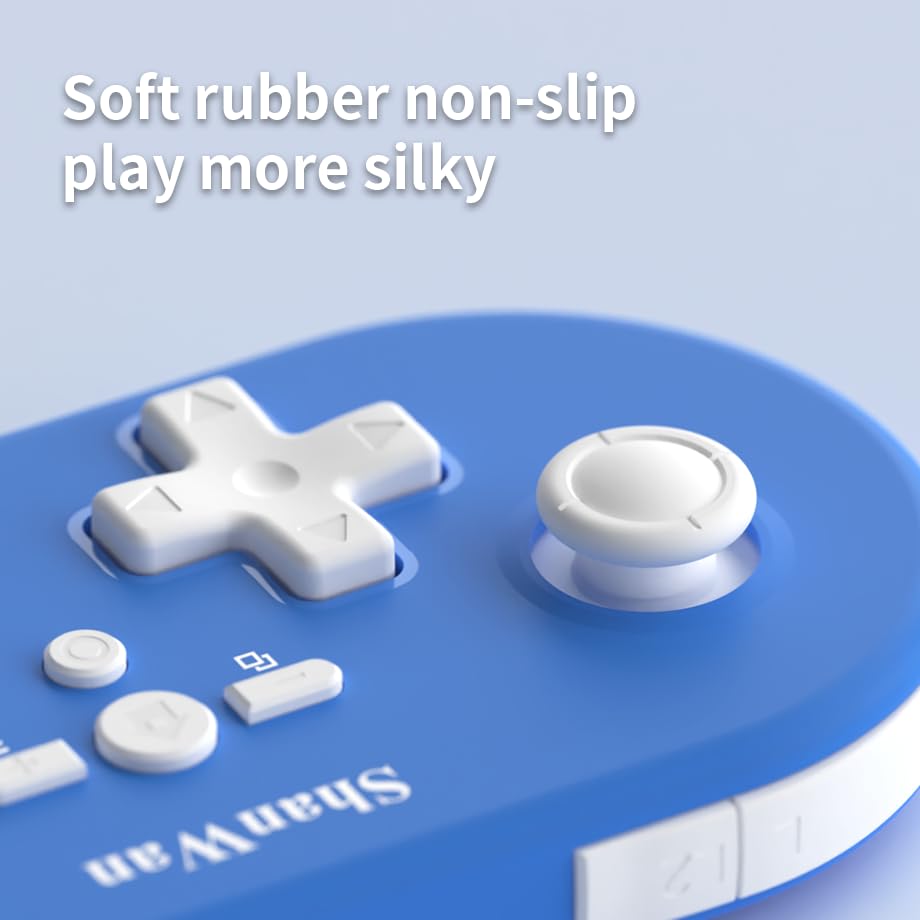
בילד: נאָענט-אַרויף view of the controller's joystick, highlighting the soft rubber non-slip material.
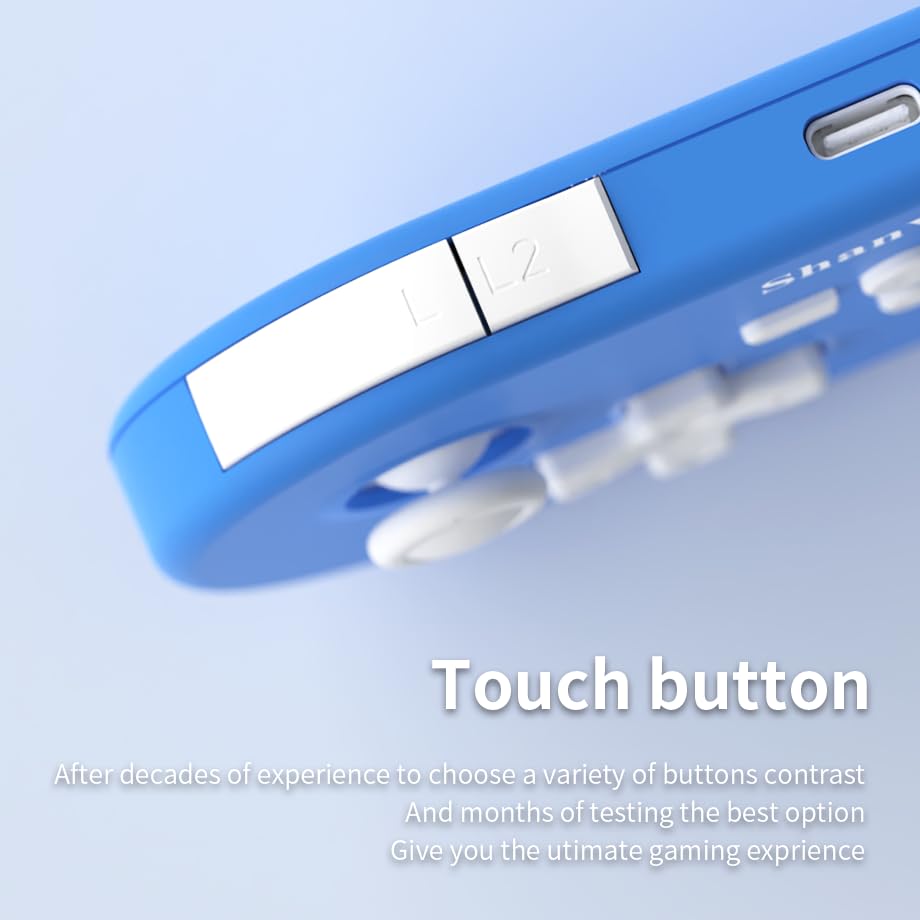
בילד: נאָענט-אַרויף view of the controller's L/L2 shoulder buttons, emphasizing their design.

Image: A visual summary of key features including 6-axis body gyroscope, one-touch reconnect/wake-up, one-touch pairing, one-touch screenshot, dual motor vibration, and Switch key printing.
5. קאַמפּאַטאַבילאַטי
The ShanWan Q37 controller is compatible with a wide range of gaming platforms:
- Nintendo Switch / Switch 2 / Switch Lite / Switch OLED
- פּאַרע דעק
- פּיסי (Windows)
- אַנדרויד דעוויסעס
- iPhone / iPad (iOS / iPadOS)
- macOS devices
- PS4 Console (via P-block mode, specific setup may be required)
It supports simultaneous gameplay for up to 4 players on compatible systems.
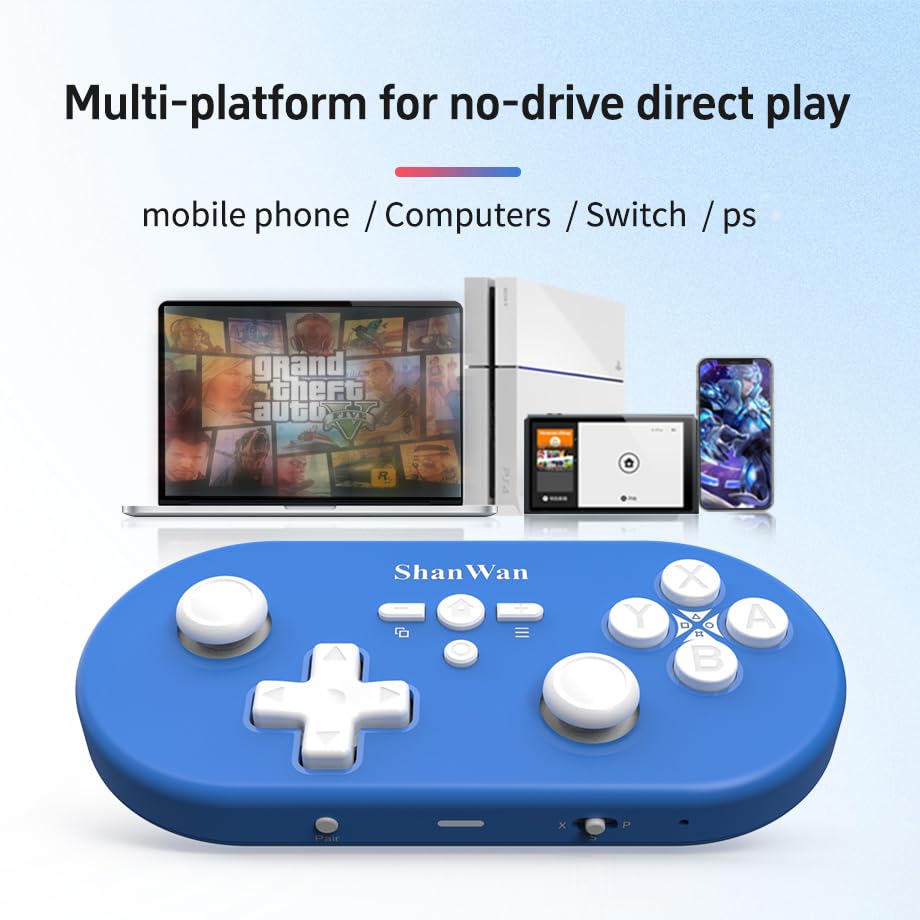
Image: Illustration showing the controller's compatibility with mobile phones, computers, Switch, and PS consoles.
6. באַטערי אינפֿאָרמאַציע
The controller is equipped with a 500mAh large-capacity Lithium Polymer battery. This allows for extended play sessions and convenient portability. Battery life varies depending on usage and vibration settings.
טשאַרדזשינג צייט: בעערעך 2-3 שעה פֿאַר אַ פול אָפּצאָל.
אַפּערייטינג צייט: Up to 8-10 hours on a full charge (may vary).
7. טעכניש ספּעסאַפאַקיישאַנז
| באַשרייַבונג | דעטאַל |
|---|---|
| מאָדעל נומער | Q37XSP |
| קאַנעקטיוויטי | Wireless Bluetooth, USB-C (wired) |
| באַטאַרייע קאַפּאַציטעט | 500 מאַה ליטהיום פּאָלימער |
| פּראָדוקט דימענשאַנז | 4.92 X 2.44 X 0.81 אינטשעס (12.5 X 6.2 X 2.05 סענטימעטער) |
| פּונקט וואָג | 3.2 אונסעס (90.7 גראַמז) |
| באַוועגונג קאָנטראָל | 6-אַקס גיראָסקאָפּע |
| ווייבריישאַן | Dual Motor Vibration (Adjustable) |

Image: Diagram showing the precise dimensions of the ShanWan Q37 controller.
8. טראָובלעשאָאָטינג
8.1 קאָנטראָללער פֿאַרבינדט זיך נישט/פֿאַרבינדט זיך נישט
- זיכער מאַכן אַז דער קאָנטראָללער איז גאָר אויפגעלאָדן.
- Verify the correct mode (X, S, P) is selected for your device.
- Make sure Bluetooth is enabled on your device and no other devices are interfering.
- Try restarting both the controller and your gaming device.
- If issues persist, try resetting the controller (refer to manufacturer's website for reset procedure, usually a small pinhole button).
8.2 אינפוט פארשפעטיגונג אדער דיסקאנעקשאַנז
- Ensure you are within the effective range of your Bluetooth device.
- Minimize wireless interference from other devices (Wi-Fi routers, other Bluetooth devices).
- Ensure the controller's firmware is up to date using the 'Gamepad Space' software.
8.3 Buttons/Joysticks Not Responding
- Calibrate joysticks and test button functionality using the 'Gamepad Space' software.
- זיכער מאַכן אַז קיין שמוץ איז נישטאָ אַרום די קנעפּלעך אָדער דזשויסטיקס.
- If using wired connection, try a different USB-C cable or port.
9. קער און וישאַלט
- רייניקונג: ניצט אַ ווייכע, טרוקענע שטאָף צו רייניקן דעם קאָנטראָללער. פֿאַר שווערע שמוץ, אַ ביסל ווייכער מאַכןampווישט דעם שטאָף מיט וואַסער אָדער אַ מילדער רייניקונג לייזונג. פֿאַרמייַדט שטרענגע כעמיקאַלן אָדער אַברייסיוו מאַטעריאַלן.
- סטאָרידזש: האַלט דעם קאָנטראָללער אין אַ קיל, טרוקן אָרט אַוועק פון דירעקט זונשייַן און עקסטרעמע טעמפּעראַטורן.
- באַטערי זאָרגן: Do not expose the battery to high temperatures or attempt to disassemble it. Charge the controller regularly, even if not in use, to maintain battery health.
- ויסמיידן טראפנס: באַשיצן דעם קאָנטראָללער פֿון פֿיזישע שאַקס און פֿאַלן, וואָס קענען שעדיקן אינעווייניקסטע קאָמפּאָנענטן.
10. וואָראַנטי און שטיצן
For warranty information, technical support, or further assistance, please visit the official ShanWan webזייטל אדער קאנטאקט זייער קאסטומער סערוויס. האלט אייער קויף קוויטל אלס באווייז פון קויפן.
Official ShanWan Store: https://www.amazon.com/stores/ShanWan/page/C625C726-C0DE-4DFB-8E9B-4AA41A6E200C