1. הקדמה
Thank you for choosing the Tera T02W Rugged Tablet. This manual provides essential information for setting up, operating, maintaining, and troubleshooting your device. The Tera T02W is designed for demanding environments, featuring an Intel N5100 processor, Windows 11 Home, 8GB RAM, 128GB storage, a 10.1-inch Full HD display, and an integrated Honey-Well N3680 barcode scanner. Its robust IP65 and MIL-STD-810G certified construction ensures durability and reliable performance in various field and industrial applications.

Image: The Tera T02W Rugged Tablet, showcasing its 10.1-inch display with Windows 11 and key specifications of 8GB RAM and 128GB storage.
2. פּעקל אינהאַלט
איידער איר גייט ווייטער מיט דער סעטאַפּ, ביטע זיכער מאַכן אַז אַלע די זאכן וואָס זענען ליסטעד אונטן זענען אַרייַנגערעכנט אין אייער פּעקל:
- Rugged tablet (Model: T02W) x1
- Back Strap x1
- האַנט רימען x1
- Cable x3 (Includes USB Type-C to USB-A Adapter Cable, USB-C Cable, and Charging Cable)
- Adapter x1 (19V 3.42A Charging Adapter)
- באַניצער מאַנואַל x1

Image: A visual representation of all items included in the Tera T02W Rugged Tablet package, such as the tablet, straps, cables, adapter, and user manual.
3. סעטאַפּ גייד
3.1. טשאַרדזשינג די טאַבלעט
Before first use, fully charge the tablet. Connect the provided 19V 3.42A charging adapter to the tablet's charging port and then to a power outlet. The charging indicator will illuminate.
3.2. Battery Installation (If Removable)
The Tera T02W features a removable 5000mAh battery. To install or replace the battery:
- מאַכן זיכער אַז די טאַבלעט איז פּאַוערד אַוועק.
- געפינען די באַטאַרייע אָפּטייל אויף די צוריק פון די טאַבלעט.
- שטופּ די באַטאַרייע אַרײַן אין דעם אָפּטייל ביז זי קליקט זיכער אַרײַן אין פּלאַץ.
- Close any battery compartment covers if present.
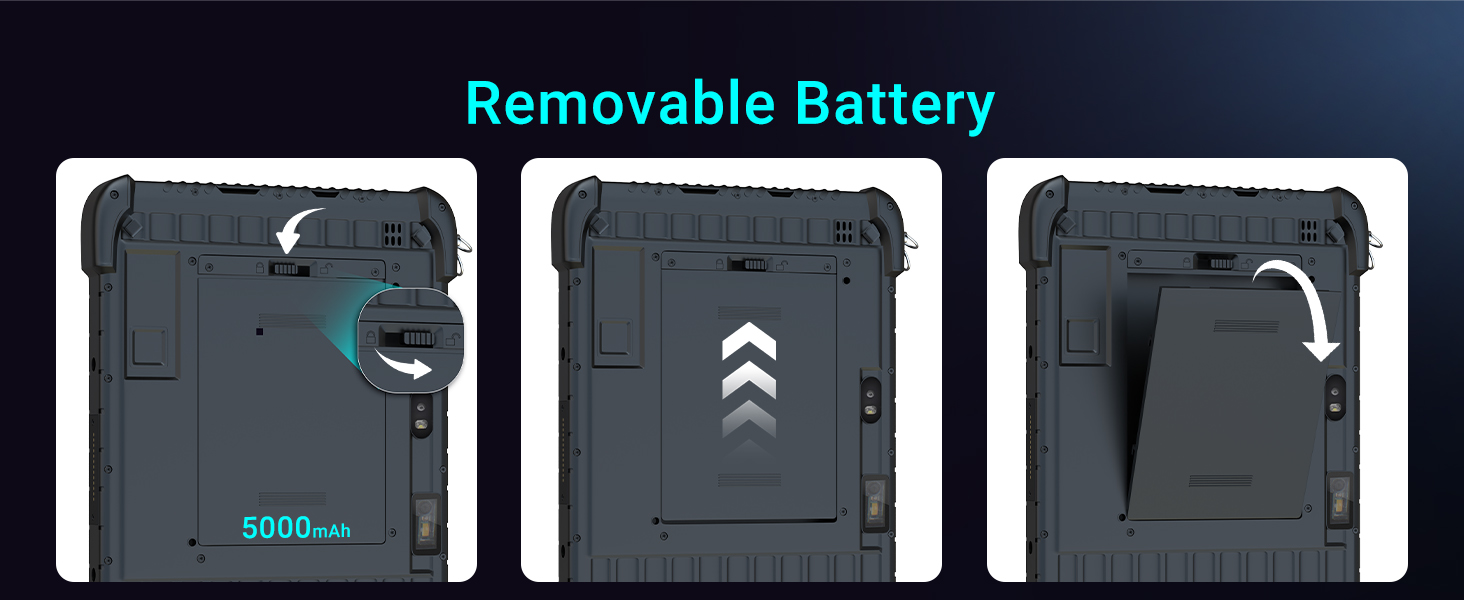
Image: A visual guide demonstrating the process of installing the removable 5000mAh battery into the Tera T02W Rugged Tablet.
3.3. Initial Power On and Windows 11 Setup
Press and hold the power button until the screen illuminates. Follow the on-screen prompts to complete the initial Windows 11 Home setup, including language selection, network connection, and user account creation.
3.4. Attaching Straps
The tablet comes with a hand strap and a back strap for enhanced portability and secure handling. Attach these straps to the designated anchor points on the tablet's chassis as needed for your operational comfort and security.

Image: The Tera T02W Rugged Tablet demonstrating its portability with an easy carry grip and a secure hold using the included straps.
4. אַפּערייטינג ינסטרוקטיאָנס
4.1. גרונטלעכע טאַבלעט אָפּעראַציע
- מאַכט אויף / אַוועק: Press and hold the power button for a few seconds to turn the tablet on or off. A quick press will put the tablet to sleep or wake it up.
- ריר סקרין: The 10.1-inch Full HD (1200x1920) display supports 10-point capacitive touch for smooth and responsive interactions. Use gestures similar to other Windows devices.
- באַנד קאָנטראָל: Use the dedicated volume buttons on the side of the tablet to adjust audio output.
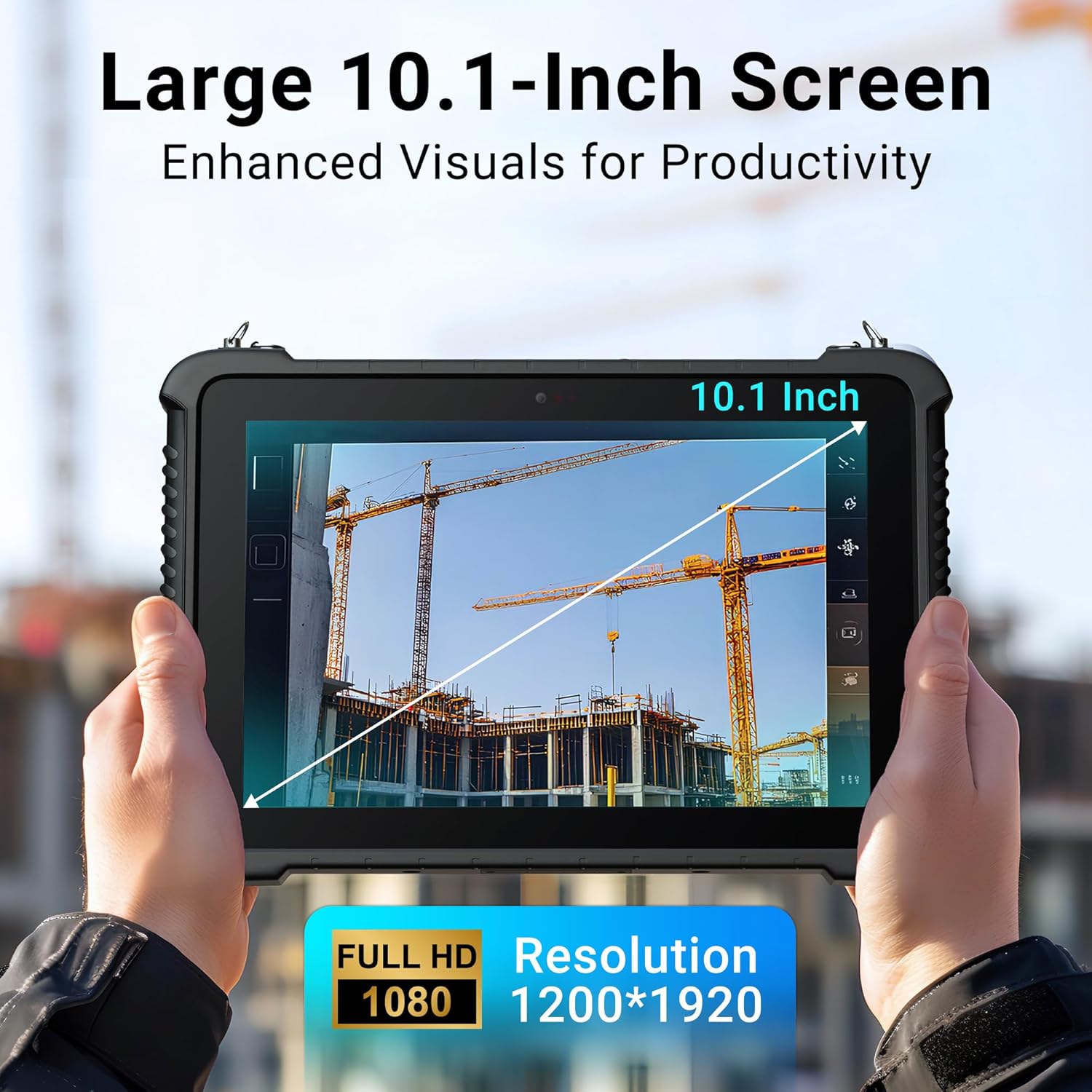
Image: The Tera T02W Rugged Tablet highlighting its large 10.1-inch screen, designed for enhanced visuals and productivity with Full HD 1200x1920 resolution.
4.2. Windows 11 Home Environment
The tablet runs on Windows 11 Home, providing a familiar and versatile operating system. It supports various applications for business and productivity, enabling efficient multitasking with its 8GB RAM and 128GB storage.
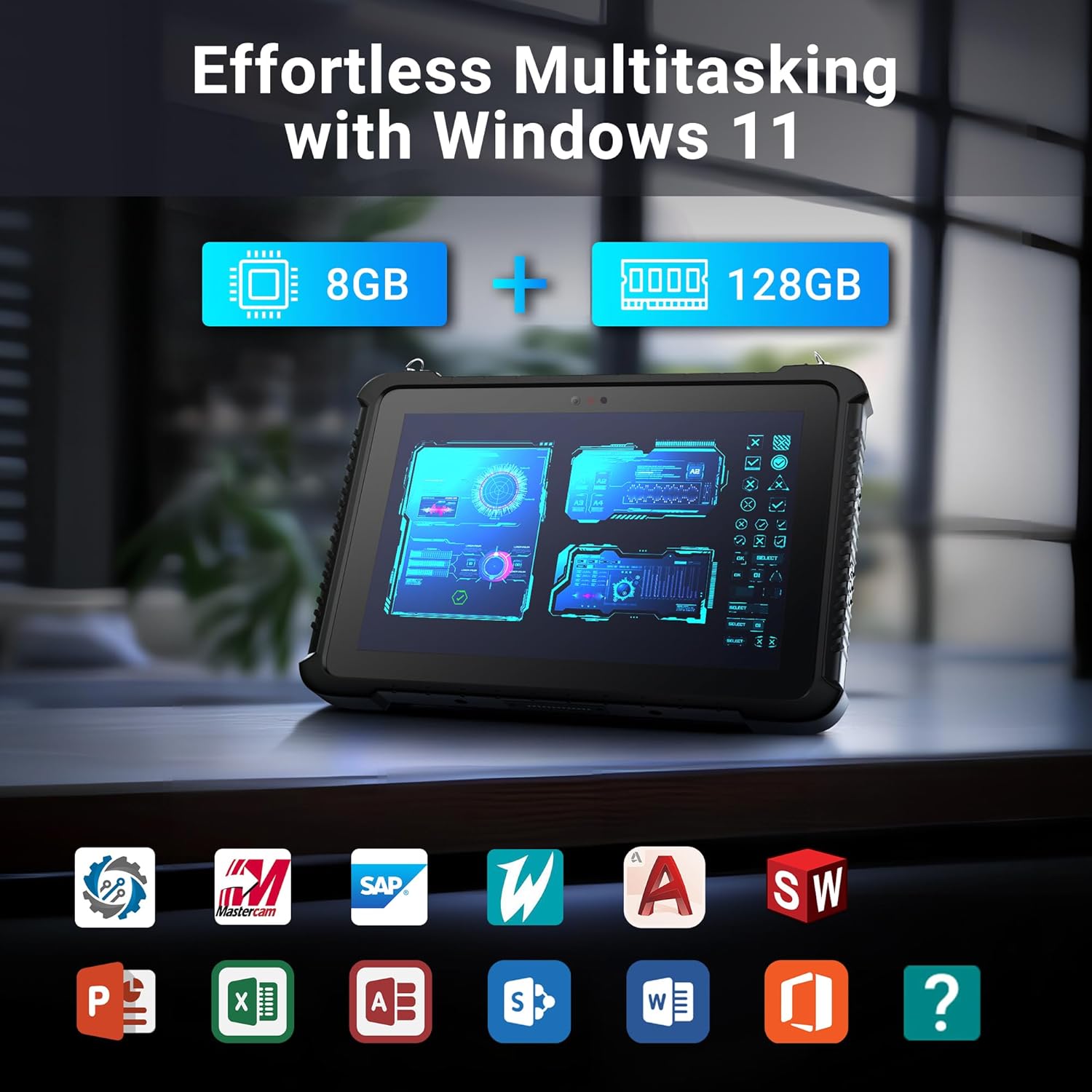
Image: The Tera T02W Rugged Tablet demonstrating effortless multitasking capabilities within the Windows 11 environment, supported by 8GB RAM and 128GB storage.
4.3. Using the Honey-Well N3680 Barcode Scanner
The integrated Honey-Well N3680 scanner allows for rapid and accurate data capture. It can read 1D and 2D barcodes as small as 5 mil with scan rates up to 50 scans per second.
- Open an application that supports barcode input (e.g., inventory management software, text editor).
- Point the scanner window at the barcode you wish to scan.
- Press the dedicated scan button (if available) or activate the scanning function within the software.
- Ensure the barcode is within the scanner's optimal reading range and angle for best results.

Image: The Tera T02W Rugged Tablet illustrating its 'Scan and Go' feature, providing instant information at your fingertips with the Honey-Well N3680 scanner, capable of 5 mil precision and 50 scans/sec.
4.4. קאָנעקטיוויטי פֿעיִטשערס
- ווי-פי: Supports 802.11ac for fast and reliable wireless internet connection, including 2.4G and 5.8G bands.
- בלועטאָאָטה 5.1: Connect wireless peripherals such as headsets, keyboards, or other Bluetooth-enabled devices.
- 4G LTE: For mobile data connectivity in the field. Insert a compatible SIM card (not included) into the designated slot.
- GPS and Glonass: Built-in navigation capabilities for accurate positioning and route guidance, essential for outdoor field work.
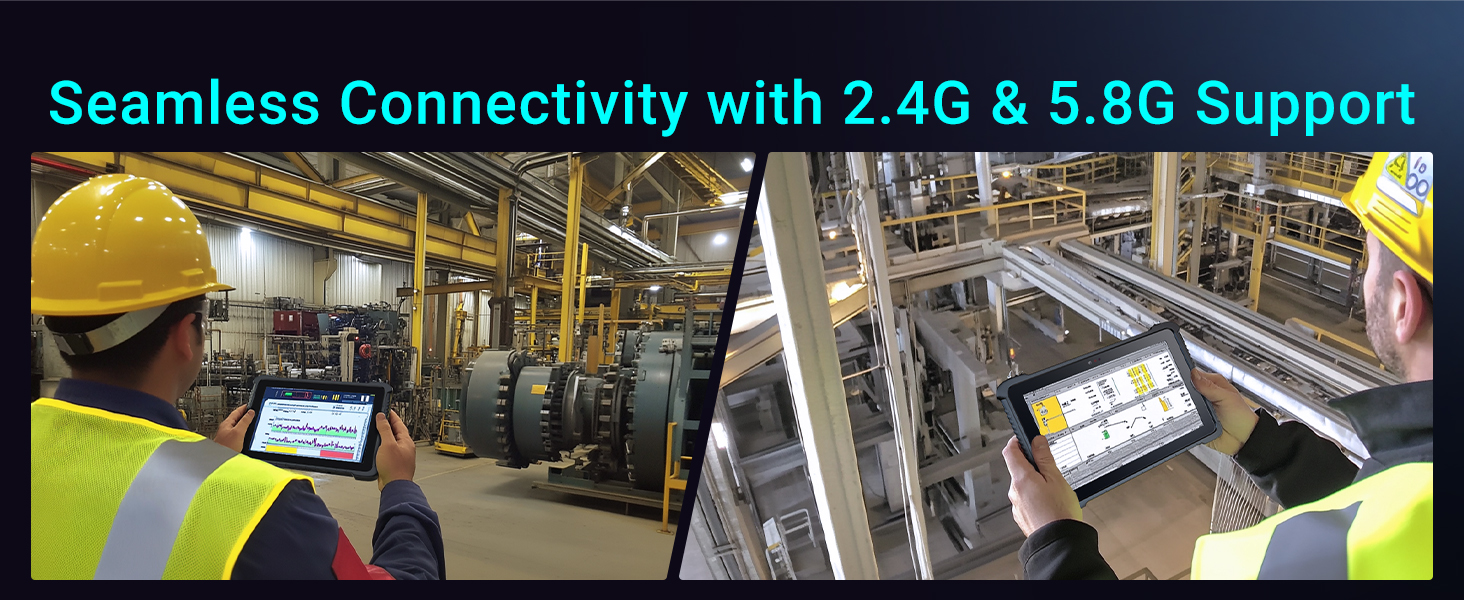
Image: Two individuals utilizing the Tera T02W Rugged Tablet in an industrial environment, highlighting its seamless connectivity with 2.4G and 5.8G Wi-Fi support.
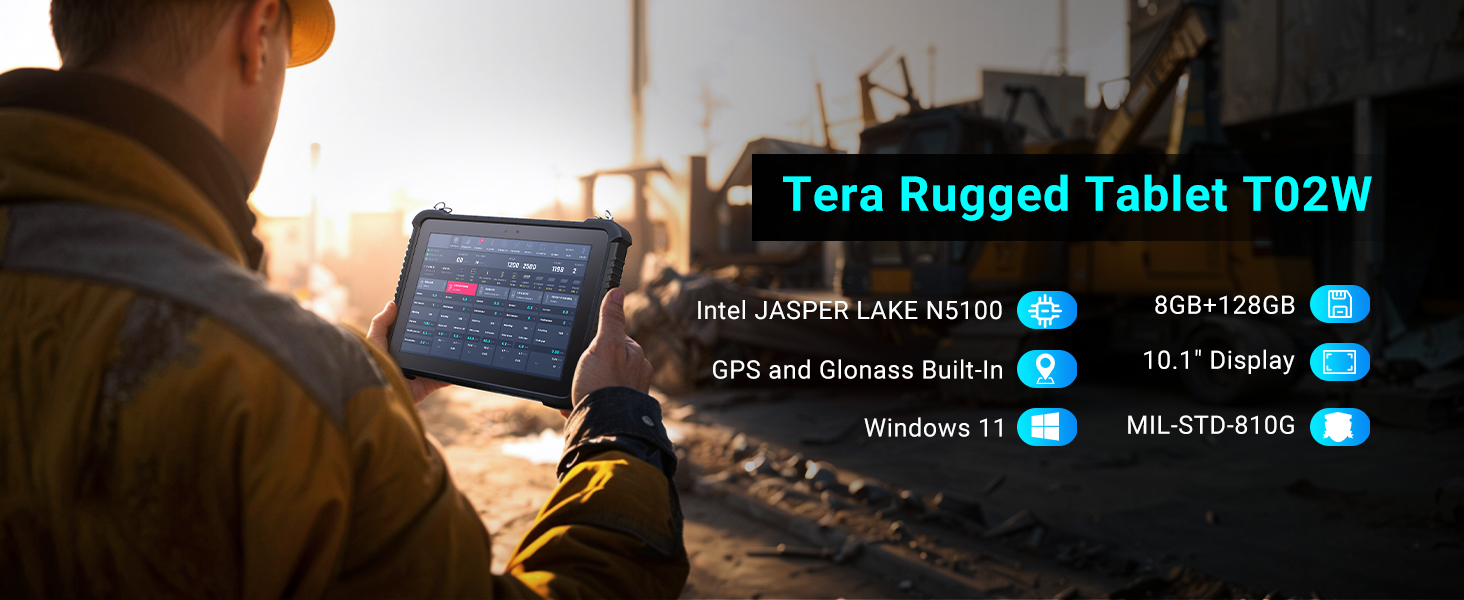
Image: A person using the Tera T02W Rugged Tablet outdoors, with a GPS map displayed on the screen, emphasizing its built-in GPS and Glonass capabilities for navigation.
5. וישאַלט
Proper maintenance ensures the longevity and optimal performance of your Tera T02W Rugged Tablet.
5.1. רייניקן די טאַבלעט
ניצן אַ ווייך, לינט-פֿרייַ שטאָף אַ ביסל דampened with water or a screen cleaner to wipe the display and exterior. Avoid harsh chemicals, abrasive materials, or excessive moisture. Ensure all port covers are securely closed before cleaning to maintain IP65 protection.
5.2. באַטערי קער
To maximize battery life, avoid extreme temperatures. Store the tablet in a cool, dry place when not in use for extended periods. Fully charge the battery before long-term storage and recharge it periodically (every 3-6 months) to prevent deep discharge.
5.3. ענוויראָנמענטאַל פּראַטעקשאַן
The Tera T02W is IP65 rated for dust and water resistance and MIL-STD-810G certified for shock and vibration. While rugged, avoid intentionally exposing the tablet to extreme conditions beyond its specifications. Ensure all port covers are sealed to maintain water and dust resistance.

Image: A construction worker using the Tera T02W Rugged Tablet in a challenging environment, highlighting its IP65 waterproof and dustproof ratings, and MIL-STD-810G certification for durability.
6. טראָובלעשאָאָטינג
This section addresses common issues you might encounter with your Tera T02W Rugged Tablet.
- טאַבלעט וועט נישט זיך אָנצינדן: Ensure the battery is charged. Connect the tablet to the power adapter and try again. If the battery is removable, ensure it is correctly seated.
- טאָוטש סקרין רעאַגירט נישט: ריסטאַרט די טאַבלעט. אויב די פּראָבלעם בלייבט, זאָרגט אַז דער עקראַן איז ריין און פריי פון שמוץ.
- Barcode scanner not working: Ensure the scanning application is open and active. Check if the barcode is damaged or too far/close. Verify scanner settings in the system.
- Wi-Fi/Bluetooth connectivity issues: Ensure Wi-Fi/Bluetooth is enabled in Windows settings. Restart the tablet and the router/Bluetooth device. Check for driver updates.
- לאַנגזאַמע פאָרשטעלונג: Close unnecessary applications. Check available storage space. Ensure Windows is updated.
If you encounter issues not covered here or if problems persist, please refer to the official Tera support channels for further assistance.
7. ספּעסאַפאַקיישאַנז
Detailed technical specifications for the Tera T02W Rugged Tablet:
| שטריך | באַשרייַבונג |
|---|---|
| מאָדעל נאָמען | T02W |
| אָפּערייטינג סיסטעם | Windows 11 היים |
| פּראַסעסער | Intel Jasper Lake N5100 |
| באַראַן | 8 גיגאבייט |
| סטאָרידזש | 128 גיגאבייט |
| פאַרשטעלן גרייס | 10.1 אינטשעס |
| פאַרשטעלן האַכלאָטע | 1920 x 1200 בילדצעלן (פול הד) |
| דערציען Webקאַם האַכלאָטע | 8 מפּ |
| פראָנט Webקאַם האַכלאָטע | 5 מפּ |
| באַרקאָדע סקאַננער | Honey-Well N3680 (1D/2D, 5 mil, 50 scans/sec) |
| ווירעלעסס טיפּ | 802.11ac (Wi-Fi), Bluetooth 5.1, 4G LTE |
| נאַוויגאַציע | גפּס, גלאָנאַסס |
| באַטאַרייע קאַפּאַציטעט | 5000mAh (אַרויסנעמבאַר) |
| האַרטקייט שאַץ | IP65, MIL-STD-810G |
| פּונקט וואָג | 4.07 פונט |
| פּראָדוקט דימענשאַנז | 11 X 7.3 X 1 אינטשעס |
| קאָליר | שוואַרץ |
8. וואָראַנטי און שטיצן
Your Tera T02W Rugged Tablet comes with a standard manufacturer's warranty. Please refer to the warranty card included in your package for specific terms and conditions. For technical support, service, or inquiries, please contact Tera customer service through the official channels provided with your product or on the Tera brand webפּלאַץ.


