1. הקדמה
This manual provides comprehensive instructions for the Alienware TENKEYLESS Gaming Keyboard, model AW420K. It covers setup, operation, maintenance, troubleshooting, and product specifications to ensure optimal performance and longevity of your device.
2. פּראָדוקט איבערview
The Alienware AW420K is a high-performance tenkeyless gaming keyboard designed for competitive gaming and efficient daily use. It features durable construction, customizable RGB lighting, and responsive mechanical switches.

פיגור 2.1: פון אויבן אַראָפּ view of the Alienware AW420K Tenkeyless Gaming Keyboard, showcasing its compact design and vibrant RGB backlighting.
2.1 שליסל פֿעיִקייטן
- טענקיללעסס דיזיין: Streamlined form factor for more desk space and improved portability.
- טשערי MX רויטע סוויטשעס: Industry-leading mechanical switches with a 100 million actuation lifecycle for consistent, high-performance keystrokes.
- AlienFX RGB Lighting: Per-key RGB lighting configurable through Alienware Command Center software, offering up to 16.8 million colors for personalized aesthetics.
- טאָפּל-שאָט PBT שליסל קאַפּס: Two layers of plastic with legends molded into the cap for enhanced durability and wear resistance.
- Integrated Cable Routing: Channels on the underside of the keyboard for organized cable management.
- אַדזשאַסטאַבאַל הייך: Flip-up risers with three height settings for ergonomic typing angles.

Figure 2.2: The compact TKL design of the AW420K keyboard allows for more space on your gaming setup and easy movability.
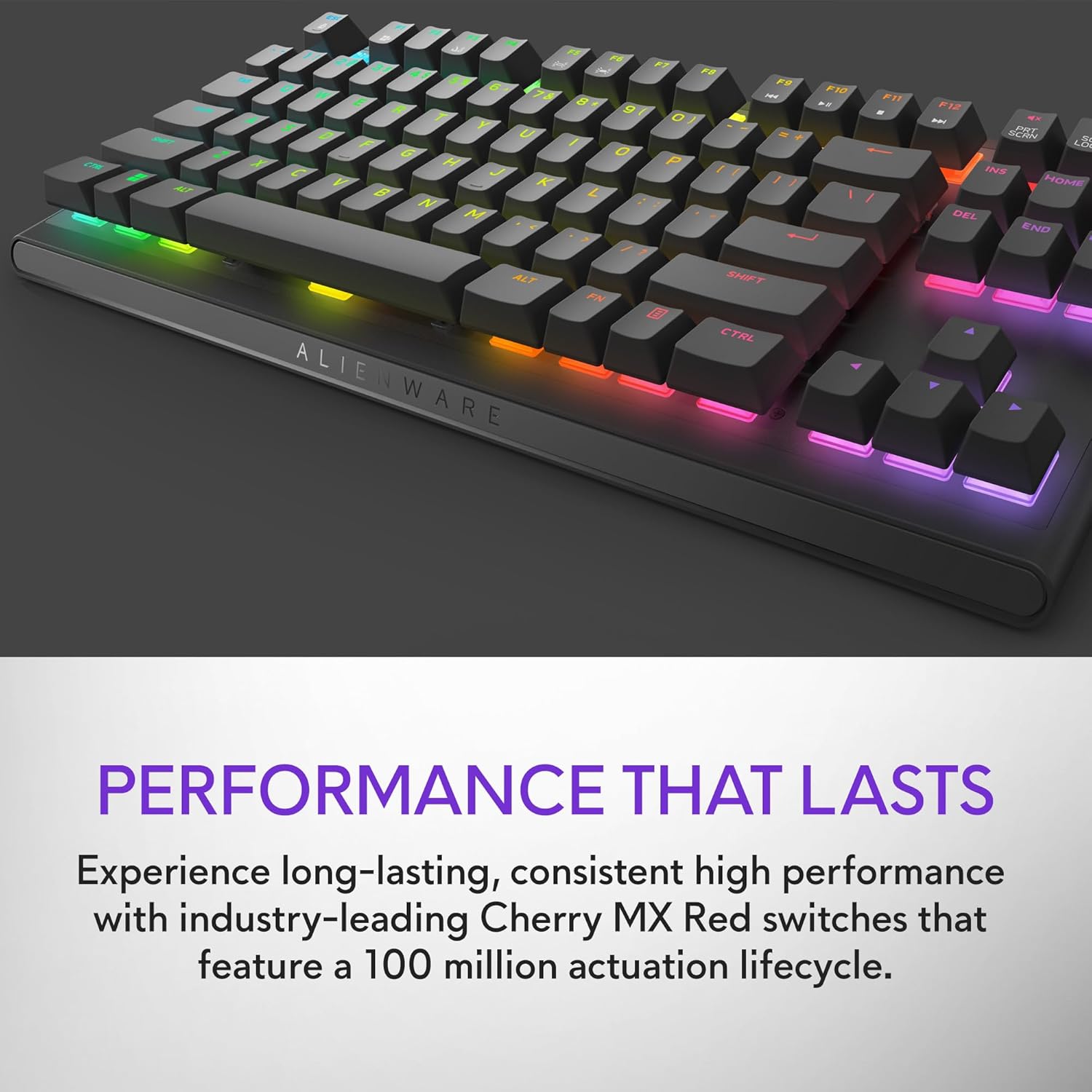
Figure 2.3: The keyboard features Cherry MX Red switches, known for their durability and consistent performance over 100 million keystrokes.

Figure 2.4: Customize your gaming experience with AlienFX per-key RGB lighting, offering up to 16.8 million colors via Alienware Command Center software.
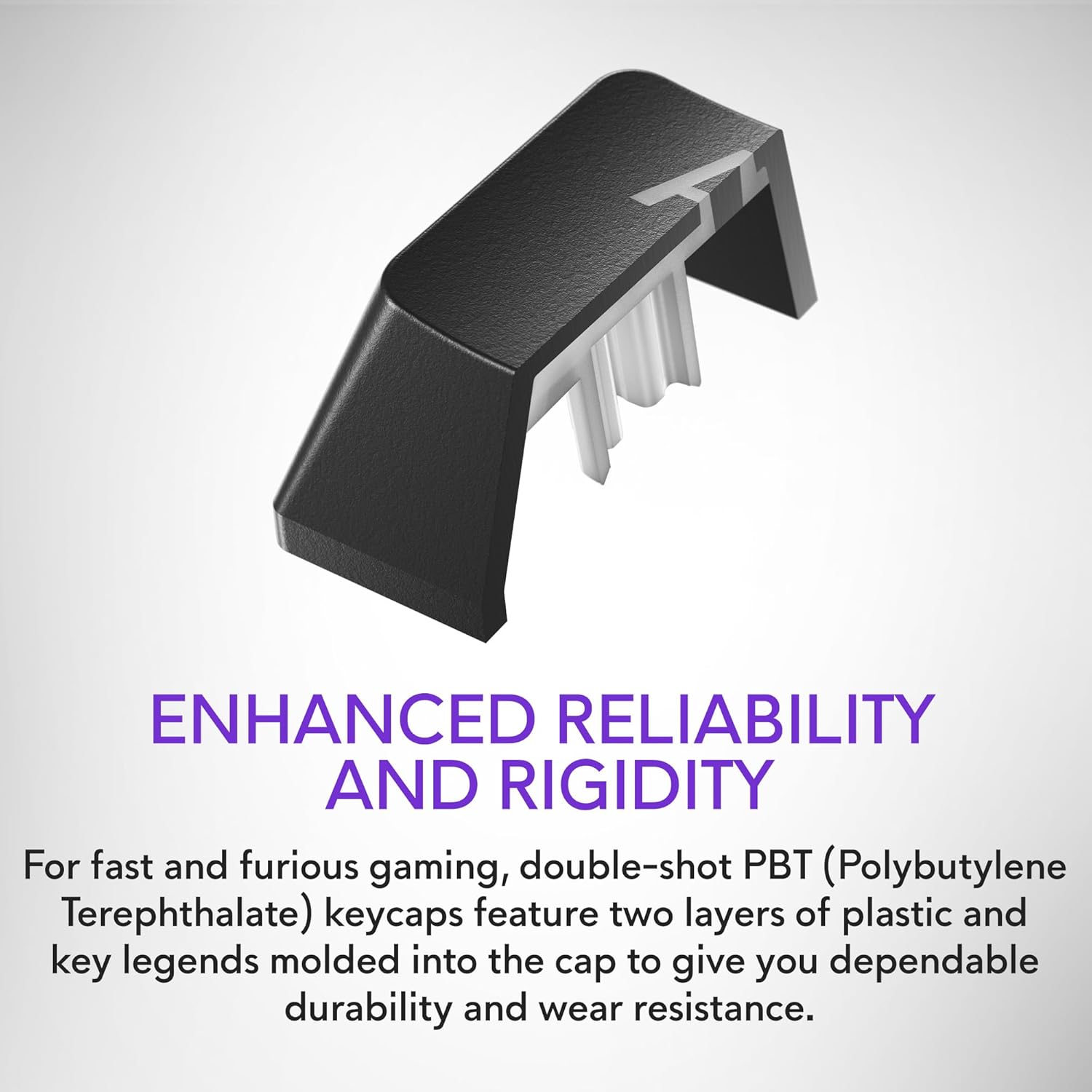
Figure 2.5: Double-shot PBT keycaps provide enhanced reliability and rigidity, ensuring legends do not wear off over time.
3. סעטאַפּ
גייט נאך די שריט צו אויפשטעלן אייער Alienware AW420K גיימינג קלאַוויאַטור:
- ופשליסן די קלאַוויאַטור: Carefully remove the keyboard and any included accessories from the packaging.
- פאַרבינדן די וסב קאַבלע: The keyboard features a detachable USB paracord cable. Connect the USB-C end to the port on the keyboard's underside.
- רוט דעם קאַבל: Utilize the integrated cable routing channels on the underside of the keyboard to direct the cable to your preferred setup. This helps in keeping your desk tidy.
- פאַרבינדן צו קאָמפּיוטער: Plug the USB-A end of the cable into an available USB port on your computer. The keyboard is USB powered.
- סטרויערן די הייך: Flip up the risers on the back of the keyboard to select one of the three available height settings for your ideal typing angle.
- אינסטאַלירן ווייכווארג (אפציאָנעל אָבער רעקאָמענדירט): For full customization of RGB lighting and programmable keys, download and install the Alienware Command Center software from the official Alienware support webפּלאַץ.

Figure 3.1: The detachable USB-C cable provides a secure and convenient connection.

Figure 3.2: Integrated cable routing on the underside helps manage the connection cable for a clean setup.

Figure 3.3: Flip-up risers allow for three height settings to achieve your ideal typing angle.
4. אפערירן די קלאַוויאַטור
The Alienware AW420K keyboard is designed for intuitive use with advanced features for gaming and productivity.
4.1 יקערדיק פאַנגקשאַנז
- טייפּינג: Standard QWERTY layout for general typing.
- גיימינג: Responsive Cherry MX Red switches provide a smooth and linear feel, ideal for fast-paced gaming.
- מעדיע קאָנטראָלס: Dedicated media keys (e.g., volume roller, mute button) are typically located on the top right of the keyboard for quick audio adjustments.
4.2 קאַסטאַמייזיישאַן מיט Alienware קאַמאַנד צענטער
The Alienware Command Center software unlocks the full potential of your keyboard:
- RGB לייטינג: Customize per-key RGB lighting with a spectrum of 16.8 million colors. Choose from various effects, create your own profiles, and synchronize lighting with other Alienware devices.
- מאַקראָ פּראָגראַממינג: Assign complex macros to programmable keys for in-game advantages or streamlined workflows.
- פּראָfile פאַרוואַלטונג: שאַפֿן און ראַטעווען קייפל פּראָfiles for different games or applications, allowing for quick switching of lighting and key assignments.
Video 4.1: An official video demonstrating the features and design of the Alienware Tenkeyless Gaming Keyboard - AW420K, including its RGB lighting and compact form factor.
5. וישאַלט
געהעריגע אויפהאלטונג גאראנטירט די לאנגעוויטי און אפטימאלע פאָרשטעלונג פון אייער קלאַוויאַטור.
- רייניקונג קלאַוויאַטור קאַפּס: The floating keycap design makes cleaning easy. Use a soft brush or compressed air to remove dust and debris from between the keys. For stubborn grime, gently wipe keycaps with a damp, א לינט-פֿרײַער שטאָף. פֿאַרמײַדט איבעריקע פֿײַכטקייט.
- רייניקן דעם שאַסי: Wipe the keyboard chassis with a soft, dry cloth. Do not use harsh chemicals or abrasive materials.
- קאַבלע זאָרגן: פֿאַרמײַדט שאַרפֿע בייגן אָדער איבערגעטריבענעם ציען דעם USB קאַבל כּדי צו פֿאַרמײַדן שאָדן.
6. טראָובלעשאָאָטינג
If you encounter issues with your Alienware AW420K keyboard, try the following troubleshooting steps:
- קלאַוויאַטור ניט ריספּאַנדינג:
- זיכער מאַכן אַז דער USB קאַבל איז זיכער פארבונדן צו ביידע די קלאַוויאַטור און דעם קאָמפּיוטער.
- פרובירט אריינצושטעקן די קלאַוויאַטור אין אַן אַנדער USB פּאָרט אויף אייער קאָמפּיוטער.
- ריסטאַרט דיין קאָמפּיוטער.
- RGB לייטינג ארבעט נישט/קאסטומיזירט נישט:
- Verify that the Alienware Command Center software is installed and up to date.
- Check the software settings to ensure lighting effects are enabled and configured correctly.
- זיכער מאַכן אַז קיין קאָנפליקטירנדיקע ווייכווארג לויפט נישט וואָס קען שטערן די RGB קאָנטראָל.
- שליסלען רעגיסטרירט זיך נישט:
- Clean any debris from under the affected keycap.
- If the issue persists, it may indicate a hardware problem.
אויב די טריט לייזן נישט דעם פראבלעם, ביטע זעט די וואראנטי און שטיצע סעקציע פאר ווייטערדיגע הילף.
7. ספּעסאַפאַקיישאַנז
| סאָרט | אַליענוואַרע |
| מאָדעל נאָמען | ALIENWARE TENKEYLESS GAMING KEYBOARD - AW420K |
| נומער מאָדעל נומער | AW420K |
| ייַזנוואַרג פּלאַטפאָרמע | PC |
| פּונקט וואָג | 1.74 פונט |
| פּראָדוקט דימענשאַנז (LxWxH) | 5.81 X 14.46 X 2.19 אינטשעס |
| קאָליר | Dark Side of the Moon |
| מאַכט מקור | USB Powered |
| פאַבריקאַנט | Dell |
| קאַנעקטיוויטי טעכנאָלאָגיע | וסב-C |
| קלאַוויאַטור באַשרייַבונג | מעטשאַניקאַל |
| נומער פון קיז | 87 |
| קלאַוויאַטור באַקלייט | RGB |
| ספּעציעלע פֿעיִקייטן | Backlit, Programmable Keys, Split Keyset Design |
8. וואָראַנטי און שטיצן
For warranty information and technical support, please refer to the official Alienware website or contact Alienware customer service. Keep your proof of purchase for warranty claims.
You can typically find support resources, drivers, and software updates on the Dell שטיצן Webפּלאַץ (as Alienware is a Dell brand).


