1. הקדמה
Welcome to the user manual for the Orange Pi 4A 2GB Single Board Computer. This document provides essential information for setting up, operating, maintaining, and troubleshooting your device. The Orange Pi 4A 2GB is a versatile and powerful single board computer designed for a wide range of applications, from embedded systems to educational projects and intelligent edge computing.
It features an Allwinner T527 octa-core processor, a RISC-V co-processor, and a Neural Processing Unit (NPU) for AI acceleration, offering robust performance for various tasks.
2. פּראָדוקט איבערview
2.1 שליסל פֿעיִקייטן
- הויך פאָרשטעלונג: Based on Allwinner T527 octa-core Cortex-A55 + HiFi4 DSP + RISC-V multi-core heterogeneous industrial-grade processor.
- AI אַקסעלעראַציע: Supports 2TOPS NPU for intelligent AI acceleration applications.
- זכּרון: Equipped with 2GB LPDDR4/4X RAM.
- ווידעא קייפּאַבילאַטיז: Provides H.265 4K@60fps and H.264 4K@60fps video decoding, and H.264 4K@25fps video encoding.
- RISC-V Co-processor: Innovative use of co-processors with RISC-V architecture for real-time control, motion control, fast startup, low-power standby, and system security.
- Rich Extensibility: Includes Gigabit Ethernet, PCIe 2.0, USB 2.0, MIPI-CSI, MIPI-DSI, and a 40-Pin expansion interface.
- אָפּערייטינג סיסטעם שטיצן: Compatible with Ubuntu, Debian, Android 13, and other operating systems.
- Advanced GPU: Features Mali-G57 GPU with Valhall architecture for smoother 3D graphics interaction.
2.2 Board Components
The Orange Pi 4A 2GB board is designed with various ports and components for comprehensive functionality. Below is an image illustrating the main components and their locations.

Figure 1: Orange Pi 4A 2GB Board with Labeled Components. This image highlights key features such as the Allwinner T527 processor, 40-Pin headers, various USB ports, HDMI, Ethernet, MIPI-CSI, MIPI-DSI, and power input.
די הויפּט קאַמפּאָונאַנץ אַרייַננעמען:
- Allwinner T527 Processor: The central processing unit.
- LPDDR4/4X RAM: Onboard memory for system operations.
- וסב 2.0 פּאָרץ: For connecting peripherals like keyboards, mice, and storage devices.
- גיגאַביט עטהערנעט פּאָרט: פֿאַר דראָטיקער נעץ קאָנעקטיוויטי.
- הדמי פּאָרט: For video output to displays.
- MIPI-CSI & MIPI-DSI: Interfaces for camera and display modules.
- 40-Pin Expansion Interface: GPIO pins for connecting sensors, actuators, and other custom hardware.
- Type-C/Power Port: פֿאַר מאַכט אַרייַנשרייַב.
- מיקראָסד קאָרט שפּעלטל: For operating system storage.
- eMMC Interface: For onboard storage (if applicable to specific model variant).
- M.2 M-Key 2280 PCIe NVMe SSD Slot: For high-speed storage expansion.

פיגורע 2: שפּיץ View of the Orange Pi 4A 2GB Single Board Computer. This image provides a clear overhead view of the board's layout and primary components.
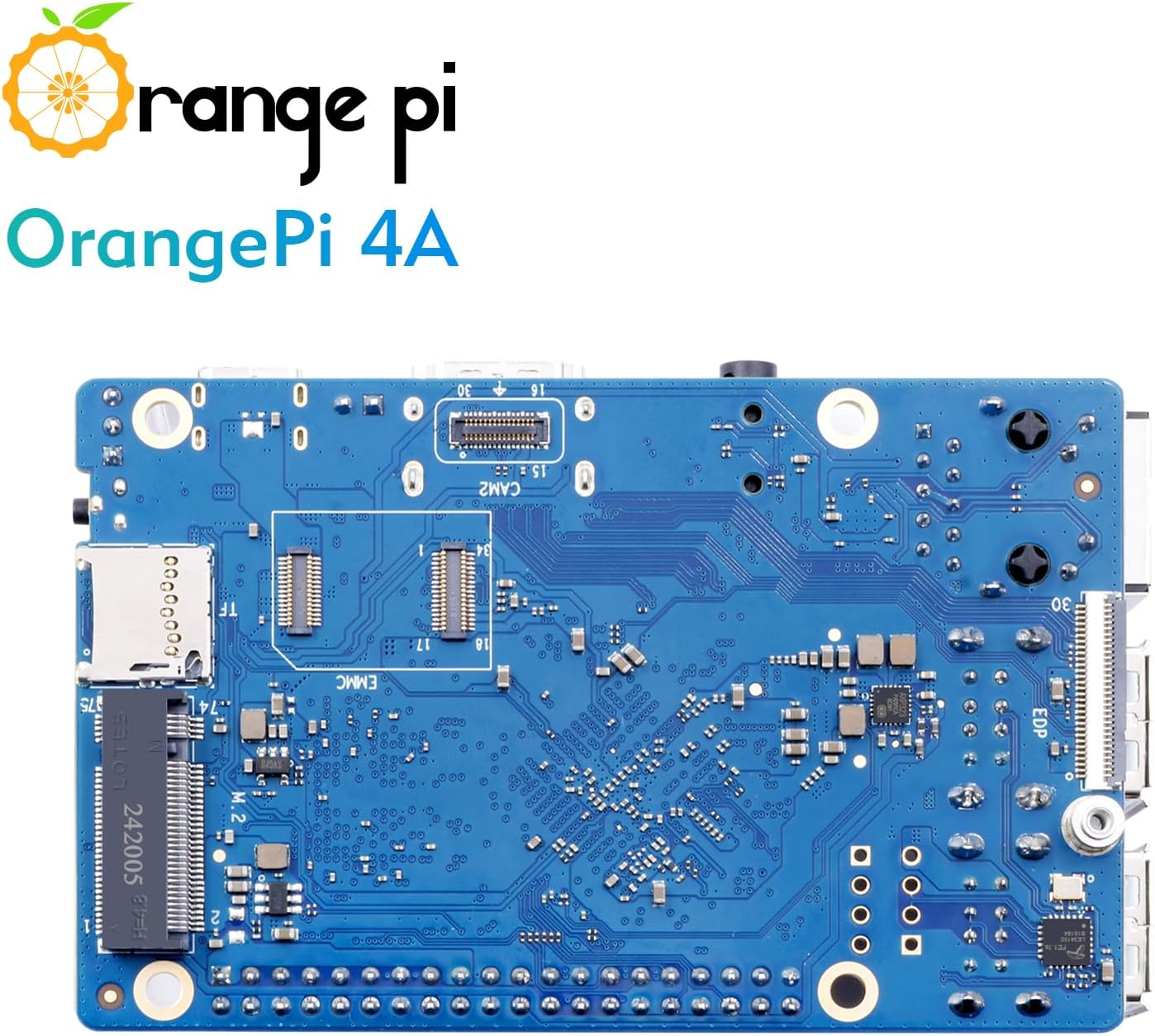
פיגורע 3: דנאָ View of the Orange Pi 4A 2GB Single Board Computer. This image shows the underside of the board, including the eMMC interface and M.2 slot.
2.3 וואָס איז אין דער קעסטל
- Orange Pi 4A 2GB Single Board Computer
Note: Additional accessories such as power supply, microSD card, HDMI cable, and case are typically sold separately.
3. סעטאַפּ
3.1 Preparing the Operating System
- Download OS Image: Visit the official Orange Pi website or community forums to download a compatible operating system image (e.g., Ubuntu, Debian, Android 13) for the Orange Pi 4A.
- Prepare Storage: Insert a high-quality microSD card (Class 10 or higher, minimum 8GB recommended) into your computer's card reader. Alternatively, if using eMMC, follow specific flashing instructions for eMMC.
- Flash OS Image: Use an imaging tool (e.g., Balena Etcher, Win32 Disk Imager) to write the downloaded OS image to the microSD card. Ensure you select the correct drive to avoid data loss.
- אַרייַנלייגן מיקראָסד קאָרט: Once the flashing process is complete, safely eject the microSD card from your computer and insert it into the microSD card slot on the Orange Pi 4A board.
3.2 קאַנעקטינג פּעריפעראַלס
- ווייַז: Connect an HDMI cable from the Orange Pi 4A's HDMI port to your monitor or TV.
- קלאַוויאַטור און מויז: Plug your USB keyboard and mouse into the USB 2.0 ports on the board.
- נעץ (אפציאנאל): For wired internet access, connect an Ethernet cable from your router/switch to the Gigabit Ethernet port on the Orange Pi 4A.
- מאַכט צושטעלן: Connect a compatible 5V/3A (or higher) USB Type-C power adapter to the Type-C power port on the board. Ensure the power supply is stable and provides sufficient current.
3.3 ערשטער שטיוול
After connecting all necessary peripherals and the power supply, the Orange Pi 4A should automatically power on and begin the boot process. You should see output on your connected display. The initial boot may take longer as the system configures itself.
4. אַפּערייטינג ינסטרוקטיאָנס
4.1 יקערדיק באַניץ
Once the operating system has booted, you can interact with the Orange Pi 4A like a standard computer. Depending on the OS installed, you will have a desktop environment or a command-line interface.
- Desktop Environment: Navigate using the mouse and keyboard. Open applications, browse the web, and manage files.
- באַפֿעלן שורה: For server or headless applications, use SSH to connect remotely or interact directly via a connected terminal.
4.2 נעץ קאָנעקטיוויטי
- ווי-פי: If your OS image supports it, configure Wi-Fi settings through the network manager in the desktop environment or via command-line tools (e.g., `nmcli`, `wpa_supplicant`). The Orange Pi 4A supports Wi-Fi 5.0.
- בלועטאָאָטה: Enable and pair Bluetooth devices (e.g., headphones, keyboards) through the OS's Bluetooth settings. The board supports Bluetooth 5.0 and BLE.
- עטהערנעט: Wired connection is usually plug-and-play. Ensure your router provides DHCP or configure static IP settings if required.
4.3 ווייכווארג מאַנאַגעמענט
Regularly update your operating system and installed software to ensure security and optimal performance. For Debian/Ubuntu-based systems, use the following commands in a terminal:
sudo apt update
sudo apt upgrade
For Android, use the built-in system update features.
5. וישאַלט
5.1 קאָאָלינג
While the Orange Pi 4A is designed for efficiency, prolonged heavy loads can generate heat. Consider the following for optimal thermal management:
- פּאַסיוו קאָאָלינג: Ensure adequate airflow around the board. Avoid placing it in enclosed spaces without ventilation.
- היץ-זינקען: For continuous high-performance tasks, consider attaching a heatsink to the main processor (Allwinner T527).
- Active Cooling (Fans): If operating in high ambient temperatures or under extreme loads, a small fan can be connected to the appropriate fan headers (if available) or powered externally to provide active cooling.
5.2 רייניקונג
Keep the board clean and free from dust and debris. Use a soft, dry brush or compressed air to gently remove dust. Avoid using liquids or abrasive cleaners.
5.3 ווייכווארג דערהייַנטיקונגען
Regularly check for and apply operating system and firmware updates. These updates often include performance improvements, bug fixes, and security patches.
6. טראָובלעשאָאָטינג
6.1 פּראָסט ישוז און סאַלושאַנז
- קיין שטיוול/קיין דיספּלעי:
- Ensure the power supply is adequate (5V/3A minimum) and securely connected.
- Verify the microSD card is properly inserted and the OS image was flashed correctly. Try re-flashing the image.
- Check HDMI cable connection and ensure the monitor is on the correct input.
- נעץ קאָנעקטיוויטי פּראָבלעמען:
- For Ethernet, check cable connection and router status.
- For Wi-Fi, double-check Wi-Fi credentials and ensure the Wi-Fi module is enabled in the OS.
- פּעריפעראַל נישט דערקענט:
- פרובירט צו קאנעקטן דעם פּעריפערישן אַפּאַראַט צו אַן אַנדער USB פּאָרט.
- Ensure the peripheral does not require more power than the USB port can provide.
- Check if necessary drivers are installed in the operating system.
- סיסטעם אינסטאביליטעט/קראכן:
- Ensure proper cooling to prevent overheating.
- Verify the integrity of your microSD card.
- Perform a software update to fix potential bugs.
6.2 זוכן ווייטערדיגע הילף
If you encounter issues not covered here, consider the following resources:
- Orange Pi Official Webפּלאַץ: Check for updated documentation, FAQs, and forum support.
- קאמיוניטי פארומס: Engage with the Orange Pi community. Many common issues have already been discussed and resolved by other users.
- אָנליין רעסורסן: זוכן פֿאַר solutions on general Linux or single board computer forums, as many issues are not specific to Orange Pi.
7. ספּעסאַפאַקיישאַנז
Below are the detailed technical specifications for the Orange Pi 4A 2GB Single Board Computer:
| שטריך | באַשרייַבונג |
|---|---|
| פּראַסעסער | Allwinner T527 Octa-core Cortex-A55 (1.8 GHz) + HiFi4 DSP + RISC-V Co-processor |
| נפּו | 2 טאַפּס |
| באַראַן | 2GB LPDDR4/4X |
| גפּו | Mali-G57 with Valhall architecture |
| ווידעא דיקאָודינג | H.265 4K@60fps, H.264 4K@60fps |
| ווידעא קאָדירונג | H.264 4K@25fps |
| קאַנעקטיוויטי | Gigabit Ethernet, Wi-Fi 5.0, Bluetooth 5.0 (BLE) |
| וסב פּאָרץ | עטלעכע וסב 2.0 פּאָרץ |
| ווייַז רעזולטאַט | HDMI, MIPI-DSI |
| אַפּאַראַט אַרייַנשרייַב | MIPI-CSI |
| יקספּאַנשאַן | 40-Pin GPIO header, PCIe 2.0, M.2 M-Key 2280 NVMe SSD slot |
| סטאָרידזש | MicroSD card slot, eMMC interface (optional) |
| אַפּערייטינג סיסטעמס | Ubuntu, Debian, Android 13 |
| דימענשאַנז | Approx. 89mm x 56mm (2 x 1 x 0.5 inches) |
| וואָג | בעערעך. 0.05 אונס |
8. וואָראַנטי און שטיצן
8.1 מאַנופאַקטורער וואָראַנטי
Orange Pi products typically come with a limited manufacturer's warranty covering defects in materials and workmanship. Please refer to the official Orange Pi website or your point of purchase for specific warranty terms and conditions, as these may vary by region and retailer.
8.2 טעכניש שטיצן
As an open-source hardware platform, Orange Pi benefits from a strong global community. For technical support, it is highly recommended to utilize the following resources:
- Official Orange Pi Forums: The primary source for community-driven support, where users and developers share knowledge and solutions.
- דאָקומענטאַטיאָן: Comprehensive guides and tutorials are often available on the official Orange Pi webפּלאַץ.
- Online Communities: Various independent forums, blogs, and social media groups dedicated to single board computers and open-source hardware can provide valuable assistance.
When seeking support, provide clear details of your issue, including the model (Orange Pi 4A 2GB), operating system version, and any error messages encountered.


