1. הקדמה
א דאנק פארן קויפןasing the Xtrike-Me GH-511 Stereo Gaming Headset. This manual provides essential information for setting up, operating, maintaining, and troubleshooting your new headset. Please read it carefully before use to ensure optimal performance and longevity of your device.

בילד 1.1: פראָנט view of the Xtrike-Me GH-511 Stereo Gaming Headset, showcasing its transparent design and dynamic RGB lighting on the earcups and headband.
2. זיכערקייַט אינפֿאָרמאַציע
- פֿאַרמײַדט פֿאַרלענגערט הערן בײַ הויכע וואָלומען כּדי צו פֿאַרמײַדן שאָדן צו דער הערן.
- Do not expose the headset to extreme temperatures, humidity, or direct sunlight.
- האַלטן די מיטל אַוועק פון וואַסער און אנדערע ליקווידס.
- פרובירט נישט צו צענעמען אדער מאדיפיצירן דעם כעדסעט. דאס וועט בטל מאכן די גאראנטיע.
- Handle the cables with care to prevent damage.
3. פּעקל אינהאַלט
ביטע טשעק די פּאַקעט פֿאַר די פאלגענדע זאכן:
- Xtrike-Me GH-511 Stereo Gaming Headset
- באַניצער מאַנואַל (דעם דאָקומענט)
אויב עס פעלן אדער זענען געשעדיגט אין זאכן, ביטע קאנטאקטירט אייער פארקויפער.
4. סעטאַפּ
The Xtrike-Me GH-511 headset features a wired connection with multiple plugs for comprehensive compatibility.
4.1 פֿאַרבינדן זיך צו דיין מיטל
- אַודיאָ קאַנעקשאַן: Locate the two 3.5mm jack plugs. One is for audio (typically green or with a headphone icon) and the other is for the microphone (typically pink or with a microphone icon). Connect these plugs to the corresponding audio output and microphone input ports on your PC, laptop, or adapter.
- RGB Lighting Power: Connect the USB plug to an available USB port on your PC, console (PS4, PS5), or any USB power source. This connection powers the dynamic RGB lighting feature of the headset.
- Console/Mobile Connection: For devices with a single 3.5mm combo jack (e.g., most mobile phones, some laptops, and console controllers), you may need a 3.5mm Y-splitter adapter (not included) to combine the headset's separate audio and microphone jacks into a single 4-pole 3.5mm plug. The USB connection is still required for RGB lighting.

Image 4.1: Diagram illustrating the USB plug for lighting, 3.5mm plug for audio, and 3.5mm plug for microphone, indicating connections for multiple devices.
4.2 צופּאַסן פֿאַר באַקוועמלעכקייט
Adjust the headband to fit comfortably over your head. The earcups are designed to sit over your ears for optimal sound isolation and comfort during extended use.
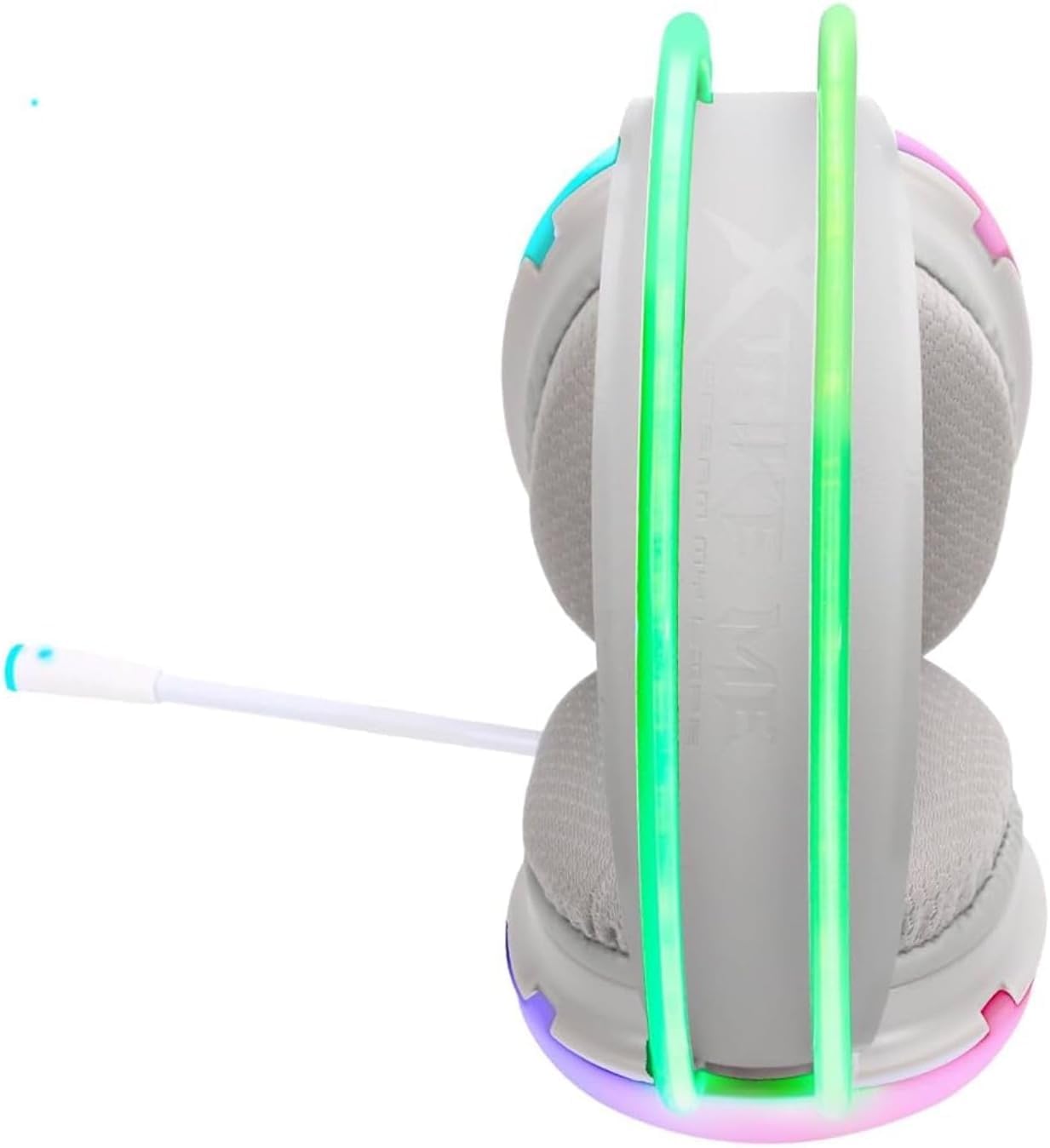
בילד 4.2: זייט view of the headset, highlighting the adjustable headband and soft earcups for comfortable wear.
5. אַפּערייטינג ינסטרוקטיאָנס
5.1 אַודיאָ ווידערשפּיל
Once connected, your headset should automatically be recognized by your device. Ensure the headset is selected as the default audio output device in your system settings. Adjust the volume using your device's controls or the in-line remote control on the headset cable, if available.
5.2 מיקראָפאָן באַניץ
The GH-511 features an omnidirectional, noise-reduction microphone. Position the microphone appropriately near your mouth for clear communication. Ensure the microphone is enabled and selected as the default input device in your system settings. If your headset has an in-line remote, check for a microphone mute switch.

בילד 5.1: זייט view of the headset, showing the flexible microphone boom extended for use.
5.3 דינאמישע RGB לייטינג
The dynamic RGB lighting on the earcups and headband will activate automatically once the USB plug is connected to a powered USB port. The lighting provides an aesthetic enhancement to your gaming experience.

בילד 5.2: ווינקלדיק view of the headset, illustrating the dynamic RGB lighting effects on the earcups and headband.
6. וישאַלט
- רייניקונג: ניצט אַ ווייכע, טרוקענע שטאָף צו רייניקן די כעדסעט. ניצט נישט קיין שרײַבנדיקע רייניגערס אדער סאָלווענטן.
- סטאָרידזש: Store the headset in a cool, dry place when not in use. Avoid tangling the cables.
- קאַבלע זאָרגן: Do not pull on the cables forcefully or bend them sharply, as this can cause internal damage.
7. טראָובלעשאָאָטינג
7.1 No Sound from Headset
- Ensure the 3.5mm audio jack is fully inserted into the correct port on your device.
- Check your device's volume settings and ensure the headset is selected as the default playback device.
- Verify that the volume control on the headset's in-line remote (if present) is not set to minimum or muted.
- פּרובירט דעם כעדסעט מיט אַן אַנדער מיטל צו אויסשליסן אַ מיטל-ספּעציפֿישן פּראָבלעם.
7.2 מיקראָפאָן אַרבעט נישט
- Ensure the 3.5mm microphone jack is fully inserted into the correct port on your device.
- Check your device's sound settings and ensure the headset microphone is selected as the default recording device.
- Verify that the microphone mute switch on the in-line remote (if present) is not activated.
- Ensure the microphone is positioned correctly.
7.3 RGB לייטינג ארבעט נישט
- Ensure the USB plug is securely connected to a powered USB port.
- Try connecting the USB plug to a different USB port or power source.
8. ספּעסאַפאַקיישאַנז
| מאָדעל נאָמען | GH-511 |
| קאַנעקטיוויטי טעכנאָלאָגיע | ווייערד |
| כעדפאָון דזשאַק | 2x 3.5mm (Audio, Mic) + USB (for RGB) |
| כעדפאָונז פאָרעם פאַקטאָר | איבער אויער |
| מיקראָפאָן | Omnidirectional, Noise-Reduction |
| RGB לייטינג | Dynamic RGB on Headband and Earcups |
| קאַמפּאַטאַבאַל דעוויסעס | PC, Laptops, Mobile Phones, PS4, PS5 |
| מאַטעריאַל | פּלאַסטיק |
| פּונקט וואָג | 325 גראַמז |
| ימפּידאַנס | 3330 Ohm |
| קאַבלע שטריך | פאַרפעסטיקט |
| קאָנטראָל טיפּ | Basic In-line Controls |
9. וואָראַנטי און שטיצן
For warranty information and technical support, please refer to the documentation provided with your purchase or contact the retailer where you purchased the Xtrike-Me GH-511 headset. Keep your proof of purchase for warranty claims.


