1. פּראָדוקט איבערview
The Darmoshark M5PRO is a lightweight, tri-mode wireless gaming mouse designed for precision and versatility. It features a PAW3950 optical sensor, up to 30000 DPI, and 5 programmable buttons. The mouse supports 8K wireless, Bluetooth, and wired connections.

Image 1.1: The Darmoshark M5PRO mouse (red) and its 8K wireless receiver.

Image 1.2: Key features of the M5PRO mouse, including its sensor, polling rate, and microcontroller.
ווידעא 1.1: אן איבערview of the Darmoshark M5PRO Wireless Gaming Mouse, showcasing its design and various color options.
2. סעטאַפּ אינסטרוקציעס
2.1 אויפלאָדן די מויז
Before initial use, ensure the mouse is fully charged. Connect the provided USB-C cable to the mouse and a power source (e.g., computer USB port, USB wall adapter). The LED indicator will show charging status.

Image 2.1: The M5PRO mouse is equipped with a 300mAh lithium battery for extended use.
2.2 קאַנעקשאַן מאָדעס
The M5PRO mouse supports three connection modes: 8K wireless, Bluetooth, and wired USB-C.
2.2.1 8K Wireless Connection
- Connect the 8K wireless receiver to an available USB port on your computer.
- Turn on the mouse and select the 8K wireless mode using the switch on the bottom of the mouse.
- די מויז זאָל אויטאָמאַטיש פאַרבינדן צו די ופנעמער.

Image 2.2: The 8K wireless receiver provides a high-speed connection for the M5PRO mouse.
2.2.2 בלועטאָאָטה קאַנעקשאַן
- Turn on the mouse and select the Bluetooth mode using the switch on the bottom of the mouse.
- אויף אייער קאָמפּיוטער אָדער מיטל, נאַוויגירט צו בלועטוט סעטטינגס און זוכט פֿאַר נייע דעוויסעס.
- Select "Darmoshark M5PRO" from the list of available devices to pair.
2.2.3 ווייערד קאַנעקשאַן
- Connect the USB-C cable to the mouse and the other end to a USB port on your computer.
- די מויז וועט זיך אויטאמאטיש איבערקערן צו ווייערד מאָדע און אָנהייבן טשאַרדזשינג.
3. אַפּערייטינג ינסטרוקטיאָנס
3.1 קנעפּל פאַנגקשאַנז
The M5PRO mouse features 5 programmable buttons:
- לינקס דריקט קנעפּל
- רעכט גיט קנעפּל
- Scroll Wheel (Clickable)
- פאָרווערטס קנעפּל (זײַט)
- Backward Button (Side)
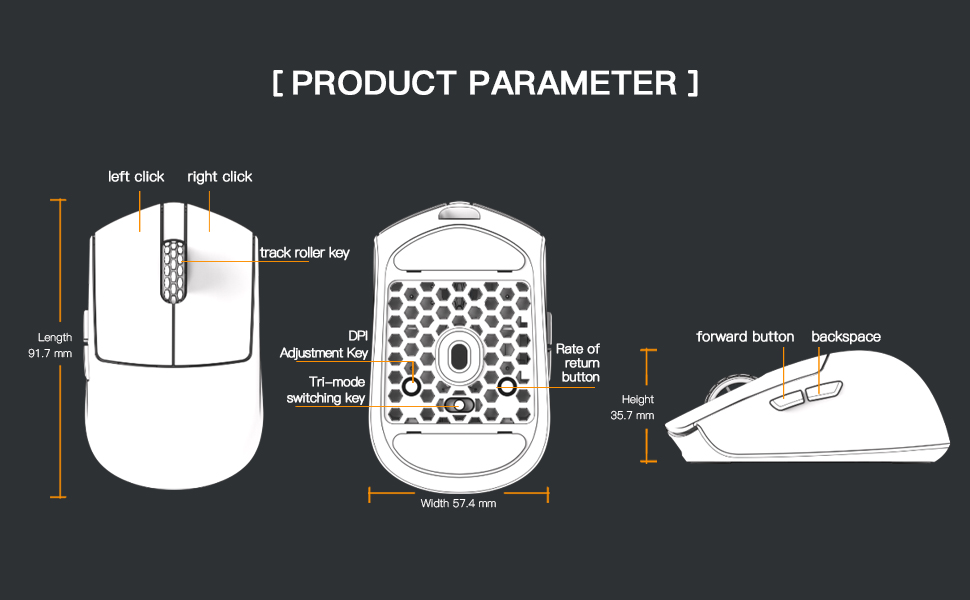
Image 3.1: Diagram illustrating the button layout and dimensions of the M5PRO mouse.
3.2 דפּי אַדזשאַסטמאַנט
The DPI (Dots Per Inch) sensitivity can be adjusted using the dedicated DPI adjustment key located on the bottom of the mouse. Press the button to cycle through preset DPI levels. The current DPI level may be indicated by an LED color change (refer to software for specific mappings).
3.3 מאָדע סוויטשינג
Use the switch on the bottom of the mouse to select between 8K wireless, Bluetooth, and wired modes.
3.4 ווייכווארג קאַסטאַמייזיישאַן
For advanced customization, including button remapping, macro creation, and DPI fine-tuning, download the proprietary drivers from the official Darmoshark website. The software allows for personalized settings to optimize your experience.
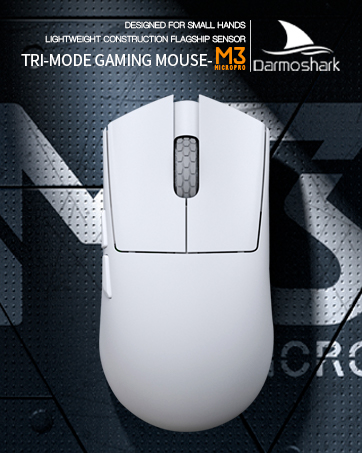
Image 3.2: The proprietary driver software allows for extensive customization of mouse settings.
4. וישאַלט
4.1 רייניקונג
צו רייניקן די מויז, ניצט א ווייכע, טרוקענע שטאָף. פֿאַר שווערע שמוץ, ניצט אַ ביסל טרוקענעם שטאָף.amp cloth can be used, but ensure no moisture enters the mouse. Avoid using harsh chemicals or abrasive materials.
4.2 סטאָרידזש
When not in use for extended periods, store the mouse in a cool, dry place away from direct sunlight and extreme temperatures. Ensure the mouse is turned off to conserve battery life.

בילד 4.1: עקספּלאָדירט view of the M5PRO mouse, highlighting its internal structure and lightweight components.
5. טראָובלעשאָאָטינג
5.1 מויז רעאַגירט נישט
- קאָנטראָלירן די באַטאַרייע: זיכער מאַכן אַז די מויז איז אויפגעלאָדן. פֿאַרבינדט עס דורך אַ USB-C קאַבל צו לאָדן.
- קוק די קשר: Verify the correct mode (8K wireless, Bluetooth, or wired) is selected on the mouse.
- Receiver/Cable: For 8K wireless, ensure the receiver is securely plugged into a working USB port. For wired, ensure the cable is properly connected.
- ווידער-פארבינדן בלוטוט: If using Bluetooth, try removing the device from your computer's Bluetooth settings and re-pairing it.
5.2 פּראָבלעמען מיט קורסאָר באַוועגונג
- ריין סענסער: Ensure the optical sensor on the bottom of the mouse is clean and free from debris.
- ייבערפלאַך: Use the mouse on a suitable surface, preferably a mouse pad, for optimal tracking.
- DPI באַשטעטיקן: Adjust the DPI sensitivity to a comfortable level.
5.3 Software Not Detecting Mouse
- ווייערד קשר: Connect the mouse via USB-C cable to ensure the software can detect it.
- ווידער-אינסטאלירן ווייכווארג: Try uninstalling and reinstalling the proprietary drivers.
- Firmware דערהייַנטיקן: Check the Darmoshark website for any available firmware updates for the mouse.
6. ספּעסאַפאַקיישאַנז
| שטריך | באַשרייַבונג |
|---|---|
| סאָרט | דאַרמאָשאַרק |
| מאָדעל | M5PRO |
| קאַנעקטיוויטי טעכנאָלאָגיע | 8K Wireless, Bluetooth, Wired (USB-C) |
| באַוועגונג דעטעקשאַן טעכנאָלאָגיע | PAW3950 אָפּטישער סענסאָר |
| די מאַקסימום DPI | 30000 דפּי |
| פּאָללינג קורס | Up to 8KHz (8K wireless mode) |
| נומער פון קנעפּלעך | 5 (פּראָגראַמירבאר) |
| וואָג | בעערעך 38 גראַמז |
| באַטערי | 1 ליטהיום יאָן באַטאַרייע (אַרייַנגערעכנט) |
| קאַמפּאַטאַבילאַטי | Windows, Apple Mac |
Image 6.1: The PAW3950 optical sensor is a core component for precise tracking.
7. וואָראַנטי און שטיצן
For warranty information and technical support, please refer to the official Darmoshark webזייטל אדער קאנטאקט זייער קאסטומער סערוויס. האלט אייער באווייז פון קויפן פאר גאראנטיע טענות.
Official Darmoshark Webפּלאַץ: Darmoshark Store