1. פּראָדוקט איבערview
The ASUS ZenWiFi BT6 is a tri-band WiFi 7 mesh system designed to provide extensive and high-speed wireless coverage for your home. This system utilizes next-generation Smart AiMesh technology to deliver fast tri-band speeds up to 9.4 Gbps, leveraging superior 6 GHz WiFi for optimal performance.
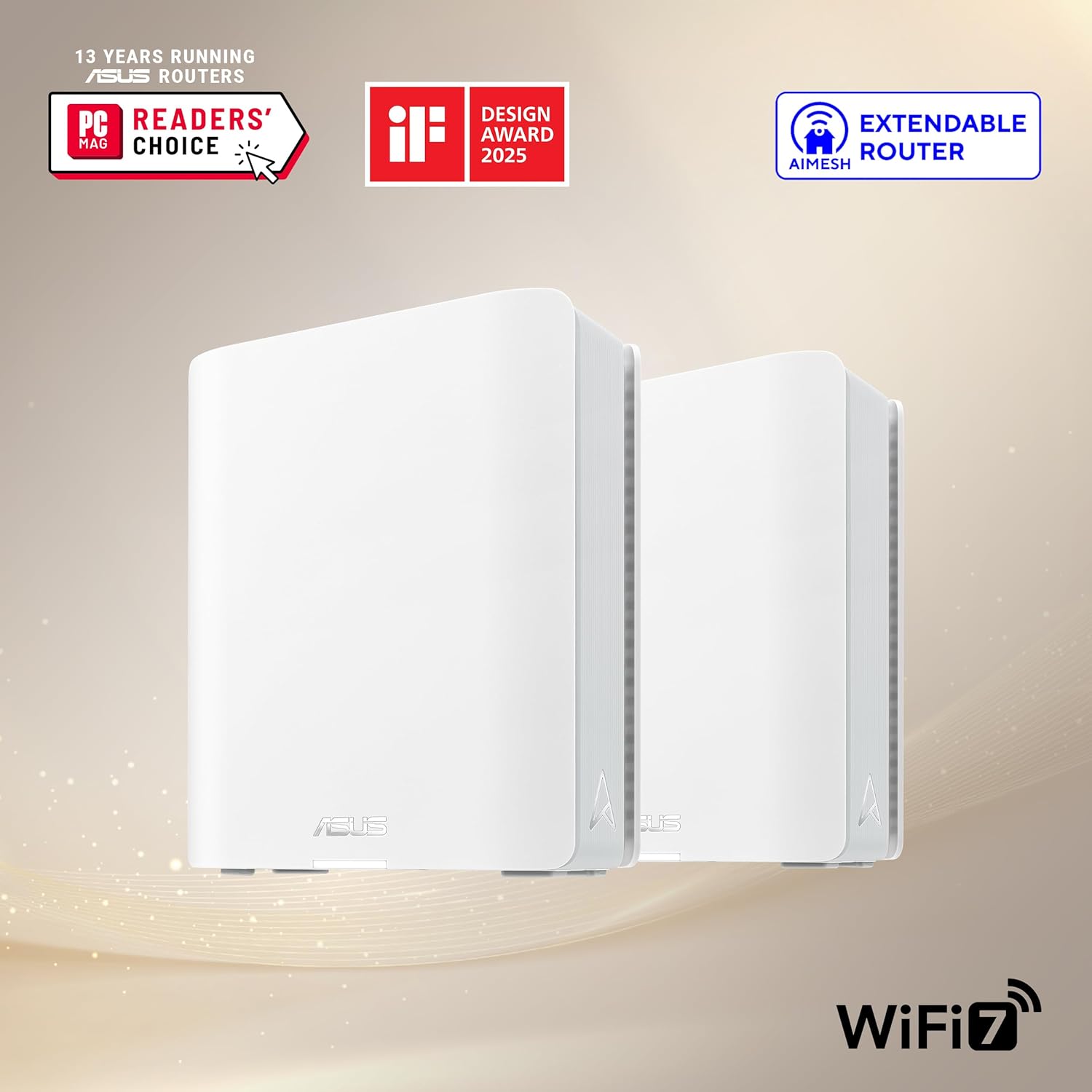
Image: Two ASUS ZenWiFi BT6 mesh units, showcasinג זייער קאָמפּאַקטן פּלאַן.
שליסל פֿעיִקייטן:
- טריי-באַנד וויי-פיי 7 גיכקייטן: Achieves speeds up to 9.4 Gbps with Multi-link Operation (MLO) and 4K-QAM technology.
- קינסטלעך-אינטעליגענט סמאַרט אַימעש: Extends coverage up to 5800 sq.ft. (with a 2-pack system) for seamless whole-home WiFi. Compatible with other ASUS AiMesh routers.
- Optimized Signal Strength: Features seven internal antennas and eight high-power front-end modules to minimize WiFi dead zones.
- Advanced Network Security: Includes commercial-grade AiProtection Pro and advanced VPN features for 24/7 end-to-end protection.
- Smart Home Master SSIDs: Facilitates easy setup and management of IoT Network, parental controls, and VPNs across multiple devices.
- ווערסאַטאַל קאַנעקטיוויטי: Equipped with a 2.5G WAN Port and supports 4G & 5G Mobile Tethering.
2. וואָס איז אין דער קעסטל
באַשטעטיקן אַז אַלע זאכן זענען פאַראַן אין דיין פּעקל:
- ASUS ZenWiFi BT6 (W-2-PK) Units (2 units for the 2-pack)
- רדזש 45 עטהערנעט קאַבלע
- מאַכט אַדאַפּטערז
- וואָראַנטי קאַרד
- שנעל אָנהייב גייד
3. סעטאַפּ אינסטרוקציעס
Follow these steps to set up your ASUS ZenWiFi BT6 mesh system:
- אויספּאַקן און שטעלן איינהייטן: Carefully remove both ZenWiFi BT6 units from the packaging. Place them in central locations within your home, ensuring they are within reasonable range of each other for optimal mesh performance.
- Connect the Main Unit:
- Connect one end of the provided RJ45 Ethernet cable to the 2.5G WAN port on the back of one ZenWiFi BT6 unit (this will be your main router unit).
- פֿאַרבינדט דעם אַנדערן עק פֿונעם עטערנעט קאַבל צו אייער מאָדעם'ס לאַן פּאָרט.
- Connect the power adapter to the main router unit and plug it into a power outlet. Power on the unit.
- Connect the Satellite Unit(s):
- Place the second ZenWiFi BT6 unit (satellite node) in another area of your home where you need extended coverage.
- Connect its power adapter and plug it into a power outlet. Power on the unit.
- The units will automatically attempt to establish a mesh connection. Observe the LED indicators for connection status (refer to the Quick Start Guide for LED meanings).
- Download and Configure via ASUS Router App:
- Download the ASUS Router app from the Google Play Store or Apple App Store.
- Open the app and follow the on-screen instructions to detect and configure your new ZenWiFi BT6 system. This includes setting up your WiFi network name (SSID) and password.
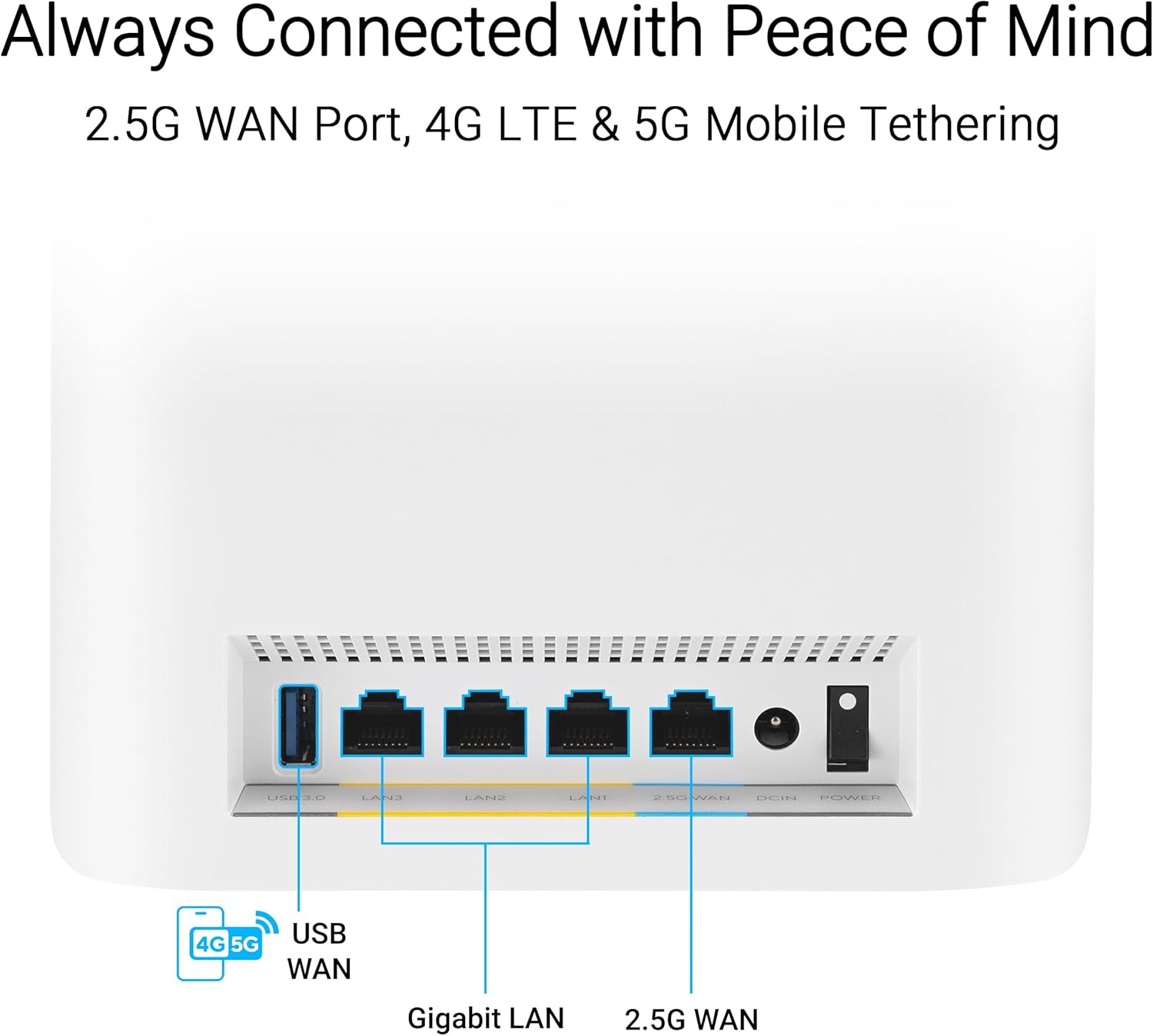
Image: Rear ports of the ZenWiFi BT6, highlighting the 2.5G WAN port for internet connection.

Image: The ASUS Router app interface, showing the easy 3-step setup process.
4. אפערירן אייער מעש סיסטעם
4.1. AiMesh Technology
The ZenWiFi BT6 utilizes AiMesh technology to create a unified whole-home WiFi network. This means your devices will automatically connect to the strongest WiFi signal as you move around your home, ensuring seamless connectivity without manual switching between networks.

Image: AiMesh coverage diagram, showing how two units provide WiFi across a large area.
4.2. Tri-Band WiFi 7 Performance
The system operates on three frequency bands (2.4 GHz, 5 GHz, and 6 GHz) to provide maximum bandwidth and reduce interference. WiFi 7 (802.11be) offers enhanced speeds and efficiency, particularly on the 6 GHz band, which is less congested.

Image: Tri-band speed breakdown, illustrating the performance of each frequency band.
4.3. Network Security with AiProtection Pro
AiProtection Pro, powered by Trend Micro, provides comprehensive network security. This includes protection against malicious sites, vulnerability protection, and infected device prevention and blocking. It operates continuously to safeguard your network and connected devices.

Image: AiProtection Pro interface within the ASUS Router app, detailing security features.
4.4. Advanced Parental Controls
Manage internet access for family members with advanced parental controls. Features include an internet activity dashboard, kid-safe presets, content filtering, and flexible time scheduling. These settings can be configured easily through the ASUS Router app.

Image: Parental controls dashboard in the ASUS Router app, showing options for managing family internet usage.
4.5. Smart Home Master SSIDs
The ZenWiFi BT6 allows you to create up to three distinct SSIDs (network names) for different purposes: an IoT Network for smart devices, a Kid's Network with specific access rules, and a VPN Network for secure connections. This segmentation enhances security and network management.

Image: Smart Home Master SSIDs feature, illustrating separate networks for IoT, VPN, and kids.
4.6. 4G & 5G Mobile Tethering
For backup internet or mobile connectivity, the ZenWiFi BT6 supports 4G and 5G mobile tethering. Connect a compatible 4G/5G USB dongle to the USB port on the router to use a mobile data connection as your internet source.
5. וישאַלט
To ensure optimal performance and longevity of your ASUS ZenWiFi BT6 system, consider the following maintenance tips:
- Firmware דערהייַנטיקונגען: רעגולער טשעקן פֿאַר און אינסטאַלירן פירמווער דערהייַנטיקונגען דורך די ASUS ראָוטער אַפּ אָדער web צובינד. דערהייַנטיקונגען אַרייַננעמען אָפט פאָרשטעלונג פֿאַרבעסערונגען, זיכערהייט פּאַטשאַז און נייַע פֿעיִקייטן.
- פיזישע רייניקונג: Keep the units free from dust. Use a soft, dry cloth to wipe the exterior. Ensure ventilation slots are not obstructed.
- ריסטאַרט פּעריִאָדיש: A periodic restart (e.g., once a month) can help clear temporary issues and refresh network performance.
- אָפּטימאַל אָרט: Ensure units are placed in open areas, away from large metal objects, thick walls, and interference sources (like microwaves or cordless phones) to maintain strong signal strength.
6. טראָובלעשאָאָטינג
If you encounter issues with your ZenWiFi BT6 system, try the following steps:
- קיין אינטערנעט פֿאַרבינדונג:
- קוק אויב דיין מאָדעם אַרבעט ריכטיק.
- Ensure the Ethernet cable is securely connected from the modem to the 2.5G WAN port of your main ZenWiFi unit.
- Restart both your modem and the ZenWiFi main unit.
- Poor WiFi Signal/Coverage:
- Relocate your satellite ZenWiFi unit closer to the main unit or to a more central location.
- Ensure there are no major obstructions between the units.
- Check the AiMesh connection status in the ASUS Router app.
- Devices Cannot Connect to WiFi:
- באַשטעטיקט אַז איר ניצט דעם ריכטיקן WiFi נעץ נאָמען (SSID) און פּאַראָל.
- ריסטאַרט די פּראָבלעמאַטישע מיטל.
- Check if the WiFi is enabled on your ZenWiFi system via the app or web צובינד.
- סלאָו ספּידז:
- זייט זיכער אז אייער אינטערנעט סערוויס פראוויידער (ISP) צושטעלט די ערווארטעטע גיכקייטן.
- Minimize the number of active devices or bandwidth-intensive applications.
- Consider using a wired connection for devices that require maximum speed.
For further assistance, refer to the comprehensive user manual available on the ASUS support webזייטל אדער קאנטאקט ASUS קאסטומער שטיצע.
7. טעכניש ספּעסאַפאַקיישאַנז
| שטריך | דעטאַל |
|---|---|
| סאָרט | ASUS |
| מאָדעל נאָמען | BT6 (W-2-PK) |
| ווירעלעסס טיפּ | 802.11.be (WiFi 7), 802.11ax (WiFi 6), 802.11ac (WiFi 5), 802.11n (WiFi 4) |
| אָפטקייַט באַנד קלאַס | טריי-בענד (2.4 גיגאהערץ, 5 גיגאהערץ, 6 גיגאהערץ) |
| מאַקס דאַטאַ קורס | אַרויף צו 9.4 גבפּס |
| Coverage (2-pack) | אַרויף צו 5800 סק.פט. |
| וואַן פּאָרט | 1 x 2.5G WAN Port |
| לאַן פּאָרץ | Multiple Gigabit LAN ports |
| וסב פּאָרט | USB 3.0 (for mobile tethering) |
| אָפּערייטינג סיסטעם | ASUSWRT |
| דימענשאַנז (LxWxH) | 7.32 X 2.83 X 6.26 אינטשעס |
| פּונקט וואָג | 1.88 פונט |
| ספּעציעלע פֿעיִקייטן | 2 PACKS, Alexa Compatible, Guest Mode, VPN Security, AiProtection Pro, Parental Controls, Smart Home Master SSIDs |

Image: Internal components of the ZenWiFi BT6, highlighting its engineering for performance.
8. וואָראַנטי און שטיצן
Your ASUS ZenWiFi BT6 system typically comes with a manufacturer's warranty. Please refer to the included Warranty Card for specific terms and conditions.
שוץ פלענער:
Additional protection plans may be available for purchase, such as 3-Year or 4-Year Protection Plans, or a Complete Protect monthly plan. These plans offer extended coverage beyond the standard manufacturer's warranty.
קונה שטיצן:
For technical assistance, product registration, or warranty claims, please visit the official ASUS support website or contact their customer service department. Keep your product model number (BT6) and serial number handy when contacting support.
9. נאָך רעסאָורסעס
Video: ZenWiFi BT6 Product Video, providing a visual overview of the system's features and benefits.