1. הקדמה
This manual provides detailed instructions for the setup, operation, and maintenance of your TONOR Audio Interface and Microphone Set. This all-in-one equipment kit is designed to enhance your audio experience for content creation, gaming, and streaming, offering features such as an XLR dynamic microphone, a USB audio mixer, and customizable RGB lighting.
2. וואָס איז אין דער קעסטל
Carefully unpack the box and ensure all the following components are present:
- אַודיאָ מיקסער
- XLR דינאַמיש מיקראָפאָן
- Metal Base for Microphone
- XLR Cable for Microphone
- Live Audio Cable (3.5mm to 3.5mm)
- וסב צו טיפּ-C קאַבלע
- מיקראָפאָן שטיין
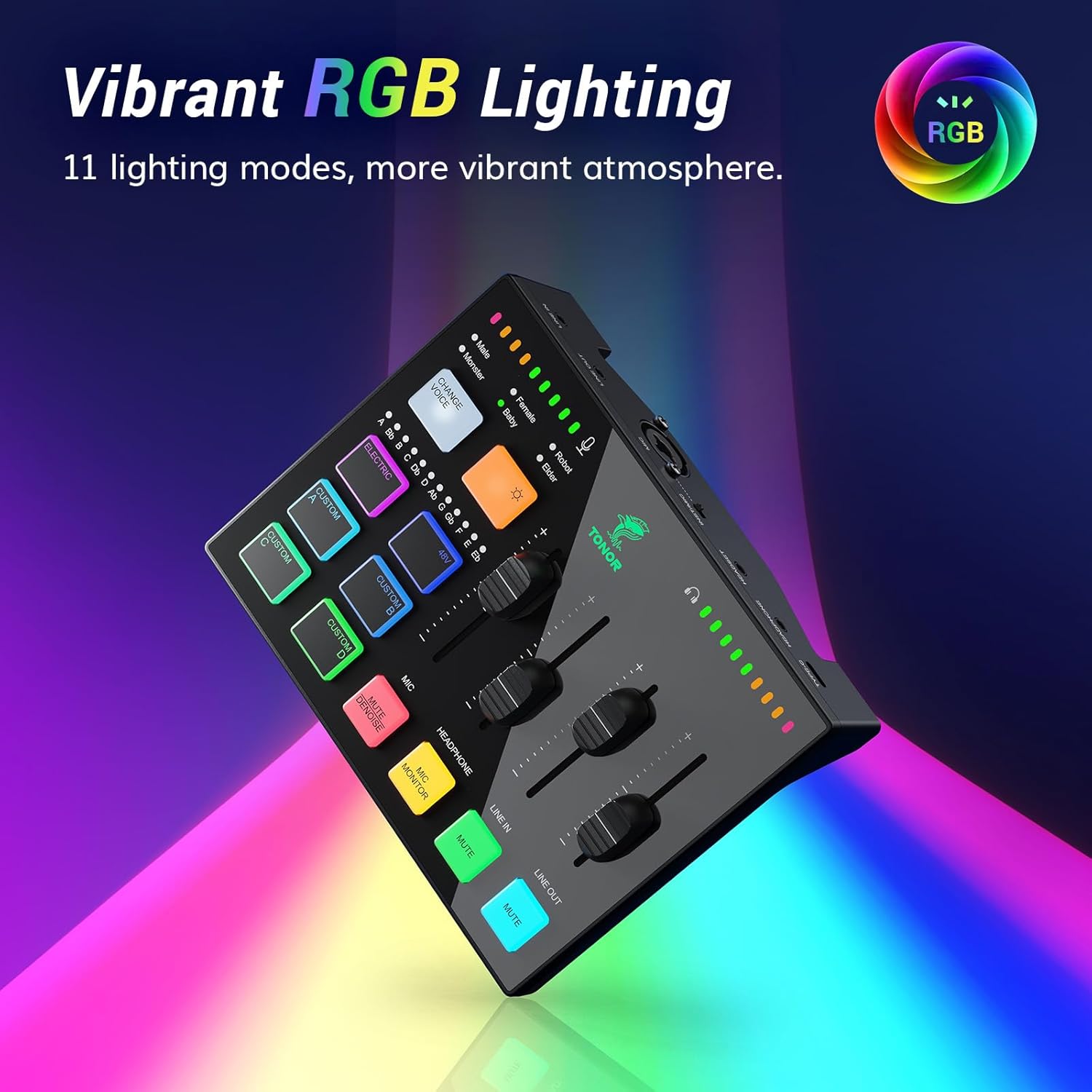
Image: All components included in the TONOR Audio Interface and Microphone Set package.
3. סעטאַפּ אינסטרוקציעס
Follow these steps to set up your TONOR Audio Interface and Microphone Set:
- פאַרבינדן די מיקראָפאָן: Attach the XLR dynamic microphone to the microphone stand. Use the provided XLR cable to connect the microphone to the XLR input port on the audio mixer.
- פאַרבינדן צו קאָמפּיוטער: Use the USB-C to USB-A cable to connect the audio mixer's Type-C interface to your computer's USB port. The device is plug-and-play compatible with Mac OS, Windows, PS4, and PS5.
- פאַרבינדן אַודיאָ דעוויסעס:
- For headphones, connect them to the HEADPHONE or HEADSET output on the mixer.
- For external audio input (e.g., from a phone or tablet), use the 3.5mm to 3.5mm audio cable to connect to the LINE IN port.
- For external speakers or other output devices, connect them to the LINE OUT port.
- מאַכט אויף: Once all connections are secure, the mixer will power on automatically when connected to your computer.

Image: XLR Input Connection on the audio mixer.

Image: Connectivity options and wide compatibility of the audio mixer.
4. אַפּערייטינג ינסטרוקטיאָנס
4.1 Individual Channel Control
The audio mixer features smooth volume slider faders and mute buttons for precise control over various audio channels:
- מיקראָפאָן (MIC): סטרויערן די מיקראָפאָן אַרייַנשרייַב באַנד.
- כעדפאָון: Control the monitoring volume for your headphones.
- שורה אין: Adjust the volume for external audio sources connected via LINE IN.
- שורה אָוט: Control the overall output volume to external speakers or recording devices.
- Mute Buttons: Each channel has a dedicated mute button for quick sound management.

Image: Individual channel controls with faders and mute buttons.
4.2 RGB לייטינג יפעקץ
Customize the aesthetic of your setup with 11 different RGB lighting modes. Use the dedicated RGB control button on the mixer to cycle through the available lighting effects.

Image: Audio mixer displaying vibrant RGB lighting effects.
4.3 Versatile Sound Effects
The sound card supports various sound effects and voice transformation modes:
- Custom Buttons (A, B, C, D): Four pre-recorded custom buttons allow you to trigger specific sound effects or audio clips.
- Voice Transformation Modes: Six voice transformation modes are available (e.g., Male, Female, Robot, Baby, Elder, Monster). Use the 'CHANGE VOICE' button to cycle through these.
- ELECTRIC Button: Offers 12 automatic tuning variations for vocal effects.

Image: Multiple effects buttons for voice and sound customization.
4.4 אַודיאָ קוואַליטעט און ראַש רעדוקציע
The included XLR dynamic microphone features a dynamic unit with noise reduction technology, designed to deliver clear and authentic voice reproduction with a high signal-to-noise ratio (S/N Ratio: 95dB).
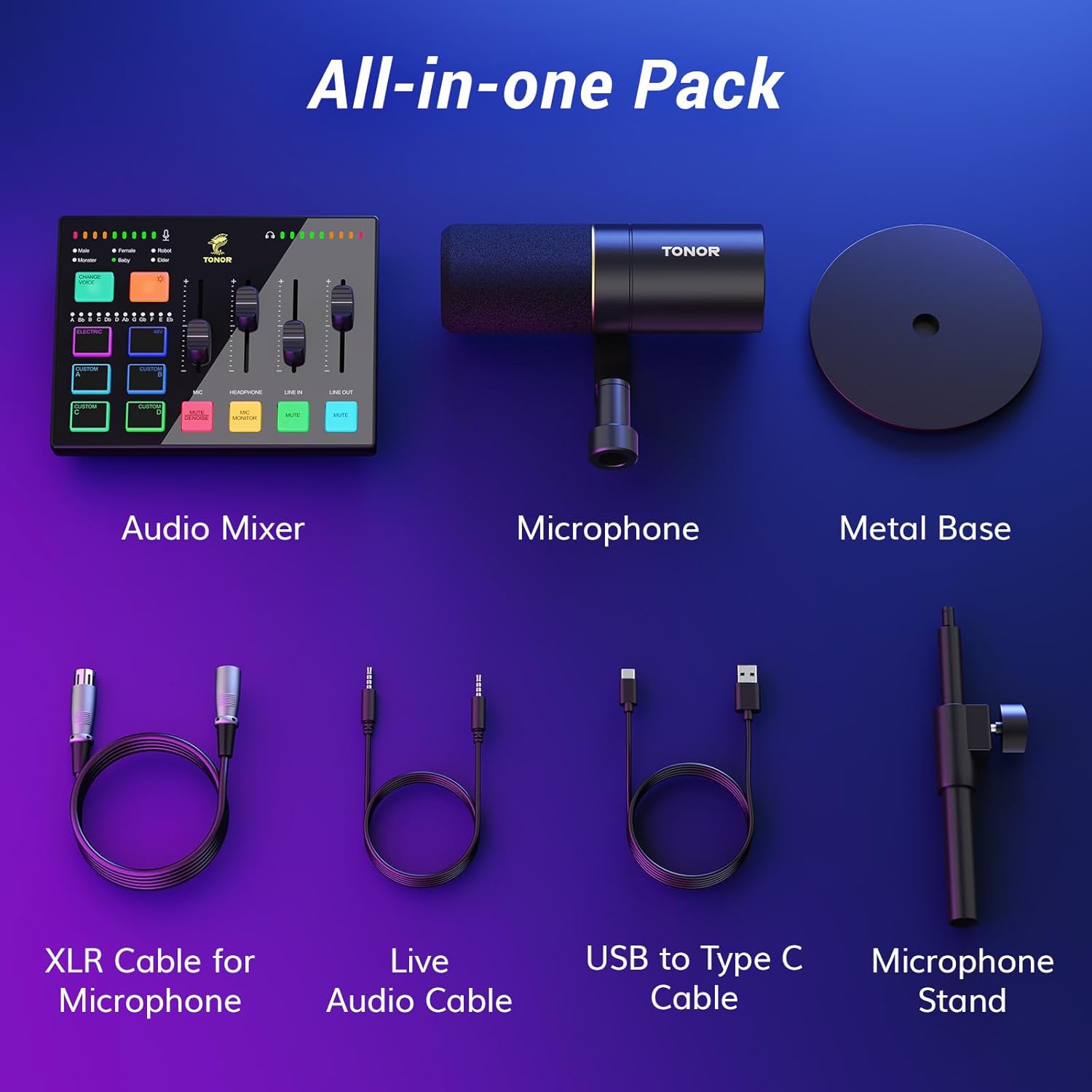
Image: Smoothly clear audio with noise reduction technology.
5. וישאַלט
To ensure the longevity and optimal performance of your TONOR Audio Interface and Microphone Set, follow these maintenance guidelines:
- רייניקונג: Use a soft, dry cloth to wipe down the surfaces of the mixer and microphone. Avoid using liquid cleaners or abrasive materials, as they can damage the components.
- סטאָרידזש: When not in use, store the equipment in a clean, dry place away from direct sunlight and extreme temperatures.
- קאַבלע זאָרגן: Avoid bending or kinking cables excessively. Disconnect cables by grasping the plug, not the cable itself, to prevent internal wire damage.
- מיקראָפאָן שוץ: Keep the microphone grille clean and free from dust. Consider using a pop filter to protect the microphone capsule from moisture and debris during use.
6. טראָובלעשאָאָטינג
If you encounter issues with your TONOR Audio Interface and Microphone Set, refer to the following common troubleshooting tips:
- קיין סאָונד רעזולטאַט:
- קאָנטראָלירן אַלע קאַבלע קאַנעקשאַנז צו ענשור אַז זיי זענען זיכער.
- Verify that the volume faders on the mixer are not at their minimum setting and that no channels are muted.
- Ensure the correct audio input/output device is selected in your computer's sound settings.
- Test with different headphones or speakers to rule out faulty peripherals.
- Microphone Not Detected/No Input:
- Confirm the XLR cable is firmly connected to both the microphone and the mixer.
- Check if the microphone is enabled and selected as the input device in your computer's sound settings or streaming software (e.g., OBS).
- Ensure the microphone channel on the mixer is not muted and its fader is raised.
- פאַרקרימט אַודיאָ:
- Reduce the input gain on the microphone channel to prevent clipping.
- קוק פֿאַר פרייַ קאַנעקשאַנז אָדער דאַמידזשד קייבאַלז.
- Ensure your computer's audio drivers are up to date.
- RGB לייטינג נישט ארבעטן:
- Ensure the mixer is properly powered via the USB connection.
- Press the RGB control button to cycle through modes or turn the lighting on/off.
If these steps do not resolve the issue, please contact TONOR customer support for further assistance.
7. ספּעסאַפאַקיישאַנז
| שטריך | באַשרייַבונג |
|---|---|
| פּונקט וואָג | 4.22 פונט |
| פּראָדוקט דימענשאַנז | 11.61 X 8.23 X 3.54 אינטשעס |
| ASIN | B0DHGK14CW |
| נומער מאָדעל נומער | פּאַרטיייש דערהייַנטיקן |
| קאַמפּאַטאַבאַל דעוויסעס | Headphone, Personal Computer, Speaker, XLR |
| שטיצט ווייכווארג | Mac OS and Windows drivers, OBS streaming software |
| אָפּערייטינג סיסטעם | Windows, macOS |
| מאַכט מקור | קאָרדעד עלעקטריק |
| סאָרט | טאָנאָר |
| קאַנעקטיוויטי טעכנאָלאָגיע | AUX |
| נומער פון טשאַנאַלז | 1 |
8. וואָראַנטי און שטיצן
TONOR products are designed for reliability and performance. For warranty information, product registration, or technical support, please visit the official TONOR webזייטל אדער קאנטאקט זייער קאסטומער סערוויס גלייך. האלט אייער קויף קוויטל פאר גאראנטיע טענות.


