הקדמה
This manual provides detailed instructions for the setup, operation, and maintenance of your TECWARE Spectre 75% RGB Mechanical Gaming Keyboard. Designed for performance and customization, the Spectre 75 features a compact layout, customizable LCD screen, multi-function knob, gasket mount design, and hot-swappable switches. Please read this manual thoroughly to ensure proper use and to maximize your keyboard's potential.

Image: The TECWARE Spectre 75 mechanical gaming keyboard, showcasinג זײַן קאָמפּאַקטן 75% אויסלייג און לעבעדיקע RGB באַקלייטונג.
סעטאַפּ
פּעקל אינהאַלט
- TECWARE Spectre 75 Mechanical Gaming Keyboard
- וסב-C צו וסב-א קאַבלע
- 2.4 גהז ווירעלעסס דאָנגלע
- קייקאַפּ / באַשטימען פּולער געצייַג
- באַניצער מאַנואַל (דעם דאָקומענט)
קאַנעקטיוויטי אָפּציעס
The TECWARE Spectre 75 keyboard offers three modes of connectivity:
- 2.4GHz ווירעלעסס: For a stable, low-latency wireless connection.
- בלועטאָאָטה 5.0: For wireless connection to multiple devices.
- יו-עס-בי-סי ווייערד: For a direct, reliable connection and charging.

Image: The keyboard's connectivity options, including the 2.4GHz wireless dongle, USB-C port, and Bluetooth indicator.
ערשט קאַנעקשאַן
- ווייערד קשר: Connect the provided USB-C cable to the keyboard's USB-C port and the other end to an available USB port on your computer. The keyboard will be recognized automatically.
- 2.4GHz ווירעלעסס קאַנעקשאַן:
- Locate the 2.4GHz wireless dongle.
- צאַפּן די דאָנגלע אין אַן בנימצא וסב פּאָרט אויף דיין קאָמפּיוטער.
- Ensure the keyboard's mode switch (usually on the back or side) is set to 2.4G.
- די קלאַוויאַטור זאָל זיך אויטאָמאַטיש פֿאַרבינדן.
- בלועטאָאָטה קאַנעקשאַן:
- זייט זיכער אז דער קלאַוויאַטור'ס מאָדע סוויטש איז געשטעלט צו BT.
- אויף אייער קאָמפּיוטער אָדער מיטל, גייט צו די בלועטוט סעטטינגס.
- זוכן פֿאַר new devices and select "TECWARE Spectre 75" (or similar) from the list.
- גיי קיין פּראַמפּס אויף דעם עקראַן צו פאַרענדיקן פּערינג.
The keyboard is equipped with a 4000mAh battery, providing up to 400 hours of continuous usage on a single charge. Charge the keyboard using the USB-C cable.
אָפּעראַציע
קוסטאָמיזאַבלע לקד סקרין
The 1.14" TFT-LCD smart screen can display various information and custom content.
- אינפֿאָרמאַציע ווייַז: View time, date, battery level, connection mode, and system information (e.g., CPU/GPU usage).
- Custom Content: Upload your own GIFs or static images for a personalized display. This feature is managed via the TECWARE software.

בילד: עקסamples of content displayed on the customizable LCD screen, including animated GIFs, time and date, and system performance metrics.
מולטי-פונקטיאָן קנופּ
The dedicated knob provides dual functionality for media control and LCD screen navigation.
- באַשטימען מאָדעס: דריקן און האַלטן די FN key and rotate the knob for 3 seconds to switch between LCD Mode and Volume Mode.
- LCD מאָדע:
- Rotate Left/Right: Navigate through the LCD menu.
- Press Down: Confirm selection.
- באַנד מאָדע:
- Turn: Adjust system volume.
- Press: Mute/Unmute audio.

Image: A user's hand adjusting the multi-function knob, which controls volume and LCD screen navigation.
רגב ילומאַניישאַן
The keyboard features 16.8 million color RGB illumination with per-key customization and an RGB LED side underglow.
- Preset Lighting Modes: Access 18 preset lighting modes directly from the keyboard or customize further using the TECWARE software.
- 3-Zone RGB Illumination: Lighting can be customized for keys, underglow, and the volume wheel.

Image: The TECWARE Spectre 75 keyboard displaying its extensive RGB lighting capabilities, including per-key customization and underglow effects.
ווייכווארג שטיצן
Download the official TECWARE software from the TECWARE website to unlock advanced customization options:
- מאַקראָו רעקאָרדינג: Create and assign complex macros to keys.
- מאַקראָ אַסיינמענט: Easily assign recorded macros to any key.
- מנהג באַניצער פּראָfiles: Save and switch between different key layouts and lighting configurations.
- LCD פאַרשטעלן קאַסטאַמייזיישאַן: Upload GIFs and images to the LCD screen.
- Advanced RGB Control: Fine-tune lighting effects and colors.

Image: The TECWARE Spectre 75 keyboard, highlighting its compatibility with software for advanced customization features like macros and user profiles.
וישאַלט
רייניקונג די קלאַוויאַטור
- ניצן אַ ווייך, לינט-פֿרייַ שטאָף אַ ביסל דampאָפּגעווישט מיט וואַסער אָדער אַ מילדער רייניקונג לייזונג צו ווישן די קלאַוויאַטורן און שאַסי.
- פֿאַר שטויב און שמוץ צווישן די קלאַוויאַטורן, ניצט קאָמפּרעסירטע לופט.
- פֿאַרמײַדט צו שפּריצן פֿליסיקייטן גלייך אויף דער קלאַוויאַטור.
- דו זאלסט נישט נוצן האַרב קעמיקאַלז אָדער אַברייסיוו מאַטעריאַלס.
הייס-סוואַפּפּאַבלע סוויטשיז
The TECWARE Spectre 75 features 5-pin universal hot-swappable sockets, allowing for easy replacement of switches without soldering.
- רימוווינג סוויטשיז: Use the provided switch puller tool. Gently grip the switch from the top and bottom, then pull upwards with even pressure until the switch detaches from the PCB.
- אינסטאַלירן סוויטשיז: Align the pins of the new switch with the holes on the PCB. Press down firmly until the switch clicks into place. Ensure the pins are not bent before insertion.
- קאַמפּאַטאַבילאַטי: South-facing LEDs ensure compatibility with most aftermarket switches.
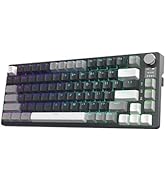
Image: The TECWARE Spectre 75 keyboard with keycaps and switches removed, showing the hot-swappable sockets and the tools required for switch replacement.
טראָובלעשאָאָטינג
קלאַוויאַטור ניט ריספּאַנדינג
- ווייערד: זיכער מאַכן אַז דער USB-C קאַבל איז זיכער פֿאַרבונדן צו ביידע די קלאַוויאַטור און דעם קאָמפּיוטער. פּרוּווט אַן אַנדער USB פּאָרט אָדער קאַבל.
- 2.4GHz ווירעלעסס:
- Verify the dongle is properly inserted into a USB port.
- Check that the keyboard's mode switch is set to 2.4G.
- זיכער מאַכן אַז די קלאַוויאַטור באַטאַרייע איז אָפּגעלאָדן.
- בלועטאָאָטה:
- Confirm the keyboard's mode switch is set to BT.
- Check your device's Bluetooth settings to ensure the keyboard is paired and connected.
- פרובירט אפצופּאַרן און ווידער צופּאַרן די קלאַוויאַטור.
- זיכער מאַכן אַז די קלאַוויאַטור באַטאַרייע איז אָפּגעלאָדן.
RGB ליגהטינג ישוז
- If RGB lighting is not working or displaying incorrectly, check the TECWARE software for lighting settings.
- זיכער מאַכן אַז די קלאַוויאַטור פירמווער איז אַרויף צו דאַטע.
לקד סקרין ניט ווייַזנדיק
- זייט זיכער אז די קלאַוויאַטור איז אנגעצונדן און פארבונדן.
- Check LCD settings within the TECWARE software.
- Try resetting the keyboard (refer to software or manufacturer webוועבזייטל פֿאַר ספּעציפֿישע אינסטרוקציעס).
שליסלען רעגיסטרירן זיך נישט אדער טייפן צוויי מאל
- This could indicate a faulty switch. Utilize the hot-swappable feature to replace the problematic switch.
- זיכער מאַכן אַז דער סוויטש איז גאָר אַרײַן אין זײַן סאָקעט.
ספּעסאַפאַקיישאַנז
| שטריך | דעטאַל |
|---|---|
| פּראָדוקט דימענשאַנז | 13.04 X 5.74 X 1.51 אינטשעס |
| פּונקט וואָג | 2.03 פונט |
| פאַבריקאַנט | Tecware |
| באַטעריז | 1 9V באַטעריע (אריינגערעכנט) |
| סאָרט | טעקוואַרע |
| קאַמפּאַטאַבאַל דעוויסעס | פּיסי, מעק |
| קאַנעקטיוויטי טעכנאָלאָגיע | Bluetooth (BT 5.0), USB-C, 2.4 GHz Wireless |
| קלאַוויאַטור באַשרייַבונג | RGB מעטשאַניקאַל גיימינג קלאַוויאַטור |
| רעקאָממענדעד ניצט | גיימינג |
| ספּעציעלע שטריך | Backlit, Customizable LCD Screen, Multi-Function Knob, Gasket Mount, Hot-Swappable Sockets |
| קאָליר | Black, Candy Red Switch (Linear) |
| סטייל | ספּעקטער קסנומקס |
| טעמע | רעגנבויגן |
| מאַכט מקור | באַטאַרייע פּאַוערד |
Switch Specifications (Candy Red Linear)
| כאַראַקטעריסטיש | ווערט |
|---|---|
| אַקטואַטיאָן פאָרס | 45 ± 5 גף |
| Bottom Out Force | 48 ± 5 גף |
| גאַנץ רייזע דיסטאַנסע | 3.5 ± 0.3 מם |
| טיפּ | לינעאַר |
באַמערקונג: ספּעסאַפאַקיישאַנז זענען אונטערטעניק צו טוישן אָן פריערדיק באַמערקן.
וואָראַנטי אינפֿאָרמאַציע
TECWARE products typically come with a limited manufacturer's warranty. For specific warranty terms, duration, and conditions applicable to your region and product, please refer to the warranty card included with your product or visit the official TECWARE webפּלאַץ.
האַלטן דיין דערווייַז פון קויפן פֿאַר וואָראַנטי קליימז.
שטיצן
For technical assistance, driver downloads, firmware updates, or further inquiries, please visit the official TECWARE support page:
You may also contact TECWARE customer service through the contact information provided on their webפּלאַץ.


