הקדמה
This manual provides essential instructions for setting up, operating, maintaining, and troubleshooting your Canon PIXUS TS3730 A4 Inkjet Multifunction Printer. Please read this manual thoroughly before using the product to ensure correct and safe operation. Keep this manual for future reference.

Figure 1: Canon PIXUS TS3730 A4 Inkjet Multifunction Printer (Black)
1. סעטאַפּ גייד
1.1 אויספּאַקן און ערשטע פּלאַצירונג
Carefully remove the printer from its packaging. Ensure all protective tapes and packing materials are removed from the exterior and interior of the printer. Place the printer on a stable, flat surface with adequate space around it for ventilation and operation.
1.2 מאַכט קאַנעקשאַן
- Connect the supplied power cord to the printer's power input.
- צאַפּן די אנדערע סוף פון די מאַכט שנור אין אַ וואַנט ווענטיל.
- דרוק די מאַכט קנעפּל צו קער אויף די דרוקער.
1.3 טינט קאַרטרידזש ינסטאַלירונג
The Canon PIXUS TS3730 uses BCI-365 (Black) and BCI-366 (Color) series ink cartridges. Follow these steps to install them:
- Open the printer's top cover to access the cartridge holder.
- Remove the new ink cartridges from their packaging. Be careful not to touch the electrical contacts or print nozzles.
- Insert the black cartridge into the left slot and the color cartridge into the right slot until they click into place.
- Close the top cover. The printer will perform an initial setup process.

Figure 2: Ink cartridge installation area with BCI-365 and BCI-366 cartridges.
1.4 פּאַפּיר לאָודינג
This printer features a rear paper tray. To load paper:
- Open the rear paper tray cover.
- Gently slide the paper guides to the edges.
- Load up to 60 sheets of A4 plain paper (or other supported media) into the tray, print side facing up.
- Adjust the paper guides to fit the paper stack snugly.

Figure 3: Rear paper feed tray with paper loaded.
1.5 ווייכווארג אינסטאַלאַציע און נעץ פֿאַרבינדונג
To use the printer's full functionality, install the drivers and software on your computer or connect via Wi-Fi.
1.5.1 Driver Installation (for Computer)
Download the latest drivers and software from the official Canon webזייטל. גיי נאך די אינסטרוקציעס אויפן עקראַן פאר אינסטאַלאַציע.
1.5.2 ווי-פי קאַנעקשאַן
The printer supports Wireless LAN. You can connect it to your home network using the printer's 1.5-inch LCD panel for setup or via WPS (Wi-Fi Protected Setup) if your router supports it. Refer to the on-screen instructions on the printer's display for detailed steps.
2. אַפּערייטינג ינסטרוקטיאָנס
2.1 יקערדיק פּרינטינג
To print a document or photo from your computer:
- זיכער מאַכן אַז דער דרוקער איז אנגעצונדן און פארבונדן צו אייער קאָמפּיוטער אָדער נעץ.
- Open the document or photo you wish to print.
- אויסקלייַבן דרוקן פֿון דער אַפּליקאַציע'ס מעניו (למשל, File > דרוקן).
- Choose your Canon PIXUS TS3730 printer from the list.
- Adjust print settings (paper size, print quality, color/grayscale) as needed.
- דריקט דרוקן.
2.2 קאפירן דאקומענטן
To make a copy using the printer's control panel:
- הייבט אויף דעם דאקומענט דעקל און לייגט דעם דאקומענט מיטן פנים אראפ אויפן סקענער גלאז. גלייכט עס אויס מיטן גלייכמארק.
- Close the document cover gently.
- אויף דעם דרוקער'ס קאנטראל פאנעל, אויסקלויבן קאָפּי.
- Use the navigation buttons to select copy settings (e.g., number of copies, color or black & white).
- דרוק די אָנהייב button (Color or Black) to begin copying.
2.3 סקענען דאקומענטן
To scan a document to your computer:
- לייגט דעם דאָקומענט מיטן פּנים אַראָפּ אויף דעם סקענער גלאָז.
- On your computer, open the scanning software (e.g., Canon IJ Scan Utility).
- אויסקלייַבן דיין דרוקער מאָדעל.
- Choose the desired scan settings (document type, resolution, destination folder).
- דריקט סקאַן. The scanned image will be saved to your computer.
2.4 דרוקן פֿון מאָבילע דעווייסעס
The Canon PIXUS TS3730 supports printing from smartphones and tablets via Wi-Fi. Download the Canon PRINT Inkjet/SELPHY app from your device's app store.
- Ensure your mobile device is connected to the same Wi-Fi network as your printer.
- Open the Canon PRINT Inkjet/SELPHY app.
- אויסקלייבן דעם דאָקומענט אָדער פאָטאָ וואָס איר ווילט דרוקן פֿון אינעווייניק פֿון דער אַפּ.
- Adjust print settings as required.
- צאַפּן דרוקן.
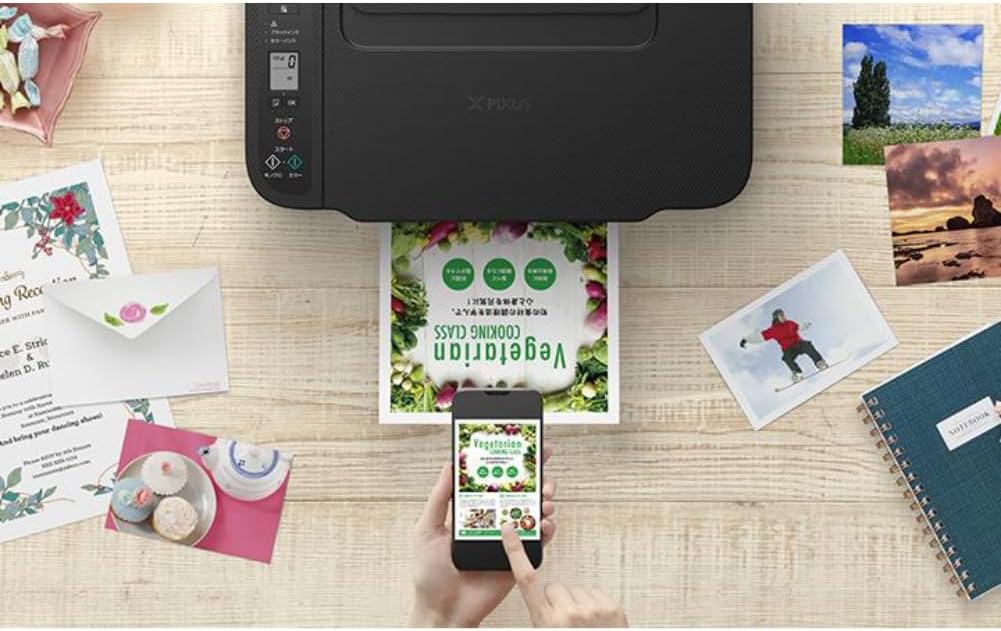
Figure 4: Printing a document wirelessly from a smartphone.
3. וישאַלט
3.1 אויסטוישן טינט קאַרטרידזשעס
When an ink cartridge runs low or is empty, replace it promptly to maintain print quality. Refer to section 1.3 for installation steps. Use genuine Canon BCI-365/366 series cartridges for optimal performance.
3.2 רייניקונג די פּרינטער
רעגולערע רייניקונג העלפט אויפהאלטן די דרוק קוואַליטעט און פארלענגערט די לעבנסדויער פונעם דרוקער.
- עקסטעריאָר רייניקונג: ווישט אָפּ די אויסערלעכע זייט פון דעם דרוקער מיט אַ ווייכן, טרוקענעם שטאָף.amp, א לינט-פֿרײַער שטאָף. ניצט נישט קיין שרײַבנדיקע רייניגער אָדער סאָלווענטן.
- פּרינט קאָפּ רייניקונג: If print quality declines (e.g., streaks, missing colors), perform a print head cleaning from the printer's maintenance menu or through the printer driver on your computer.
- Paper Path Cleaning: If paper jams occur frequently or paper feed is inconsistent, clean the paper path using the utility in the printer driver or by following instructions on the printer's LCD panel.
4. טראָובלעשאָאָטינג
די סעקציע באהאנדלט אלגעמיינע פראבלעמען וואס איר קענט באגעגענען.
4.1 דרוקער רעאגירט נישט
- זיכער מאַכן אַז דער דרוקער איז אנגעצינדן און אַז די מאַכט שנור איז זיכער פארבונדן.
- Check the Wi-Fi connection. Ensure the printer and your device are on the same network.
- Restart both the printer and your computer/mobile device.
- באַשטעטיקט אַז דער ריכטיקער דרוקער איז אויסגעקליבן אין אייער אַפּליקאַציע'ס דרוק דיאַלאָג.
4.2 שלעכטע דרוק קוואַליטעט
- קאָנטראָלירט די טינט לעוועלס און פאַרבייטן ליידיקע אָדער נידעריקע קאַרטרידזשעס.
- פירט אויס א דרוק קאפ רייניקונג און נאָזל קאָנטראָל פֿון דעם דרוקער'ס וישאַלט מעניו.
- זייט זיכער אַז איר ניצט פּאַסיק פּאַפּיר פֿאַר אייערע דרוק סעטטינגס.
- באַשטעטיקן אַז די דרוק קוואַליטעט סעטטינגס אין דיין דרוקער דרייווער זענען ריכטיק איינגעשטעלט.
4.3 פּאַפּיר דזשאַמז
- קער אַוועק די דרוקער און אָפּשטעקן עס.
- Carefully open all covers and gently remove any jammed paper. Avoid tearing the paper.
- Ensure paper is loaded correctly in the rear tray and the paper guides are adjusted.
- Remove any foreign objects from the paper path.
- Close all covers, plug in the printer, and turn it on.
5. ספּעסאַפאַקיישאַנז
| שטריך | באַשרייַבונג |
|---|---|
| מאָדעל נאָמען | PIXUS TS3730 |
| פאַנגקשאַנז | דרוק, קאָפּי, סקאַן |
| דרוק דעם טעכנאָלאָגיע | ינגקדזשעט |
| מאַקסימום דרוק רעזאָלוציע (קאָליר) | 4800 רענטגענ 1200 דפּי |
| מאַקסימום דרוק גיכקייט (מאָנאָכראָם) | 7.7 בלעטער / מינוט |
| מאַקסימום דרוק גיכקייט (קאָליר) | 4 בלעטער / מינוט |
| טינט טיפּ | 4-color (Dye/Pigment Hybrid Ink) |
| קאָמפּאַטיבלע טינט קאַרטרידזשעס | BCI-365 (Black), BCI-366 (Color) series |
| מאַקס פּאַפּיר גרייס | A4 |
| פּאַפּיר פיטער | Rear paper tray (Max 60 sheets A4 plain paper) |
| דופּלעקס פּרינטינג | ניין |
| קאַנעקטיוויטי | ווי-פי |
| ווייַז | 1.5-אינטש לקד טאַפליע |
| דימענשאַנז (ב x ד x ה) | 43.5 X 32.7 X 14.5 סענטימעטער |
| וואָג | 5.11 קג |
| אַרייַנגערעכנט קאַמפּאָונאַנץ | Inkjet Cartridges (may vary by region/retailer) |
6. וואָראַנטי און שטיצן
6.1 פּראָדוקט וואָראַנטי
This product comes with a limited warranty. Please refer to the warranty card included with your product or visit the official Canon webוועבזייטל פֿאַר דעטאַלירטע וואָראַנטי טערמינען און באַדינגונגען ספּעציפֿיש פֿאַר אייער געגנט.
6.2 קונה שטיצן
For technical assistance, driver downloads, or further inquiries, please visit the official Canon support website or contact Canon customer service in your region. Support contact information can typically be found on the Canon webוועבזייטל אדער אין דער דאקומענטאציע וואס איז צוגעשטעלט געווארן מיט אייער דרוקער.


