1. פּראָדוקט איבערview
The DOOGEE T40 is an advanced Android 14 tablet designed for both entertainment and productivity. It features a high-resolution 2.5K display, a powerful Octa-Core processor, and extensive storage capabilities, making it suitable for a wide range of applications from gaming to professional tasks.

פיגור 1.1: פאָרנט און הינטן view of the DOOGEE T40 Tablet, highlighting its sleek design and camera module.
שליסל פֿעיִקייטן:
- ווייַז: 11-inch 2.5K IPS Ultra Clear Display (2560x1600 resolution) for vibrant visuals.
- פאָרשטעלונג: Helio G99 Octa-Core Processor (6nm process technology) for smooth multitasking and gaming.
- זכּרון און סטאָרידזש: Up to 20GB RAM (8GB physical + 12GB virtual) and 512GB internal storage, expandable up to 2TB via microSD.
- באַטערי: 8580mAh large battery with 18W fast charging and reverse charging capability.
- קאַנעקטיוויטי: Dual SIM 4G LTE, Dual-band Wi-Fi (2.4G/5G), Bluetooth 5.0.
- אַפּערייטינג סיסטעם: Android 14 for enhanced productivity and entertainment.
- אַודיאָ: Immersive Quad Speakers for rich sound.
- קאַמעראַס: 16MP Main Camera and 8MP Front Camera.
ווידעא 1.1: אן איבערview of the DOOGEE T40 Tablet, showcasing its design, display, and key features.
2. וואָס איז אין דער קעסטל
Verify that all items are present in the package before proceeding with setup.
- T40 Tablet x1
- טיפּ-C וסב קאַבלע קס1
- טשאַרדזשער x1
- Tool for take card x1 (SIM Ejector Tool)
- Anti-explosion film x1 (Pre-applied screen protector)
- פּאַקינג קעסטל x1
- מאַנואַל x1 (דאָס דאָקומענט)
3. ספּעסאַפאַקיישאַנז
| שטריך | באַשרייַבונג |
|---|---|
| סאָרט | DOOGEE |
| מאָדעל נאָמען | T40 |
| אָפּערייטינג סיסטעם | אַנדרויד 14 |
| פאַרשטעלן גרייס | 10.95 אינטשעס |
| פאַרשטעלן האַכלאָטע | 2560 X 1600 בילדצעלן (2.5K) |
| פּראַסעסער | מעדיאַטעק העליאָ G99 אָקטאַ-קאָר |
| באַראַן | 20 גיגאבייט (8 גיגאבייט פיזיש + 12 גיגאבייט ווירטועל) |
| אינערלעכער סטאָרידזש | 512 גיגאבייט |
| יקספּאַנדאַבאַל סטאָרידזש | ביז 2TB דורך MicroSD קאַרטל |
| באַטאַרייע קאַפּאַציטעט | 8580 מאַה |
| טשאַרדזשינג | 18 וואט שנעלע טשאַרדזשינג, פאַרקערטע טשאַרדזשינג |
| קאַנעקטיוויטי | Dual SIM 4G LTE, Wi-Fi 2.4G/5G, Bluetooth 5.0 |
| קאַמעראַס | 16MP Main, 8MP Front |
| דימענשאַנז (LxWxH) | 10.09 X 6.61 X 0.3 אינטשעס |
| פּונקט וואָג | 2.49 פונט |
4. סעטאַפּ
4.1. ערשטע אָפּצאָל
Before first use, fully charge your DOOGEE T40 tablet using the provided Type-C USB cable and charger. Connect the charger to the tablet's USB-C port and plug it into a power outlet. The battery indicator on the screen will show charging progress.

Figure 4.1: Illustration of the tablet's 8580mAh battery and 18W fast charging capability.
4.2. מאַכט אויף / אויסגעלאשן
- צו מאַכט אויף: דריק און האלט דעם פּאַוער קנעפּל (געפינט זיך אויף דער זייט) ביז דער DOOGEE לאָגאָ דערשיינט.
- צו מאַכט אַוועק: דריק און האלט דעם פּאַוער קנעפּל ביז די פּאַוער אָפּציעס מעניו דערשיינט, און דערנאָך סעלעקטיר "אויסלאָשן".
- צו ריסטאַרט: פֿון די מאַכט אָפּציעס מעניו, סעלעקטירן "ריסטאַרט".
4.3. סים קאַרטל און מיקראָסד קאַרטל ינסטאַלירונג
The DOOGEE T40 supports Dual SIM 4G LTE and MicroSD card expansion.
- געפינט די סים קארטל טאַץ אויף דער זייט פון דער טאַבלעט.
- Insert the provided SIM ejector tool into the small hole next to the tray and gently push until the tray pops out.
- לייגט אריין אייערע נאַנאָ-סים קאַרדס און/אָדער מיקראָסד קאַרטל אין די באַשטימטע סלאָץ אויף דער טאַץ, און זאָרגט אַז די אָריענטירונג איז ריכטיק.
- שטופּ פֿאָרזיכטיק צוריק דעם טאַץ אין דער טאַבלעט ביז עס קליקט אַרײַן אין פּלאַץ.

Figure 4.2: Close-up of the Dual SIM and TF (MicroSD) card slot on the DOOGEE T40 Tablet.
4.4. נעץ קאַנעקשאַן
- ווי-פי: גיין צו סעטטינגס > נעץ און אינטערנעט > Wi-Fi, turn Wi-Fi on, select your desired network, and enter the password if required.
- מאָביל דאַטן: Ensure your SIM card is installed correctly. Go to סעטטינגס> נעץ & אינטערנעט> מאָביל נעץ and enable mobile data.
5. אַפּערייטינג ינסטרוקטיאָנס
5.1. נאַוויגירן אַנדרויד 14
The DOOGEE T40 runs on Android 14, offering an intuitive user experience.
- היים פאַרשטעלן: סווייפּ לינקס אָדער רעכטס צו אַקסעס פאַרשידענע היים סקרינז.
- אַפּ שופלאָד: סווייפּ אַרויף פֿון דער אונטערשטער טייל פֿון דעם עקראַן צו צוטריטן אַלע אינסטאַלירטע אַפּליקאַציעס.
- נאָטיפיקאַציעס און שנעלע סעטטינגס: לאַקכענען אַראָפּ פֿון די שפּיץ פון דעם עקראַן צו view נאָטיפיקאַציעס און שנעל סעטטינגס טאָגאַלז (Wi-Fi, בלועטוט, אאז"וו).
- לעצטע אַפּפּס: סווייפּ אַרויף פֿון אונטן און האַלט, און דאַן לאָזט אָפּ צו זען לעצטנס גענוצטע אַפּליקאַציעס.
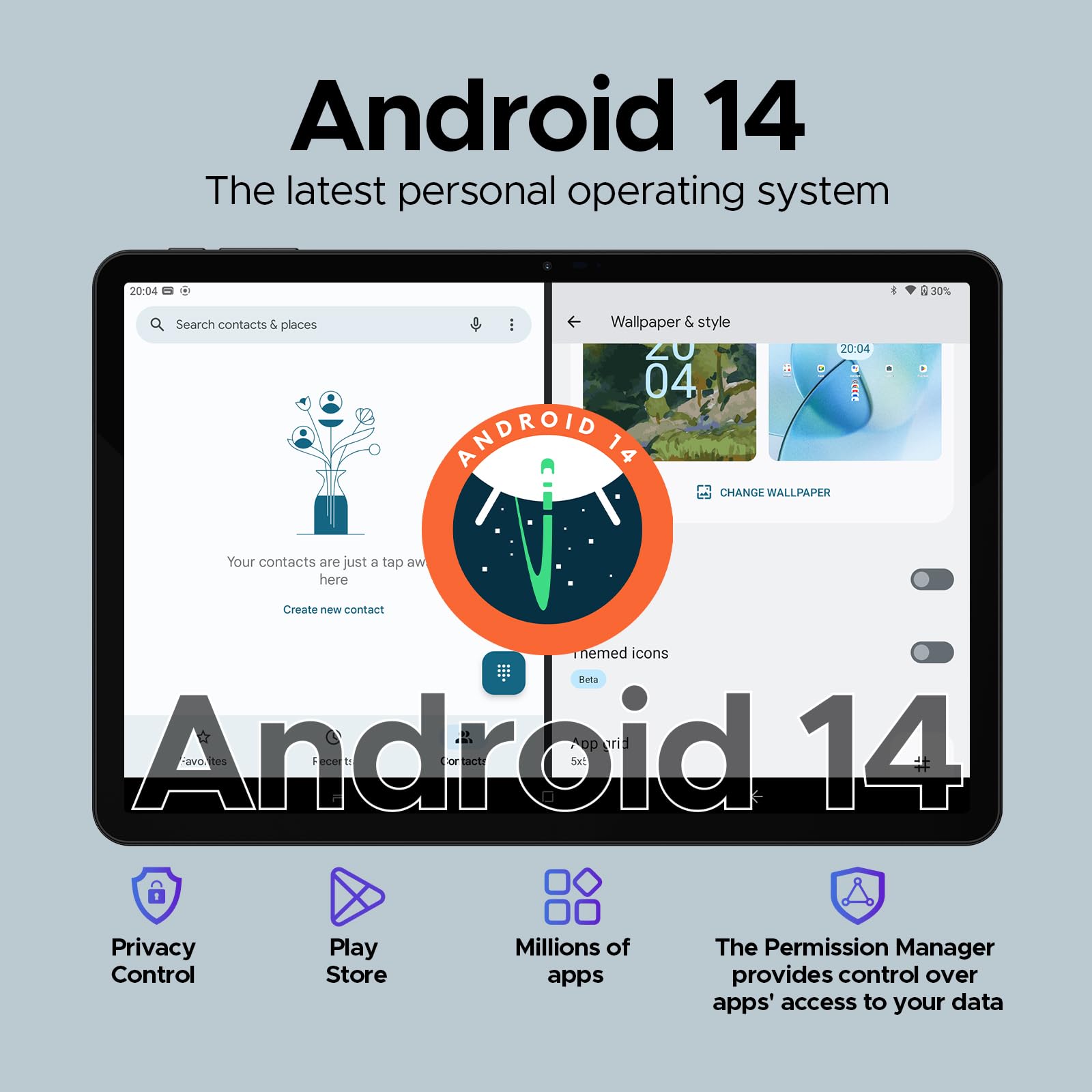
Figure 5.1: Visual representation of the Android 14 operating system interface on the DOOGEE T40.
5.2. פנים אויפשליסן
For quick and secure access, configure Face Unlock:
- גיין צו Settings > Security & privacy > Device unlock > Face unlock.
- גיי די ינסטראַקשאַנז אויף דעם עקראַן צו פאַרשרייַבן דיין פּנים.
5.3. שפּאַלט-סקרין פאַנגקשאַנאַליטי
Multitask efficiently by using two apps simultaneously:
- עפֿנט די ערשטע אַפּ וואָס איר ווילט נוצן.
- Swipe up from the bottom and hold to access recent apps.
- Tap the app icon at the top of the first app's card, then select "Split screen".
- קלייַבט אויס די צווייטע אַפּ פֿון אייַערע לעצטע אַפּפּס אָדער אַפּ שופלאָד צו פֿילן די אַנדערע העלפט פֿונעם עקראַן.
5.4. OTG (אויף-דער-גיין) פונקציאָנאַליטעט
The DOOGEE T40 supports OTG, allowing you to connect USB devices like flash drives, keyboards, or mice directly to the tablet using a compatible OTG adapter (not included).
It also supports reverse charging, allowing the tablet to act as a power bank for other devices. Connect your device to the tablet's USB-C port using a compatible cable.
6. וישאַלט
6.1. באַטערי קער
- פֿאַרמײַדט עקסטרעמע טעמפּעראַטורן, ווײַל זיי קענען פֿאַרערגערן די לעבן פֿון דער באַטעריע.
- Use only the original charger and cable provided with the tablet.
- For optimal battery longevity, avoid frequently draining the battery completely or keeping it at 100% for extended periods.
6.2. רייניקונג
- ניצט אַ ווייכן, לינט-פֿרייע שטאָף צו רייניקן דעם עקראַן און קערפּער פֿון דער טאַבלעט.
- פֿאַר שווערע פֿלעקן, אַ ביסל דampווישט דעם שטאָף מיט וואַסער אָדער אַ פאַרשטעלן רייניגער. פֿאַרמייַדט שטרענגע כעמיקאַליעס.
6.3. ווייכווארג דערהייַנטיקונגען
קאָנטראָלירט און אינסטאַלירט רעגולער ווייכווארג דערהייַנטיקונגען צו ענשור אָפּטימאַלע פאָרשטעלונג, זיכערהייט און צוטריט צו נייַע פֿעיִקייטן.
- גיין צו סעטטינגס > סיסטעם > סיסטעם דערהייַנטיקונג.
- Follow the on-screen prompts to download and install any available updates. Ensure your tablet is sufficiently charged or connected to power during updates.
7. טראָובלעשאָאָטינג
| פּראָבלעם | מעגלעך לייזונג |
|---|---|
| די טאַבלעט גייט נישט אָן. | זיכער מאַכן אַז די באַטאַרייע איז אויפגעלאָדן. פֿאַרבינדט דעם טשאַרדזשער און וואַרט אַ פּאָר מינוט איידער איר פּרוּווט עס ווידער אָנצוצינדן. אויב עס רעאַגירט נישט, דריקט און האַלט דעם "Power" קנעפּל פֿאַר 10-15 סעקונדעס צו צווינגען אַ ריסטאַרט. |
| Wi-Fi פֿאַרבינדונג פּראָבלעמען. | ריסטאַרט דעם טאַבלעט און אייער Wi-Fi ראַוטער. פֿאַרגעסט וועגן דעם נעץ אין די Wi-Fi סעטטינגס און פֿאַרבינדט זיך ווידער. מאַכט זיכער אַז איר זענט אין דער ראַנגע פֿון דעם Wi-Fi סיגנאַל. |
| אַפּפּס קראַשן אָדער פרירן. | Clear the cache and data for the problematic app (סעטטינגס > אַפּפּס > [אַפּ נאָמען] > סטאָרידזש און קאַש). דערהייַנטיקט די אַפּ פֿון גוגל פּליי סטאָר. אויב די פּראָבלעם בלייבט, דעינסטאַלירט און ריינסטאַלירט די אַפּ. |
| לאַנגזאַמע פאָרשטעלונג. | Close unused background apps. Clear cache regularly. Consider uninstalling rarely used apps. Ensure sufficient free storage space. Restart the tablet periodically. |
| סים קאָרט ניט דיטעקטאַד. | Ensure the SIM card is correctly inserted into the tray. Restart the tablet. Verify that the SIM card is active with your mobile carrier. |
8. וואָראַנטי און שטיצן
The DOOGEE T40 Tablet comes with a 2 יאָר וואָראַנטי, as stated in the product features. For any technical assistance or warranty claims, please contact the seller directly.
פארקויפער : טאַבלעט פלאַגשיפּ קראָם
DOOGEE provides lifetime technical support and full 24/7 customer service for their products.
For further assistance, refer to the official DOOGEE webזייטל אדער קאנטאקט זייערע קאסטומער שטיצע קאנאלן.


