1. הקדמה
This manual provides essential information for setting up, operating, maintaining, and troubleshooting your Beelink SER3 Mini PC. Please read this guide thoroughly to ensure proper usage and to maximize the performance and longevity of your device.

פיגורע 1: פראָנט view of the Beelink SER3 Mini PC, showcasing its compact design and accessible front ports.
2. וואָס איז אין דער קעסטל
באַשטעטיקן אַז אַלע זאכן זענען פאַראַן אין פּעקל:
- 1 x Mini PC
- 1 x HDMI קאַבלע
- 1 x מאַכט אַדאַפּטער
- 1 x באַניצער מאַנואַל
3. פּראָדוקט איבערview
The Beelink SER3 Mini PC is a compact and powerful computing solution designed for various tasks, from office work to 4K media playback. It features an AMD Ryzen 3 3200U processor, 16GB DDR4 RAM, and a 500GB PCIe 3.0 x4 SSD.

Figure 2: Key features of the Beelink SER3 Mini PC, highlighting its core components and capabilities.
3.1. קאָנעקטיוויטי פּאָרטן
The Mini PC offers a variety of ports for extensive connectivity:
- פראָנט פּאָרץ: 2x USB 3.2, 1x Audio Jack (HP&MIC), 1x CLR CMOS button, 1x Power button
- דערציען פּאָרץ: 1x 1000M LAN (RJ-45), 2x USB 3.2, 2x HDMI (4K@60Hz), 1x DC Jack for power adapter
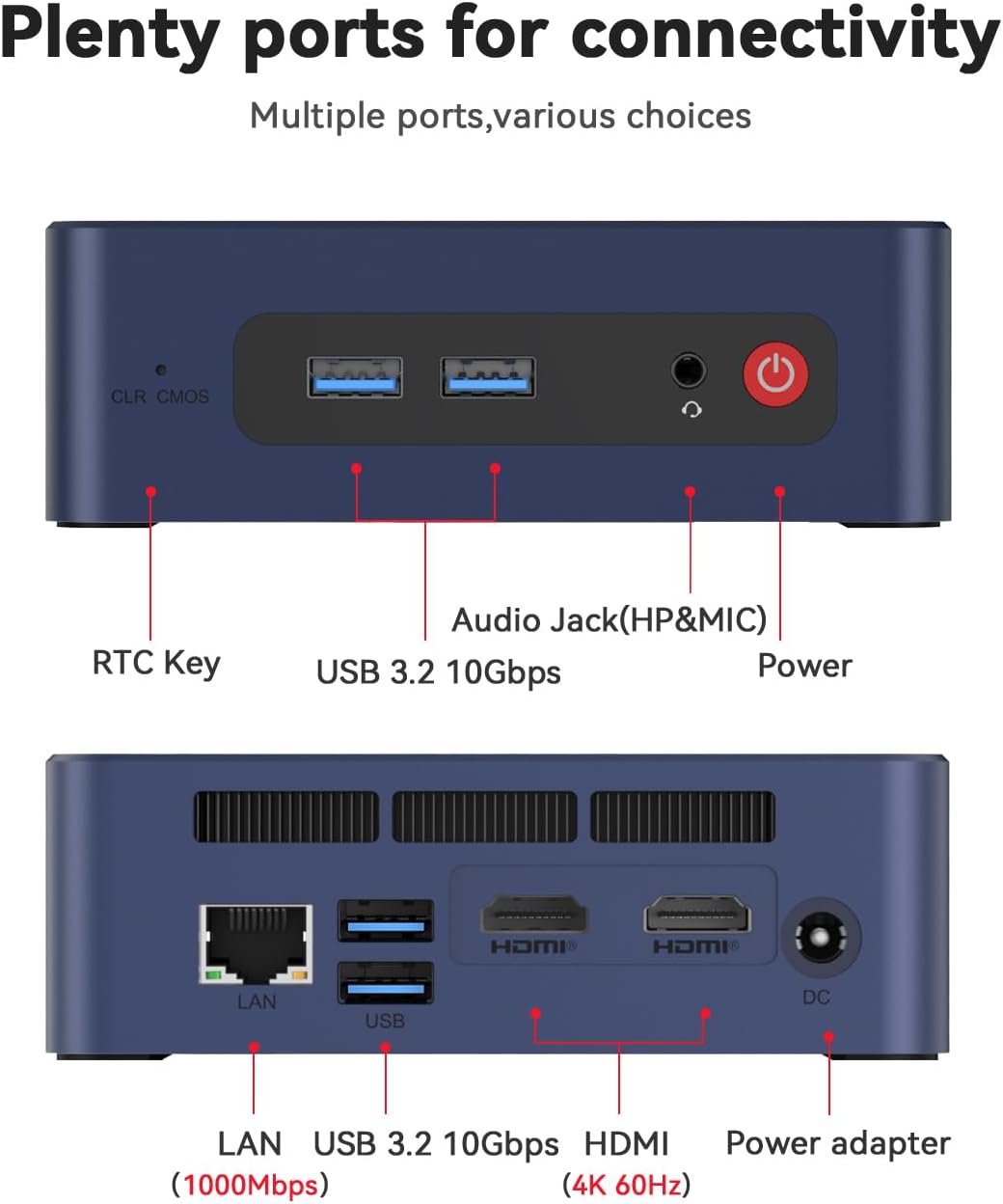
פיגורע 3: דעטאַילעד view of the front and rear connectivity ports on the Beelink SER3 Mini PC.
4. סעטאַפּ
4.1. ערשטע פֿאַרבינדונג
- Connect your monitor(s) to the HDMI ports on the rear of the Mini PC using the provided HDMI cable.
- פֿאַרבינדט אייער קלאַוויאַטור און מויז צו די פֿאַראַן USB פּאָרץ.
- Connect the power adapter to the DC Jack on the rear of the Mini PC and then plug it into a power outlet.
- Press the power button on the front of the Mini PC to turn it on.
4.2. Operating System Installation (Windows 11)
The Beelink SER3 Mini PC comes with Windows 11 Pro pre-installed. If you need to reinstall or perform a clean installation of Windows 11, follow the steps outlined in the video below. Ensure you have a bootable USB drive with Windows 11 installation media.
Video 1: Guide on how to install Windows 11 on your Beelink Mini PC using a USB flash drive.
4.3. Operating System Installation (Windows 10)
For users who prefer Windows 10, the following video provides instructions on how to install Windows 10 from a USB drive. Remember to back up any important data before proceeding with the installation.
Video 2: Instructions for installing Windows 10 on your Beelink Mini PC from a USB drive.
5. אָפּערייטינג
Once the operating system is set up, you can begin using your Beelink SER3 Mini PC. Its AMD Ryzen 3 3200U processor and Radeon Vega 3 Graphics are designed for efficient multitasking, 4K video playback, and light gaming.
5.1. Dual Display Setup
The Mini PC supports dual 4K@60Hz displays via its two HDMI ports. Connect two monitors to enhance your productivity or multimedia experience.
5.2. ווירעלעסס קאַנעקטיוויטי
Utilize the built-in Dual-band 2.4G/5G WiFi (802.11ac) for high-speed internet access and Bluetooth 5.2 for connecting wireless peripherals such as keyboards, mice, or headphones.
6. וישאַלט און ופּגראַדעס
The Beelink SER3 Mini PC is designed for easy maintenance and upgrades, allowing you to expand its storage and memory capacity.

פיגורע 4: עקספּלאָדעד view illustrating the internal components of the Beelink SER3 Mini PC.
6.1. SSD Replacement/Upgrade
The Mini PC supports M.2 PCIe 3.0 x4 (2280) SSDs and has a SATA HDD (2.5-inch 7mm) slot for additional storage. Refer to the video below for instructions on how to replace or upgrade your SSD.
Video 3: Tutorial on replacing or upgrading the SSD in your Beelink Mini PC.
6.2. ראַם אַפּגרעיד
The device comes with 16GB DDR4 2400MHz RAM and can be upgraded to 32GB (2 x 16GB). Consult the exploded view (Figure 4) for the location of the RAM slots.
7. טראָובלעשאָאָטינג
If you encounter any issues with your Beelink SER3 Mini PC, consider the following basic troubleshooting steps:
- קיין מאַכט: זיכער מאַכן אַז דער מאַכט אַדאַפּטער איז זיכער פארבונדן צו ביידע די מיני פּיסי און אַ אַרבעטנדיק מאַכט ווענטיל.
- קיין ווייַז: Check HDMI cable connections to both the Mini PC and the monitor. Try a different HDMI port or cable. Ensure the monitor is set to the correct input source.
- פּעריפערישע פּראָבלעמען: Verify USB connections for keyboard and mouse. Try different USB ports.
- Operating System Problems: If the OS is not booting correctly, consider reinstalling Windows using the instructions in Section 4.2 or 4.3.
- CLR CMOS: If you experience boot issues or BIOS settings problems, press the CLR CMOS button on the front panel to reset BIOS settings to default.
8. ספּעסאַפאַקיישאַנז
Detailed technical specifications for the Beelink SER3 Mini PC:
| שטריך | באַשרייַבונג |
|---|---|
| פּראַסעסער | AMD Ryzen 3 3200U (2C/4T, ביז 3.5GHz) |
| גראַפיקס | AMD Radeon Vega 3 Graphics (3core, 1200 MHz) |
| באַראַן | 16GB DDR4 2400MHz (Upgradeable to 32GB) |
| סטאָרידזש | 500GB M.2 PCIE3.0 X4 (2280) SSD, 2.5" SATA HDD slot |
| ווידעא רעזולטאַט | 2x HDMI (4K@60Hz Dual Display) |
| ווירעלעסס קאַנעקטיוויטי | WiFi 6 (802.11ax), בלועטוט 5.2 |
| לאַן | 1000M (Gigabit Ethernet) |
| וסב פּאָרץ | 4x USB 3.2 |
| אַודיאָ | 1x Audio Jack (HP&MIC) |
| אָפּערייטינג סיסטעם | ווינדאָוס 11 פּראָ (פאַר-אינסטאַלירט) |
| דימענשאַנז | אומגעפער 124 מ״מ x 113 מ״מ x 42 מ״מ |
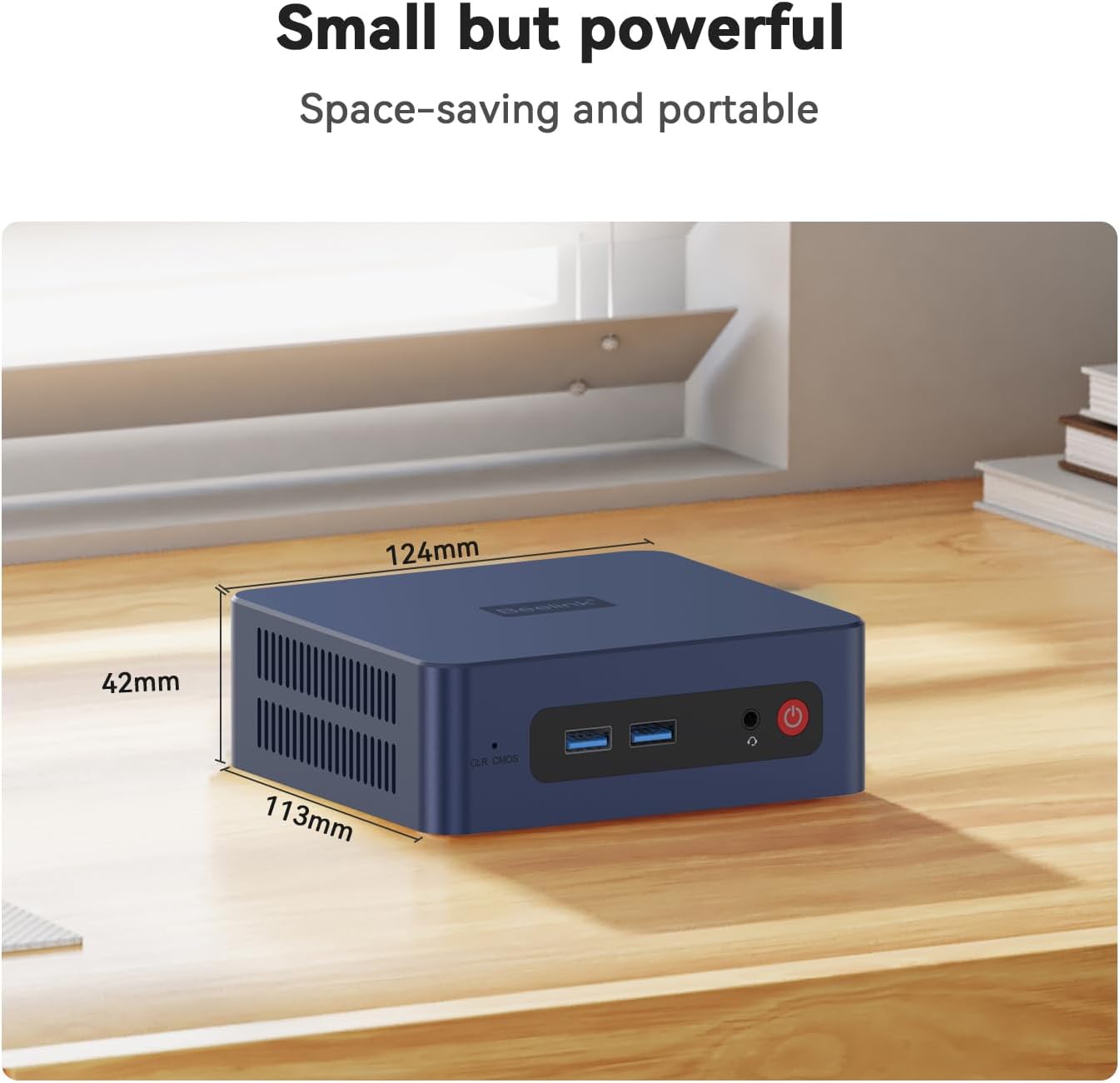
Figure 5: Physical dimensions of the Beelink SER3 Mini PC.
9. וואָראַנטי און שטיצן
Beelink is committed to providing excellent customer service and support for its products.
- וואָראַנטי: The Beelink SER3 Mini PC comes with a 1-Year free warranty.
- טעכניש שטיצן: לעבנסלענג טעכנישע שטיצע איז בנימצא.
- נאָך-סאַלעס סערוויס: 24/7 after-sales service is provided to address any questions or issues.
For any inquiries or support needs, please do not hesitate to contact Beelink customer service. The following video provides guidance on how to reach us:
Video 4: Guide on how to contact Beelink customer support for assistance.


