הקדמה
Thank you for choosing the ATTACK SHARK R2PRO Superlight Magnesium Alloy Gaming Mouse. This manual provides detailed instructions for setting up, operating, maintaining, and troubleshooting your new gaming mouse. The R2PRO is engineered for high-performance gaming, featuring a PixArt PAW3950 sensor, 8000Hz wireless polling rate, and a superlight 45g magnesium alloy design for unparalleled precision and comfort.

Image: The ATTACK SHARK R2PRO gaming mouse, showcasing its lightweight magnesium alloy frame and ergonomic design.
שליסל פֿעיִקייטן
- New-Gen Flagship Sensor (PixArt PAW3950): Provides exceptional accuracy and precision with up to 42,000 programmable DPI, 750 IPS speed, and 50g acceleration.
- Superlight Magnesium Alloy Design: Crafted from lightweight magnesium alloy with a CNC-integrated metallic frame and hollowed-out design, weighing only 45g for effortless movement and optimal airflow.
- 8000Hz Wireless Polling Rate: Achieves a response time as low as 0.125ms in wireless mode, ensuring highly responsive cursor movements and faster trigger response.
- Hyperspeed Connectivity: Offers versatile connection options including ultra-fast 2.4G wireless, agile Bluetooth, and a stable wired USB-C connection. Features prolonged 200-hour battery life.
- Durable Omron Optical Microswitches: Equipped with switches rated for over 100 million clicks, providing crisp feedback and eliminating unintended double clicks. Includes an F-Switch scroll wheel encoder for precise stepping.
- Fully Customizable: Program buttons, adjust DPI settings, polling rate, and lift-off distance using the dedicated driver software.
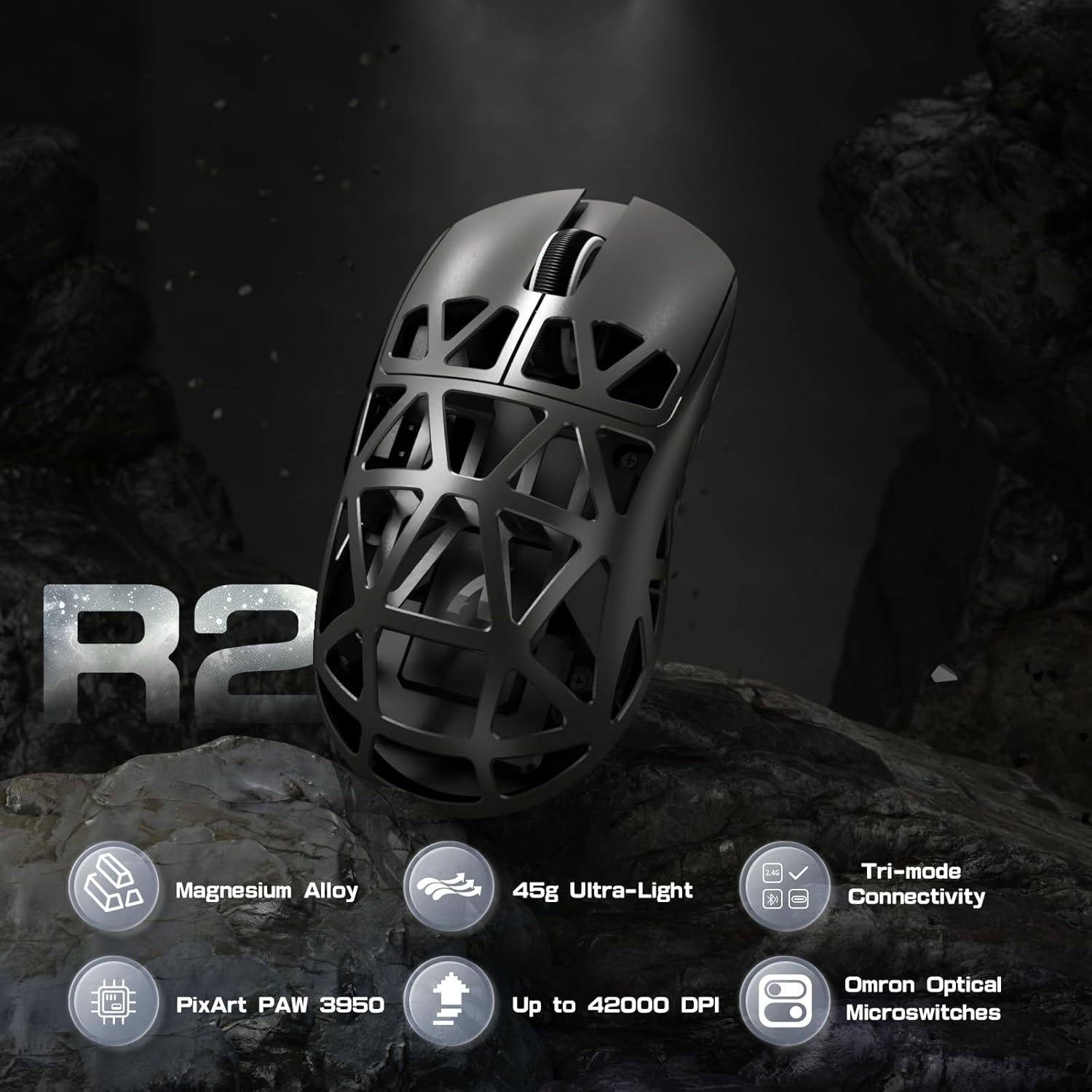
בילד: איבערview of R2PRO's key features including Magnesium Alloy, 45g Ultra-Light, Tri-mode Connectivity, PixArt PAW 3950, Up to 42000 DPI, and Omron Optical Microswitches.
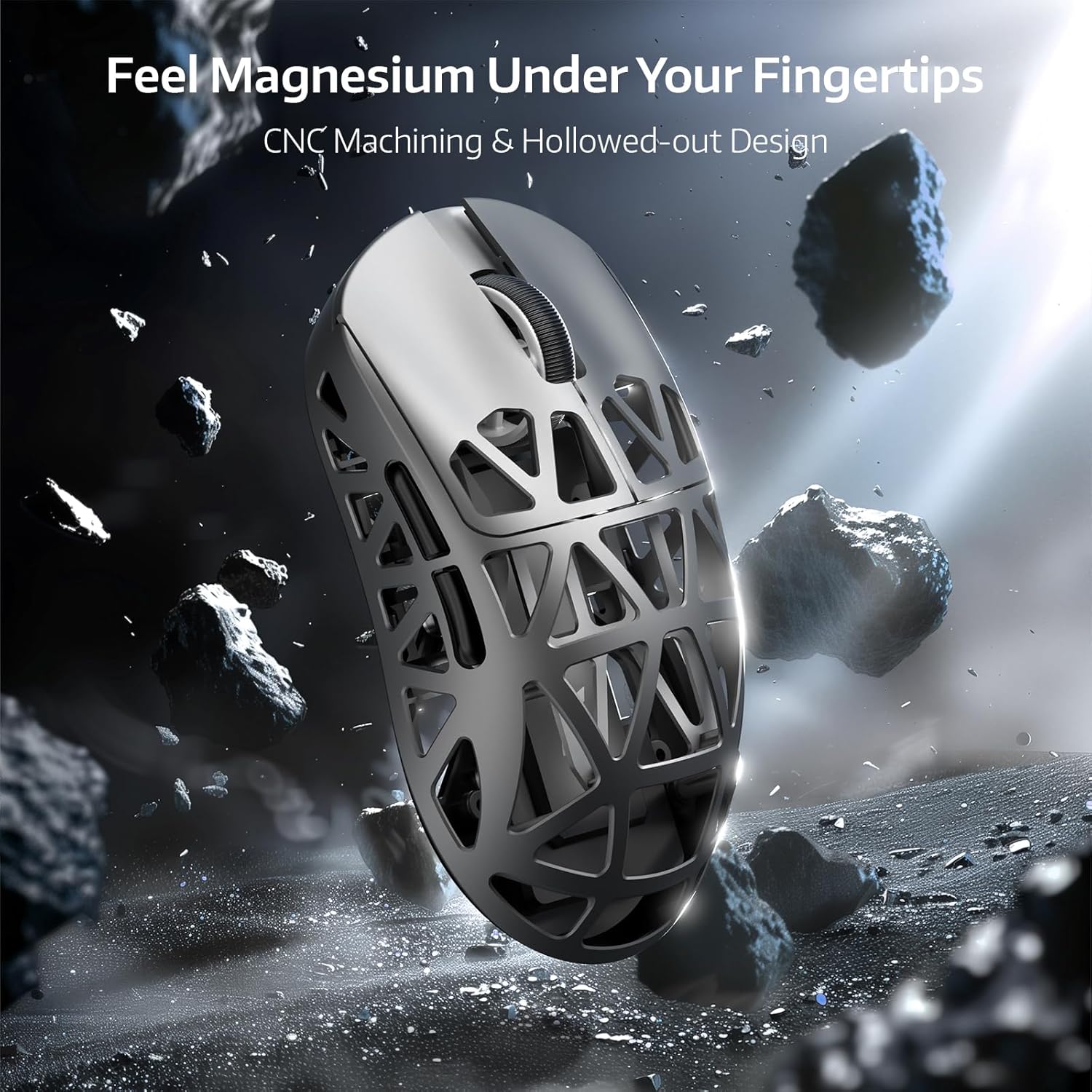
Image: Close-up of the R2PRO mouse highlighting its magnesium alloy construction and hollowed-out design for reduced weight and improved grip.

Image: Diagram illustrating the PixArt PAW3950 sensor, emphasizing its 50G acceleration, 42000 max DPI, and 8KHz polling rate capabilities.

Image: The R2PRO mouse wirelessly connected, illustrating the 8000Hz polling rate with a light beam from the dongle to the mouse.

בילד: אינערלעך view of the Omron Optical Microswitches, highlighting their durability and precision with 100 million click lifespan and F-Switch encoder.

Image: The R2PRO mouse connected via its various modes: Performance Mode (2.4Ghz), Efficiency Mode (Bluetooth 5.2), and Wired USB-C Mode (Play While Charging).
פּעקל אינהאַלט
ביטע באַשטעטיקן אַז אַלע זאכן זענען פאַראַן אין דיין פּעקל:
- ATTACK SHARK R2PRO Gaming Mouse
- 2.4G וויירלעס ריסיווער (USB דאָנגל)
- יו-עס-בי-סי צו יו-עס-בי-איי געקרויזטע קאבל
- באַניצער מאַנואַל
- Grip Tape (for specific variants)
- עקסטרע מויז סקעיטס
סעטאַפּ גייד
טשאַרדזשינג די מאַוס
Before first use, it is recommended to fully charge the mouse. Connect the provided USB-C coiled cable to the mouse's front port and the USB-A end to a computer's USB port or a USB wall adapter. The mouse's indicator light will show charging status.

Image: The R2PRO mouse connected via its USB-C cable to a power source, indicating charging.
קאַנעקטיוויטי אָפּציעס
- 2.4G ווירעלעסס מאָדע:
- Locate the 2.4G wireless receiver (USB dongle) usually stored in a compartment on the underside of the mouse.
- שטעקט אריין דעם USB דאנגל אין א פאראן USB פארט אויף אייער קאמפיוטער.
- Turn on the mouse using the switch on its underside. The mouse should automatically connect.
- בלועטאָאָטה מאָדע:
- Turn on the mouse and switch it to Bluetooth mode (refer to the switch on the mouse's underside for mode selection).
- אויף אייער קאָמפּיוטער, עפֿנט די בלועטוט סעטטינגס און זוכט פֿאַר נײַע דעווײַסעס.
- Select "ATTACK SHARK R2PRO" from the list of available devices to pair.
- ווייערד מאָדע:
- Connect the provided USB-C coiled cable to the mouse and the USB-A end to your computer.
- The mouse will function immediately in wired mode and will charge simultaneously.
אַפּערייטינג ינסטראַקשאַנז
דפּי אַדזשאַסטמאַנט
The R2PRO mouse features a dedicated DPI button, typically located on the top of the mouse, behind the scroll wheel. Press this button to cycle through preset DPI levels. The indicator light on the mouse may change color or flash to indicate the current DPI setting.
פּראָגראַממאַבלע קנעפּלעך
The R2PRO mouse comes with multiple programmable buttons. Their default functions include left click, right click, scroll wheel click, and side buttons (forward/back). For advanced customization, refer to the "Customization" section.
קוסטאָמיזאַטיאָן
To unlock the full potential of your ATTACK SHARK R2PRO mouse, download and install the official driver software from the ATTACK SHARK webזייטל. די ווייכווארג ערלויבט אייך צו:
- Program all buttons with custom functions, macros, or multimedia controls.
- Adjust DPI levels and create multiple DPI profiles.
- Set the polling rate (up to 8000Hz).
- Configure lift-off distance.
- Manage power settings and battery life.

Image: Screenshots of the ATTACK SHARK R2PRO driver software interface, showing options for button programming, DPI settings, and other parameters.
וישאַלט
רייניקונג
To maintain optimal performance and appearance, regularly clean your mouse. Use a soft, dry, lint-free cloth to wipe the surface. For stubborn dirt, slightly dampen the cloth with water. Avoid using harsh chemicals or abrasive materials. Use compressed air to clear dust from the hollowed-out sections and sensor area.
באַטערי קער
To prolong battery life, avoid fully discharging the mouse frequently. Charge the mouse when the battery indicator is low. If storing the mouse for an extended period, charge it to about 50% and turn it off.
טראָובלעשאָאָטינג
| פּראָבלעם | מעגלעך לייזונג |
|---|---|
| מויז רעאַגירט נישט (ווירעלעס) |
|
| מויז רעאַגירט נישט (ווייערד) |
|
| נישט-קאנסיסטענטע טרעקינג אדער קורסאר באוועגונג |
|
| מויז לאָדט זיך נישט אויף |
|
| ווייכווארג דעטעקטירט נישט די מויז |
|
ספּעסאַפאַקיישאַנז
| שטריך | דעטאַל |
|---|---|
| סאָרט | באַפאַלן שאַרק |
| מאָדעל | R2PRO |
| סענסאָר | פּיקסאַרט PAW3950 אָפּטישער סענסאָר |
| דפּי | Up to 42,000 (Programmable) |
| פּאָללינג קורס | Up to 8000Hz Wireless |
| אַקסעלעריישאַן | 50G |
| IPS Speed | 750 יפּס |
| קאַנעקטיוויטי | 2.4G ווירעלעס, בלועטוט, ווייערד (USB-C) |
| סוויטשיז | אָמראָן אָפּטישע מיקראָסוויטשיז (100 מיליאָן קליקס) |
| וואָג | אומגעפער 45 גראַם (1.59 אונסעס) |
| דימענשאַנז | 6.85 רענטגענ 4.13 X 2.91 אינטשעס (פּאַקע דימענשאַנז) |
| לאַנד פון אָריגין | כינע |
וואָראַנטי און שטיצן
The ATTACK SHARK R2PRO Gaming Mouse comes with a manufacturer's warranty. Please refer to the warranty card included in your product packaging or visit the official ATTACK SHARK website for detailed warranty terms and conditions. For technical support, driver downloads, or further assistance, please visit the ATTACK SHARK official support page or contact their customer service.
פאַבריקאַנט: באַפאַלן שאַרק
Webפּלאַץ: ATTACK SHARK Official Store on Amazon