הקדמה
This manual provides detailed instructions for the JOMAA K809 Wired Mechanical Gaming Numeric Keypad. It covers setup, operation, maintenance, and troubleshooting to ensure optimal performance and user experience. The K809 features a wired USB-C connection, hot-swappable mechanical switches, customizable RGB backlighting, macro programming capabilities, and an integrated joystick and knob for versatile control in various applications, including gaming, office tasks, and stock trading.
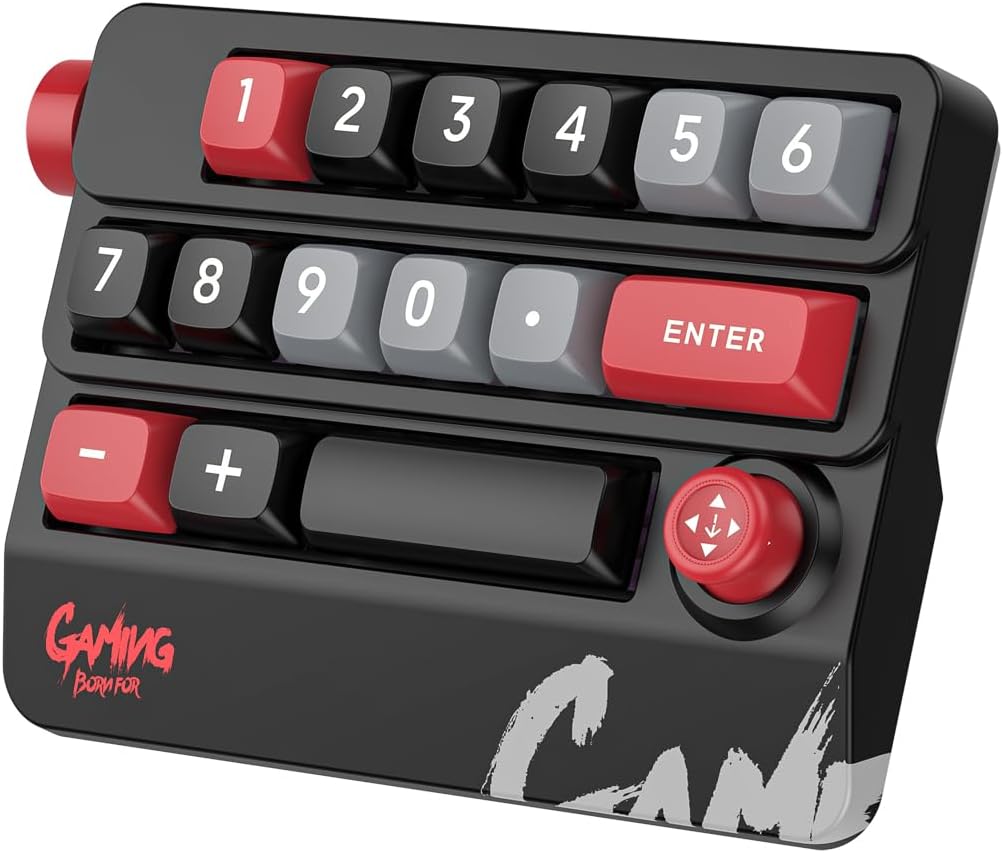
Figure 1: JOMAA K809 Mechanical Gaming Numeric Keypad
סעטאַפּ אינסטרוקציעס
- אויספּאַקן: Carefully remove the numeric keypad and its accessories from the packaging. Ensure all components are present: the K809 keypad and the USB-C data cable.
- קשר: Connect one end of the provided USB-C data cable to the USB-C port on the keypad. Connect the other end of the USB-C cable to an available USB port on your computer (desktop or laptop). The keypad is designed with key and wire separation for convenience.
- Driver Installation (Macro Programming): For macro programming and advanced customization, a dedicated driver software is required.
- The macro driver can only be downloaded and installed on Windows operating systems.
- Visit the official JOMAA website (or refer to the product packaging for a QR code/link) to download the latest driver software.
- נאָכגיין די אינסטרוקציעס אויף דעם עקראַן צו ינסטאַלירן דעם שאָפער.
- Once configured on a Windows system, the keypad's memory function retains settings, allowing it to be used with other systems (e.g., Mac iOS) without re-installation, though direct configuration on non-Windows systems is not supported.
- ערשט באנוץ: The keypad should be recognized automatically by your operating system upon connection. Basic numeric input and standard key functions will be immediately available.

Figure 2: USB-C Keyline Separation Design
אַפּערייטינג ינסטראַקשאַנז
1. שליסל פונקציעס און אויסלייג
The JOMAA K809 features 15 customizable keys, a multi-directional joystick, and a rotary knob.
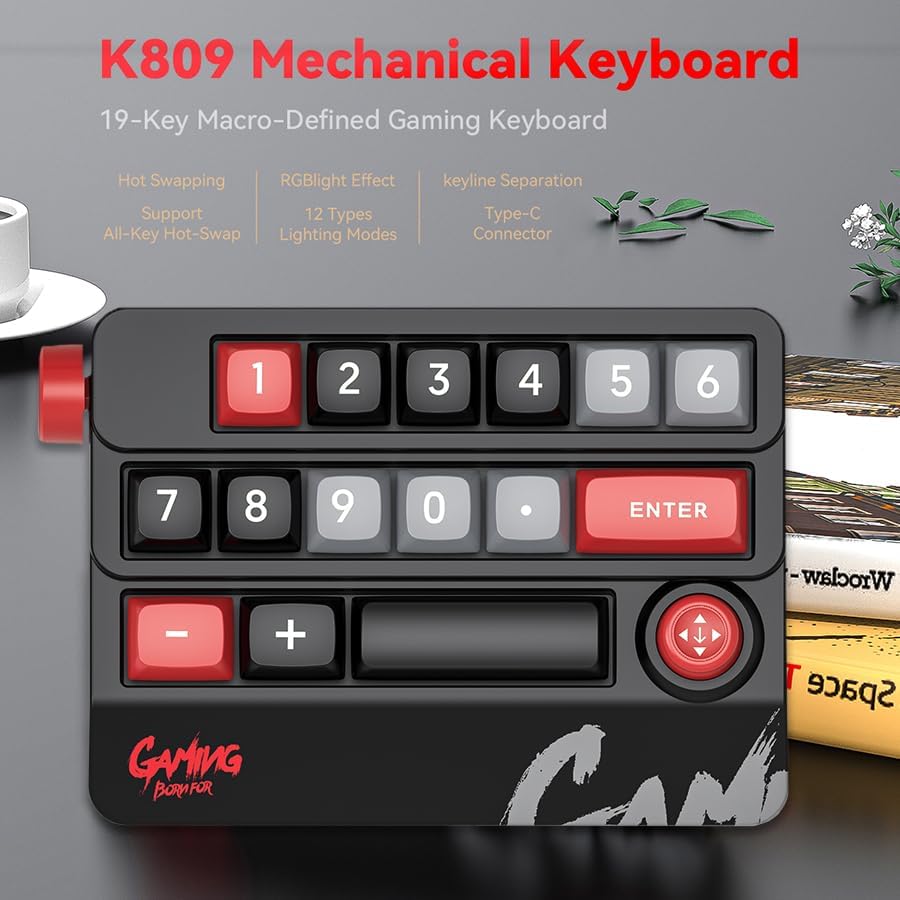
Figure 3: K809 Keypad Feature Overview
2. RGB Backlighting Adjustment
The keypad features adjustable RGB backlighting with various lighting modes.
- Via Driver Software: Use the installed driver software on Windows to select from a variety of lighting modes, adjust brightness, speed, and color.
- Via On-board Keys: The keypad includes dedicated keys (typically located on the back or side, refer to the product diagram) to cycle through different lighting modes and adjust brightness directly without software.

Figure 4: RGB Spectral Lighting
3. Hot-Swappable Mechanical Switches
The K809 supports full key hot-swappability, allowing users to change mechanical switches without soldering. This feature enables customization of typing feel and sound.
- To replace a switch, gently pull the keycap off using a keycap puller (not included, but commonly available).
- Use a switch puller (not included) to carefully remove the existing mechanical switch.
- Align the pins of the new switch with the holes on the PCB and press firmly until it clicks into place. Ensure the switch is seated correctly to avoid bent pins.
- פֿאַרבײַטן די קלאַוויאַטור.
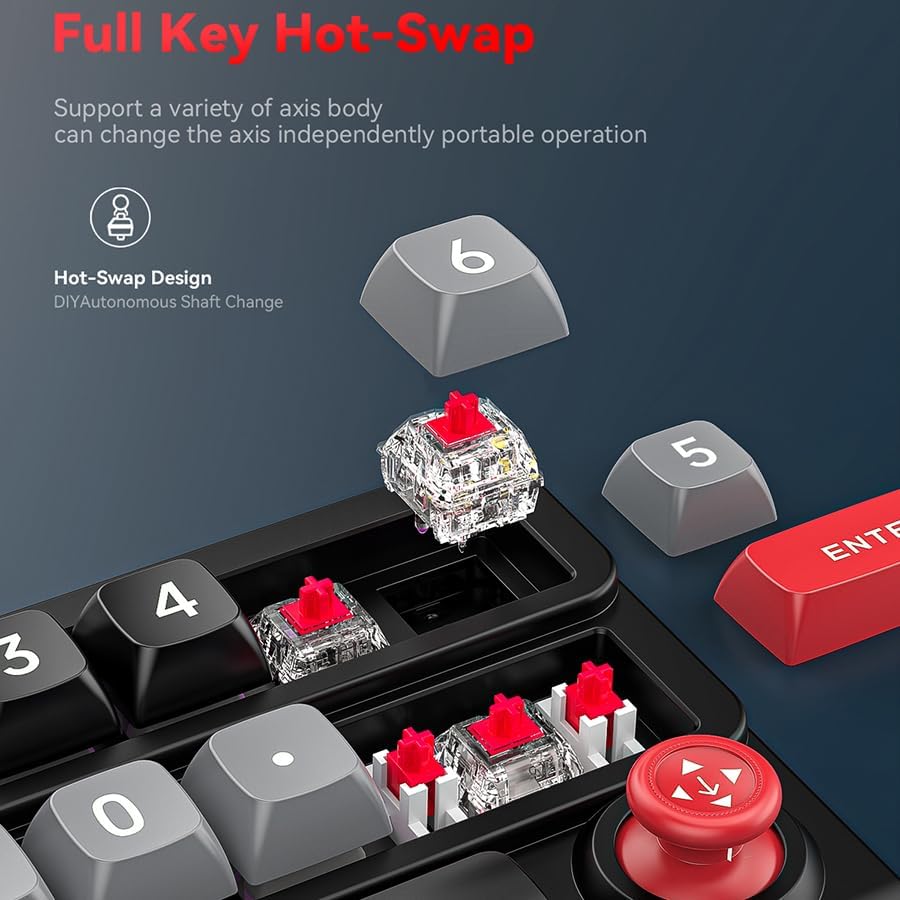
Figure 5: Full Key Hot-Swap Capability
4. Macro Programming and Custom Key Functions
The K809 allows for extensive customization of key functions and macro recording through its dedicated driver software.
- ווייכווארג צובינד: Open the JOMAA K809 driver software on your Windows computer.
- שליסל אַסיינמאַנט: Select any of the 15 keys to assign a new function. This can be a single key press, a multimedia function, or a complex macro.
- מאַקראָו רעקאָרדינג: The software allows you to record sequences of key presses and delays, which can then be assigned to a single key. This is useful for complex in-game commands or repetitive office tasks.
- זכּרון פֿונקציע: Once programmed, the settings are stored in the keypad's onboard memory, allowing the custom functions to work on any computer without the driver software running (though the driver is needed for initial setup and modification).
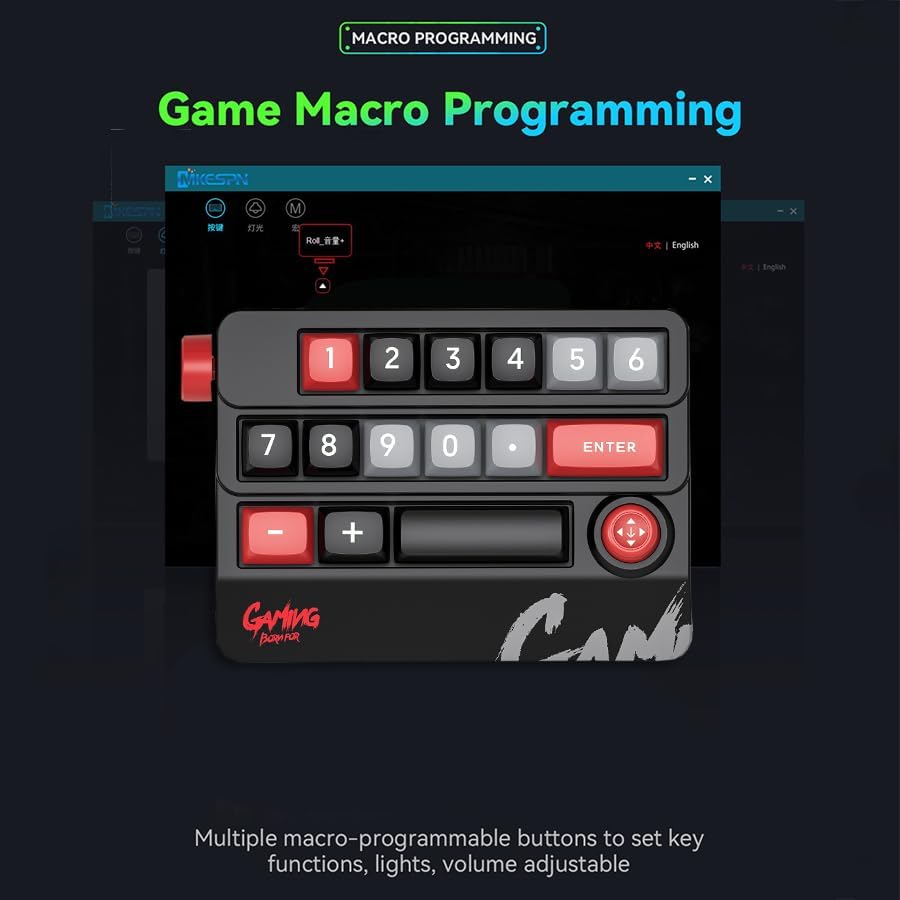
Figure 6: Macro Programming Interface
5. Joystick and Knob Operation
The integrated joystick and knob provide additional control options.
- דזשויסטיק: The joystick supports up, down, left, right movements, and a press function. These actions can be mapped to various commands via the macro programming software, making it suitable for navigation, camera control in games, or quick menu selections.
- קנופּ: The rotary knob (typically on the side) can be assigned functions such as volume control, scrolling, or zooming, enhancing efficiency in both gaming and office environments.
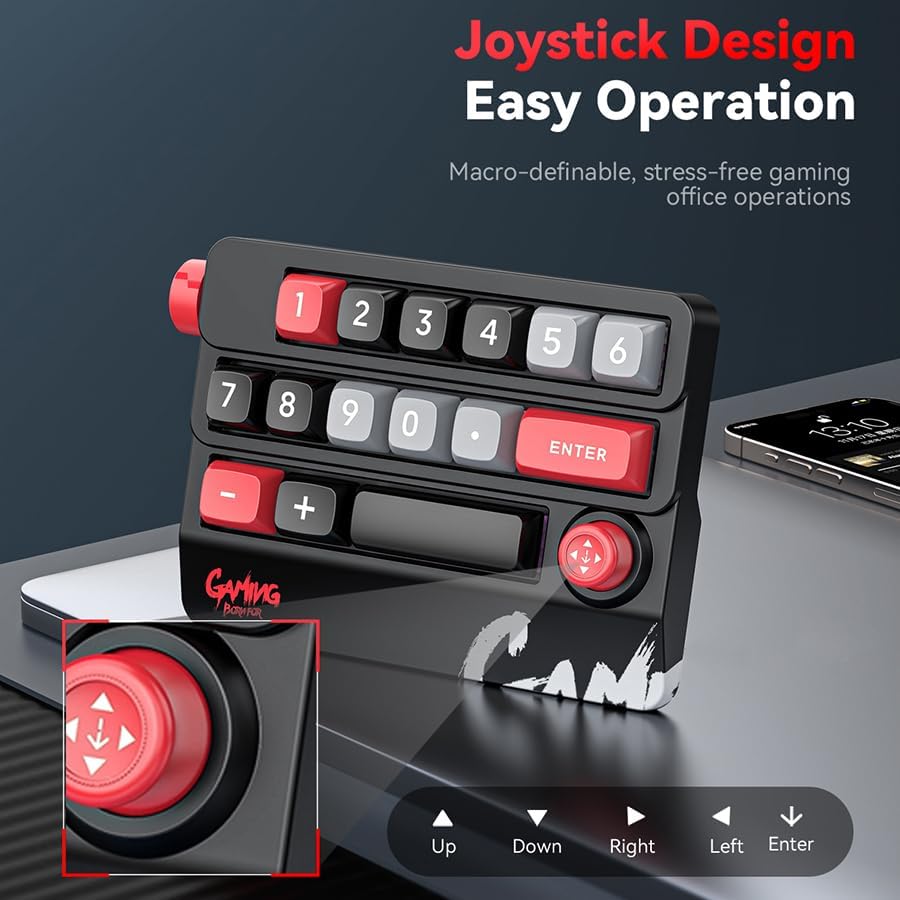
Figure 7: Joystick Design and Functionality
וישאַלט
- רייניקונג: Use a soft, dry cloth to wipe the surface of the keypad. For deeper cleaning, especially between keycaps, use compressed air to remove dust and debris. Avoid using liquid cleaners directly on the keypad.
- קלאַוויאַטור אַראָפּנעמען: When removing keycaps for cleaning or switch replacement, use a keycap puller to prevent damage to the keycaps or switches. Pull straight up to avoid bending switch stems.
- קאַבלע זאָרגן: Handle the USB-C cable gently. Avoid sharp bends or excessive pulling to prevent damage to the cable or its connectors.
- סטאָרידזש: ווען נישט אין באַנוץ פֿאַר לענגערע פּעריאָדן, האַלט די קלאַוויאַטור אין אַ ריינער, טרוקענער סביבה אַוועק פון דירעקטער זון און עקסטרעמע טעמפּעראַטורן.
טראָובלעשאָאָטינג
- Problem: Keypad is not recognized by the computer.
- Ensure the USB-C cable is securely connected to both the keypad and the computer's USB port.
- פרובירט צו קאנעקטן די קיפאד צו אן אנדערן USB פארט אויף אייער קאמפיוטער.
- Test the keypad on another computer to determine if the issue is with the keypad or the original computer's USB ports.
- ריסטאַרט דיין קאָמפּיוטער.
- Problem: RGB lighting is not working or is stuck.
- Check the on-board lighting control keys (refer to the product diagram or driver software for specific key combinations).
- If using the driver software, ensure it is running and the lighting settings are correctly applied.
- Disconnect and reconnect the keypad.
- Problem: Macro functions are not working.
- Ensure the macro programming software was used on a Windows computer to set up the macros.
- Verify that the macros are correctly saved to the keypad's onboard memory.
- If using on a non-Windows system, remember that the driver cannot be installed or run on those systems, but the keypad should retain previously saved macros.
- Re-program the macros if necessary.
- Problem: A specific key is not responding or feels different.
- Due to hot-swappable design, the switch might not be fully seated. Gently remove the keycap and press the switch firmly into its socket.
- If the issue persists, consider replacing the switch with a spare (if available) or a known working switch from another key.
- רייניקט יעדן שמוץ אַרום דעם סוויטש.
ספּעסאַפאַקיישאַנז
| סאָרט | JOMAA |
| מאָדעל נומער | K809 |
| קאַנעקטיוויטי טעכנאָלאָגיע | מיט אַ דראָט (USB-C) |
| נומער פון קיז | 15 |
| ספּעציעלע פֿעיִקייטן | Hot-Swappable Mechanical Switches, RGB Backlighting, Macro Programming, Joystick, Rotary Knob |
| קאַמפּאַטאַבאַל דעוויסעס | Laptop, PC (Windows for full driver functionality; basic functions on Mac iOS and others) |
| פּונקט וואָג | 11.1 אונסעס (בעערעך 315 גראַמז) |
| פּעקל דימענשאַנז | 7.36 X 6.34 X 1.77 אינטשעס |
| אַרייַנגערעכנט קאַמפּאָונאַנץ | Numeric Keypad, USB-C Cable |
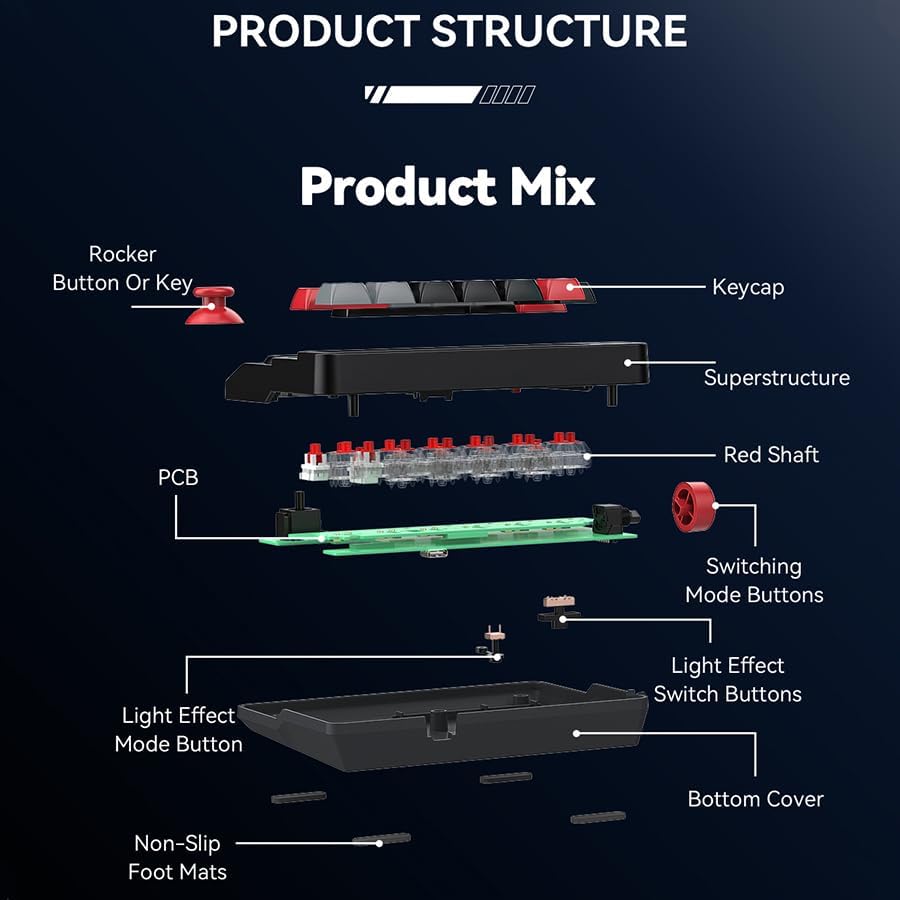
פיגור 8: פּראָדוקט סטרוקטור דיאַגראַם
וואָראַנטי און שטיצן
For information regarding warranty coverage, technical support, or customer service, please refer to the warranty card included with your product packaging or visit the official JOMAA webפּלאַץ.
פאַבריקאַנט: JOMAA


