1. הקדמה
This manual provides essential information for the safe and efficient operation of your TESLA QLED Smart TV, Model Q55S939GUS. Please read these instructions thoroughly before using your television and retain them for future reference. This television features a 55-inch (140 cm) QLED display, Google TV operating system, Ultra HD resolution, HDR10, Dolby Atmos audio, built-in Wi-Fi, Bluetooth, and Chromecast.

בילד 1.1: פראָנט view of the TESLA QLED Smart TV, highlighting key features.
2. זיכערקייַט אינפֿאָרמאַציע
Always follow basic safety precautions when using this television to reduce the risk of fire, electric shock, and injury. Keep the television away from moisture and heat sources. Ensure proper ventilation. Do not block ventilation openings. Use only attachments/accessories specified by the manufacturer. Refer all servicing to qualified service personnel.
3. פּעקל אינהאַלט
באַשטעטיקן אַז אַלע זאכן זענען פאַראַן אין פּעקל:
- TESLA QLED Smart TV (Model Q55S939GUS)
- ווייַט קאָנטראָל
- מאַכט קאַבלעס
- TV Stand/Base
- באַטעריז פֿאַר רימאָוט קאָנטראָל
- באַניצער מאַנואַל (דעם דאָקומענט)
4. סעטאַפּ
4.1 פיזישע אויפשטעל
אַטאַטשינג די שטיין: Carefully place the TV screen-down on a soft, flat surface. Align the stand with the mounting holes on the bottom of the TV and secure it with the provided screws. Ensure the stand is firmly attached before placing the TV upright.

Image 4.1: TESLA QLED Smart TV with stand.
וואַנט מאָונטינג: If you plan to wall mount the TV, refer to the instructions provided with your wall mount kit. Ensure the wall mount is compatible with the VESA mounting pattern of your TV. The back of the TV includes mounting points for this purpose.
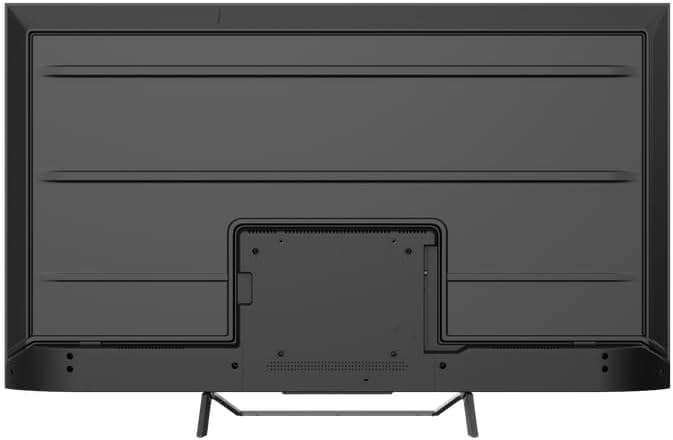
בילד 4.2: דערציען view of the TV, indicating mounting points.
4.2 Initial Power On & Network Connection
- פֿאַרבינדט דעם מאַכט קאַבל צום טעלעוויזיע און דערנאָך צו אַ מאַכט ווענטיל.
- דריק דעם מאַכט קנעפּל אויף דער ווײַטקאָנטראָל אָדער אויף דער טעלעוויזיע אַליין.
- Follow the on-screen instructions to select your language, country, and connect to your Wi-Fi network. You can also connect via Ethernet for a wired connection.
4.3 גוגל טיווי סעטאַפּ
During the initial setup, you will be guided through setting up your Google TV account. This allows access to Google Assistant, Google Play Store apps, and personalized content recommendations. You will need a Google account to fully utilize these features.
5. אפערירן דעם טעלעוויזאר
5.1 רימאָוט קאָנטראָל איבערview
The remote control provides access to all TV functions. Insert the provided batteries into the remote control. Familiarize yourself with the button layout for easy navigation.

Image 5.1: TESLA Smart TV Remote Control.
5.2 יקערדיק פאַנגקשאַנז
- מאַכט: דריק דעם מאַכט קנעפּל צו דרייען דעם טעלעוויזיע אָן אָדער אויס.
- באַנד: ניצט די VOL +/- קנעפלעך צו סטרויערן דעם געזונט לעוועל.
- טשאַנאַלז: Use the P +/- buttons to change channels.
- נאַוויגאַציע: Use the directional pad and OK button to navigate menus and select options.
- היים: Press the Home button to return to the Google TV home screen.
5.3 Smart TV Features (Google TV, Apps, Chromecast)
Your TESLA QLED Smart TV runs on Google TV, offering an intuitive interface and access to a vast library of content.
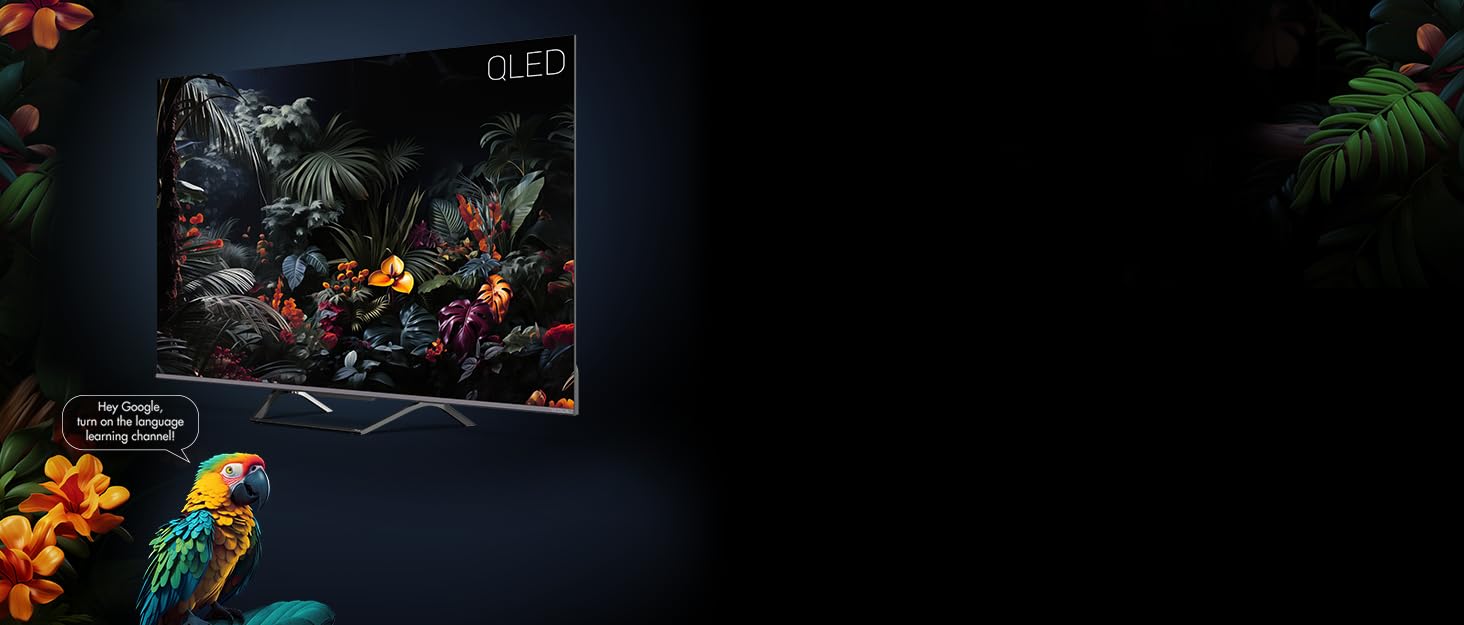
Image 5.2: Google Assistant integration on TESLA QLED TV.
- גוגל טיווי צובינד: The home screen provides personalized recommendations, quick access to installed apps like Netflix, YouTube, and Prime Video, and live TV options.
- גוגל אַססיסטאַנט: ניצט שטימע קאמאנדעס דורך די ווײַט קאנטראל צו זוכן אינהאלט, קאנטראלירן קלוגע היים דעווייסעס, באקומען ענטפֿערס, און מער.
- Chromecast Built-in: Cast content (videos, photos, music) directly from your compatible mobile devices or computer to the TV screen.
- Google פּלייַ סטאָר: Download and install over 10,000 additional applications and games.
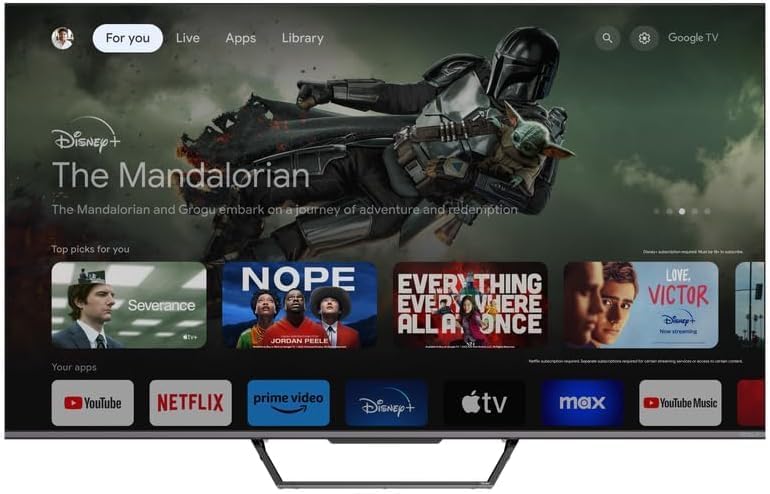
Image 5.3: Google TV home screen with app access.
5.4 קאַנעקטיוויטי
די טעלעוויזיע אָפפערט פֿאַרשידענע פּאָרטן פֿאַר פֿאַרבינדן עקסטערנע דעוויסעס:
- HDMI פּאָרטן (x3): Connect gaming consoles, Blu-ray players, soundbars, and other HDMI-enabled devices.
- USB פּאָרטן (x2): פֿאַרבינדט USB דרייווז פֿאַר מעדיע ווידערשפּיל אָדער פונדרויסנדיק סטאָרידזש.
- ווי-פי: פֿאַרבינדט זיך אָן דראָטן צו אייער היים נעץ פֿאַר אינטערנעט צוטריט.
- בלועטאָאָטה: Connect wireless headphones, speakers, or other Bluetooth accessories.
- עטהערנעט: פֿאַר אַ סטאַבילע דראָטיקע אינטערנעט פֿאַרבינדונג.
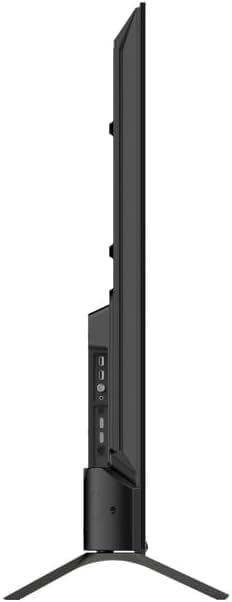
בילד 5.4: זייט view of TV with connectivity ports.
5.5 Audio and Picture Settings
- Dolby Atmos & Ultra Surround: Experience immersive, three-dimensional audio. Adjust audio settings in the TV menu to optimize sound for your environment.
- QLED טעכנאָלאָגיע: Quantum Dot technology delivers over a billion shades of color, enhanced brightness, and superior contrast.
- HDR10: High Dynamic Range 10 provides a wider range of colors and contrasts, resulting in a more realistic image.
- בילד מאָדעס: Select from various preset picture modes (e.g., Standard, Vivid, Movie, Game) or customize settings like brightness, contrast, color, and sharpness to suit your preferences.
6. וישאַלט
6.1 רייניקונג
שטענדיק אויסשטעקן דעם טעלעוויזאר איידער איר רייניגט. ניצט א ווייכן, טרוקענעם טוך צו אפווישן דעם עקראן און שאנק. פאר שווערע פלעקן, לייכט אפווישןampen the cloth with water or a specialized screen cleaner. Never use abrasive cleaners, waxes, or solvents.
6.2 ווייכווארג דערהייַנטיקונגען
Your Google TV will periodically receive software updates to improve performance and add new features. Ensure your TV is connected to the internet to receive these updates. You can check for updates manually in the TV's settings menu.
7. טראָובלעשאָאָטינג
אויב איר טרעפט פּראָבלעמען מיט אייער טעלעוויזיע, זעט די פאלגענדע געוויינטלעכע פּראָבלעמען און לייזונגען:
| פּראָבלעם | מעגלעך לייזונג |
|---|---|
| קיין מאַכט | קאָנטראָלירט צי דער עלעקטרישער קאַבל איז זיכער פֿאַרבונדן צום טעלעוויזאָר און צום עלעקטרישן אַוטלעט. מאַכט זיכער אַז דער אַוטלעט אַרבעט. |
| קיין בילד נישט, אבער סאונד איז דא | קאָנטראָלירט די אינפוט מקור. זיכערט זיך אז די עקסטערנע דעווייסעס זענען ריכטיג פארבונדן און אנגעצונדן. |
| קיין קלאַנג, אָבער בילד איז דאָ | קאָנטראָלירט דעם וואָלומען לעוועל. מאַכט זיכער אַז "שטום" איז נישט אַקטיוויזירט. קאָנטראָלירט די אַודיאָ אַוטפּוט סעטטינגס. |
| ווייַט קאָנטראָל נישט ארבעטן | טוישן די באַטעריעס. זיכער מאַכן אַז עס זענען נישטאָ קיין שטערונגען צווישן דעם ווײַטקאָנטראָל און דעם טעלעוויזאָר. |
| קענען ניט פאַרבינדן צו ווי-פי | Check your router and internet connection. Re-enter the Wi-Fi password. Try restarting the TV and router. |
For further assistance, consult the TESLA support webפּלאַץ אָדער קאָנטאַקט קונה דינסט.
8. ספּעסאַפאַקיישאַנז
Key technical specifications for the TESLA QLED Smart TV Model Q55S939GUS:
| שטריך | באַשרייַבונג |
|---|---|
| סאָרט | TESLA |
| מאָדעל נומער | Q55S939GUS |
| פאַרשטעלן גרייס | 55 אינטשעס (140 סענטימעטער) |
| ווייַז טעכנאָלאָגיע | QLED |
| האַכלאָטע | 4K (3840 X 2160) |
| אָפּערייטינג סיסטעם | גוגל טעלעוויזיע |
| דערפרישן קורס | 60 הז |
| ספּעציעלע פֿעיִקייטן | Chromecast, Built-in Speaker, Game Mode, Flat Panel, Wide Color Enhancer |
| אַודיאָ טעכנאָלאָגיע | Dolby Atmos, Ultra Surround, 2 x 10W Speakers |
| קאַנעקטיוויטי | Bluetooth, HDMI (x3), RF, USB (x2), Wi-Fi, Ethernet |
| פּראָדוקט דימענשאַנז (ד רענטגענ וו רענטגענ ה) | 26.5 X 122.5 X 72 סענטימעטער |
| קאָליר | מעטאַלליק זילבער |

Image 8.1: Illustrative diagram of TV dimensions and remote control. Note: This product is 55 inches, not 75 inches as shown in the diagram.
9. וואָראַנטי און שטיצן
For warranty information, please refer to the warranty card included with your product or visit the official TESLA website. Keep your proof of purchase for warranty claims. For technical support, troubleshooting assistance, or service requests, please contact TESLA customer support through their official channels.


