1. הקדמה
This manual provides comprehensive instructions for the ShanWan Bluetooth Gamepad Keychain Sized Mini Controller. Please read this manual carefully before use to ensure proper operation and to maximize your gaming experience. This device is designed for use with Android phones and tablets, PS4/Slim/Pro, iPhone, iPad, Nintendo Switch, and Windows PCs.
2. פּראָדוקט איבערview
The ShanWan Mini Controller is a compact and versatile gamepad designed for portability and multi-platform compatibility. It features 17 buttons and a D-Pad, all within a keychain-sized form factor.
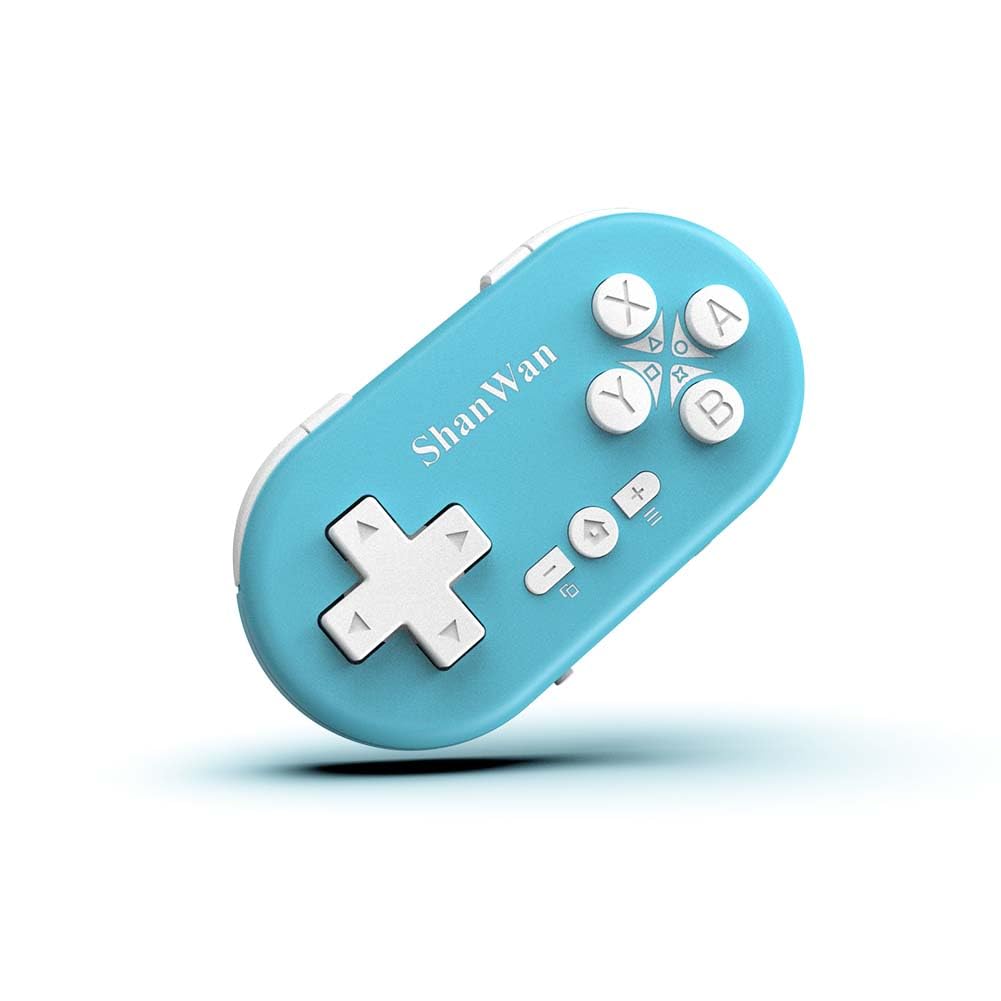
Figure 2.1: ShanWan Mini Bluetooth Gamepad, showcasinג זײַן קאָמפּאַקטן דיזײַן און קנעפּל אויסלייג.

Figure 2.2: Dimensions of the ShanWan Mini Bluetooth Gamepad, measuring 2.83 inches in length, 1.57 inches in width, and 0.55 inches in thickness.
2.1 פּעקל אינהאַלט
- ShanWan Bluetooth Gamepad Keychain Sized Mini Controller
- וסב טשאַרדזשינג קאַבלע
- באַניצער מאַנואַל (דעם דאָקומענט)
3. ספּעסאַפאַקיישאַנז
| שטריך | דעטאַל |
|---|---|
| מאָדעל נומער | Q36-XPS-KABRILAN |
| קאַנעקטיוויטי | בלועטאָאָטה ווירעלעסס |
| קאַמפּאַטאַבילאַטי | Android, iOS, Windows, Nintendo Switch, PlayStation 4 |
| באַטאַרייע קאַפּאַציטעט | 180mAh ליטהיום פּאָלימער (אריינגערעכנט) |
| טשאַרדזשינג צייט | בעערעך 1 שעה |
| אַפּערייטינג צייט | אַרויף צו 5-6 שעה |
| ווירעלעסס ראַנגע | אַרויף צו 10 מעטער (33 פֿיס) |
| פּראָדוקט דימענשאַנז | 2.83 X 1.57 X 0.55 אינטשעס |
| פּונקט וואָג | 1.44 אונס (בעערעך 41 גראַמז) |
| ספּעציעלע פֿעיִקייטן | Gyroscope motion sensing, One-button wake-up function |
4. סעטאַפּ און פּערינג
4.1 טשאַרדזשינג די קאָנטראָללער
Before first use, fully charge the controller. Connect the provided USB charging cable to the controller's charging port and the other end to a USB power source (e.g., computer, USB wall adapter). The charging indicator light will show the charging status and turn off when fully charged. A full charge typically takes about 1 hour.
4.2 פּאַוערינג אויף / אַוועק
- מאַכט אויף: Press and hold the Home button (usually the button with a house icon) for a few seconds until the indicator lights turn on.
- מאַכט אַוועק: Press and hold the Home button for approximately 5 seconds until the indicator lights turn off. The controller will also automatically power off after a period of inactivity to conserve battery.
4.3 בלועטוט פּאָרינג אינסטרוקציעס
The controller supports multiple platforms. Ensure the mode switch on the controller is set to the correct platform before pairing.
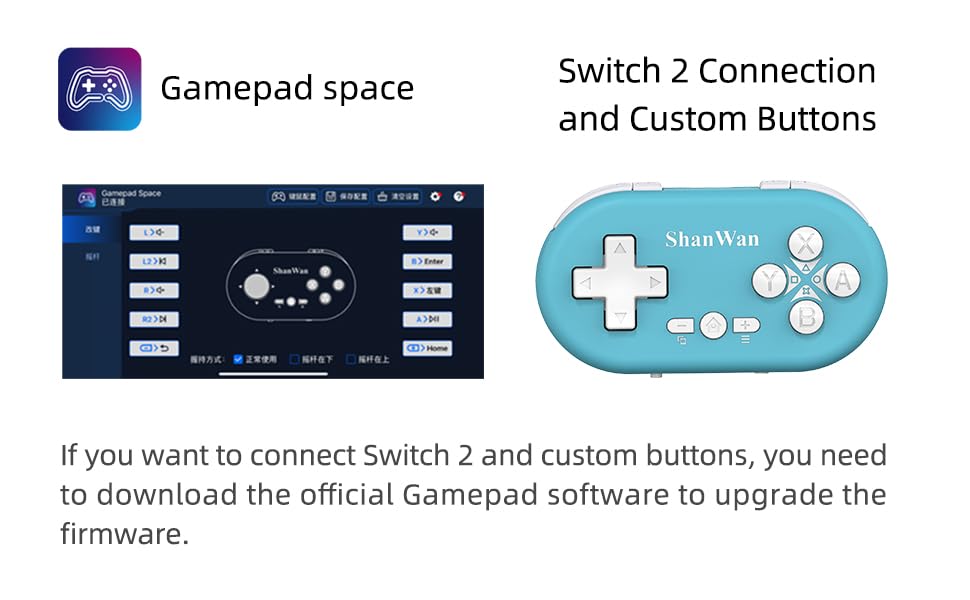
Figure 4.1: The mode switch on the controller, allowing selection between X (Xbox/PC), S (Switch), and P (PlayStation) modes for multi-device compatibility.
4.3.1 Pairing with Nintendo Switch
- אויף אייער נינטענדאָ סוויטש, נאַוויגירט צו די היים מעניו.
- Select "Controllers" then "Change Grip/Order".
- Set the controller's mode switch to "S" (Switch mode).
- Press and hold the "Pair" button on the controller until the indicator lights begin to blink rapidly.
- The Switch will detect the controller. Once paired, the LED indicator on the controller will remain solid, and the controller will be displayed on the Switch host screen.

Figure 4.2: Visual guide for connecting the controller to a Nintendo Switch, showing menu navigation and the pairing button location.
4.3.2 Pairing with Android/iOS Devices
- Set the controller's mode switch to the appropriate mode (e.g., "X" for Android, or a specific iOS mode if available, refer to device-specific instructions).
- On your Android or iOS device, go to Bluetooth settings.
- ענשור אַז בלועטאָאָטה איז ענייבאַלד.
- Press and hold the "Pair" button on the controller until the indicator lights blink rapidly.
- Select "ShanWan Controller" or a similar name from the list of available devices on your phone/tablet.
- אַמאָל פארבונדן, וועט די אינדיקאַטאָר ליכט אויף די קאָנטראָללער ווערן האַרט.
4.3.3 Pairing with PS4
- Set the controller's mode switch to "P" (PlayStation mode).
- On your PS4, go to "Settings" > "Devices" > "Bluetooth Devices".
- Press and hold the "Pair" button on the controller until the indicator lights blink rapidly.
- Select "ShanWan Controller" or a similar name from the list of available devices on your PS4.
- אַמאָל פארבונדן, וועט די אינדיקאַטאָר ליכט אויף די קאָנטראָללער ווערן האַרט.
4.3.4 Pairing with Windows PC
- Set the controller's mode switch to "X" (Xbox/PC mode).
- On your Windows PC, go to "Settings" > "Devices" > "Bluetooth & other devices".
- Ensure Bluetooth is enabled and click "Add Bluetooth or other device".
- אויסקלייבן "בלוטעט".
- Press and hold the "Pair" button on the controller until the indicator lights blink rapidly.
- Select "ShanWan Controller" or a similar name from the list of available devices.
- אַמאָל פארבונדן, וועט די אינדיקאַטאָר ליכט אויף די קאָנטראָללער ווערן האַרט.
5. אַפּערייטינג ינסטרוקטיאָנס
5.1 קנעפּל פאַנגקשאַנז
The controller features standard gamepad buttons. Their specific function may vary slightly depending on the platform and game.
- ד-פּאַד: ריכטונגס-איינגאב.
- א, ב, X, Y קנעפּלעך: אַקציע קנעפּלעך.
- L1, L2, R1, R2 Buttons: אַקסל און טריגער קנעפּלעך.
- היים קנעפּל: Power on/off, return to home screen (platform dependent).
- Plus (+) / Minus (-) Buttons: Start/Select or menu functions.
- פּאָר קנעפּל: הייבט אן בלועטוט פארבינדונג.
5.2 ספּעציעלע פֿעיִקייטן
5.2.1 One-Button Wake-Up Function
After initial pairing, you can wake up the controller and reconnect it to the last paired device by simply pressing the Home button. This feature allows for quick resumption of gameplay.
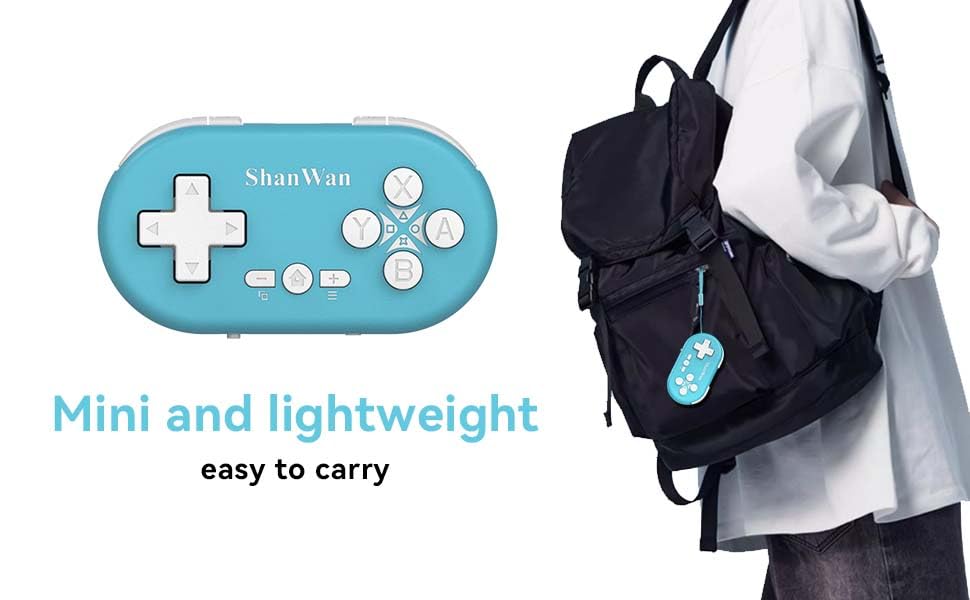
Figure 5.1: Illustration of the one-button wake-up function, highlighting the Home button used to quickly reactivate the controller.
5.2.2 Gyroscope Motion Sensing
The controller is equipped with a gyroscope for motion sensing effects, providing an immersive gaming experience in supported games, particularly on platforms like Nintendo Switch.
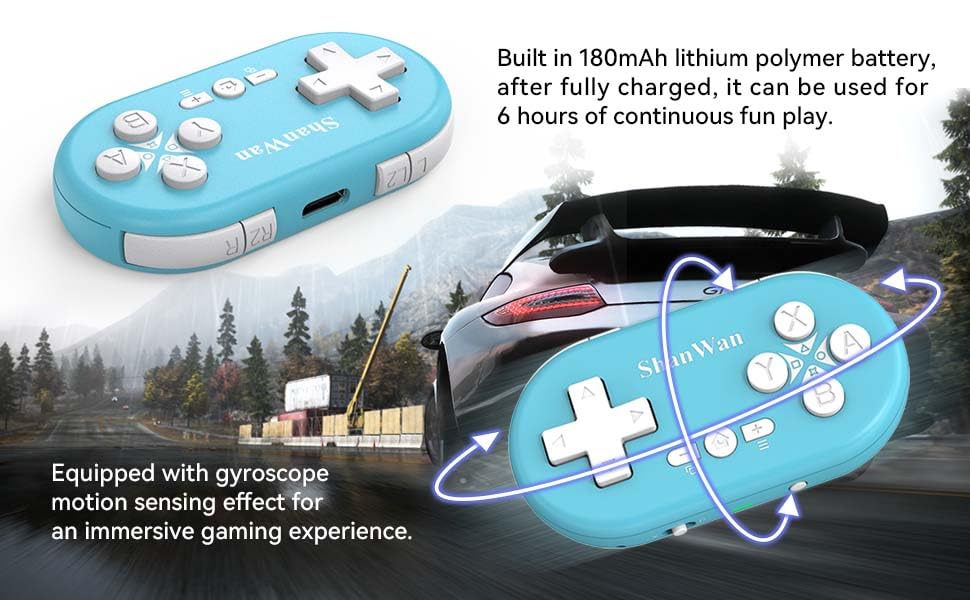
Figure 5.2: Visual representation of the gyroscope motion sensing effect, showing the controller being tilted to influence in-game actions.
5.2.3 Firmware Upgrade for Switch 2 and Custom Buttons
For compatibility with Switch 2 and to customize button mappings, it may be necessary to download the official Gamepad software and upgrade the controller's firmware. Refer to the manufacturer's official website for the latest software and instructions.

Figure 5.3: Screenshot illustrating the "Gamepad Space" software interface, used for firmware upgrades and custom button configurations, particularly for Switch 2 compatibility.
6. וישאַלט
- רייניקונג: ניצט אַ ווייכע, טרוקענע שטאָף צו רייניקן דעם קאָנטראָללער. פֿאַרמייַדט ניצן שטרענגע כעמיקאַלן אָדער אַברייסיוו מאַטעריאַלן.
- סטאָרידזש: האַלט דעם קאָנטראָללער אין אַ קיל, טרוקן אָרט אַוועק פון דירעקט זונשייַן און עקסטרעמע טעמפּעראַטורן.
- באַטערי זאָרגן: כדי צו פארלענגערן די לעבן פון די באַטעריע, זאָלט איר נישט אָפט אויסלאָדן די באַטעריע. לאָדט דעם קאָנטראָללער רעגולער אויף, אפילו אויב עס ווערט נישט גענוצט פאר לענגערע צייטן.
- ויסמיידן פּראַל: Do not drop or subject the controller to strong impacts, as this may damage internal components.
7. טראָובלעשאָאָטינג
7.1 Controller Does Not Power On
- Ensure the controller is fully charged. Connect it to a power source and allow it to charge for at least 15 minutes before attempting to power on again.
- Verify that the charging cable and power source are functioning correctly.
7.2 Unable to Pair Controller
- Ensure the controller is in pairing mode (indicator lights blinking rapidly).
- Check that the mode switch on the controller is set to the correct platform (S for Switch, X for Android/Windows, P for PS4).
- Make sure Bluetooth is enabled on your device (Switch, phone, PC, PS4).
- Move the controller closer to the device you are trying to pair with.
- Remove any previous pairings of the controller from your device's Bluetooth settings and try pairing again.
- ריסטאַרט ביידע דעם קאָנטראָללער און דיין דעווייס.
7.3 אינפוט פארשפעטיגונג אדער דיסקאנעקשאַנז
- Ensure the controller is within the 10-meter wireless range of your device.
- מינימיזירן אריינמישונג פון אנדערע וויירלעס דעוויסעס (Wi-Fi ראָוטערס, אנדערע בלועטוט דעוויסעס).
- Ensure the controller is fully charged. Low battery can affect connection stability.
- פּרוּווט ווידער צו פאַרבינדן דעם קאָנטראָללער מיט אייער דעווייס.
- Update the controller's firmware if available (refer to Section 5.2.3).
7.4 Buttons Not Responding Correctly
- Test the controller on a different game or application to determine if the issue is game-specific.
- Ensure the controller's firmware is up to date.
- Perform a factory reset if possible (refer to manufacturer's support for specific instructions, as this model may not have a dedicated reset button).
8. וואָראַנטי און שטיצן
ShanWan products are designed for reliability and performance. For warranty information, technical support, or further assistance, please visit the official ShanWan webזייטל אדער קאנטאקט זייער קאסטומער סערוויס. האלט אייער קויף קוויטל אלס באווייז פון קויפן פאר גאראנטיע פארלאנגען.
Official ShanWan Store: ShanWan Store on Amazon
9. נאָך אינפֿאָרמאַציע
The ShanWan Mini Controller's compact and lightweight design makes it highly portable, allowing users to carry it easily and enjoy gaming on the go.

Figure 9.1: The ShanWan Mini Bluetooth Gamepad attached to a backpack, illustrating its keychain-sized portability and ease of transport.

Figure 9.2: The ShanWan Mini Bluetooth Gamepad being used outdoors with a portable screen, demonstrating its ease of transport and use anywhere.


