1. הקדמה
This manual provides detailed instructions for the setup, operation, and maintenance of your Haomuren K67 Series USB Microphone. Please read this manual thoroughly before using the product to ensure optimal performance and longevity.
2. וואָס איז אין דער קעסטל
- 1 x Haomuren K67 RGB USB Microphone
- 1 x Stable and Durable Metal Microphone Stand Base
- 1 x U-Shaped Arm Bracket with 5/8" Jack (for boom arm compatibility)
- 1 x 70.9-inch USB Audio Cable (Type-C to USB-A)
- 1 x Type-C Adapter (for iPhone 15, Type-C Phones, iPads, Android Tablets)
- 1 x USB Adapter (for iPhone, iPad)
- 1 x באַניצער מאַנואַל

Image: All components included in the Haomuren K67 Series USB Microphone package.
3. פּראָדוקט איבערview
3.1 קאָנטראָלן און פּאָרטן
- RGB קנעפּל: Touch to cycle through 5 static colors, dynamic 5-color gradient, and sequential 5-color mode. Touch and hold to toggle lights on/off.
- שטיל קנעפּל: Tap to mute/unmute. Hold to activate/deactivate noise cancellation (default is off). Red light indicates mute, green light indicates noise cancellation active.
- Mic/Monitor Volume Knob: Two-in-one knob. Press to switch between monitor mode and mic volume adjustment. Small icons light up to indicate selection.
- Echo Control Knob: אַדזשאַסטירט דעם עקאָ עפֿעקט לעוועל.
- טיפּ-C צובינד: For connecting the microphone to compatible devices.
- 3.5mm Earphone Interface: For zero-latency monitoring with headphones.
- Inside Button: Located on the bottom, allows capturing accompanying music from your phone or computer during recording.

בילד: פאָרנט און הינטן view of the microphone highlighting its controls and connection ports.
4. סעטאַפּ
4.1 פֿאַרזאַמלונג
- Attach the microphone to the metal stand base by screwing it securely.
- Alternatively, use the U-shaped arm bracket to attach the microphone to a compatible boom arm (boom arm not included).
4.2 Connectivity (Plug and Play)
The Haomuren K67 Series USB Microphone is designed for plug-and-play operation, requiring no additional drivers or software for most devices.
- For Computers (PC, Laptop, Desktop, Mac OS): Connect the USB-A end of the provided 70.9-inch USB audio cable to your computer's USB port and the Type-C end to the microphone's Type-C interface.
- For iPhone 15, Type-C Phones/Tablets: Use the provided Type-C adapter. Connect the USB-A end of the cable to the adapter, then plug the adapter into your device's Type-C port.
- For iPhone (Lightning port), iPad: Use the provided USB adapter for iPhone/iPad. Connect the USB-A end of the cable to the adapter, then plug the adapter into your device's Lightning port.
- פֿאַר PS4/PS5: Connect the USB-A end of the cable to an available USB port on your console and the Type-C end to the microphone.

Image: Plug-and-play setup with various compatible devices.
Video: Demonstrates the plug-and-play functionality of the Haomuren K67 Series USB Microphone.
5. אַפּערייטינג ינסטרוקטיאָנס
5.1 RGB לייטינג קאָנטראָל
The microphone features customizable RGB lighting:
- Change Effect: Tap the RGB button to cycle through 5 selectable static colors, a dynamic 5-color gradient, and a sequential 5-color mode.
- באַשטימען אויף / אַוועק: Touch and hold the RGB button to turn the lights on or off.
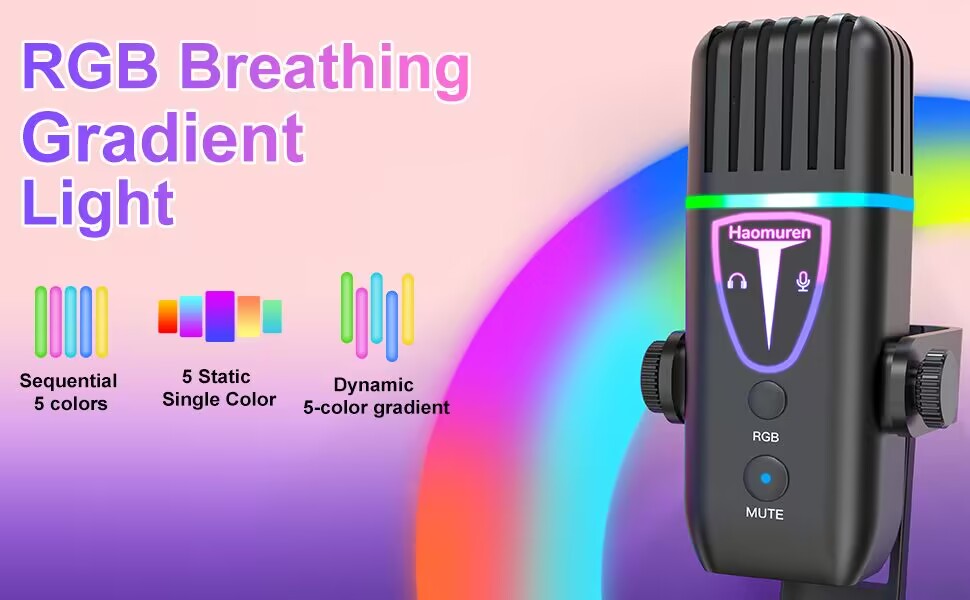
Image: RGB lighting modes on the microphone.
Video: Showcasing the eye-catching RGB lights and sound quality of the microphone.
5.2 Mic Gain and Echo Control
- Mic/Monitor Volume: The two-in-one volume knob allows you to switch between adjusting the microphone input volume and the headphone monitor volume. Press the knob to toggle between these modes.
- עקאָ פונקציע: Use the dedicated Echo control knob to adjust the level of the echo effect. This can be deactivated as needed.
- Inside Button: The 'inside' button on the bottom of the microphone enables you to capture accompanying music from your connected phone or computer during recording sessions.
5.3 Tap-to-Mute and Noise Cancellation
- צאַפּן-צו-שטומען: A simple tap on the mute button (located directly on the microphone) will silence your audio. The RGB light will turn red when muted.
- ראַש קאַנסאַליישאַן: This feature is OFF by default. To activate noise cancellation, press and hold the mute button until the light turns green.
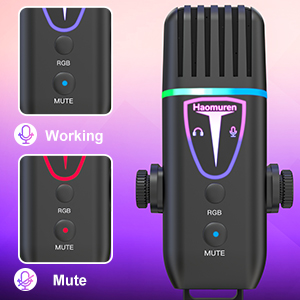
Image: Visual indicators for working, mute, and noise cancellation modes.
5.4 Optimal Usage
For best sound quality, position the microphone between 6 to 12 inches from your mouth. The cardioid polar pattern is designed to effectively minimize background noise and focus on sound directly in front of the microphone.
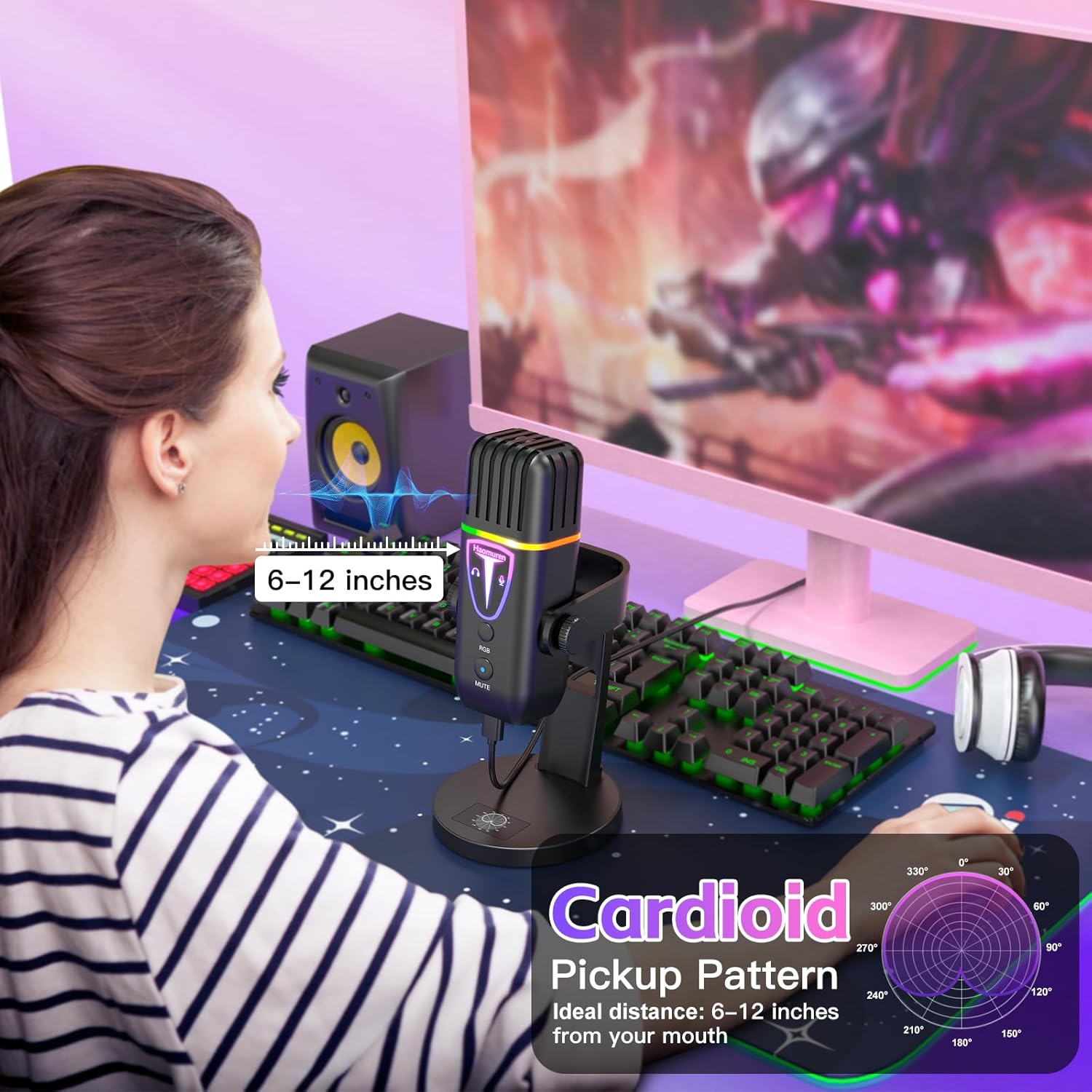
Image: Recommended microphone distance for optimal audio capture.
Video: Demonstrates the actual sound quality of the Haomuren K67 Series USB Microphone.
6. וישאַלט
- האַלט דעם מיקראָפאָן ריין דורך עס ווישן מיט אַ ווייכן, טרוקענעם שטאָף.
- Avoid exposing the microphone to liquids, extreme temperatures, or high humidity.
- לייגט אַוועק דעם מיקראָפאָן אין אַ זיכערן אָרט ווען עס ווערט נישט גענוצט, כּדי צו פֿאַרמייַדן שאָדן.
7. טראָובלעשאָאָטינג
- Q: Why does it not work with my Android phone but function well with my iPhone 15?
A: Please ensure that your Android device supports OTG and verify that it's enabled in the settings before use. (זוכן פֿאַר "OTG" in the settings and enable it.) - Q: As an ASMR artist, I am experiencing excessive noise with this microphone, how can you help me resolve it?
A: The noise-canceling function is OFF by default. To activate noise cancel, press and hold the mute button until it turns green. - Q: What is the recommended distance to keep when using this desktop cardioid microphone?
A: The recommended distance to keep when using this microphone is generally between 6 to 12 inches from your mouth. But it's best to experiment with different distances to find the optimal one for your needs.
8. ספּעסאַפאַקיישאַנז
| שטריך | באַשרייַבונג |
|---|---|
| אַודיאָ סענסיטיוויטי | 45 דעציבעלן |
| פּונקט וואָג | 14.4 אונסעס |
| ימפּידאַנס | 2.2 קילאָהמס |
| מיקראָפאָן פאָרם פאַקטאָר | דעסק מייקראַפאָון |
| מאַכט מקור | קאָרדעד עלעקטריק |
| מאַטעריאַל | אַקרילאָניטרילע בוטאַדיענע סטירענע, מעטאַל |
| סיגנאַל-צו-נויז ראַטיאָ | 85 דב |
| האַרדווער פּלאַטפאָרמע קאָמפּאַטיביליטי | אייפאָון/אייפּאַד/טיפּ C טעלעפאָן און טאַבלעט, לאַפּטאָפּ/פּיסי/קאָמפּיוטער/מאַקבוק/כראָמעבוק, PS4 און PS5 |
| נומער פון טשאַנאַלז | 1 |
| אָפטקייַט ענטפער | 48 KHz |
| קאַנעקטיוויטי טעכנאָלאָגיע | Type C & Smartphone Jack & 3.5mm Headphone Jack, USB |
| ספּעציעלע שטריך | Echo Control, Mic Gain Knob, Mute with Indicator, Noise Cancel, Volume Control |
| פּאָליאַר מוסטער | ונידירעקטיאָנאַל (קאַרדיאָיד) |
9. וואָראַנטי און שטיצן
The Haomuren K67 Series USB Microphone comes with free and responsive support for any inquiries or issues. Please refer to the contact information provided in your product packaging for assistance.


