1. הקדמה
This manual provides detailed instructions for the setup, operation, maintenance, and troubleshooting of your NIIMBOT B1 Portable Thermal Label Printer. Please read this manual thoroughly before using the device to ensure proper function and longevity.

Image 1.1: The NIIMBOT B1 Label Maker shown with examples of printed labels for various applications.
2. פּראָדוקט איבערview
2.1 פּעקל אינהאַלט
באַשטעטיקן אַז אַלע זאכן זענען פאַראַן אין דיין פּעקל:
- NIIMBOT B1 Label Maker x1
- טיפּ- C קאַבלע קס 1
- באַניצער מאַנואַל x1
- Roll label tape (50x30mm) x1 (pre-installed in some models)

Image 2.1: The NIIMBOT B1 Label Maker and its included accessories.
2.2 שליסל פֿעיִקייטן
- 2-Inch Label Printing: Supports label widths from 20mm to 50mm (1-2 inches).
- טערמאַל דרוק: No ink or toner required, reducing operational costs.
- אויטאָמאַטישע לייבל אידענטיפיקאציע: For faster and easier printing.
- קאַנעקטיוויטי: Compatible with iOS & Android smartphones via Bluetooth, and PC via USB.
- NIIMBOT App: Offers 10+ fonts/languages, 100+ borders, 1500+ symbols, barcodes, QR codes, icons, time stamps, pictures, photos, and OCR print functions.
- פּאָרטאַטיוו פּלאַן: Compact and lightweight for easy transport and use.
- אַוטאָ מאַכט-אַוועק: Customizable auto-off settings (15min, 30min, 60min, never) to conserve battery.
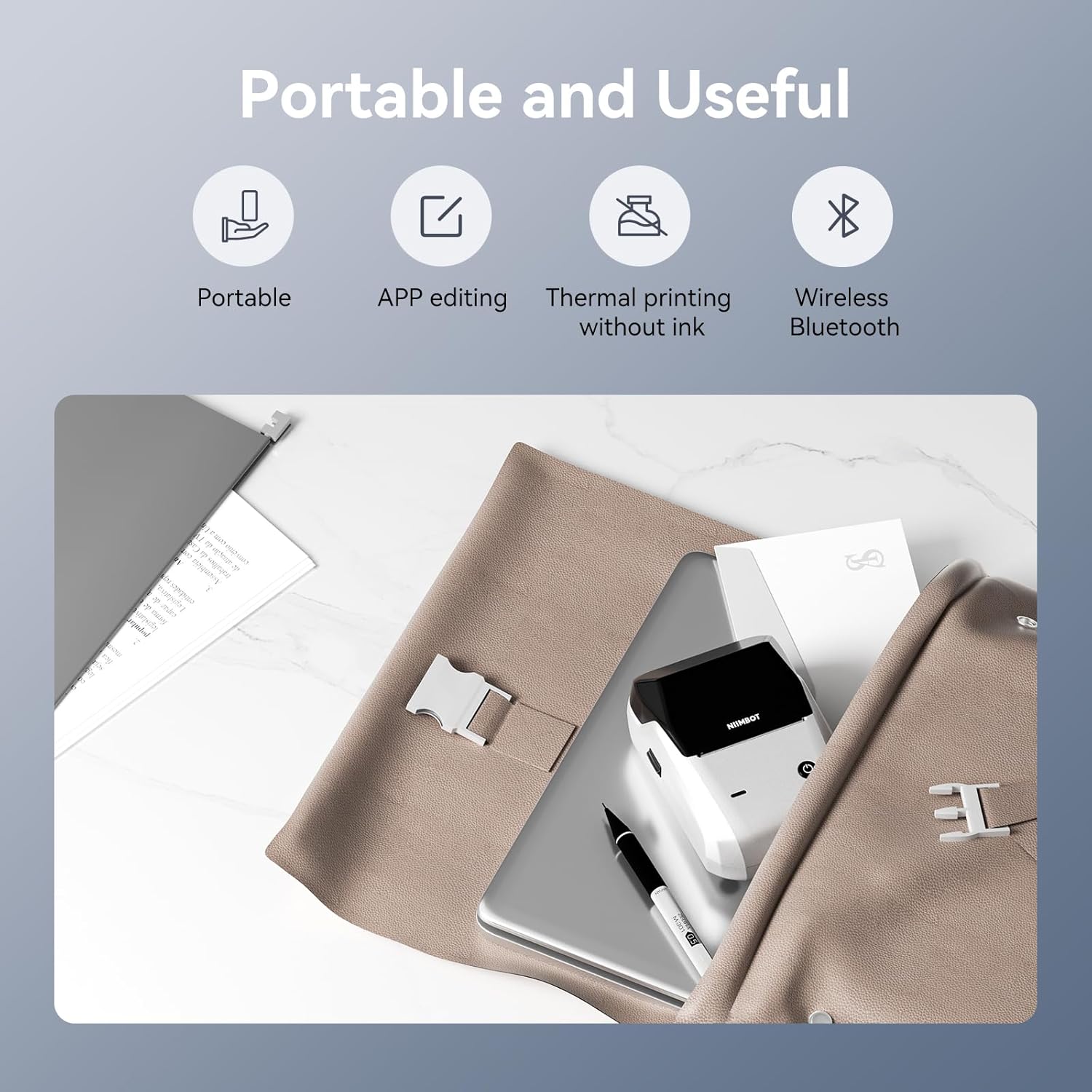
בילד 2.2: איבערview of the NIIMBOT B1's portable and useful features.
3. סעטאַפּ
3.1 לאָדן עטיקעט טייפּ
- Rotate the side latch to open the tape slot.
- Load the label tape into the slot, ensuring the label side faces upwards.
- Adjust the guide plate to fit the label roll snugly.
- Close the tape slot, leaving a small portion of the label tape extending for smooth feeding.

Image 3.1: Proper installation of label tape in the NIIMBOT B1.
3.2 אַפּ ינסטאַלירונג און קאַנעקשאַן
The NIIMBOT B1 requires the NIIMBOT app for smartphone operation.
- Download the NIIMBOT app from the App Store (iOS) or Google Play Store (Android). זוכן פֿאַר "NIIMBOT".
- זיכער מאַכן אַז אייער טעלעפאָן'ס בלועטוט איז ענייבאַלד.
- Open the NIIMBOT app and click "Connect" to search for nearby devices.
- Select your B1 printer from the list (e.g., B1-XXXXXX) to pair. If prompted for a pairing code, enter 0000 or 1234.
- Once connected, the app will automatically identify the label tape in the printer.

Image 3.2: NIIMBOT App download and connection process.
3.3 PC Connection (Windows)
For PC connectivity, you will need to download the driver from the official NIIMBOT webפּלאַץ.
- באַזוכן די באַאַמטער NIIMBOT website and download the B1 printer driver for Windows 7/10.
- Install the driver on your PC.
- Connect the NIIMBOT B1 printer to your PC using the provided USB Type-C cable.
- Open the NIIMBOT desktop software to begin printing.

Image 3.3: Connecting the NIIMBOT B1 to a PC via USB.
3.4 Quick Start Video Guide
Watch this video for a quick visual guide on setting up and using your B1 Label Maker.
Video 3.4: A quick start guide demonstrating the initial setup and basic operation of the NIIMBOT B1 Label Maker.
4. אַפּערייטינג ינסטרוקטיאָנס
4.1 שאַפֿן און רעדאַקטירן עטיקעטן
- In the NIIMBOT app, select a template or create a new label.
- Use the various editing tools to add text, images, icons, barcodes, QR codes, and other elements.
- Customize font styles, sizes, alignment, and other layout options.
- The app supports features like OCR (Optical Character Recognition) for converting images to text.

Image 4.1: The NIIMBOT App interface for creating and editing labels.
4.2 דרוקן עטיקעטן
- After designing your label, click the "Print" button in the app.
- Adjust the number of copies and print density as needed.
- Confirm the print settings and initiate printing.
- The printer will automatically feed and print the labels. Gently tear off the printed labels.

Image 4.2: Smartphone printing process with the NIIMBOT B1.
4.3 ינדיקאַטאָר ליכט מינינגז
Understand the status of your printer through its indicator light:
- פלאַש בלו: Firmware אַפּגרייד אין פּראָגרעס.
- שטענדיק בלוי: Printer is in standby mode.
- פלאַש גרין: Printer is actively printing.
- שטענדיק גרין: Bluetooth is successfully connected.
- פלאַש רויט: Printer is charging.
- שטענדיק רויט: Cover is open, out of paper, or low battery.

Image 4.3: Guide to the NIIMBOT B1 indicator light statuses.
4.4 באַניץ עקסamples
The NIIMBOT B1 is versatile for various labeling needs:
- היים נוצן: Kitchen labels, gift labels, kids' item labels, trip item labels.
- Business Use: Beauty & personal care, DIY item labels, mail labels, perfume labels, bakery food labels.

בילד 4.4: עקס.amples of NIIMBOT B1 usage for home organization.

בילד 4.5: עקס.amples of NIIMBOT B1 usage for small businesses.

בילד 4.6: עקס.amples of labels for bakery and food products.
Video 4.7: Demonstration of the NIIMBOT B1 Label Maker's ease of use for various labeling tasks.
ווידעא 4.8: ווייַזןasing the multipurpose capabilities of the NIIMBOT B1 Label Maker for different applications.
5. וישאַלט
5.1 רייניקן דעם דרוק קאָפּ
רעגולערע רייניקונג פון די דרוק קאָפּ גאַראַנטירט אָפּטימאַלע דרוק קוואַליטעט.
- Turn off the printer and disconnect the power cable.
- עפענען די פירמע אָפּטייל.
- ווישט אָפּ דעם דרוק קאָפּ מיט אַ וואַטע שטעכל, לײַכטampמיט יסאָפּראָפּיל אַלקאָהאָל.
- Allow the print head to dry completely before closing the compartment and turning on the printer.
5.2 באַטערי קער
- Charge the printer regularly, even if not in frequent use, to maintain battery health.
- Avoid exposing the printer to extreme temperatures.
- Use only the provided Type-C cable for charging.
6. טראָובלעשאָאָטינג
6.1 פּראָסט ישוז און סאַלושאַנז
| אַרויסגעבן | מעגלעך סיבה | לייזונג |
|---|---|---|
| דרוקער טוט זיך נישט אן | נידעריגע באַטעריע; די מאַכט קנעפּל נישט לאַנג גענוג געדריקט | Charge the printer; Press and hold the power button for 3 seconds. |
| ניט געקענט צו פאַרבינדן דורך בלועטאָאָטה | Bluetooth off on phone; Printer not in pairing mode; App permissions | Ensure Bluetooth is on; Restart printer; Check app permissions for nearby devices. |
| נעבעך דרוק קוואַליטעט | Dirty print head; Incorrect print density; Low battery | Clean the print head (see 5.1); Adjust print density in the app; Charge the printer. |
| עטיקעטן ווערן נישט ריכטיק צוגעפֿירט | Incorrect label installation; Guide plate not adjusted | Reinstall label tape correctly (see 3.1); Adjust the guide plate to fit the label roll. |
| דרוקער נישט דערקענט דורך קאמפיוטער | Driver not installed; Faulty USB cable | Install the correct PC driver (see 3.3); Try a different USB cable. |
7. ספּעסאַפאַקיישאַנז
| שטריך | דעטאַל |
|---|---|
| מאָדעל נאָמען | B1 |
| דרוק טעכנאָלאָגיע | טערמאַל |
| קאַנעקטיוויטי | בלועטאָאָטה, וסב |
| מאַקסימום דרוק רעזאָלוציע | 203 דפּי |
| מאַקסימום דרוק גיכקייט (מאָנאָכראָם) | 15 מם/ס |
| מאַקסימום מעדיע גרייס | 2 אינטש (50 מם) |
| קאַמפּאַטאַבאַל דעוויסעס | Smartphone (Android & iOS), PC (Windows 7/10) |
| פּונקט וואָג | 1.1 פונט (499 גראַמז) |
| פּראָדוקט דימענשאַנז | 5.5"ד רענטגענ 3.5"וו רענטגענ 2.5"ה |
| באַטערי | 1 א באַטאַרייע פארלאנגט (אַרייַנגערעכנט) |
| ספּעציפיש ניצט | Labeling for Small Business Product Price/Address, School and Office Files Classification, Home Supplies Organization, Personal Item Identification, Name Tags and Warehouse |
8. וואָראַנטי און שטיצן
8.1 וואָראַנטי אינפֿאָרמאַציע
The NIIMBOT B1 Label Printer comes with a 1-year warranty coverage. Please retain your proof of purchase for warranty claims.
8.2 קונה שטיצן
For further assistance, technical support, or warranty inquiries, please contact NIIMBOT customer service through their official webזייטל אדער די קאָנטאַקט אינפֿאָרמאַציע וואָס איז צוגעשטעלט מיט אייער פּראָדוקט פּאַקאַדזשינג.


