הקדמה
This manual provides detailed instructions for the installation, operation, and maintenance of your aigo AF12 3-in-1 ARGB Fan Kit. Please read this manual thoroughly before use to ensure proper functionality and longevity of the product.
פּראָדוקט פֿעיִקייטן
The aigo AF12 3-in-1 ARGB Fan Kit offers efficient cooling and customizable lighting for your computer system. Key features include:
- מאָדעל: AF123IN1-BK
- פאָכער קוואַנטיטי: 3 x 120mm fans
- פאַן גיכקייַט: 800-2000 רפּם (±10%)
- Fan Noise Level: ≤30דבאַ
- לופט לויפן: 86.6 קפם
- סטאַטיק דרוק: 1.27mm-H²O
- Working Current (Motor): ≤0.2A (12V)
- Working Current (Light): ≤0.48A (5V)
- דימענסיעס: 120 X 120 X 25 מם
- ARGB לייטינג: Addressable RGB lighting for customizable effects.
פּעקל אינהאַלט
באַשטעטיקט אַז אַלע זאכן וואָס זענען אויסגערעכנט אונטן זענען פאַראַן אין אייער פּעקל:
- 3 x aigo AF12 ARGB Fans
- מאַונטינג סקרוז
- ARGB Controller (if included in kit)
- Cables (Power, ARGB Sync)
ינסטאַללאַטיאָן גייד
Follow these steps to properly install your aigo AF12 ARGB fans into your computer case.
- צוגרייטן אייער סיסטעם: Power off your computer and disconnect it from the power source. Open your computer case.
- Identify Mounting Locations: Determine the desired locations for your fans (e.g., front, top, rear, bottom of the case). Ensure proper airflow direction.
- מאָנטירן די פאַנס: Position each fan in its chosen location. Use the provided mounting screws to secure the fans to the case. Ensure the fan blades are not obstructed.
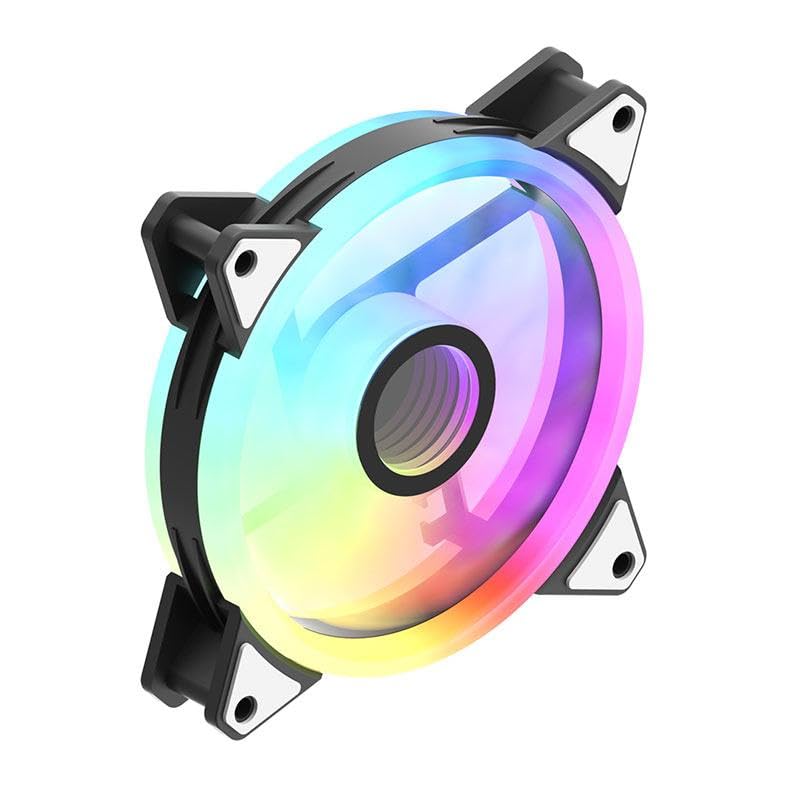
Image: An aigo AF12 fan viewed from an angle, highlighting the mounting points on its corners. This illustrates how the fan is secured.
- פאַרבינדן מאַכט קאַבלעס: Connect the 3-pin power connector from each fan to an available fan header on your motherboard or fan controller.
- Connect ARGB Cables: Connect the ARGB cable from each fan to the ARGB controller (if applicable) or directly to a compatible 5V 3-pin ARGB header on your motherboard. Ensure correct pin orientation to avoid damage.
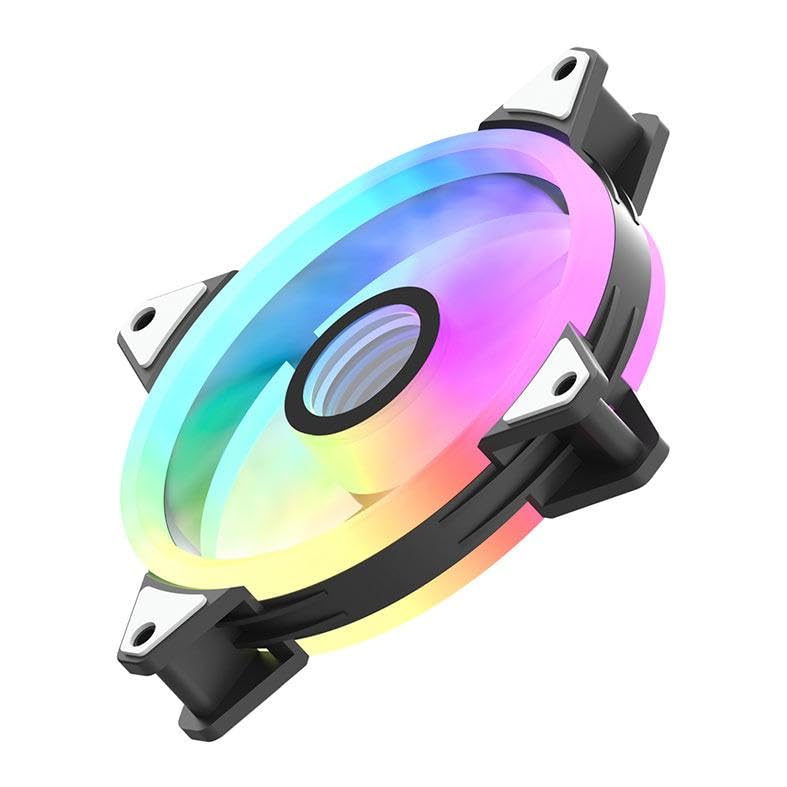
בילד: א זייט פראפעסיאנאלfile of the aigo AF12 fan, illustrating the thickness and potential locations for cable connections on the frame.
- קאַבלע פאַרוואַלטונג: Route cables neatly to prevent interference with other components and to improve airflow.
- פֿאַרמאַכן דעם קעסטל און אָנצינדן: פֿאַרמאַכט אייער קאָמפּיוטער קעסטל, שטעלט צוריק די עלעקטרישע מאַכט, און צינדט אָן אייער סיסטעם.
אַפּערייטינג ינסטראַקשאַנז
Once installed, your aigo AF12 ARGB fans will operate automatically based on your system's fan control settings. The ARGB lighting can be controlled via your motherboard's software or a dedicated ARGB controller.
פאָכער ספּיד קאָנטראָל
Fan speed can typically be adjusted through your motherboard's BIOS/UEFI settings or through fan control software provided by your motherboard manufacturer. Refer to your motherboard manual for specific instructions.
ARGB לייטינג קאָנטראָל
If connected to a 5V 3-pin ARGB header on your motherboard, use your motherboard's ARGB synchronization software (e.g., ASUS Aura Sync, MSI Mystic Light Sync, GIGABYTE RGB Fusion, ASRock Polychrome Sync) to customize lighting effects, colors, and patterns.
If using a dedicated ARGB controller (often included with fan kits), refer to the controller's specific instructions for lighting adjustments.
וישאַלט
Regular maintenance ensures optimal performance and extends the lifespan of your fans.
- שטויב רייניקונג: Periodically clean dust from the fan blades and housing using compressed air or a soft brush. Ensure the system is powered off before cleaning.
- קאַבלע טשעק: Verify that all cables are securely connected and free from damage.
- ראַש מאָניטאָרינג: Listen for unusual noises, which may indicate a fan bearing issue or obstruction.
טראָובלעשאָאָטינג
If you encounter issues with your aigo AF12 ARGB fans, refer to the following common solutions:
פאַנס דרייען זיך נישט
- קוק די מאַכט קאַנעקשאַן: Ensure the fan's 3-pin power connector is securely plugged into the motherboard or controller.
- Check BIOS Settings: Verify that fan headers are enabled in your motherboard's BIOS/UEFI settings.
- Test Another Header: Try connecting the fan to a different fan header to rule out a faulty header.
ARGB Lights Not Working
- Check ARGB Connection: Ensure the 5V 3-pin ARGB connector is correctly and securely plugged into the motherboard or controller. Verify the pin orientation.
- Check Software: Confirm that your motherboard's ARGB software is installed and configured correctly.
- קאַמפּאַטאַבילאַטי: Ensure your motherboard has a compatible 5V 3-pin ARGB header. This product is not compatible with 12V 4-pin RGB headers.
יבעריק ראַש
- קוק פֿאַר אַבסטראַקשאַנז: Ensure no cables or other components are touching the fan blades.
- מאָונטינג סקרוז: Verify that all mounting screws are tightened to prevent vibrations.
- שטויב אַנטוויקלונג: רייניקן יעדן שטויב פון די ווענטילאַטאָר בליידז.
טעכניש ספּעסאַפאַקיישאַנז
| שטריך | באַשרייַבונג |
|---|---|
| סאָרט | אַיגאָ |
| מאָדעל | AF123IN1-BK |
| פאָכער קוואַנטיטי | 3 X 120 מם |
| פאַן ספּיד | 800 ± 2000 ± 10% RPM |
| פאַן ראַש | ≤ 30דבאַ |
| לופטפלאָוו | 86.6 קפם |
| סטאַטיק דרוק | 1.27mm-H²O |
| Working Current (Motor) | ≤ 0.2A (12V) |
| Working Current (Light) | ≤ 0.48A (5V) |
| דימענשאַנז | 120 X 120 X 25 מם |
| מאַכט קאַנעקטער טיפּ | 3-פּין |
| Voltage | 12 וואלטס |
| קאָאָלינג אופֿן | לופט |
| קאַמפּאַטאַבאַל דעוויסעס | דעסקטאָפּ |
| פּונקט וואָג | 10.6 אונסעס |
וואָראַנטי און שטיצן
This aigo product comes with a 12-חודש וואָראַנטי פֿון דעם קויפֿדאַטום, וואָס באַדעקט פֿאַבריקאַציע־דעפֿעקטן.
For technical support, warranty claims, or further assistance, please visit the official aigo store or contact their customer service through the details provided on their webפּלאַץ.
Official aigo Store: אייגאָ קראָם אויף אַמאַזאָן