1. הקדמה
Welcome to the Ninkear A15 Laptop user manual. This guide provides essential information for setting up, operating, maintaining, and troubleshooting your new Ninkear A15 laptop. Please read this manual thoroughly to ensure proper use and to maximize the performance and longevity of your device.
The Ninkear A15 is a high-performance laptop featuring an AMD Ryzen 5 5500U Hexa-core Processor, 16GB RAM, and a 512GB PCIe SSD, designed for a variety of computing tasks from daily productivity to graphic design and entertainment.
2. וואָס איז אין דער קעסטל
Upon opening your Ninkear A15 Laptop package, please verify that all the following items are included:
- A15 laptop x 1
- מויז רענטגענ 1
- מויז פּאַד x 1
- טשאַרדזשער רענטגענ 1
3. פּראָדוקט איבערview
The Ninkear A15 laptop is engineered for efficiency and user comfort. Below are key features and components:
3.1 שליסל פֿעיִקייטן
- שטאַרקער פּראַסעסער: Equipped with an AMD Ryzen 5 5500U processor, AMD Radeon graphics, 6 cores and 12 threads, with a frequency up to 4.0Ghz, suitable for various applications.
- יממערסיווע ווייַז: Features a 15.6-inch FHD IPS display with 1920x1080 resolution, offering a 90.3% screen-to-body ratio and a 180-degree viewing angle for clear and natural picture quality.
- עקסטענדעד באַטאַרייע לעבן: A 4350mAh battery provides up to 6 hours of daily use, making it ideal for mobile work. It supports full-function Type-C charging.
- Ampסטאָרידזש און זכּרון: Comes with 16GB DDR4 RAM (3200Mhz) and a 512GB PCIe SSD, ensuring fast performance for professional software and multitasking.
- באַניצער-פרייַנדלעך פּלאַן: Includes a full digital backlit keyboard with three adjustable monochrome backlight levels (FN+F9) and a 0.5-second fingerprint unlocking feature for enhanced security and convenience.
3.2 וויזועל איבערview

פראָנט view of the Ninkear A15 Laptop, showcasinג זײַן גלאַטן דיזײַן און אַרויסווײַז.

אַן איבערview of the Ninkear A15 Laptop highlighting key specifications like 15.6" IPS FHD display, AMD Ryzen 5 5500U processor, 16GB DDR4 RAM, 512GB PCIe SSD, 4350mAh battery, backlit keyboard, and Type-C full function port.

דעטאַילעד view of the AMD Ryzen 5 5500U processor, emphasizing its 6 cores, 12 threads, 7nm process, and 4.0GHz max turbo frequency.
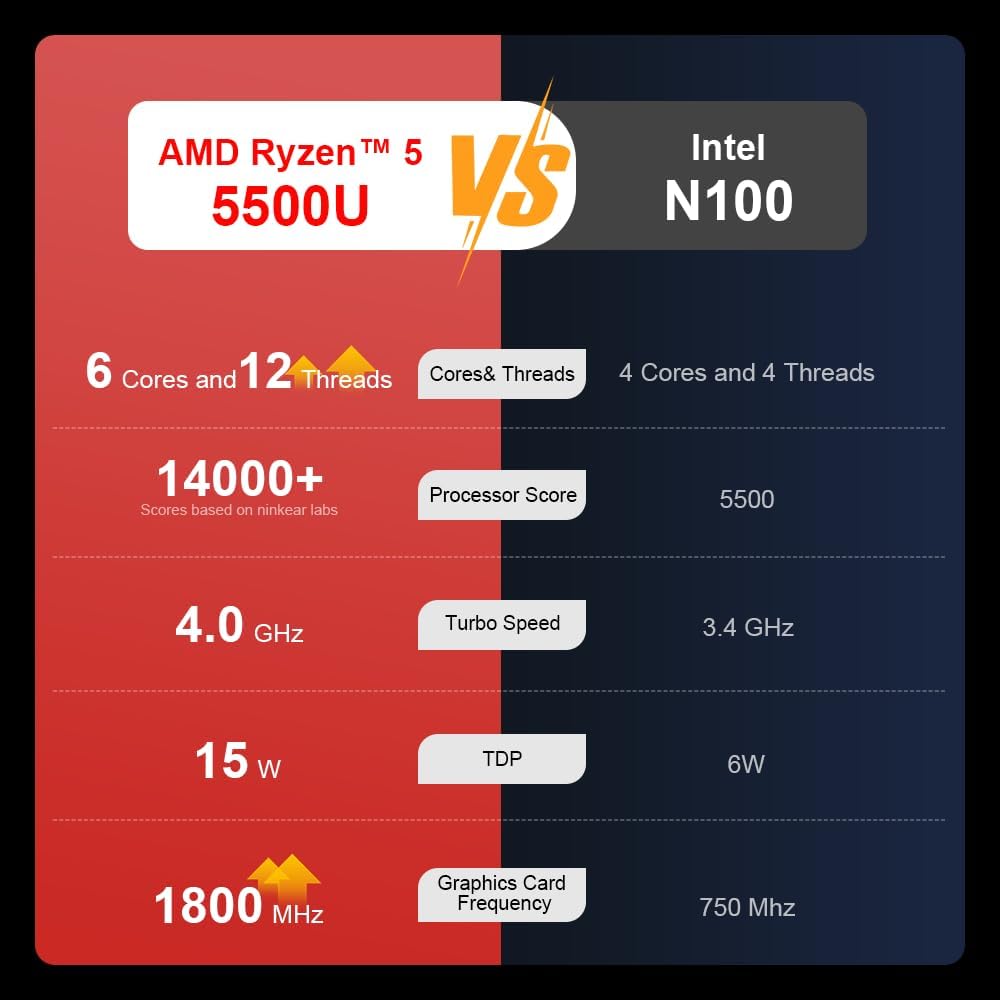
A comparison chart illustrating the performance differences between the AMD Ryzen 5 5500U and Intel N100 processors, including core/thread count, processor score, turbo speed, TDP, and graphics card frequency.

Image showing the 512GB M.2 PCIe SSD and highlighting the 3200MHz DDR4 running frequency, indicating a 20% speed improvement over 2666MHz DDR4.

The 15.6-inch IPS FHD screen of the A15, designed to deliver vibrant and accurate colors while reducing eye strain during long work hours.

Illustration of the A15 laptop's suitability for various 'recreational office' tasks, including graphic design (Ae, Ps, Ai) and gaming/entertainment.

Information about the laptop's 50.5WH high-capacity lithium-ion battery, providing up to 8 hours of local video playback and 72 hours of standby time.

A visual guide to the rich interfaces of the Ninkear A15 Laptop, including USB 3.0, USB 2.0, Headphone Jack, Charging Port, HDMI, and full-function Type-C ports.
3.3 פּראָדוקט ווידעא
אפיציעלע פּראָדוקט ווידעאָ שאָוasing the Ninkear A15 Laptop's features, including its design, display, backlit keyboard, and various ports. This video provides a dynamic overview of the laptop's capabilities and physical attributes.
4. סעטאַפּ
Follow these steps to set up your Ninkear A15 Laptop for the first time:
- אויספּאַקן דעם לאַפּטאָפּ: פֿאָרזיכטיק אַרויסנעמען דעם לאַפּטאָפּ און אַלע אַקסעסאָריעס פֿון דער פּאַקאַדזשינג.
- פאַרבינדן מאַכט: Plug the charger into the laptop's charging port (DC-in or Type-C) and then into a power outlet.
- ערשטע בוט: Open the laptop lid and press the power button (integrated with fingerprint sensor). The laptop will power on and begin the initial Windows 11 setup process.
- ווינדאָוס 11 סעטאַפּ: Follow the on-screen instructions to complete the Windows 11 setup, including selecting your region, language, connecting to Wi-Fi, and creating a user account.
- פינגערפּרינט סעטאַפּ: During or after Windows setup, you can configure the fingerprint reader for quick and secure login.
5. אַפּערייטינג ינסטרוקטיאָנס
This section covers basic operation of your Ninkear A15 Laptop.
5.1 Power On/Off and Sleep
- מאַכט אויף: דרוק די מאַכט קנעפּל.
- מאַכט אַוועק: דריקט דעם סטאַרט קנעפּל אין ווינדאָוס, און דערנאָך סעלעקטירט מאַכט > שאַט דאַון.
- שלאָפן מאָדע: מאַכט צו דעם דעקל אָדער גיט דעם אָנהייב קנעפּל, און דערנאָך סעלעקטירט מאַכט > שלאָף.
5.2 קלאַוויאַטור און טאָוטשפּאַד
- באַקלייט קלאַוויאַטור: דרוק Fn + F9 to cycle through the three levels of monochrome backlight brightness or turn it off.
- טאָוטשפּאַד: ניצט דעם אינטעגרירטן טאָוטשפּאַד פֿאַר קורסאָר קאָנטראָל און דזשעסטשערז. זעט די ווינדאָוס סעטטינגס פֿאַר טאָוטשפּאַד קאַסטאַמייזיישאַן.
- נומעריק קיפּאַד: The laptop features a full digital numeric keypad for convenient data entry.
5.3 קאַנעקטינג פּעריפעראַלס
ניצט די פארשידענע פּאָרטן פֿאַר עקסטערנע דעוויסעס:
- וסב פּאָרץ: Connect USB devices like external hard drives, mice, or keyboards to the USB 2.0 or USB 3.0 ports.
- הדמי: Connect to external monitors or projectors using the HDMI port.
- טיפּ C: The full-function Type-C port supports data transfer, video output, and power delivery.
- אַודיאָ דזשאַק: פֿאַרבינדט כעדפאָונז אָדער עקסטערנע רעדנערס צו די 3.5 מם אַודיאָ דזשעק.
5.4 ווייַז סעטטינגס
Adjust display settings via Windows Settings > System > Display to optimize resolution, scaling, and multiple monitor setups.
6. וישאַלט
Proper maintenance ensures the longevity and optimal performance of your Ninkear A15 Laptop.
- רייניקונג: ניצט אַ ווייכן, לינט-פֿרייע שטאָף צו רייניקן דעם עקראַן און שאַסי. פֿאַר שווערע פֿלעקן, אַ ביסל אָפּווישןampווישט דעם שטאָף מיט וואַסער אָדער אַ פאַרשטעלן רייניגער. פֿאַרמייַדט שטרענגע כעמיקאַליעס.
- ווייכווארג דערהייַנטיקונגען: Regularly update Windows and device drivers to ensure system stability, security, and performance.
- באַטערי זאָרגן: כדי צו פארלענגערן די לעבן פון די באַטעריע, זאָלט איר נישט אָפט אויסלאָדן די באַטעריע. האַלט דעם לאַפּטאָפּ אין אַ קילן, טרוקענעם אָרט ווען איר ניצט עס נישט פֿאַר לענגערע צייטן.
- ווענטילאַטיאָן: זיכער מאַכן אַז די לאַפּטאַפּ'ס ווענטילאַציעס זענען נישט פֿאַרשטאָפּט צו פאַרמייַדן איבערהיצונג. ניצט דעם לאַפּטאַפּ אויף אַ שווערער, גלאַטער ייבערפלאַך.
- דאַטאַ באַקקופּ: מאַכט רעגולער באַקאַפּן פון אייערע וויכטיקע דאַטן צו אַן עקסטערנאַלן דרייוו אָדער וואָלקן סטאָרידזש צו פאַרמייַדן דאַטן אָנווער.
7. טראָובלעשאָאָטינג
This section addresses common issues you might encounter with your Ninkear A15 Laptop.
| פּראָבלעם | מעגלעך סיבה | לייזונג |
|---|---|---|
| לאַפּטאָפּ גייט נישט אָן | Low battery or power adapter issue | Ensure the charger is properly connected and the power outlet is working. Allow the laptop to charge for at least 30 minutes before attempting to power on again. |
| דער עקראַן איז ליידיק אָדער שוואַרץ | Display driver issue, external display connected, or sleep mode | Press any key or move the mouse to wake from sleep. Disconnect any external monitors. Try pressing Fn + F7 (or the key with a display icon) to switch display modes. If still blank, force shut down by holding the power button for 10 seconds, then restart. |
| Wi-Fi איז נישט קאַנעקטינג | Wi-Fi adapter off, incorrect password, or router issue | Check if Wi-Fi is enabled in Windows settings. Verify the Wi-Fi password. Restart your router and modem. Update Wi-Fi drivers if necessary. |
| קלאַוויאַטור באַקלייט אַרבעט נישט | Backlight turned off or low brightness setting | דרוק Fn + F9 repeatedly to adjust brightness or turn on the backlight. |
| פּאַמעלעך פאָרשטעלונג | Too many programs running, low disk space, or outdated drivers | Close unnecessary applications. Free up disk space. Run Windows Update and update drivers. Consider running a virus scan. |
8. ספּעסאַפאַקיישאַנז
Detailed technical specifications for the Ninkear A15 Laptop:
| שטריך | באַשרייַבונג |
|---|---|
| סאָרט | נינקעאַר |
| מאָדעל נאָמען | A15 |
| פאַרשטעלן גרייס | 15.6 אינטשעס |
| פאַרשטעלן האַכלאָטע | 1920 x 1080 פּיקסעלס (FHD IPS) |
| פּראַסעסער | AMD Ryzen 5 5500U (2.1 GHz, 6 Cores, 12 Threads) |
| באַראַן | 16 גיגאבייט DDR4 (3200 מעגהערץ) |
| שווער דרייוו | 512 GB PCIe SSD |
| גראַפיקס קאַרד | אינטעגרירטע AMD Radeon גראַפיקס |
| אָפּערייטינג סיסטעם | Windows 11 |
| קאָליר | זילבער |
| פּונקט וואָג | 5 פונט |
| פּראָדוקט דימענשאַנז | 14 X 9 X 0.15 אינטשעס |
| וסב 3.0 פּאָרץ | 2 |
| דורכשניטלעך באַטאַרייע לעבן | Up to 6-8 hours (daily use) |
| ספּעציעלע פֿעיִקייטן | Backlit Keyboard, Numeric Keypad, Fingerprint Unlock, Full-function Type-C |
9. וואָראַנטי & שטיצן
Ninkear provides a standard warranty for the A15 Laptop. Please refer to the warranty card included in your product packaging for specific terms and conditions, including warranty duration and coverage details.
For technical support, troubleshooting assistance, or warranty claims, please contact Ninkear customer service through the official website or the contact information provided with your purchase. Ensure you have your product model (A15) and purchase details ready when contacting support.
You can also visit the official Ninkear store on Amazon for additional product information and support resources: Ninkear Amazon Store


