1. הקדמה
This manual provides detailed instructions for the setup, operation, and maintenance of your A4tech FBK27C AS Bluetooth & 2.4G Rechargeable Keyboard. Please read this manual thoroughly to ensure proper use and to maximize the keyboard's features.
The A4tech FBK27C AS keyboard is designed for enhanced comfort and productivity, featuring dual connectivity options, QuietKey technology for silent typing, and multi-device pairing capabilities. Its ergonomic design aims to reduce wrist strain during extended use.
2. פֿעיִקייטן
- צווייענדיק קאַנעקטיוויטי: Seamlessly switch between 2.4GHz wireless (via USB dongle) and Bluetooth connections.
- Multi-Device פּערינג: Connect and switch between up to three devices (one 2.4GHz and two Bluetooth devices).
- ערגאָנאָמיק פּלאַן: Features a split keyboard layout and an integrated wrist rest to promote a natural hand and wrist posture, reducing discomfort during prolonged typing.
- QuietKey Technology: Designed for silent typing, minimizing noise in shared environments.
- קריקאָנלאָדלעך באַטערי: Equipped with a built-in rechargeable battery, charged via a USB-C port.
- Multimedia & Function Keys: Dedicated keys for media control, system functions, and quick access to common tasks.
- ברייט קאַמפּאַטאַבילאַטי: Supports Windows, Mac, iOS, and Android operating systems.
3. פּעקל אינהאַלט
באַשטעטיקן אַז אַלע זאכן זענען פאַראַן אין פּעקל:
- A4tech FBK27C AS Keyboard
- וסב-C טשאַרדזשינג קאַבלע
- 2.4GHz USB Receiver (dongle)
- שנעל אָנהייב גייד
4. סעטאַפּ
4.1 אויפלאָדן די קלאַוויאַטור
Before first use, fully charge the keyboard. Connect the provided USB-C cable to the charging port on the keyboard (located on the upper top left edge, near the ON/OFF button) and the other end to a USB power source. The power LED will illuminate during charging and turn off when fully charged.
4.2 פֿאַרבינדן זיך דורך 2.4GHz ווירעלעס
- Locate the 2.4GHz USB receiver (dongle), typically stored magnetically on the underside of the keyboard.
- צאַפּן די וסב ופנעמער אין אַ בנימצא וסב פּאָרט אויף דיין קאָמפּיוטער.
- קער אויף די קלאַוויאַטור מיט די ON/OFF באַשטימען.
- Press the '2.4G' key on the keyboard to activate 2.4GHz mode. The indicator light will confirm the connection.
4.3 קאַנעקטינג דורך בלועטאָאָטה
די קלאַוויאַטור שטיצט צוויי בלועטוט קאַנעקשאַנז (BT1 און BT2).
- קער אויף די קלאַוויאַטור מיט די ON/OFF באַשטימען.
- Press and hold either the 'BT1' or 'BT2' key for a few seconds until its indicator light starts blinking rapidly. This indicates pairing mode.
- אויף אייער דעווייס (קאמפיוטער, טאַבלעט, סמאַרטפאָון), גייט צו בלועטוט סעטטינגס און זוכט פֿאַר נייע דעווייסעס.
- Select 'A4tech FBK27C AS' (or similar name) from the list of available devices.
- פֿאָלגט אַלע אינסטרוקציעס אויף דעם עקראַן צו פֿאַרענדיקן דעם פּאָרינג פּראָצעס. די אינדיקאַטאָר ליכט אויף דער קלאַוויאַטור וועט ווערן האַרט ווען עס איז געראָטן צו פּאָרן.
- איבערחזרן פֿאַר די צווייטע בלועטוט קאַנאַל אויב געוואונטשט.
4.4 אַדזשאַסטירן קלאַוויאַטור טילט
The keyboard features adjustable feet on both the front and back. To achieve a more ergonomic typing angle, you can extend the front feet to raise the keyboard's front edge, further enhancing wrist comfort.
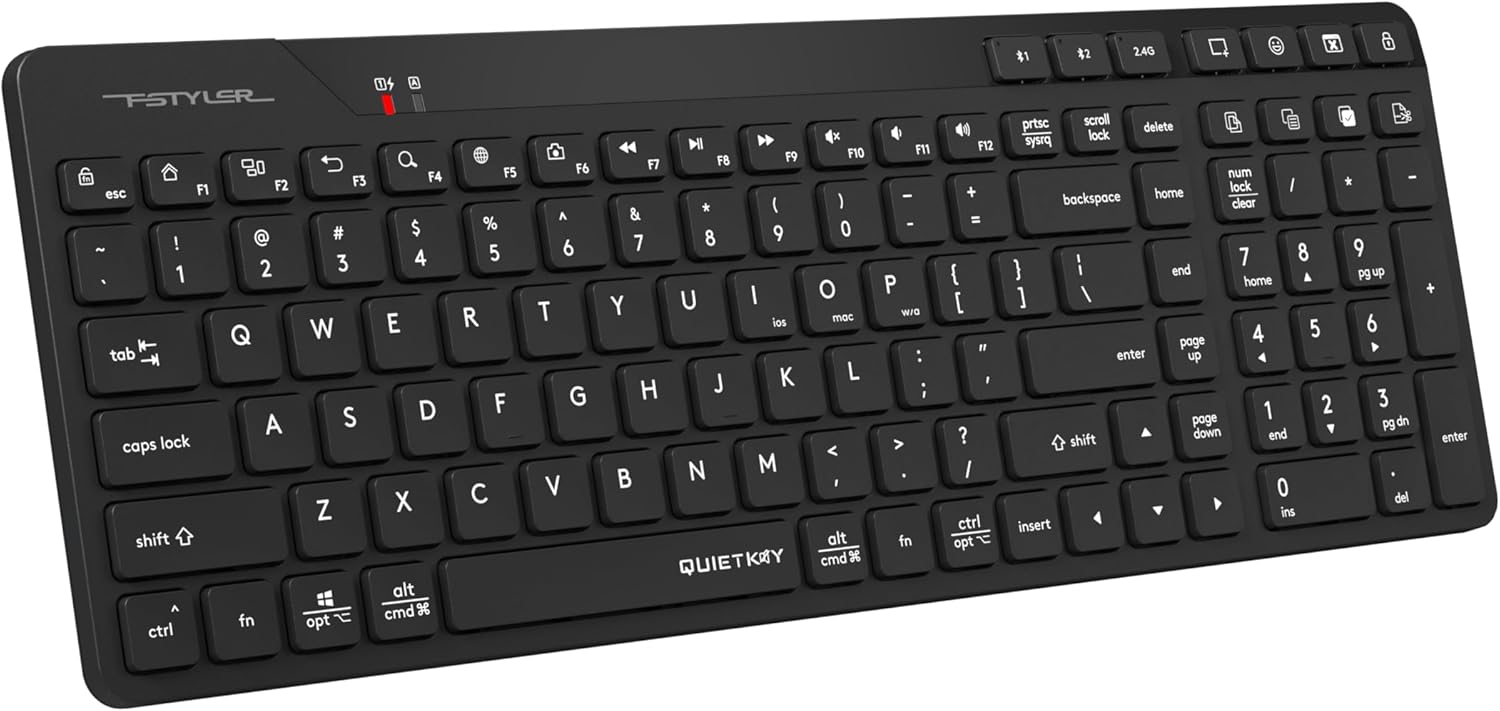
פיגורע 1: שפּיץ view of the A4tech FBK27C AS keyboard, showcasing its ergonomic split design and integrated wrist rest.
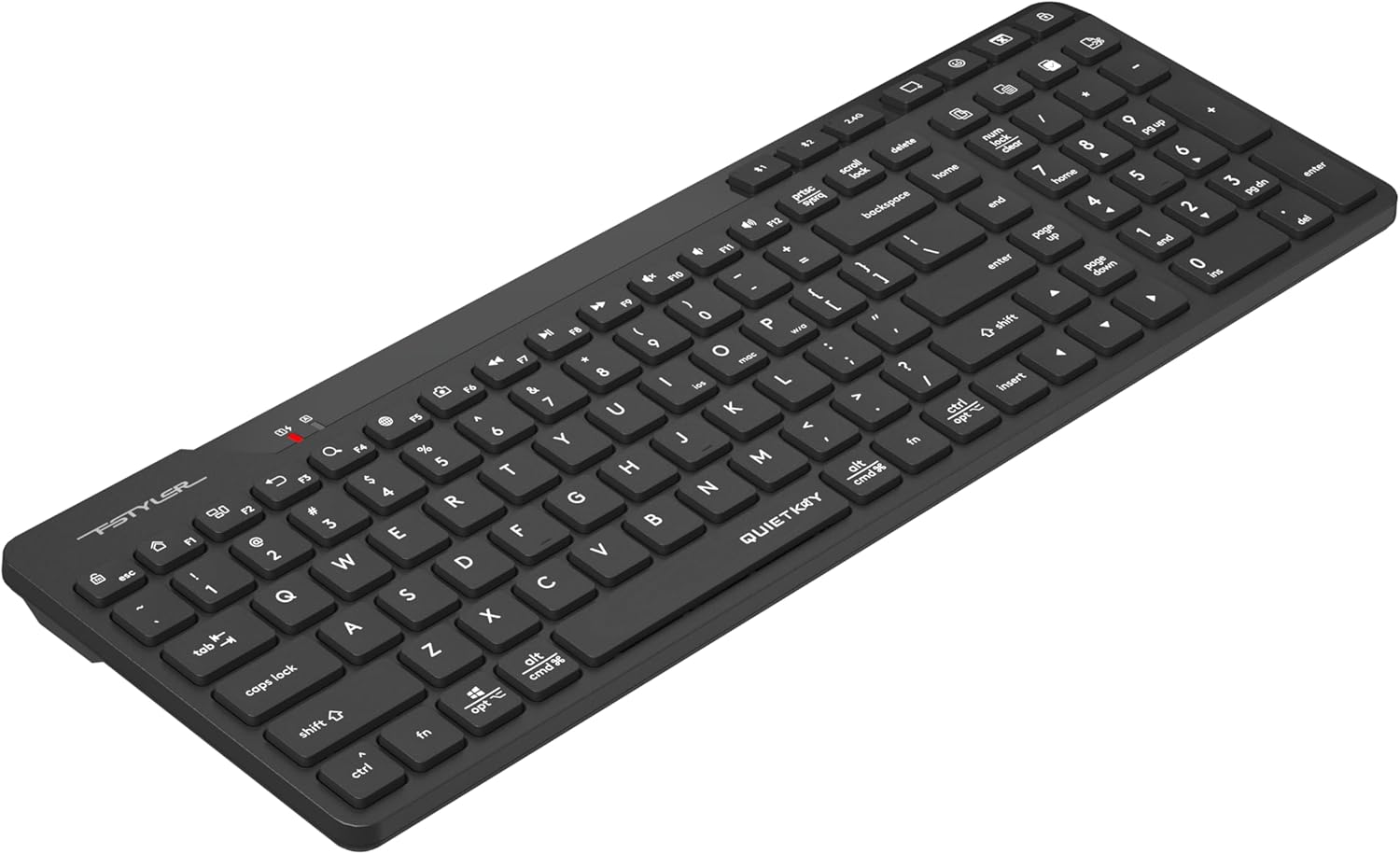
פיגור 2: ווינקלדיק view of the A4tech FBK27C AS keyboard, highlighting the contoured shape for natural hand positioning.
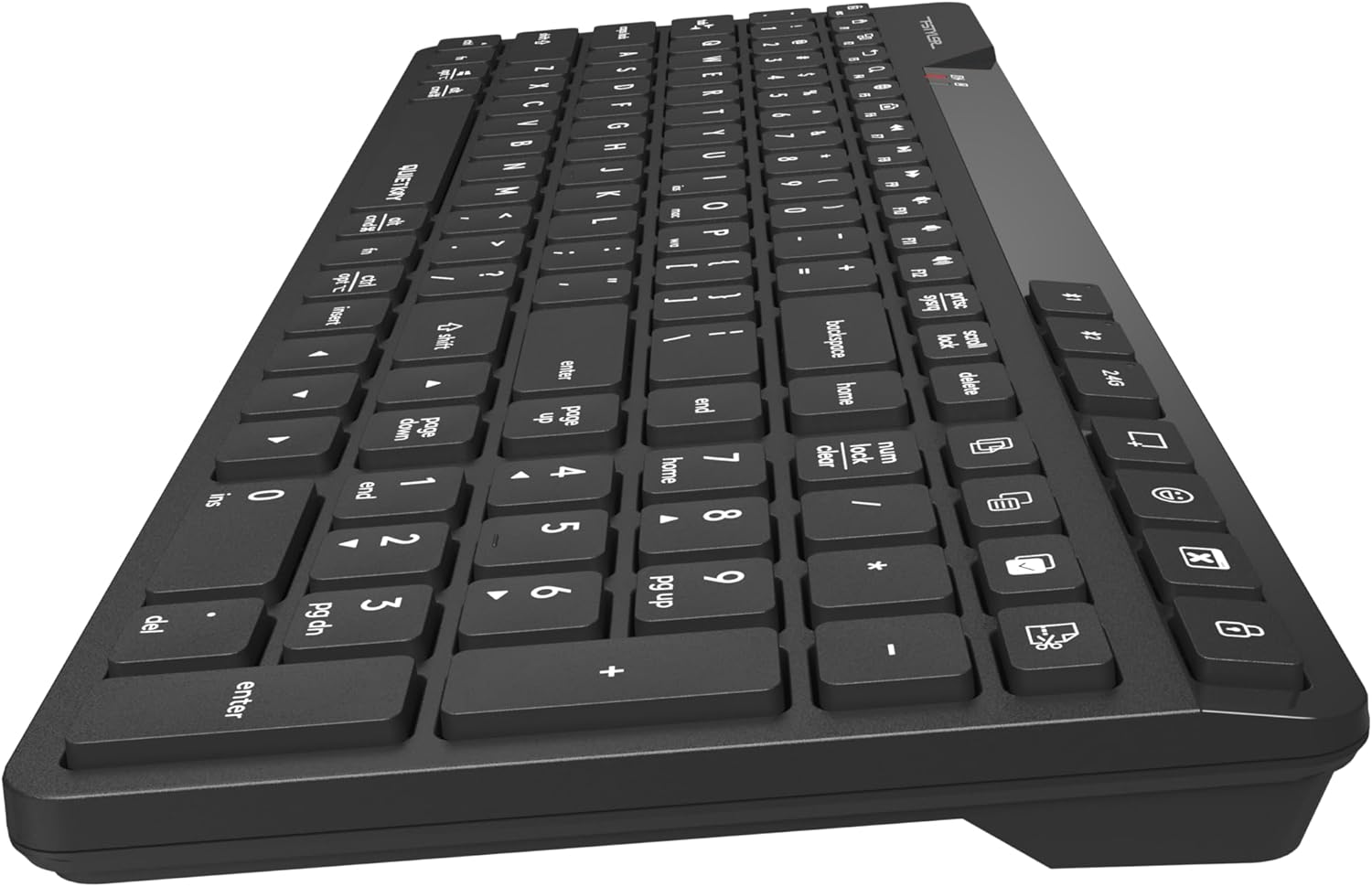
פיגורע 3: זייַט view of the A4tech FBK27C AS keyboard, showing the profile and the integrated wrist rest.

פיגור 4: אויבן-אראפ ווינקלעד view of the A4tech FBK27C AS keyboard, providing a comprehensive look at the key layout and ergonomic design.
5. אַפּערייטינג ינסטרוקטיאָנס
5.1 וועקסלען צווישן פארבונדענע דעווייסעס
To switch between your connected devices, simply press the corresponding connectivity key:
- Press '2.4G' to connect to the device using the USB receiver.
- Press 'BT1' to connect to the first Bluetooth-paired device.
- Press 'BT2' to connect to the second Bluetooth-paired device.
5.2 מולטימעדיאַ און פונקציע קנעפּלעך
The keyboard features a row of function keys (F1-F12) that double as multimedia or special function keys. To use these functions, you may need to press the 'Fn' key simultaneously with the desired function key, depending on your operating system and keyboard settings.
| שליסל | פֿונקציע |
|---|---|
| Fn + F1 | היים |
| Fn + F2 | זוכן |
| Fn + F3 | בליצפּאָסט |
| Fn + F4 | סקרעענשאָט אָפּציעס |
| Fn + F5 | עמאָדזשי סימבאָלס |
| Fn + F6 | באַהאַלטן אַפּפּליקאַטיאָן |
| Fn + F7 | פֿריִערדיקע שפּירט |
| Fn + F8 | שפּיל / פּויזע |
| Fn + F9 | ווייַטער שפּור |
| Fn + F10 | שטום באנד |
| Fn + F11 | באַנד אַראָפּ |
| Fn + F12 | באַנד אַרויף |
| דעדאַקייטאַד קיז | Copy, Paste, Select All, Calculator, Computer Lock |

Figure 5: Icons representing special functions like Screenshot, Emoji, Hide Application, Copy, Paste, and Select All.
5.3 אָפּערייטינג סיסטעם מאָדע סוויטשינג
The keyboard is compatible with multiple operating systems. Use the following key combinations to switch modes:
- Press 'Fn + Win/Alt' for Windows/Android mode.
- Press 'Fn + Cmd/Alt' for Mac/iOS mode.

Figure 6: Keyboard layout illustrating the keys for switching between iOS, Mac, and Windows/Android operating system modes.
6. וישאַלט
6.1 רייניקונג
צו רייניקן אייער קלאַוויאַטור, ווישט אָפּ די ייבערפלאַך מיט אַ ווייכן, דamp cloth. Avoid using harsh chemicals or abrasive materials that could damage the finish or key legends. For debris between keys, use compressed air.
6.2 באַטערי קער
To prolong battery life, avoid fully discharging the keyboard frequently. Charge it when the low battery indicator appears. If storing the keyboard for an extended period, charge it to about 50% and store it in a cool, dry place.
7. טראָובלעשאָאָטינג
7.1 קאָנעקטיוויטי פּראָבלעמען
- קלאַוויאַטור פֿאַרבינדט זיך נישט: Ensure the keyboard is turned on and fully charged. For 2.4GHz, check if the USB receiver is properly inserted. For Bluetooth, ensure your device's Bluetooth is enabled and the keyboard is in pairing mode (blinking BT1/BT2 light).
- אומגעריכטע פֿאַרבינדונג: Move the keyboard closer to your device to reduce interference. Avoid placing large metal objects between the keyboard and the receiver/device.
7.2 קנעפּלעך רעאַגירן נישט
- Specific keys: Check for any physical obstructions or debris under the keycap.
- All keys: Ensure the keyboard is powered on and properly connected to your device. Try restarting your device or re-pairing the keyboard.
7.3 פּראָבלעמען מיטן אויפלאָדן
- קלאַוויאַטור לאָדט זיך נישט אויף: Verify the USB-C cable is securely connected to both the keyboard and the power source. Try a different USB-C cable or power adapter.
8. ספּעסאַפאַקיישאַנז
| שטריך | דעטאַל |
|---|---|
| סאָרט | A4tech |
| מאָדעל נאָמען | FBK27C AS |
| קאַנעקטיוויטי טעכנאָלאָגיע | בלועטאָאָטה, 2.4 גהז |
| קאַמפּאַטאַבאַל דעוויסעס | PC (Windows, Mac, iOS, Android) |
| קלאַוויאַטור באַשרייַבונג | Quiet Keys, Ergonomic |
| רעקאָממענדעד ניצט | וואָכעדיק נוצן |
| ספּעציעלע שטריך | פּראָגראַממאַבלע קיז |
| פּונקט וואָג | 1.3 פונט |
| פּעקל דימענשאַנז | 16 X 6.5 X 1.25 אינטשעס |
9. וואָראַנטי און שטיצן
For warranty information and technical support, please refer to the documentation included with your product or visit the official A4tech webזייטל. האַלט דיין קויפן באַווייַז פֿאַר וואָראַנטי קליימז.


