1. הקדמה
The Microsoft Surface Pro 10 is a versatile 2-in-1 device designed to adapt to various work styles, offering the functionality of both a tablet and a laptop. It features an Intel Core Ultra 5 processor, providing robust performance for daily tasks and advanced applications. This manual provides essential information to help you set up, operate, and maintain your device, ensuring optimal performance and longevity.
2. וואָס איז אין דער קעסטל
Carefully unpack your Surface Pro 10 and ensure all items are present. The standard package includes:
- Microsoft Surface Pro 10 Device
- מאַכט צושטעלן אַפּאַראַט
- Microsoft Surface Pro Keyboard
- Microsoft Surface Pro Slim Pen
- שנעל אָנהייב גייד
- Safety and Warranty Documents
3. דיווייס איבערview
Familiarize yourself with the physical components of your Surface Pro 10.

פיגורע 3.1: פראָנט view of the Surface Pro 10 with the keyboard attached, showcasing the display and keyboard layout.

פיגורע 3.2: זייַט view of the Surface Pro 10 in laptop configuration, highlighting the adjustable kickstand and connected keyboard.
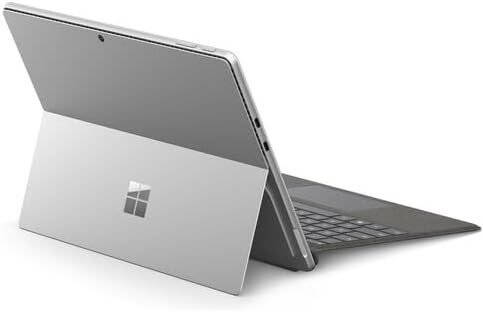
פיגורע 3.3: דערציען view of the Surface Pro 10 with the kickstand deployed, revealing the device's sleek design and the iconic Microsoft logo.
שליסל קאַמפּאָונאַנץ:
- 13-inch PixelSense Flow Display: High-resolution touchscreen for vibrant visuals and touch interaction.
- פראָנט-פייסינג אַפּאַראַט: For video calls and facial recognition (Windows Hello).
- דערציען אַפּאַראַט: פֿאַר כאַפּן בילדער און ווידעאָס.
- מאַכט קנעפּל: געפינען זיך אויף דער זייט, גענוצט צו אנצינדן/אויסלעשן דעם אפאראט אדער עס אריינלייגן אין שלאף.
- באַנד קנעפּלעך: Located on the side, for adjusting audio levels.
- USB-C פּאָרץ: For charging, data transfer, and connecting external displays or accessories.
- Surface Connect Port: For charging and connecting to Surface Dock accessories.
- קיקקסטאַנד: Integrated into the back, allows for multiple viewינג אַנגלעס.
- מיקראָפאָן: For voice commands and audio recording.
4. סעטאַפּ
4.1 ערשט טשאַרדזשינג
- Connect the power supply to the Surface Connect port or one of the USB-C ports on your Surface Pro 10.
- צאַפּן די מאַכט צושטעלן אין אַ וואַנט ווענטיל.
- Allow the device to charge for at least 30 minutes before first use, or until the battery indicator shows sufficient charge.
4.2 פּאַוערינג אויף / אַוועק
- צו מאַכט אויף: Press and hold the Power button until the Microsoft logo appears on the screen.
- צו מאַכט אַוועק: From the Windows desktop, select אָנהייב > מאַכט > פאַרמאַכן זיך. Alternatively, press and hold the Power button for a few seconds, then slide down to shut down.
- צו שלאפן: Briefly press the Power button. Press it again to wake the device.
4.3 ערשטע ווינדאָוס סעטאַפּ
Upon first power-on, you will be guided through the Windows 11 setup process. Follow the on-screen prompts to:
- אויסקלייַבן דיין שפּראַך און געגנט.
- פאַרבינדן צו אַ Wi-Fi נעץ.
- אַקסעפּטירן די ליצענץ טערמינען.
- לאָגט זיך איין מיט אייער מייקראָסאָפֿט אַקאַונט אָדער שאַפט אַ נייעם.
- Set up Windows Hello (facial recognition or fingerprint, if available).
- קאָנפיגורירן פּריוואַטקייט סעטטינגס.
4.4 Attaching the Surface Pro Keyboard
Align the magnetic connector on the keyboard with the corresponding port at the bottom edge of your Surface Pro 10. The keyboard will snap into place magnetically. You can adjust the keyboard to lie flat or tilt it slightly for a more ergonomic typing experience.
4.5 Pairing the Surface Pro Slim Pen
The Surface Pro Slim Pen typically pairs automatically when first used with your Surface Pro 10. If not, follow these steps:
- גיין צו אָנהייב > סעטטינגס > בלועטאָאָטה און דעוויסעס > לייג מיטל > בלועטאָאָטה.
- Press and hold the top button on your Slim Pen for 5-7 seconds until the LED light flashes white.
- Select your Surface Slim Pen from the list of available devices and follow any on-screen prompts.
5. Operating Your Surface Pro 10
5.1 Switching Between Tablet and Laptop Modes
- לאַפּטאָפּ מאָדע: Attach the Surface Pro Keyboard and adjust the kickstand for a traditional laptop experience.
- טאַבלעט מאָדע: Detach the keyboard or fold it back completely. Windows will automatically switch to Tablet Mode, optimizing the interface for touch input.
5.2 ניצן די טאָוטשסקרעען
The PixelSense Flow Display supports multi-touch gestures:
- צאַפּן: אויסקלייבן אַן אייטעם אָדער עפֿענען אַן אַפּ.
- טאַפּ און האַלטן: Access context menus (right-click equivalent).
- קניפּ צו פארגרעסערן: פארגרעסערן אדער פארקלענערן בילדער און web בלעטער.
- Swipe from Edges: Access quick settings, notifications, or switch between apps.
5.3 Using the Surface Pro Slim Pen
The Slim Pen allows for precise input and creative tasks:
- שרייבן / צייכענונג: Use the pen directly on the screen in compatible apps like Microsoft Whiteboard or OneNote.
- אויסקלייבן: Tap with the pen to select items.
- מעקער: Use the eraser button on the pen to erase digital ink.
- שפּיץ קנעפּל: Customizable for quick access to apps like OneNote or screenshots.
5.4 Basic Windows 11 Navigation
- אָנהייב מעניו: Access apps, settings, and power options.
- טאַסקבאַר: Pin frequently used apps and view עפענען אַפּלאַקיישאַנז.
- קאַמף צענטער: Swipe in from the right edge (or click the icon) for quick settings and notifications.
- ווידגעץ: Swipe in from the left edge (or click the icon) for personalized information.
6. וישאַלט
6.1 רייניקן דיין דעווייס
- ניצן אַ ווייך, לינט-פֿרייַ שטאָף אַ ביסל דampened with water or an approved screen cleaner to wipe the display.
- For the body of the device and keyboard, use a soft, dry cloth.
- Avoid harsh chemicals, abrasive cleaners, or excessive moisture.
6.2 באַטערי קער
- פֿאַרמײַדט אָפֿט פֿולשטענדיק אויסצולאָדן די באַטעריע.
- האַלט דעם אַפּאַראַט אין אַ קיל, טרוקן אָרט ווען נישט אין באַנוץ פֿאַר לענגערע פּעריאָדן.
- Use only the official Microsoft power supply or certified compatible chargers.
6.3 ווייכווארג דערהייַנטיקונגען
Regularly check for and install Windows updates to ensure your device has the latest security patches, features, and performance improvements. Go to אָנהייב > סעטטינגס > Windows Update.
7. טראָובלעשאָאָטינג
7.1 אַפּאַראַט טוט זיך נישט אָן
- Ensure the device is charged. Connect the power supply and wait a few minutes before attempting to power on.
- Perform a force restart: Press and hold the Power button for 15-20 seconds, then release and press it again briefly to turn on.
7.2 Screen Issues (No Display, Flickering)
- ריסטאַרט די מיטל.
- Ensure display drivers are up to date via Windows Update.
- If connected to an external display, try disconnecting it.
7.3 Wi-Fi or Bluetooth Connectivity Problems
- Check if Wi-Fi or Bluetooth is enabled in Quick Settings or Windows Settings.
- Restart your Surface Pro 10 and your router/modem.
- Forget the network/device and try reconnecting.
- Update network drivers via Windows Update.
7.4 Performance Issues (Slowdowns, Freezes)
- שליסט אומנייטיקע אַפּליקאַציעס וואָס לויפן אין הינטערגרונט.
- Check for and install all available Windows updates.
- Run a disk cleanup and optimize drives.
- זיכער מאַכן אַז עס איז דאָ גענוג פֿרײַער סטאָרידזש פּלאַץ.
8. ספּעסאַפאַקיישאַנז
The following table outlines the key technical specifications for the Microsoft Surface Pro 10 (Intel Core Ultra 5, 16GB RAM, 256GB SSD) model:
| שטריך | באַשרייַבונג |
|---|---|
| מאָדעל נאָמען | Surface Pro 10 (ZEA-00001) |
| שטייענדיק פאַרשטעלן ווייַז גרייס | 13 אינטשעס |
| פאַרשטעלן האַכלאָטע | 2880 X 1920 בילדצעלן |
| מאַקסימום סקרין האַכלאָטע | 2880x1920 |
| פּראַסעסער | 1.4 גיגאהערץ אינטעל קאָר אולטראַ 5 |
| שווער דרייוו | 256 גיגאבייט ססד |
| ראַם זכּרון אינסטאַלירט גרייס | 16 גיגאבייט דדר5 באַראַן |
| אָפּערייטינג סיסטעם | Windows 11 פּראָ |
| טשיפּסעט בראַנד | ינטעל |
| גראַפיקס קאַרד באַשרייַבונג | ינטעגראַטעד |
| ווירעלעסס טיפּ | 802.11אַקס |
| קאָליר | פּלאַטינום |
| פּראָדוקט דימענשאַנז | 11.3 X 8.2 X 0.4 אינטשעס |
| באַטעריז | 1 ליטהיום יאָן באַטאַרייע (אַרייַנגערעכנט) |
9. וואָראַנטי און שטיצן
Your Microsoft Surface Pro 10 comes with a limited hardware warranty. For detailed warranty information, please refer to the documentation included with your device or visit the official Microsoft Support webזייטל. פֿאַר טעכנישע הילף, טראָובלעשווטינג גיידס, און דרייווער דאַונלאָודז, ביטע באַזוכט support.microsoft.com/surface.


