1. הקדמה
The COMICA Ejoy Uni(A) USB Gaming Microphone is designed for high-quality audio capture across various applications, including gaming, podcasting, streaming, and professional recording. It features a 48kHz/24-bit sampling rate for clear sound, one-click noise cancellation, dynamic RGB lighting, real-time monitoring, and a convenient mute function. This microphone is compatible with PC, PS4, PS5, Android, and other Type-C devices, offering both wired and wireless connectivity options for flexible usage.
2. וואָס איז אין דער קעסטל

Image: COMICA Ejoy Uni(A) Desktop Stand Kit and Packing List, showing the microphone, boom arm, pop filter, and cables.
- מיקראָפאָן x1
- קנאַל פילטער x1
- USB A 2 in 1 Audio Cable x1
- Boom Arm x1
- באַניצער מאַנואַל x1
- Hook and Loop Fastener x5 (for cable management)
3. פּראָדוקט פֿעיִקייטן
3.1 High-Quality Audio Capture

Image: A user engaged in gaming with the COMICA Ejoy Uni(A) microphone set up on a boom arm, demonstrating its use in a gaming environment.
The Ejoy Uni(A) microphone delivers 48 כז / 24-ביסל sound quality, ensuring clear, detailed, and lossless audio. This professional studio-grade quality is suitable for various applications, from gaming and streaming to podcasting and music creation.
עס פֿעיִקייטן אַ קאַרדיאָיד פּאָליאַר מוסטער, which primarily picks up sound from the front of the microphone, reducing unwanted background noise from the sides and rear. This makes it ideal for single-speaker applications.

Image: Diagram illustrating the cardioid pickup pattern, showing sound sensitivity primarily from the front.
3.2 One-Click Noise Cancellation & Shock Mount
Equipped with patented CalMix audio-processing technology, the microphone offers one-click noise cancellation to accurately detect human voices and reduce ambient noise. This feature is crucial for maintaining clear audio in noisy environments.
די אַרייַנגערעכנט קלאַפּ בארג minimizes vibrations from bumps or desk movements, preventing unwanted noise from being picked up. A metal פּאָפּ פֿילטער further enhances speech clarity by blocking airflow noise.

Image: Graphic illustrating the effect of noise reduction, showing a sound wave before and after processing.

Image: Close-up of the microphone showing the touch-sensitive mute button and its indicator light.
3.3 RGB Dynamic Light Effects

Image: The microphone displaying various RGB dynamic light effects, including Breathing Light, Dynamic Gradient, and Audio Dynamics.
The microphone features three distinct RGB modes to enhance your setup:
- ברידינג ליכט: Smoothly cycles through seven colors with a soft glow.
- Dynamic Gradient: Automatically changes colors every 3 seconds.
- Audio Dynamics: Reacts in real-time by changing colors based on your speaking volume.
These effects add visual style to streaming, gaming, or broadcasting environments.
3.4 Convenient Gain Knob & Real-time Monitoring
א איבערגעגעבענע gain control knob allows for one-handed sensitivity adjustment, enabling precise control over your audio input for different scenarios, from whispers to loud commentary.
The microphone includes a 3.5mm TRS/TRRS headphone jack for רעאַל-צייט מאָניטאָרינג. This allows you to listen to your recorded content without echo or delay, ensuring optimal audio levels and quality during live sessions or recordings.

Image: A microphone setup with headphones in the background, illustrating the real-time monitoring feature and gain control knob.
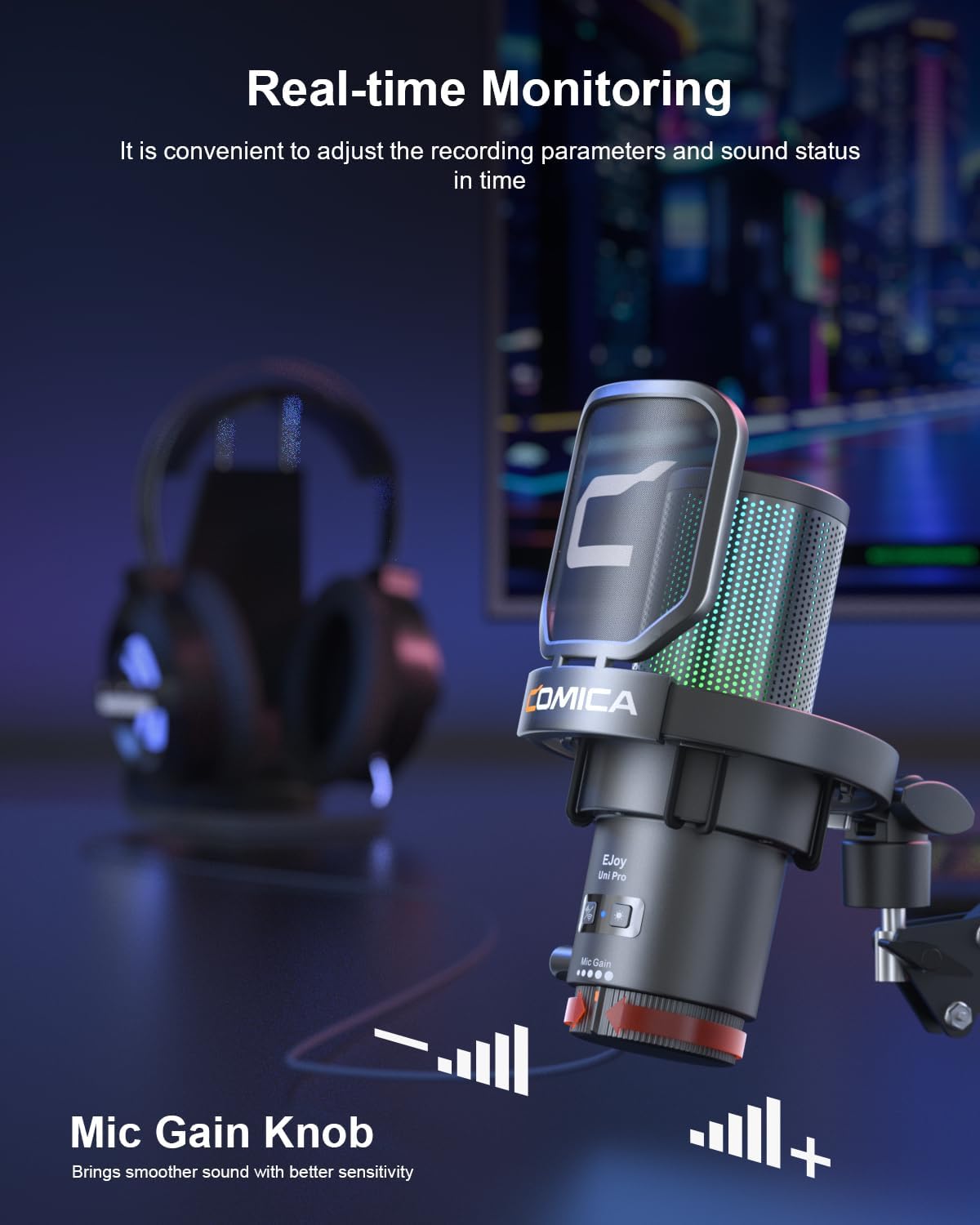
Image: Close-up of the microphone's base showing the mic gain knob and the 3.5mm monitoring port.
3.5 Plug and Play, Flexible and Adjustable

Image: The COMICA Ejoy Uni(A) microphone mounted on its flexible boom arm, clamped to a desk.
The Ejoy Uni(A) offers צאַפּן-און-שפּיל functionality, compatible with PS4/PS5, Windows PC, Android, and other Type-C devices. No drivers are typically required for basic operation.
די אַרייַנגערעכנט dual-section boom arm provides flexible positioning with arm lengths of 49cm and 51cm, and a sturdy 5cm desk clamp for secure mounting. The arm supports microphones up to 1.5kg, ensuring a stable setup.

Image: Graphic showing the microphone's compatibility with Windows, PS4/PS5, Mac OS, Desktop, Laptop, Twitch, and Discord. Not compatible with Xbox.
4. סעטאַפּ גייד
4.1 Assembling the Boom Arm and Microphone
- צוטשעפּען די שרייַבטיש קלamp to a sturdy surface, such as a desk or table edge. Tighten the clamp זיכער.
- אַרייַנלייגן די בום אָרעם אין די שרייַבטיש קלamp's mounting hole. Adjust the arm's position and tighten the locking screw to secure it.
- Mount the microphone onto the boom arm's threaded connector. Ensure it is firmly attached.
- Attach the pop filter to the microphone or boom arm, positioning it between your mouth and the microphone.
4.2 פֿאַרבינדן זיך צו דיין מיטל
- Connect the provided USB A 2-in-1 Audio Cable to the USB-C port on the microphone.
- Connect the other end of the cable to an available USB-A or USB-C port on your computer, PS4/PS5, or compatible Type-C device.
- For wireless models (if applicable), ensure the wireless receiver is plugged into your device and the microphone is powered on and paired.
- The device should automatically recognize the microphone as an audio input device.
4.3 Initial Audio Settings
- Windows PC: גיין צו סעטטינגס > סיסטעם > קלאַנג. Select the COMICA Ejoy Uni(A) as your input device. Adjust the input volume as needed.
- מעק אַס: גיין צו System Settings > Sound > Input. Select the COMICA Ejoy Uni(A) and adjust the input volume.
- PS4/PS5: גיין צו Settings > Sound > Audio Input Device. Select the COMICA Ejoy Uni(A) and adjust the microphone level.
- For optimal monitoring, plug your headphones into the 3.5mm jack on the microphone.
5. אַפּערייטינג ינסטרוקטיאָנס
5.1 מאַכט אויף / אַוועק
The microphone powers on automatically when connected to a powered USB port. There is no separate power button for the wired version.
5.2 Adjusting Microphone Gain
Image: Close-up of the microphone's base showing the mic gain knob.
דרייען די מיק געווינען קנופּ located at the bottom of the microphone to adjust the input sensitivity. Turn clockwise to increase gain (for softer voices or distant speaking) and counter-clockwise to decrease gain (to prevent distortion from loud sources).
5.3 מיוטינג די מיקראָפאָן

Image: Illustration of the tap-to-mute function with indicators for Mute, Working, and Noise Cancellation status.
The microphone features a one-touch mute button on its top surface. Tap the button to instantly mute or unmute the microphone. An indicator light will typically change color (e.g., red for muted, green for active) to show the current status.
5.4 Activating Noise Cancellation
דרוק די דעדאַקייטאַד noise cancellation button (if available on your model) to activate or deactivate the CalMix audio-processing technology. This will help reduce ambient background noise during your recordings or streams.
5.5 פאַקטיש-צייט מאָניטאָרינג
Plug your 3.5mm headphones into the headphone jack on the microphone. This allows you to hear your own voice and the audio being captured by the microphone in real-time, without any delay. This is essential for adjusting your speaking volume and ensuring audio quality.
5.6 Changing RGB Light Effects
Image: The microphone displaying various RGB dynamic light effects.
The microphone offers three RGB modes: Breathing Light, Dynamic Gradient, and Audio Dynamics. Refer to the specific button or switch on your microphone model to cycle through these effects or turn them off.
6. וישאַלט
- רייניקונג: Use a soft, dry cloth to wipe the microphone body. Avoid using harsh chemicals or abrasive materials.
- סטאָרידזש: ווען נישט אין באַנוץ, האַלט דעם מיקראָפאָן אין אַ ריינעם, טרוקענעם אָרט אַוועק פון עקסטרעמע טעמפּעראַטורן און הומידיטי.
- האַנדלינג: Handle the microphone and boom arm with care to prevent damage from drops or impacts.
- קאַבלע זאָרגן: Avoid bending or crimping the USB cable excessively to prolong its lifespan.
7. טראָובלעשאָאָטינג
| פּראָבלעם | מעגלעך סיבה | לייזונג |
|---|---|---|
| No sound input from microphone |
|
|
| Sound is distorted or too loud |
|
|
| הינטערגרונט ראַש איז פאַראַן |
|
|
| No real-time monitoring audio |
|
|
| RGB לייץ נישט ארבעטן |
|
|
8. ספּעסאַפאַקיישאַנז
| שטריך | דעטאַל |
|---|---|
| סאָרט | קאָמיקאַ |
| מאָדעל נאָמען | Ejoy Uni(A) |
| קאַנעקטיוויטי טעכנאָלאָגיע | USB Type-C, USB |
| קאַנעקטער טיפּ | וסב טיפּ-C |
| פּאָליאַר מוסטער | ונידירעקטיאָנאַל (קאַרדיאָיד) |
| Sample קורס | 48 כז / 24-ביסל |
| ספּעציעלע פֿעיִקייטן | One-key Denoise & Muting, Dynamic Radiant RGB Light with 3 Unique RGB Effects, Gain Control, Real-time Monitoring, Plug and Play |
| קאַמפּאַטאַבאַל דעוויסעס | Computer, PC, Laptop, Desktop, Mac OS, PlayStation PS5 PS4, Android, Type-C devices |
| מיקראָפאָן פאָרם פאַקטאָר | Gooseneck (with Boom Arm) |
| מאַכט מקור | קאָרדעד עלעקטריק (וסב פּאַוערד) |
| אָפּצוימונג מאַטעריאַל | מעטאַל, פּלאַסטיק |
| Boom Arm Lengths | 49cm and 51cm sections |
| Boom Arm Max Load | 1.5 קג |
9. וואָראַנטי און שטיצן
This COMICA product comes with a 1-יאָר מאַנופאַקטורער וואָראַנטי. For warranty claims or technical support, please contact COMICA customer service through their official webפּלאַץ אָדער די זיצער ווו די פּראָדוקט איז פּערטשאַסט.
For additional resources, including FAQs and software updates, visit the official COMICA support page.
10. פּראָדוקט ווידעא דעמאַנסטראַציע
Video: Official product demonstration of the COMICA Ejoy Uni USB Gaming Microphone, showcasinג זייַנע פֿעיִקייטן און אַפּליקאַציעס.


