1. הקדמה
This manual provides comprehensive instructions for the assembly, installation, and operation of your Mount-It! Anti-Theft Tablet Floor Stand. This stand is designed to securely display tablets in commercial environments such as retail stores, trade shows, hotels, and educational institutions. It features a universal enclosure, anti-theft locking mechanisms, and adjustable viewינג אַנגלעס.

בילד 1.1: פראָנט view of the Mount-It! Anti-Theft Tablet Floor Stand.

Image 1.2: The tablet floor stand positioned in a commercial reception area, demonstrating its application.
2. וויכטיק סאַפעטי אינפֿאָרמאַציע
Please read all instructions carefully before assembly and use. Failure to follow these instructions may result in property damage or personal injury.
- זיכער מאַכן אַז אַלע קאָמפּאָנענטן זענען פאַראַן און נישט געשעדיגט איידער איר הייבט אָן די פֿאַרזאַמלונג.
- Do not exceed the maximum weight capacity of 2.2 lbs (1 kg) for the tablet enclosure.
- Assemble the stand on a flat, stable surface.
- האַלטן קינדער און פּעץ אַוועק בעשאַס פֿאַרזאַמלונג.
- Use only the provided hardware. Do not substitute parts.
- קאָנטראָלירט פּעריִאָדיש אַלע שרויפן און פֿאַרבינדונגען צו זיכער מאַכן אַז זיי בלייבן פֿעסט און זיכער.
3. פּעקל אינהאַלט
Verify that all parts listed below are included in your package. If any parts are missing or damaged, please contact Mount-It! customer support.
- Lockable Tablet Stand (main assembly)
- Assembly Hardware Kit (screws, washers, etc.)
- Keys for Tablet Enclosure Lock
- Keys for Lower Cabinet Lock
- Tablet Spacers/Pads for universal fit
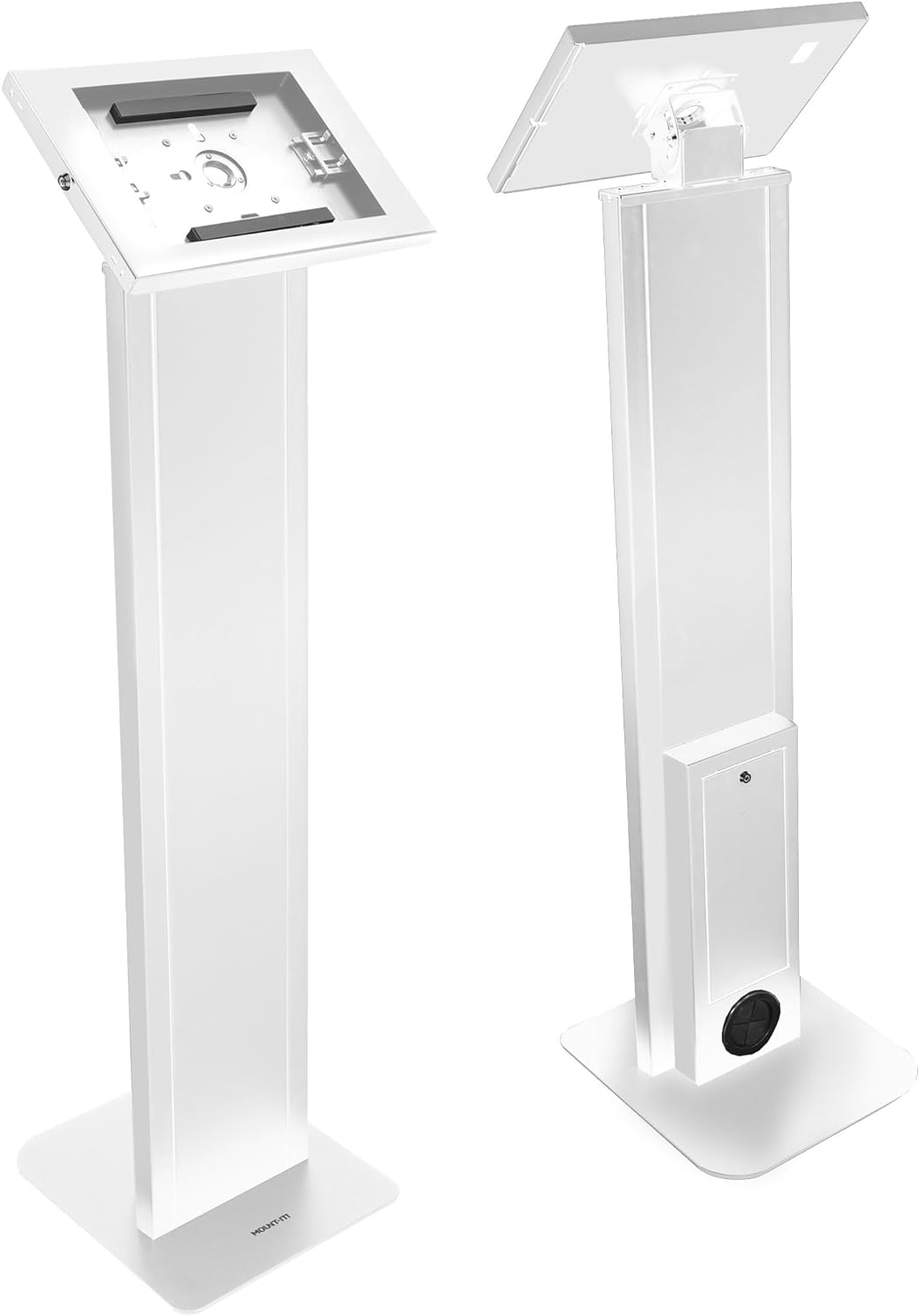
בילד 3.1: פאָרנט און הינטן views of the assembled stand, showing the tablet enclosure and the lower cabinet.
4. Setup and Tablet Installation
4.1 צוזאַמענשטעלן דעם שטאַנד
The Mount-It! Tablet Floor Stand typically arrives partially assembled. Follow these steps to complete the assembly:
- צוטשעפּען די באַזע: Secure the main column to the freestanding base using the provided screws and tools. Ensure the base is oriented correctly for stability.
- Attach the Tablet Enclosure: Connect the tablet enclosure to the top of the main column. Ensure all connections are firm.
- Secure the Locks: Confirm that the locking mechanisms for both the tablet enclosure and the lower cabinet are functioning correctly with the provided keys.
4.2 Installing Your Tablet
The universal enclosure is compatible with various iPad models, including iPad Pro (10.5", 11"), iPad Air (10.5", 10.9"), iPad 10 (10.9"), iPad 9 (10.2"), iPad 8 (10.2"), and iPad 7 (10.2").
- Unlock the Enclosure: Use the key to unlock and open the tablet enclosure.
- צופּאַסן סליידערס: The enclosure features adjustable sliders. Position these sliders to securely hold your specific iPad model. Refer to Image 4.1 for guidance.

Image 4.1: Illustration of the adjustable sliders within the tablet enclosure, designed to accommodate various iPad sizes.
- אַרייַנלייגן טאַבלעט: Carefully place your iPad into the enclosure, ensuring it is centered and held firmly by the sliders.
- פֿאַרמאַכן און פֿאַרשליסן: Close the enclosure and use the key to lock it securely.
4.3 קאַבלע מאַנאַגעמענט
The stand includes internal cable routing to keep power cords organized and out of sight.
- Route the tablet's charging cable through the designated opening in the enclosure and down through the stand's column.
- The cable can exit through the opening at the base of the stand, or be connected to a power strip stored in the lockable lower cabinet.

Image 4.2: Visual guide for routing the power cable through the stand's column for a tidy setup.
5. אַפּערייטינג ינסטרוקטיאָנס
5.1 Anti-Theft Security
The tablet enclosure is equipped with a key lock to prevent unauthorized removal of the tablet.
- To lock, close the enclosure and insert the key into the lock cylinder. Turn the key clockwise to secure.
- To unlock, insert the key and turn counter-clockwise.

Image 5.1: Detail of the key-operated security lock on the tablet enclosure, designed to protect the device from theft.
5.2 אַדזשאַסטאַבאַל Viewאין אַנגלעס
The tablet enclosure offers both tilt and rotation adjustments for optimal viewing.
- טילט אַדזשאַסטמאַנט: The enclosure can be tilted from 0° to 75° to achieve the desired viewing angle. Loosen the adjustment knob, set the angle, and re-tighten.
- ראָוטיישאַן: The enclosure can rotate 90° between portrait and landscape orientations. Gently rotate the enclosure to switch between modes.

Image 5.2: Illustration demonstrating the 0° to 75° tilt range and 90° rotation capability of the tablet enclosure.
5.3 Lockable Lower Cabinet
A lockable cabinet is integrated into the stand's column, providing secure storage for power adapters, cables, or other small accessories.
- Use the separate key to open and close the lower cabinet door.
- Ensure the cabinet is locked when not in use to maintain security.

Image 5.3: The lower cabinet shown open, revealing space for a power strip or other small items. Note: Power cord and source are not included.
6. וישאַלט
To ensure the longevity and proper function of your tablet floor stand, follow these simple maintenance guidelines:
- רייניקונג: ווישט דעם שטאַנד מיט אַ ווייכן, דamp שטאָף. פֿאַרמײַדט אַברייסיוו רייניגער אָדער סאָלווענטן וואָס קענען שאַטן די ענדיקונג.
- דורכקוק: Periodically check all screws, bolts, and connections to ensure they are tight. Re-tighten if necessary.
- שלאָס מעקאַניזאַם: Keep the lock mechanisms clean and free of debris. Do not force keys if they feel stiff.
7. טראָובלעשאָאָטינג
זעט דעם אָפּטייל פֿאַר לייזונגען צו געוויינטלעכע פּראָבלעמען וואָס איר קענט באַגעגענען.
| פּראָבלעם | מעגלעך סיבה | לייזונג |
|---|---|---|
| Tablet does not fit securely in the enclosure. | Sliders are not adjusted correctly for the tablet size. | Unlock the enclosure, adjust the internal sliders to firmly grip your tablet, then re-lock. Ensure your tablet model is compatible. |
| Enclosure lock is stiff or not working. | Debris in the lock cylinder; key is bent or damaged. | Ensure the key is fully inserted and not bent. Clean the lock cylinder if visible debris is present. Do not force the key. Contact support if the issue persists. |
| שטאַנד פילט זיך נישט סטאַביל. | Base screws are loose; stand is on an uneven surface. | Check and tighten all assembly screws, especially those connecting the column to the base. Move the stand to a flat, level surface. |
8. ספּעסאַפאַקיישאַנז
Technical details for the Mount-It! Anti-Theft Tablet Floor Stand MI-3880B_G10:
- מאָדעל נומער: MI-3880B_G10
- פּראָדוקט דימענשאַנז: 41.75 X 12.75 X 5.25 אינטשעס (106 X 32.4 X 13.3 סענטימעטער)
- נומער וואָג: 33.6 פונט (15.2 קג)
- קאָליר: ווייַס
- מאַטעריאַל: הויך-שטאַרקייַט שטאָל
- קאַמפּאַטאַבאַל דעוויסעס: Tablets (specifically iPad Pro 10.5", 11"; iPad Air 10.5", 10.9"; iPad 10 10.9"; iPad 9 10.2"; iPad 8 10.2"; iPad 7 10.2")
- וואָג קאַפּאַציטעט: 2.2 לבס (1 קג)
- טילט ראַנגע: 0° צו 75°
- ראָוטיישאַן: 90° (Portrait to Landscape)

Image 8.1: Detailed dimensions of the tablet floor stand, including height, base, and enclosure measurements.

Image 8.2: Visual guide illustrating the compatibility of the stand with different iPad, iPad Air, and iPad Pro models and their screen sizes.

Image 8.3: Various configurations of the tablet enclosure to accommodate different iPad models, including options for home button access, hard button cover, no home button access, and camera cutouts.
9. גאַראַנטיע און קונה שטיצע
Mount-It! stands behind the quality of its products.
- לעבן וואָראַנטי: This Mount-It! tablet kiosk with freestanding base comes with a Lifetime Warranty.
- קונה שטיצן: Our knowledgeable and responsive US-based customer support team is available to answer any questions you may have during standard business hours.
For assistance, please visit the official Mount-It! webזייטל אדער זעט אייער פּראָדוקט פּאַקאַדזשינג פֿאַר קאָנטאַקט אינפֿאָרמאַציע.


