
הקדמה
This manual provides comprehensive instructions for the setup, operation, maintenance, and troubleshooting of your Sprleaf Wireless Car Play Screen. Please read this manual thoroughly before use to ensure optimal performance and safety.
וואָס איז אין די קעסטל

Image: All components included in the Sprleaf Wireless Car Play Screen package.
- 1 x CarPlay/Android Auto Screen with 4K Dash Camera (Included a 64GB card)
- 1 x 1080P Backup Camera and Rear Camera cable
- 1 x 9.8 ft Car Charger Cable
- 1 x 4.65ft Aux cable
- 1 x באַניצער מאַנואַל
- Installation Tools (Crowbar, Cable Clips)
סעטאַפּ
מאַונטינג אָפּציעס
The Sprleaf Car Play Screen offers versatile mounting options to suit your vehicle's dashboard or windshield.

Image: Demonstrates the two primary mounting methods: adhesive sticker bracket for dashboard and windshield suction mount bracket.
- דאַשבאָרד מאָונט: Use the adhesive sticker bracket for a secure placement on your dashboard.
- ווינטשילד זויג בארג: Attach the suction cup mount to your windshield for an elevated view.
ינסטאַללאַטיאָן סטעפּס
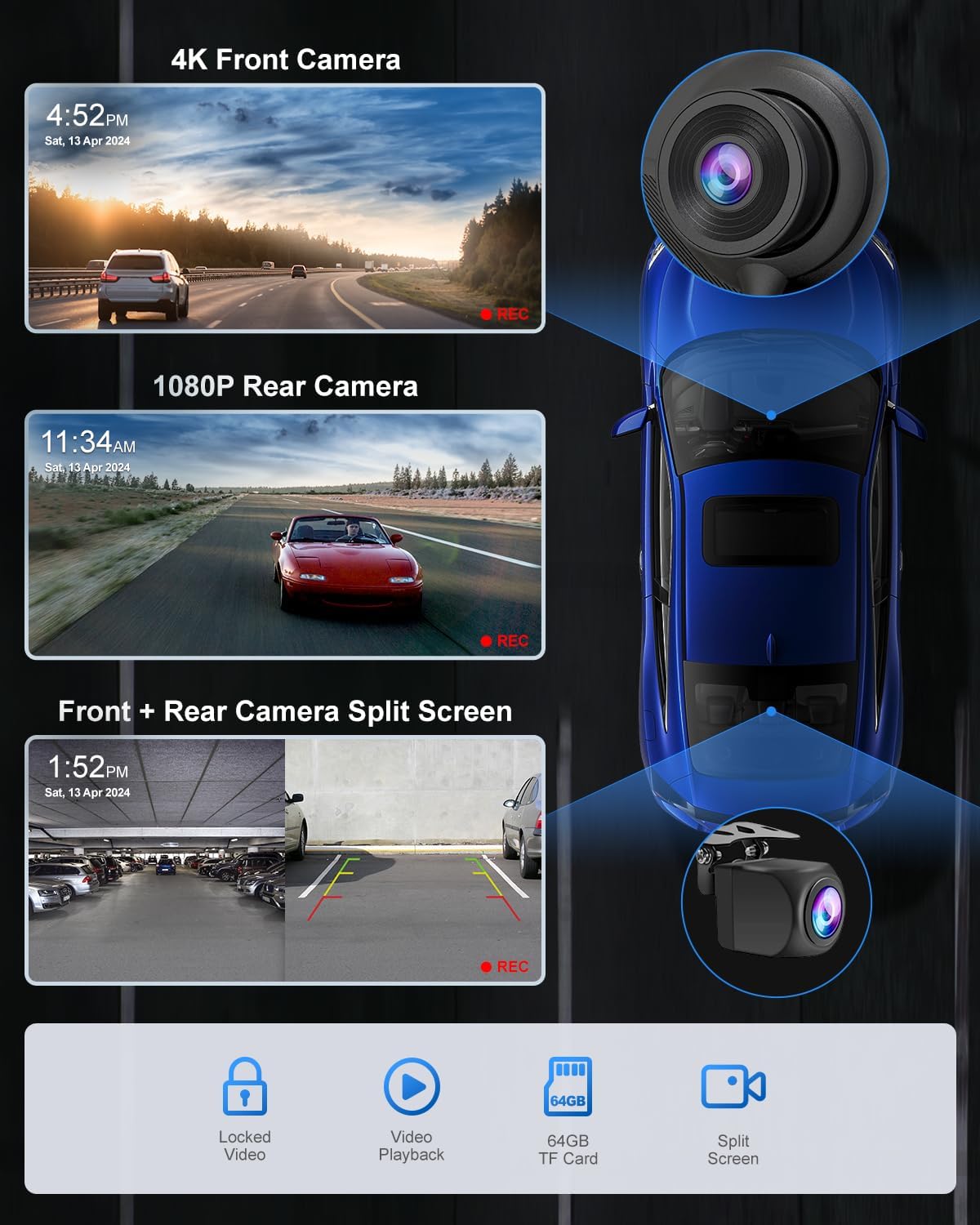
Image: Visual guide showing the four steps for connecting the main unit and rear camera.
- פאַרבינדן מאַכט: Plug the Type-C connector into the bottom of the Car Play screen.
- מאַכט מקור: Insert the cigarette lighter connector into your vehicle's cigarette lighter socket.
- דערציען אַפּאַראַט קאַנעקשאַן: Connect the 1080P backup camera cable to the main unit. The red cable from the rear camera should be connected to the reverse light positive wire for automatic display when reversing.
- לעצטע פּלאַצירונג: After confirming normal operation, remove the protective film from the screen.

Image: Illustration demonstrating how to route and hide cables within the car interior for a clean and organized setup.
Utilize the provided cable clips and crowbar to neatly tuck away wires, preventing clutter on your dashboard.
אַפּערייטינג ינסטראַקשאַנז
דראָטלאָז קאַרפּליי און אַנדרויד אויטאָ

Image: The Sprleaf screen showcasing wireless CarPlay/Android Auto functionality, with a smartphone displaying navigation.
The device supports both Apple CarPlay and Android Auto wirelessly. After initial setup, the unit will automatically connect to your smartphone, providing access to navigation, music, calls, and messages.

Image: Step-by-step guide for establishing a wireless Apple CarPlay connection.

Image: Step-by-step guide for establishing a wireless Android Auto connection.
צו פאַרבינדן:
- Turn on CarPlay/Android Auto on the device.
- געבן Wi-Fi און בלועטאָאָטה אויף דיין סמאַרטפאָנע.
- זוכן פֿאַר the device's Bluetooth name (e.g., "T86 xxxx") and pair.
- Confirm the connection on your phone.
Dashcam Functionality

Image: A split-screen display showing simultaneous recordings from the 4K front dashcam and the 1080P rear camera.
The integrated dual camera system includes a 4K front dashcam and a waterproof 1080P rear camera. Footage is recorded onto the included 64GB SD card. You can view recordings directly on the screen or transfer them for review.
Video: Demonstrates the 4K Ultra HD Dashcam and its features.
Video: Shows the portable wireless Carplay screen with backup camera in 4K resolution.

Image: Illustrates the clarity of day and night recordings from both the 4K front camera and 1080P rear camera.
גפּס נאַוויגאַציע

Image: The 6.25-inch screen showing real-time GPS navigation, mirroring a smartphone's map application.
Utilize your smartphone's GPS data through CarPlay or Android Auto for real-time navigation with popular apps like Google Maps and Waze. The 6.25-inch screen provides a clear and accurate display of your route.
Mirror Link / Airplay / Android Cast
The device supports screen mirroring from your smartphone, allowing you to display content directly on the Car Play screen.

Image: Step-by-step instructions for connecting an iPhone via Airplay for screen mirroring.

Image: Step-by-step instructions for connecting an Android device via Android Cast for screen mirroring.
קול קאָנטראָל

Image: The screen displaying voice command options for hands-free operation, including calls, navigation, and music playback.
Access Siri or Google Voice Assistant for hands-free control of navigation, calls, music playback, and more, enhancing driving safety.
אַודיאָ רעזולטאַט אָפּציעס

Image: Visual representation of the four available audio output methods for the device.
The device offers multiple audio output options:
- בלועטאָאָטה: Connect wirelessly to your car's speakers for stable and clear audio.
- געבויט-אין ספּיקערז: The unit has its own speakers for direct audio output.
- FM טראַנסמיסיע: Transmit audio to your car's FM radio by tuning to a specific frequency.
- AUX to Car's Audio: Use the provided AUX cable to connect directly to your car's auxiliary input.

Image: Illustration detailing the Bluetooth connection process to integrate with your car's existing speaker system.
Split-Screen Display

בילד: עקסamples of split-screen layouts, such as messages with camera view, maps with music, and voice assistant with camera view.
The split-screen feature allows you to view multiple applications simultaneously, such as navigation alongside music playback or front/rear camera feeds.
וישאַלט
To ensure the longevity and optimal performance of your Sprleaf Wireless Car Play Screen, follow these maintenance guidelines:
- רייניקונג: Use a soft, dry cloth to clean the screen. For stubborn smudges, lightly dampווישט דעם שטאָף מיט וואַסער אָדער אַ פאַרשטעלן-זיכער רייניגער. פֿאַרמייַדט אַברייסיוו מאַטעריאַלן אָדער שטרענגע כעמיקאַלן.
- טעמפּעראַטור: Do not expose the device to extreme temperatures. Prolonged exposure to direct sunlight or very cold conditions can affect performance and lifespan.
- קאַבלע פאַרוואַלטונג: Periodically check all connected cables for wear or damage. Ensure they are securely connected and not pinched.
- ווייכווארג דערהייַנטיקונגען: קוק די פאַבריקאַנט ס website for any available firmware updates to ensure the device operates with the latest features and bug fixes.
- SD קאָרט: Regularly back up important dashcam footage from the 64GB SD card. Consider formatting the SD card periodically (e.g., monthly) to maintain optimal recording performance.
טראָובלעשאָאָטינג
If you encounter issues with your Sprleaf Wireless Car Play Screen, refer to the following common solutions:
| פּראָבלעם | מעגלעך סיבה | לייזונג |
|---|---|---|
| די מיטל טוט נישט מאַכט אויף. | Loose power connection, faulty cigarette lighter socket. | Ensure the car charger cable is securely plugged into both the device and the cigarette lighter socket. Test the cigarette lighter with another device. |
| Wireless CarPlay/Android Auto fails to connect. | Bluetooth/Wi-Fi off on phone, incorrect pairing, interference. | Verify Bluetooth and Wi-Fi are enabled on your phone. Forget the device from your phone's Bluetooth settings and re-pair. Ensure no other devices are interfering. |
| Audio quality is poor or has an echo. | Multiple audio outputs active, volume imbalance. | Ensure only one audio output method (Bluetooth, FM, AUX, or built-in speakers) is active. Adjust the volume on both the device and your car's stereo to find a balanced level. |
| די הינטערשטע קאַמעראַ ווײַזט זיך נישט. | Incorrect wiring, faulty camera/cable. | Check that the rear camera cable is properly connected to the main unit and the red wire is connected to the reverse light positive. Ensure the camera lens is clean and unobstructed. |
| SD קאַרטל טעות אָדער רעקאָרדינג פּראָבלעמען. | Full SD card, corrupted card, incorrect format. | Format the SD card through the device's settings. If the issue persists, try a different compatible SD card. |
ספּעסאַפאַקיישאַנז
| שטריך | דעטאַל |
|---|---|
| סאָרט | ספּרלעאַף |
| מאָדעל נאָמען | Car Play Sreen with 4K Dash Cam |
| פאַרשטעלן גרייס | 6.25 אינטשעס |
| פראָנט קאַמעראַ האַכלאָטע | 4K UHD |
| דערציען אַפּאַראַט האַכלאָטע | 1080 פּ פהד |
| אַפּערייטינג סיסטעם קאַמפּאַטאַבילאַטי | Android, iOS (Apple CarPlay, Android Auto) |
| קאַנעקטיוויטי טעכנאָלאָגיע | Auxiliary, Bluetooth, Wireless (Wi-Fi) |
| מענטש צובינד אַרייַנשרייַב | טאָוטשסקרעען |
| ספּעציעלע פֿעיִקייטן | Android Auto, Apple CarPlay, Compact Design, Hands-Free Calling, Voice Control, Mirror Link |
| אַודיאָ רעזולטאַט מאָדע | Stereo (Built-in Speaker, FM Transmitter, Bluetooth to Car Speakers, AUX Connected to Car Speakers) |
| מאַונטינג טיפּ | דאַשבאָרד מאָונט, ווינטשויב סאַקשאַן מאָונט |
| פאָרמיטל סערוויס טיפּ | Minivan, Semi Truck, Pick-up, RV, 12-24V vehicle, Car, Truck, Bus, SUV, Van |
| פּונקט וואָג | 1.59 פונט |
| פּעקל דימענשאַנז | 7.36 X 5.55 X 3.5 אינטשעס |
קאַמפּאַטאַבילאַטי

Image: Icons representing different vehicle types, indicating broad compatibility with 12-24V models.
The Sprleaf Wireless Car Play Screen is designed for broad compatibility with 99% of 12-24V vehicle models, including cars, trucks, vans, buses, SUVs, and pickups.
וואָראַנטי און שטיצן

Image: Visual representation of customer support offerings: 24/7 support, a 90-day guarantee, and lifetime support.
- 90-טאָג גאַראַנטירן: Enjoy a 90-day guarantee for returns or exchanges.
- לעבן שטיצן: Sprleaf provides lifelong service for all its products.
- 24/7 שטיצן: Quick and professional responses are available anytime.
For further assistance, please refer to the contact information provided in your product packaging or visit the official Sprleaf webפּלאַץ.


