1. הקדמה
The ZEBRONICS Pulse Wireless Mouse is designed for versatile and comfortable use across various devices. Featuring multi-connectivity options including dual Bluetooth and a 2.4GHz USB nano receiver, it offers seamless switching between systems. Its ergonomic design and 1200 DPI optical sensor ensure precise and smooth cursor control for enhanced productivity.

בילד 1.1: אויבן view of the ZEBRONICS Pulse Wireless Mouse, showcasinג זײַן גלאַטן שוואַרצן דיזײַן און סקראָלן ראָד.
2. פּעקל אינהאַלט
ביטע באַשטעטיקן אַז אַלע זאכן זענען פאַראַן אין דיין פּעקל:
- ZEBRONICS Pulse Wireless Mouse
- וסב נאַנאָ ופנעמער
- באַניצער מאַנואַל
3. שליסל פֿעיִקייטן
- מולטי-קאָנעקטיוויטי: Supports dual Bluetooth and 2.4GHz wireless connections.
- הויך פּינטלעכקייַט: 1200 DPI optical sensor for accurate tracking.
- ערגאָנאָמיק פּלאַן: Comfortable and lightweight for extended use.
- 3 קנעפּלעך: Standard left, right, and scroll wheel buttons.
- Removable USB Nano Receiver: Conveniently stored in the mouse's bottom panel.
- ברייט קאַמפּאַטאַבילאַטי: Works with desktop PCs, laptops, Mac OS, tablets, and more.
- מאַכט שפּאָרן: Features an auto-shutoff function to conserve battery life.

Image 3.1: A visual summary of the mouse's key features, including its comfortable design, power switch, plug-and-play functionality, and high precision.
4. סעטאַפּ גייד
4.1. באַטאַרייע ייַנמאָנטירונג
- Flip the mouse over to access the bottom panel.
- Locate the battery compartment cover and slide it open.
- אַרײַנשטעלן איין AA באַטעריע, און זיכער מאַכן אַז די פּאָלאַריטעט איז ריכטיק (+/-).
- פאַרמאַכן די באַטאַרייע אָפּטייל דעקן סיקיורלי.
4.2. Connecting via 2.4GHz USB Nano Receiver
- Locate the USB nano receiver stored in the slot on the bottom of the mouse.
- אַרויסנעמען דעם ופנעמער פֿון זײַן סטאָרידזש סלאָט.
- Plug the USB nano receiver into an available USB port on your computer or laptop.
- רוקט דעם מאַכט קנעפּל אויף דער אונטערשטער טייל פון דער מויז צו דער 'ON' פּאָזיציע.
- The mouse should automatically connect. If not, press the connection toggle button on the bottom of the mouse to select the 2.4GHz mode (indicated by '2.4G').

Image 4.1: The underside of the mouse, highlighting the battery slot, nano receiver storage, power switch, and connection toggle button.

Image 4.2: The USB nano receiver plugged into a laptop, demonstrating the 2.4GHz wireless connection.
4.3. פֿאַרבינדן זיך דורך בלועטוט (BT1 / BT2)
- Ensure the mouse has a fresh battery and the power switch is in the 'ON' position.
- Press the connection toggle button on the bottom of the mouse to select either 'BT1' or 'BT2' mode. The corresponding LED indicator will blink.
- אויף אייער דעווייס (לאַפּטאַפּ, טאַבלעט, אאז"וו), גייט צו בלועטוט סעטטינגס.
- זוכן פֿאַר new devices. The mouse should appear as 'ZEB-PULSE' or similar.
- Select the mouse to pair. Once paired, the LED indicator will stop blinking and remain solid for a few seconds before turning off.
- You can pair a second device using the other Bluetooth channel (BT2) by repeating steps 2-5.
5. אַפּערייטינג ינסטרוקטיאָנס
5.1. יקערדיק פאַנגקשאַנז
- לינקס קנעפּל: ערשטיק גיט פֿונקציע.
- רעכט קנעפּל: צווייטע קליק פונקציע (קאנטעקסט מעניו).
- סקראָל ראָד: Scroll up/down, and middle-click function.

Image 5.1: Illustration of the mouse's three buttons: left, right, and the scroll wheel/middle button.
5.2. Switching Connectivity Modes
To switch between the 2.4GHz wireless mode and Bluetooth modes (BT1, BT2), press the connection toggle button located on the bottom of the mouse. The mouse will cycle through the available modes, indicated by the corresponding LED.
5.3. דפּי באַשטעטיקן
The ZEBRONICS Pulse mouse operates at a fixed 1200 DPI (Dots Per Inch), providing a balance of speed and precision suitable for general use. This setting ensures smooth and responsive cursor movement.

Image 5.2: Visual representation of the mouse's 1200 DPI precision for accurate tracking.
6. וישאַלט
- רייניקונג: ניצט אַ ווייכע, טרוקענע שטאָף צו רייניקן די מויז. פֿאַרמייַדט ניצן שטרענגע כעמיקאַלן אָדער שרײַבנדיקע מאַטעריאַלן.
- באַטערי פאַרבייַט: Replace the AA battery when the mouse performance degrades or it stops responding.
- סטאָרידזש: When not in use for extended periods, turn off the mouse to conserve battery life. Store the USB nano receiver in its dedicated slot on the mouse's bottom.
- סוויווע: Avoid exposing the mouse to extreme temperatures, direct sunlight, or excessive moisture.
7. טראָובלעשאָאָטינג
7.1. מויז רעאַגירט נישט
- Ensure the mouse is turned 'ON'.
- קאָנטראָלירט די באַטאַרייע. טוישט עס אויס אויב נייטיק.
- For 2.4GHz connection: Ensure the USB nano receiver is securely plugged into a working USB port and the mouse is in 2.4GHz mode.
- For Bluetooth connection: Ensure Bluetooth is enabled on your device and the mouse is in the correct BT1/BT2 mode. Try re-pairing the mouse.
- Try connecting the mouse to a different USB port or a different device to rule out port or device issues.
7.2. אומשטענדלעכע קורסאָר באַוועגונג
- רייניקט דעם אָפּטישן סענסאָר אויף דער אונטערשטער טייל פֿון דער מויז מיט אַ ווייכן, טרוקענעם שטאָף.
- זייט זיכער אַז איר ניצט די מויז אויף אַ ריינער, נישט-רעפלעקטיווער ייבערפלאַך.
- קוק פֿאַר ינטערפיראַנס פון אנדערע וויירליס דעוויסעס.
7.3. Difficulty Switching Modes
- ענשור אַז די באַטאַרייע האט גענוג מאַכט.
- Press the connection toggle button firmly and observe the LED indicators to confirm mode changes.
8. ספּעסאַפאַקיישאַנז
| שטריך | דעטאַל |
|---|---|
| סאָרט | זעבראָניקס |
| מאָדעל | Zeb-Pulse |
| קאַנעקטיוויטי טעכנאָלאָגיע | Wireless (2.4GHz, Dual Bluetooth) |
| באַוועגונג דעטעקשאַן טעכנאָלאָגיע | אָפּטיש |
| דפּי | 1200 |
| נומער פון קנעפּלעך | 3 |
| מאַכט מקור | Battery Powered (1x AA) |
| פּונקט וואָג | 160 ג |
| פּראָדוקט דימענשאַנז | 16.6 X 9.5 X 0.1 סענטימעטער |
| אַפּערייטינג סיסטעם קאַמפּאַטאַבילאַטי | Windows, Mac OS, etc. |
| לאַנד פון אָריגין | כינע |
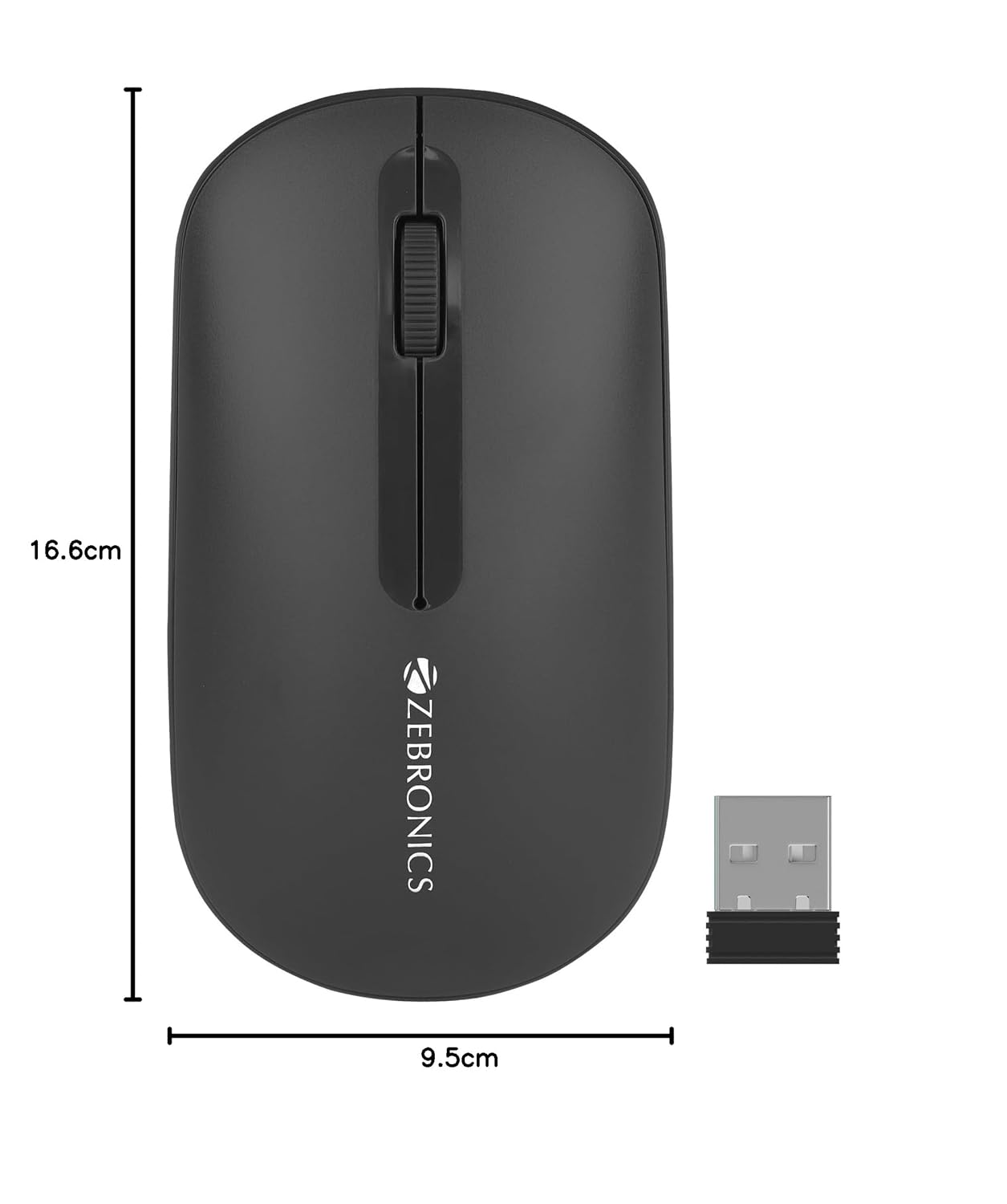
Image 8.1: Diagram showing the physical dimensions of the ZEBRONICS Pulse Wireless Mouse.
9. וואָראַנטי & שטיצן
For warranty information, technical support, or service inquiries, please refer to the warranty card included with your product or visit the official ZEBRONICS webזייטל. האַלט אייער קויף קוויטל ווי אַ באַווייַז פון קויפן פֿאַר וואָראַנטי קליימז.
Official ZEBRONICS Webפּלאַץ: www.zebronics.com


