1. הקדמה
This manual provides comprehensive instructions for setting up, operating, maintaining, and troubleshooting your MERCUSYS Halo H1500X AX1500 WiFi 6 Mesh System (3-Pack). Please read this guide carefully to ensure proper installation and optimal performance of your mesh network.
2. פּעקל אינהאַלט
באַשטעטיקן אַז דיין פּעקל כּולל די פאלגענדע זאכן:
- 3 x Halo H1500X Units
- 3 רענטגענ מאַכט אַדאַפּטערז
- 1 רענטגענ עטהערנעט קאַבלע
- 1 x שנעל ינסטאַללאַטיאָן גייד

Image: The MERCUSYS Halo H1500X 3-Pack Mesh WiFi System, including three white cube-shaped units and an Ethernet cable, displayed within its red retail packaging.
3. פּראָדוקט איבערview
The MERCUSYS Halo H1500X is an AX1500 WiFi 6 Mesh System designed to provide seamless, high-speed internet coverage throughout your home. Key features include:
- Dual-Band WiFi 6 Speeds: Up to 1500 Mbps (1201 Mbps on 5 GHz and 300 Mbps on 2.4 GHz).
- סימלאַס ראָומינג: Halo units work together to automatically switch between nodes as you move, maintaining a single unified WiFi network name and password.
- גאַנצע היים קאַווערידזש: A 3-pack system can cover up to 550 m² (approximately 5920 sq ft), eliminating WiFi dead zones.
- פאַרבינדן קייפל דעוויסעס: Provides fast and stable connections for over 100 devices.
- Easy Network Management: Configure and manage your WiFi quickly using the MERCUSYS app, including parental controls for managing online time and content.
- פולע גיגאַביט פּאָרץ: Each unit includes Gigabit Ethernet ports for ultra-fast wired connections.

Image: Three white, cube-shaped MERCUSYS Halo H1500X units, viewארויסגעגעבן פון פאָרנט, געוויזןasing their minimalist design.
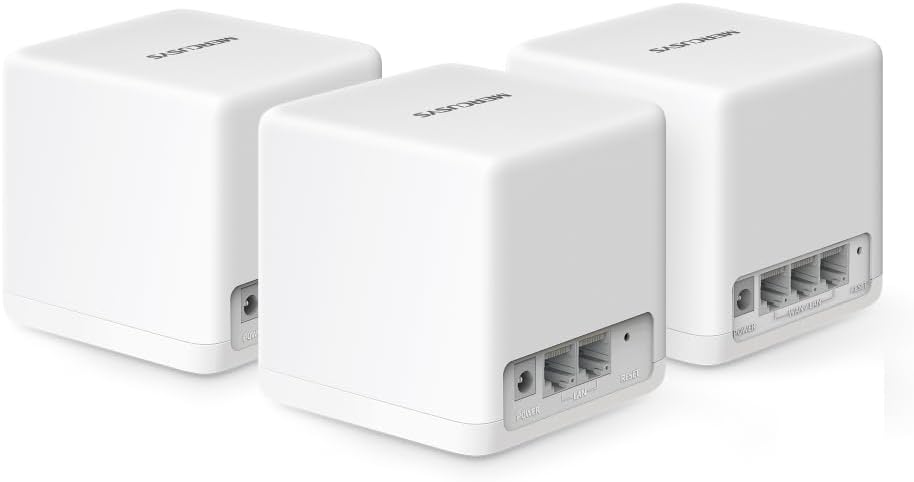
בילד: די הינטערשטע view of three MERCUSYS Halo H1500X units, highlighting the power input, WAN/LAN, and LAN ports on each device.

Image: An infographic illustrating key features of the Halo H1500X, including 1500 Mbps Wi-Fi 6, seamless roaming, Mercusys app control, connectivity for over 100 devices, up to 550 m² coverage, and Gigabit ports.
4. סעטאַפּ גייד
Follow these steps to set up your MERCUSYS Halo H1500X Mesh System:
- אראפקאפיע די MERCUSYS אַפּ: זוכן פֿאַר "MERCUSYS" in your mobile device's app store (App Store for iOS or Google Play Store for Android) and download the application.
- Connect the Main Halo Unit:
- Unpack one Halo unit. This will be your main unit.
- Connect your modem's Ethernet port to any Ethernet port on the main Halo unit using the provided Ethernet cable.
- Connect the power adapter to the main Halo unit and plug it into a power outlet.
- Wait for the LED indicator on the Halo unit to turn solid blue, indicating it is ready for setup.
- Configure the Main Halo Unit via App:
- Open the MERCUSYS app on your smartphone or tablet.
- Follow the on-screen instructions to create a MERCUSYS ID (if you don't have one) and set up your main Halo unit. This includes creating your new WiFi network name (SSID) and password.
- לייג צו נאָך העלאָ איינהייטן:
- Place the remaining Halo units in desired locations within your home to extend coverage. Ensure they are within range of another Halo unit or the main unit.
- Connect the power adapters to the additional Halo units and plug them into power outlets.
- The additional units will automatically detect and join the existing mesh network. Wait for their LED indicators to turn solid blue.
- You can verify the connection and signal strength of each unit through the MERCUSYS app.

Image: A visual guide showing the four steps for setting up the Halo H1500X: identifying components, connecting devices (modem to Halo), configuring the main Halo via the app, and powering on additional units for automatic network integration.
5. אַפּערייטינג ינסטרוקטיאָנס
Once your Halo Mesh System is set up, it operates as a single, unified WiFi network. Your devices will automatically connect to the strongest signal as you move around your home, ensuring a seamless online experience.
5.1 Using the MERCUSYS App
The MERCUSYS app is your central control panel for the mesh system:
- דיווייס פאַרוואַלטונג: View all connected devices, their connection status, and which Halo unit they are connected to.
- פּאַרענטאַל קאָנטראָלס: שאַפֿן באַניצער פּראָfiles, set time limits for internet access, and filter content for specific devices.
- גאַסט נעטוואָרק: Easily create a separate WiFi network for guests, keeping your main network secure.
- Network Prioritization (QoS): Prioritize bandwidth for specific devices or activities (e.g., gaming, streaming) to ensure optimal performance.
- Firmware דערהייַנטיקונגען: Check for and install the latest firmware updates to ensure security and performance.

Image: A smartphone screen displaying the MERCUSYS app interface, showing a list of connected devices and their respective network speeds, illustrating easy network management.
5.2 געפירט ינדיקאַטאָרס
The LED on each Halo unit provides status information:
- סאָליד בלוי: ארבעטן ריכטיק.
- פּולסינג בלוי: Starting up or connecting.
- האַרט רויט: No internet connection or an issue with the unit.
- פּולסינג רויט: Disconnected from the mesh network.
6. וישאַלט
To ensure the longevity and optimal performance of your MERCUSYS Halo Mesh System, consider the following maintenance tips:
- רעגולער פירמוואַרע דערהייַנטיקונגען: Check the MERCUSYS app periodically for new firmware updates. Updates often include security patches, performance improvements, and new features.
- אָפּטימאַל אָרט: Ensure Halo units are placed in open areas, away from obstructions like large metal objects, thick walls, or other electronic devices that may cause interference.
- רייניקונג: ווישט אָפּ די אַפּאַראַטן מיט אַ ווייכן, טרוקענעם שטאָף צו באַזייַטיקן שטויב. ניצט נישט קיין פליסיקע רייניקונגס־מיטלען אָדער שרײַבנדיקע מאַטעריאַלן.
- ריסטאַרטינג: If you experience minor network issues, try restarting your Halo units and modem. Unplug them from power, wait 30 seconds, then plug them back in.
7. טראָובלעשאָאָטינג
This section addresses common issues you might encounter with your Halo Mesh System.
7.1 קיין אינטערנעט פֿאַרבינדונג
- טשעק מאָדעם: Ensure your modem is working correctly and has an active internet connection.
- קאַבלע קאַנעקשאַנז: Verify that the Ethernet cable connecting your modem to the main Halo unit is securely plugged in.
- Halo LED: If the main Halo unit's LED is solid red, it indicates no internet connection. Check your modem and ISP status.
- ריסטאַרט: Restart your modem and then your main Halo unit.
7.2 Poor WiFi Coverage or Slow Speeds
- אַפּאַראַט אָרט: Relocate Halo units to optimize coverage. Ensure they are not too far apart and are centrally located. Refer to the coverage diagram in the Product Overview.
- ינטערפיראַנס: Move Halo units away from potential sources of interference such as microwaves, cordless phones, or large metal objects.
- Backhaul Connection: For optimal performance, especially in multi-story homes or large areas, consider using an Ethernet cable to connect Halo units (wired backhaul) if possible. This provides a more stable and faster connection between units than wireless backhaul.
- דעווייס צאָל: While the system supports over 100 devices, excessive simultaneous high-bandwidth usage can impact performance.
- פירמוואַרע: Ensure all Halo units are running the latest firmware.
7.3 Cannot Connect to the MERCUSYS App
- WiFi קאַנעקשאַן: Ensure your smartphone is connected to the Halo WiFi network.
- אַפּ ווערסיע: Make sure you have the latest version of the MERCUSYS app installed.
- MERCUSYS ID: Verify your MERCUSYS ID and password.
8. ספּעסאַפאַקיישאַנז
| שטריך | באַשרייַבונג |
|---|---|
| סאָרט | MERCUSYS |
| מאָדעל נאָמען | Halo H1500X (3-pack) |
| ווירעלעסס קאַנעקשאַן טיפּ | 802.11ac, 802.11ax (WiFi 6), 802.11n |
| אָפטקייַט באַנד קלאַס | צווייענדיק-באַנד |
| ווירעלעסס קאָמוניקאַציע סטאַנדאַרד | 802.11ac, 802.11ax, 802.11n |
| קאַנעקטיוויטי טעכנאָלאָגיע | עטהערנעט, ווי-פי |
| קאַמפּאַטאַבאַל דעוויסעס | לאַפּטאָפּ, סמאַרטפאָון, טאַבלעט |
| ספּעציעלע שטריך | QoS (קוואַליטעט פון סערוויס) |
| אַנטענע טיפּ | אינערלעכער |
| פּראָדוקט וואָג | 490 ג |
| פּעקל דימענשאַנז | 34.1 X 15.7 X 13.4 סענטימעטער |
| קאָליר | ווייַס |
9. וואָראַנטי און שטיצן
For warranty information and technical support, please refer to the official MERCUSYS webזייטל אדער קאנטאקט זייער קאסטומער סערוויס. דעטאלן ווערן געווענליך צוגעשטעלט אין דער פראדוקט פארפאקונג אדער אויף די פאבריקאנט'ס שטיצע בלעטער.


