1. הקדמה
This manual provides detailed instructions for the Hyperkin Pixel Art Bluetooth Controller, Miraculous Cat Noir Edition. Please read this manual thoroughly before using the product to ensure proper operation and to maximize your gaming experience. This controller is designed for use with multiple platforms, offering wireless connectivity and a comfortable, ergonomic design.
2. פּראָדוקט איבערview
The Hyperkin Pixel Art Bluetooth Controller combines a retro aesthetic with modern functionality. It features a unique Miraculous Cat Noir design, wireless Bluetooth connectivity, and a built-in turbo function.
2.1 שליסל פֿעיִקייטן
- ווירעלעסס בלועטאָאָטה קאַנעקטיוויטי: Enjoy gaming freedom up to 30 feet away.
- טורבאָ פונקציע: Activate rapid-fire action for enhanced gameplay.
- Retro Design with Modern Ergonomics: A classic look combined with comfortable handling for extended play sessions.
- רייזע פרענדלי: סאָליד פּלאַן אַלאַוז פֿאַר גרינג פּאָרטאַביליטי.
- High-Quality Symmetrical Sticks: Designed for precision and responsiveness.
2.2 קאָנטראָללער אויסלייג

בילד 2.2.1: פראָנט view of the Hyperkin Pixel Art Bluetooth Controller, Miraculous Cat Noir Edition. This image displays the D-pad, left and right analog sticks with paw print designs, A/B/X/Y buttons, Start/Select buttons, and the Cat Noir character art.

בילד 2.2.2: זייַט view of the Hyperkin Pixel Art Bluetooth Controller, Miraculous Cat Noir Edition. This image shows the shoulder buttons (L1, R1) and triggers (L2, R2), along with the USB-C charging port and mode switch.

בילד 2.2.3: נאָענט-אַרויף view emphasizing the controller's retro design combined with modern ergonomic features for comfortable handling.
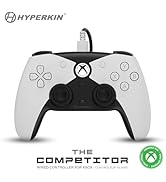
בילד 2.2.4: נאָענט-אַרויף view שאָוקasing the high-quality symmetrical analog sticks, designed for precise control during gameplay.
3. סעטאַפּ
3.1 טשאַרדזשינג די קאָנטראָללער
The controller includes a built-in Lithium Polymer battery. To charge, connect the supplied Type-C cable to the controller's charging port and the other end to a USB power source (e.g., a computer USB port, a USB wall adapter). The LED indicator on the controller will show charging status and turn off when fully charged.
3.2 פּאָרן דורך בלועטוט
To pair the controller with your device:
- זיכער מאַכן אַז דער קאָנטראָללער איז גענוג אָנגעלאָדן.
- Turn on the controller by pressing the Home button.
- Put the controller into pairing mode (refer to your device's specific instructions for Bluetooth pairing, as this may vary). Typically, this involves holding a small pairing button or a combination of buttons until the LED indicator flashes rapidly.
- On your device (Nintendo Switch, PC, Mac, Android, iOS, etc.), navigate to the Bluetooth settings.
- זוכן פֿאַר available devices and select "Hyperkin Pixel Art Controller" (or similar name) from the list.
- Once connected, the LED indicator on the controller will stabilize.
For Nintendo Switch, navigate to the 'Controllers' menu, then 'Change Grip/Order' to initiate pairing mode on the console.
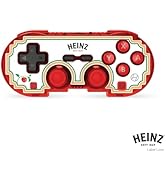
בילד 3.2.1: Illustration of the controller connecting wirelessly via Bluetooth, indicating a range of up to 30 feet.
3.3 ווייערד קאַנעקשאַן
The controller can also be used via a wired connection. Connect the Type-C cable from the controller to a compatible USB port on your device. This mode is often plug-and-play, requiring no additional pairing.
4. אַפּערייטינג ינסטרוקטיאָנס
4.1 יקערדיק קאָנטראָלס
The controller features standard gaming buttons:
- ד-פּאַד: ריכטונגס-איינגאב.
- אנאַלאָג שטעקן: Left and Right symmetrical sticks for precise movement and camera control.
- אַקציע קנעפּלעך (A, B, X, Y): Primary interaction buttons.
- Shoulder Buttons (L, R) and Triggers (ZL, ZR): Additional input buttons, typically for actions like aiming, firing, or menu navigation.
- אָנהייב/סעלעקט קנעפּלעך: For in-game menus and options.
- היים קנעפּל: Returns to the system's home screen.
4.2 טורבאָ פונקציע
The turbo function allows for rapid, repeated input of a button press without continuously pressing the button. To activate or deactivate turbo for a specific button:
- דריקן און האַלטן די טורבאָ קנעפּל.
- While holding the Turbo button, press the desired action button (e.g., A, B, X, Y, L, R, ZL, ZR) once to activate turbo for that button.
- Repeat the process (hold Turbo, press the same action button) to deactivate turbo for that button.
5. קאַמפּאַטאַבילאַטי
The Hyperkin Pixel Art Bluetooth Controller is compatible with a wide range of gaming platforms:
- נינטענדאָו סוויטש
- Nintendo Switch OLED Model
- נינטענדאָו סוויטש ליטע
- Windows 10/11 פּיסי
- מעק
- Chromebook
- אַנדרויד דעוויסעס
- עפּל iOS דעוויסעס
- פּאַרע
- פּאַרע דעק
- ROG אַליירט
- Raspberry Pi
- Amazon Games/Amazon Luna
- טעסלאַ
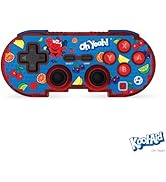
בילד 5.1: Visual representation of the controller's broad compatibility across multiple gaming platforms and operating systems.
6. וישאַלט
כדי צו זיכער מאַכן די לאַנגלעבעניש און אָפּטימאַלע פאָרשטעלונג פון דיין קאָנטראָללער, נאָכפאָלגן די וישאַלט גיידליינז:
- רייניקונג: ניצט אַ ווייכע, טרוקענע שטאָף צו ווישן דעם קאָנטראָללער. פֿאַר שווערע שמוץ, אַ ביסל ווייכער מאַכןampווייקט דעם שטאָף מיט וואַסער. פֿאַרמייַדט שטרענגע כעמיקאַלן אָדער אַברייסיוו רייניגער.
- סטאָרידזש: האַלט דעם קאָנטראָללער אין אַ קיל, טרוקן אָרט אַוועק פון דירעקט זונשייַן און עקסטרעמע טעמפּעראַטורן.
- באַטערי זאָרגן: פֿאַרמײַדט אָפֿט פֿולשטענדיק אויסצולאָדן די באַטעריע. לאָדט דעם קאָנטראָללער רעגולער, אפילו אויב ער ווערט נישט גענוצט פֿאַר לענגערע צײַטן, כּדי צו האַלטן די באַטעריע געזונט.
- ויסמיידן גשמיות פּראַל: Do not drop or expose the controller to strong impacts, as this can damage internal components.
7. טראָובלעשאָאָטינג
If you encounter issues with your Hyperkin Pixel Art Bluetooth Controller, refer to the following common problems and solutions:
| פּראָבלעם | מעגלעך לייזונג |
|---|---|
| דער קאָנטראָללער צינדט זיך נישט אָן. | Ensure the controller is charged. Connect it to a power source using the Type-C cable. |
| Controller does not connect via Bluetooth. |
|
| Buttons are unresponsive or delayed. |
|
| USB charging port does not work. |
|
| Vibration is too strong or loud. | Some games or systems may offer an option to adjust or disable vibration feedback within their settings. Consult your game or system's options menu. |
8. ספּעסאַפאַקיישאַנז
| שטריך | דעטאַל |
|---|---|
| מאָדעל נומער | M01328-MTCN |
| קאַנעקטיוויטי | Bluetooth (Wireless), USB Type-C (Wired) |
| ווירעלעסס ראַנגע | אַרויף צו 30 פֿיס |
| באַטערי טיפּ | 1 ליטהיום פּאָלימער באַטאַרייע (אַרייַנגערעכנט) |
| פּעקל דימענשאַנז | 7.4 X 5.2 X 2.4 אינטשעס |
| פּונקט וואָג | 9.9 אונסעס |
| פאַבריקאַנט | היפּערקין |
9. וואָראַנטי און שטיצן
This product is covered by the manufacturer's standard warranty. For specific warranty terms and conditions, please refer to the documentation included with your purchase or visit the official Hyperkin website. For technical support or further assistance, please contact Hyperkin customer service through their official channels.


