הקדמה
The Blucalm Wired Headset UCH30 is designed for clear communication and comfort in various environments, from busy offices to home setups. Featuring advanced noise cancellation and intuitive controls, it ensures a productive and focused experience.
Key features include an enhanced 3-microphone array for superior noise cancellation, an integrated Busylight for status indication, easy plug-and-play USB-A connectivity, and comfortable design for all-day wear.
וואָס איז אין די קעסטל
- העאַדסעט
- באַניצער מאַנואַל
- טאַש

Image: The Blucalm UCH30 headset, user manual, and a storage pouch are neatly arranged, showcasing all included items.
סעטאַפּ און קאַנעקטיוויטי
The Blucalm UCH30 headset offers simple plug-and-play functionality, requiring no additional software installation.
- פאַרבינדן צו מיטל: Insert the USB-A cable into an available USB-A port on your computer or laptop. The headset will be automatically recognized by your operating system.
- סטרויערן העאַדסעט: Adjust the headband for a comfortable fit. The earcups are adjustable by 180 degrees, and the microphone boom can rotate 270 degrees to position it optimally for your voice.
- באַשטעטיקן אַודיאָ סעטטינגס: Ensure the Blucalm UCH30 is selected as the default audio input and output device in your computer's sound settings or communication application (e.g., Teams, Zoom).

Image: The Blucalm UCH30 headset with its USB-A connector and inline control unit, ready for connection to a computer.
ווידעא: אן איבערview of the Blucalm Wired Headset, highlighting its noise-canceling microphone and Busylight feature, demonstrating its use in various work environments.
אַפּערייטינג ינסטראַקשאַנז
ראַש קאַנסאַליישאַן
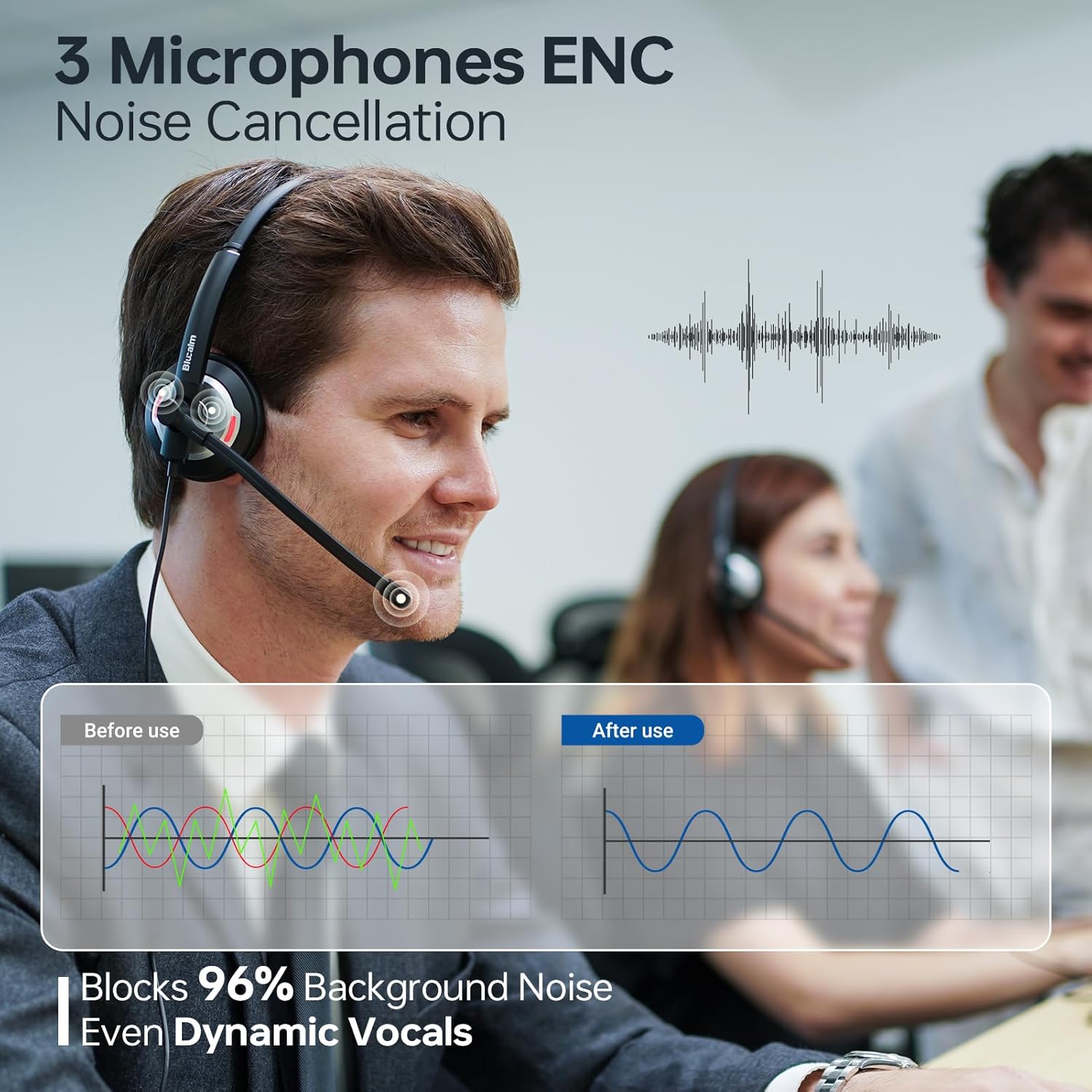
The UCH30 features a 3-microphone array with AI noise-canceling technology, blocking over 96% of background noise. This ensures your voice is captured clearly, even in noisy environments.

Image: A visual representation of the 3-microphone array and its effectiveness in canceling background noise, ensuring clear voice pickup.
Busylight Functionality
The integrated 360° visible Busylight provides a clear indication of your work status to others. This helps to minimize interruptions during important calls or focused work.
- רויט ליכט: Indicates you are busy or on a call.
- ליכט אַוועק: Indicates you are available for conversation.
- פלאַשינג רויט ליכט: Alerts you to an incoming call (Teams only).
בילד: א דעטאַלירטע view of the headset's earcup with the Busylight illuminated, indicating active use or a busy status.
Video: Demonstrates the features of the Blucalm headset, including its noise cancellation and Busylight, showing how it enhances communication in different settings.
אין-ליניע קאָנטראָל
The convenient in-line control unit provides easy access to essential functions:
- Mic Mute/Unmute: Press the microphone button to toggle mute. An indicator light on the control unit shows mute status.
- באנד +/-: ניצט די '+' און '-' קנעפלעך צו סטרויערן די הערן-וואליום.
- MS Teams Call Answer/End: Press the call button to answer or end calls within Microsoft Teams.
בילד: א דעטאַלירטע view of the inline control unit, clearly showing the buttons for microphone mute, volume adjustment, and call answer/end, along with their respective icons.
קאָמפאָרט און דיזיין
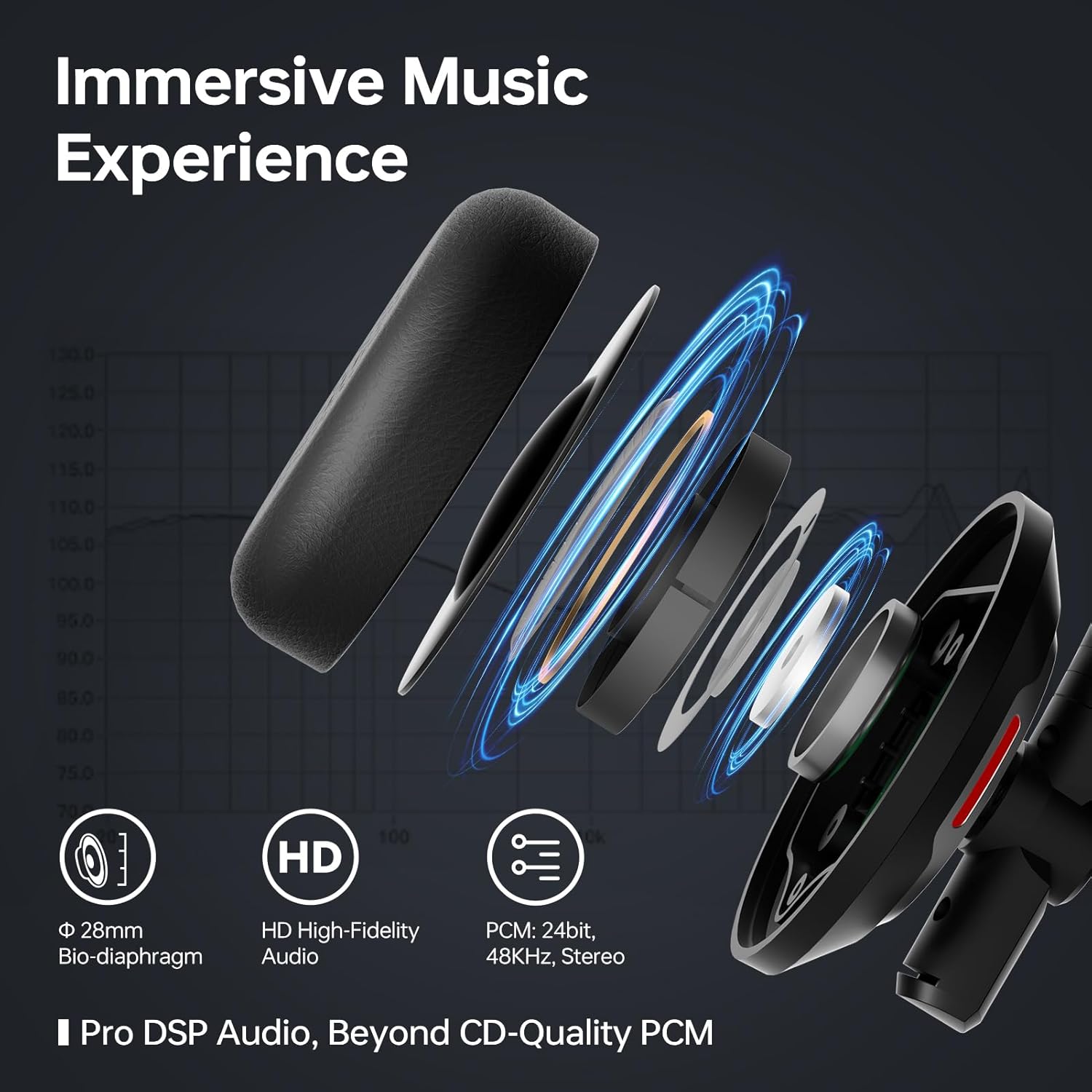
The UCH30 is designed for all-day comfort, featuring an adjustable headband, 180° adjustable earcups, and a lightweight body. The ear cushions are made from skin-friendly leather covering memory foam, providing a soft and breathable fit.

Image: A composite image illustrating the headset's ergonomic features, including the 270° rotating microphone, 180° adjustable earcups, adjustable headband, and soft, breathable ear cushions.
וישאַלט
- רייניקונג: ניצט אַ ווייכע, טרוקענע שטאָף צו רייניקן די כעדסעט. פֿאַרמייַדט ניצן שטרענגע כעמיקאַלן אָדער שרײַבנדיקע מאַטעריאַלן.
- סטאָרידזש: When not in use, store the headset in the provided pouch to protect it from dust and damage.
- קאַבלע זאָרגן: פֿאַרמײַדט שאַרפֿע בייגן אָדער איבערגעטריבענע ציען אויף דעם קאַבל צו פֿאַרמײַדן אינערלעכע שאָדן.
טראָובלעשאָאָטינג
| פּראָבלעם | מעגלעך לייזונג |
|---|---|
| קיין קלאַנג פֿון כעדסעט |
|
| מיקראָפאָן טוט נישט אַרבעטן |
|
| Busylight not functioning |
|
ספּעסאַפאַקיישאַנז
| שטריך | דעטאַל |
|---|---|
| מאָדעל נאָמען | UCH30 |
| כעדפאָונז דזשאַק | וסב-א |
| קאַנעקטיוויטי טעכנאָלאָגיע | ווייערד |
| ראַש קאָנטראָל | געזונט אפגעזונדערטקייט |
| מיקראָפאָן אַררייַ | 3-microphone array with AI noise-canceling |
| בוסילייט | Integrated 360° visible Busylight |
| קאָנטראָל טיפּ | In-line control (Mic Mute/Unmute, Volume +/-, MS Teams Call Answer/End) |
| מאַטעריאַל | לעדער, פּלאַסטיק |
| אויער פּלייסמאַנט | אויף אויער |
| פּונקט וואָג | 4.9 אונס (0.14 קילאָגראַמס) |
| פּראָדוקט דימענשאַנז | 7 X 6.3 X 2.4 אינטשעס |
| אַרייַנגערעכנט קאַמפּאָונאַנץ | Headset, User Manual, Pouch |
וואָראַנטי און שטיצן
This Blucalm headset comes with a standard return policy of 30 days. For any product inquiries, technical support, or warranty claims beyond the return period, please contact Blucalm customer service directly through their official channels or the seller "Easilent" on Amazon.
באַזוכן די Blucalm Store פֿאַר מער אינפֿאָרמאַציע און שטיצן רעסורסן.


