1. הקדמה
This manual provides comprehensive instructions for the Hyperkin Pixel Art Bluetooth Controller, Tetris™ Edition (Model M01328-TETS). This limited-edition wireless controller is designed for use with various gaming platforms, offering a blend of retro aesthetics and modern functionality. Please read this manual thoroughly before use to ensure proper setup and operation.

Image 1.1: The Hyperkin Pixel Art Bluetooth Controller, Tetris™ Edition, showcasing its unique Tetris-themed design.
2. פּעקל אינהאַלט
באַשטעטיקן אַז אַלע זאכן זענען פאַראַן אין דיין פּעקל:
- Hyperkin Pixel Art Bluetooth Controller (Tetris™ Edition)
- וסב-C טשאַרדזשינג קאַבלע
- באַניצער מאַנואַל (דעם דאָקומענט)
3. קאָנטראָללער אויסלייג
Familiarize yourself with the buttons and features of your controller:

בילד 3.1: פראָנט view of the controller, displaying the D-pad, analog sticks, action buttons (A, B, X, Y), SELECT, START, and Tetris™ logo.
- ד-פּאַד: ריכטונגס-איינגאב.
- לינקס/רעכטס אנאלאג שטעקנס: Precise 360-degree movement.
- אַקציע קנעפּלעך (A, B, X, Y): Primary interaction buttons.
- SELECT קנעפּל: Function varies by platform/game.
- אָנהייב קנעפּל: Function varies by platform/game.
- אַקסל קנעפּלעך (L1, R1): קנעפּלעך אויף די אויבערשטע זייט.
- טריגער קנעפּלעך (L2, R2): Bottom-mounted analog triggers.
- היים קנעפּל: Returns to system menu (functionality varies by platform).
- טורבאָ קנעפּל: Activates/deactivates turbo function for selected buttons.
- וסב- C פּאָרט: פֿאַר טשאַרדזשינג און דראָט פֿאַרבינדונג.

בילד 3.2: צוריק view of the controller, showing the ergonomic grip and product label.
4. סעטאַפּ
4.1. אויפלאָדן דעם קאָנטראָללער
Before initial use, fully charge the controller. Connect the included USB-C charging cable to the controller's USB-C port and the other end to a USB power source (e.g., computer, USB wall adapter). The charging indicator light will show charging status and turn off when fully charged.
4.2. בלועטאָאָטה פּערינג
The controller supports wireless connection via Bluetooth up to 30 feet. Follow these general steps for pairing:
- מאַכן זיכער אַז די קאָנטראָללער איז טשאַרדזשינג.
- Turn on the controller (specific method may vary, typically holding the Home button).
- Activate pairing mode on the controller (refer to specific platform instructions below, usually a combination of buttons or a dedicated pairing button). The indicator lights will flash rapidly.
- On your device (Nintendo Switch, PC, Mac, Android, iOS), navigate to the Bluetooth settings.
- זוכן פֿאַר available devices and select "Hyperkin Pixel Art Controller" or similar.
- אַמאָל פּערד, וועלן די אינדיקאַטאָר ליכט אויף דעם קאָנטראָללער ווערן האַרט.
4.2.1. Pairing with Nintendo Switch/OLED Model
- From the HOME Menu, select "Controllers" > "Change Grip/Order."
- While on this screen, press and hold the pairing button on the Hyperkin controller until the indicator lights flash.
- Once paired, the controller will appear on the screen, and the player indicator will light up.
4.2.2. Pairing with PC (Windows 10/11)
- Go to "Settings" > "Devices" > "Bluetooth & other devices."
- Turn on Bluetooth and click "Add Bluetooth or other device."
- Select "Bluetooth" and then choose "Hyperkin Pixel Art Controller" from the list.
4.2.3. Pairing with Mac
- Open "System Settings" (or "System Preferences") > "Bluetooth."
- Ensure Bluetooth is on. The controller should appear in the list of devices.
- Click "Connect" or "Pair" next to "Hyperkin Pixel Art Controller."
4.2.4. Pairing with Android/iOS Devices
- Go to your device's "Settings" > "Bluetooth."
- Turn on Bluetooth. The controller should appear in the list of available devices.
- Tap on "Hyperkin Pixel Art Controller" to pair.

Image 4.1: The controller demonstrating wireless connectivity with a Nintendo Switch console, highlighting its Bluetooth capability.
5. אַפּערייטינג ינסטרוקטיאָנס
5.1. גרונטלעכע קאנטראלן
The controller functions as a standard gamepad. Button mapping may vary depending on the game and platform. Refer to your game's instructions for specific control schemes.
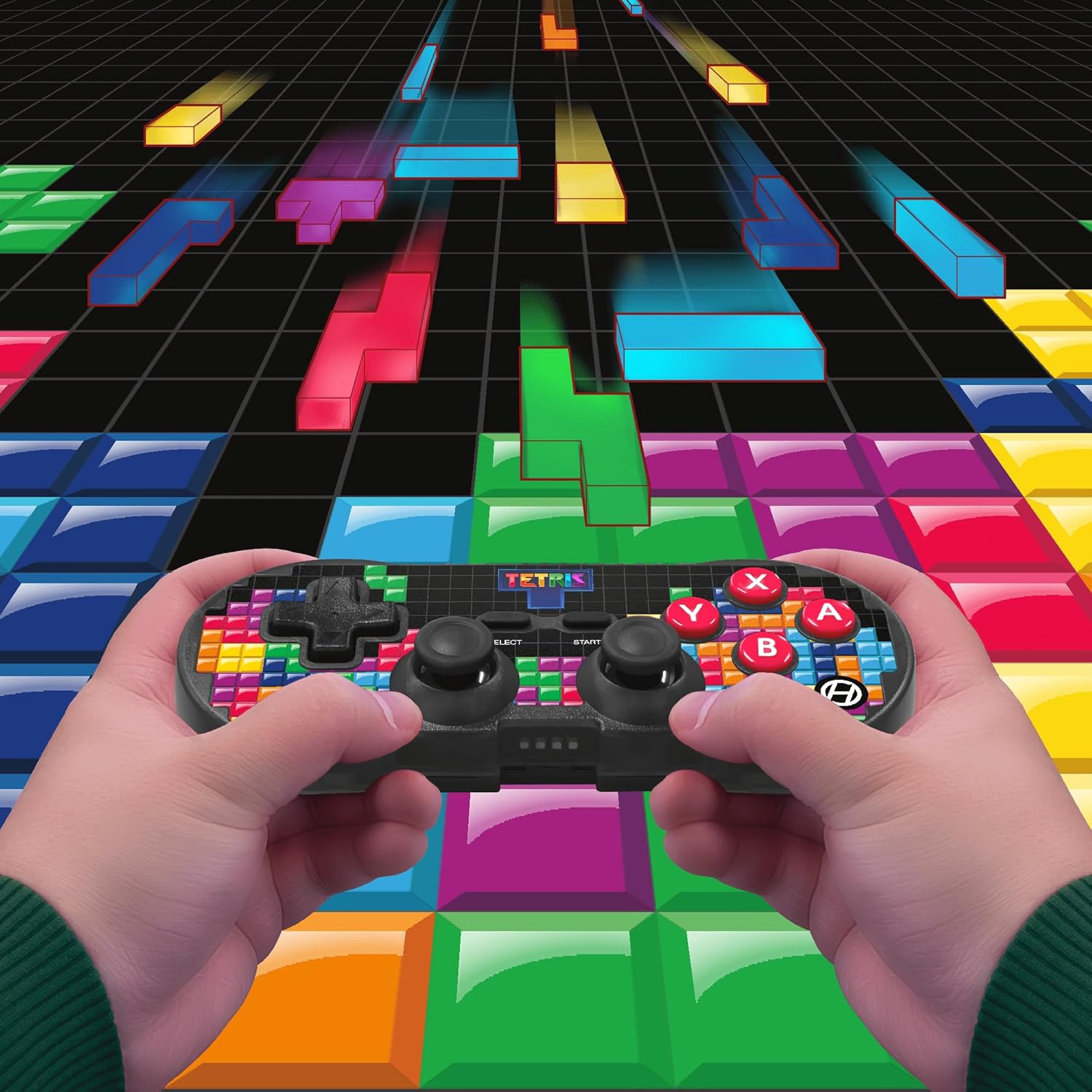
Image 5.1: A user holding the controller, illustrating its use during gameplay.
5.2. טורבאָ פונקציע
The controller features a turbo function for rapid button presses. To activate or deactivate turbo for a specific button:
- דריקן און האַלטן די טורבאָ קנעפּל.
- While holding the Turbo button, press the desired קאַמף קנעפּל (A, B, X, Y, L1, R1, L2, R2) you wish to apply turbo to.
- Release both buttons. The selected action button will now have turbo enabled.
- To disable turbo for that button, repeat the process.
6. קאַמפּאַטאַבילאַטי
The Hyperkin Pixel Art Bluetooth Controller is compatible with a wide range of platforms:
- נינטענדאָו סוויטש
- Nintendo Switch OLED Model
- Windows 10/11 פּיסי
- מעק
- אַנדרויד דעוויסעס
- יאָס דעוויסעס
- פּאַרע
- Raspberry Pi
- Amazon Games
- אַמאַזאָן לונה
- טעסלאַ

Image 6.1: Visual representation of the controller's broad compatibility across multiple gaming and computing platforms.
7. וישאַלט
כדי צו זיכער מאַכן די לאַנגלעבעניש און אָפּטימאַלע פאָרשטעלונג פון דיין קאָנטראָללער:
- רייניקונג: ניצט אַ ווייכע, טרוקענע שטאָף צו רייניקן דעם קאָנטראָללער. פֿאַרמייַדט אַברייסיוו רייניגער אָדער סאָלווענטן.
- סטאָרידזש: האַלט דעם קאָנטראָללער אין אַ קיל, טרוקן אָרט אַוועק פון דירעקט זונשייַן און עקסטרעמע טעמפּעראַטורן.
- באַטערי זאָרגן: Do not attempt to replace the internal Lithium Polymer battery. Avoid fully discharging the battery for extended periods.
- ויסמיידן טראפנס: באַשיצן דעם קאָנטראָללער פֿון פֿאַלן און קלאַפּן, וואָס קענען שעדיקן אינעווייניקסטע קאָמפּאָנענטן.
8. טראָובלעשאָאָטינג
If you encounter issues with your Hyperkin Pixel Art Bluetooth Controller, refer to the following common problems and solutions:
| פּראָבלעם | מעגלעך לייזונג |
|---|---|
| דער קאָנטראָללער צינדט זיך נישט אָן. | Ensure the controller is fully charged. Connect it to a power source using the USB-C cable. |
| Controller does not pair via Bluetooth. |
|
| Input lag or dropped connection. |
|
| קנעפּלעך רעאַגירן נישט אָדער זענען שטעקן געבליבן. | Clean around the buttons with a soft, dry cloth. Avoid liquid cleaners. If the issue persists, contact support. |
9. ספּעסאַפאַקיישאַנז
| שטריך | דעטאַל |
|---|---|
| מאָדעל נומער | M01328-TETS |
| קאַנעקטיוויטי | Bluetooth (Wireless up to 30 ft.), USB-C (Wired) |
| קאַמפּאַטאַבילאַטי | Nintendo Switch/OLED, Windows 10/11 PC, Mac, Android, iOS, Steam, Raspberry Pi, Amazon Games, Amazon Luna, Tesla |
| ספּעציעלע פֿעיִקייטן | Turbo function, Retro design with modern ergonomics, High-quality symmetrical sticks, Responsive action buttons, Reliable triggers |
| באַטערי טיפּ | 1 Lithium Polymer battery (internal) |
| פּעקל דימענשאַנז | 7.24 X 5 X 2.48 אינטשעס |
| פּונקט וואָג | 9.9 אונסעס |
| פאַבריקאַנט | היפּערקין |
10. וואָראַנטי און שטיצן
For warranty information and technical support, please visit the official Hyperkin webזייטל אדער קאנטאקט זייער קאסטומער סערוויס דעפארטמענט. האלט אייער באווייז פון קויפן פאר גאראנטיע טענות.
Hyperkin Official Webפּלאַץ: www.hyperkin.com


