הקדמה
This manual provides comprehensive instructions for the setup, operation, maintenance, and troubleshooting of your A4TECH FG20 2.4G Wireless Mouse. Please read this manual carefully before using the product to ensure optimal performance and longevity.
פּעקל אינהאַלט
- A4TECH FG20 2.4G Wireless Mouse
- וסב נאַנאָ ופנעמער
- AA באַטעריע (קען זיין פאַר-אינסטאַלירט אָדער אַרייַנגערעכנט באַזונדער)
- באַניצער מאַנואַל (דעם דאָקומענט)
סעטאַפּ גייד
Follow these steps to set up your A4TECH FG20 Wireless Mouse:
- ינסטאַלירן די באַטאַרייע: Locate the battery compartment on the underside of the mouse. Open the cover and insert the AA battery, ensuring the polarity (+/-) matches the diagram inside the compartment. Close the battery cover securely.
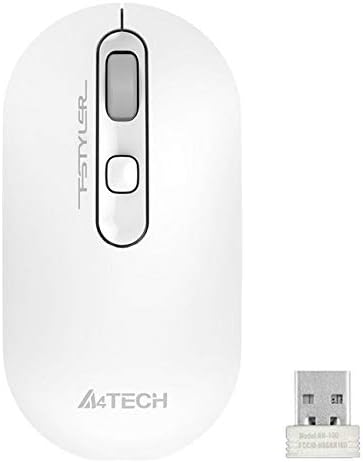
Image: A4TECH FG20 Wireless Mouse shown alongside its USB Nano Receiver. This illustrates the two main components required for operation.
- פאַרבינדן די וסב נאַנאָ ופנעמער: Remove the USB Nano Receiver from its storage slot, usually located within the battery compartment or near it. Plug the receiver into an available USB port on your computer.

Image: A schematic diagram depicting the wireless connection between the mouse and a computer via the USB receiver. This visual aid helps understand the connection process.
- מאַכט אָן די מויז: If your mouse has an On/Off switch, slide it to the "On" position. The mouse should automatically connect to the receiver.
- דרייווער ינסטאַלירונג: Your computer's operating system (Windows, Linux) should automatically detect and install the necessary drivers. No manual driver installation is typically required.
אַפּערייטינג ינסטראַקשאַנז
The A4TECH FG20 Wireless Mouse is designed for intuitive use. Here are its primary functions:
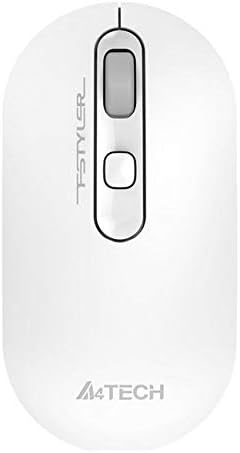
בילד: פון אויבן אַראָפּ view of the A4TECH FG20 Wireless Mouse, highlighting its ergonomic shape and button layout.
- לינק קליקט: געניצט פֿאַר אויסקלייבן זאכן, עפֿענען fileס, און אַקטיווירן פאַנגקשאַנז.
- רעכט גיט: Opens context menus, providing additional options for selected items.
- סקראָל ראָד: סקראָלן אַרויף אָדער אַראָפּ דורך דאָקומענטן און web pages. The scroll wheel can also function as a middle click button.
- DPI אַדזשאַסטמענט קנעפּל: (If applicable, typically located near the scroll wheel) This button allows you to cycle through different cursor speeds (DPI settings) to suit your preference and task.
- ערגאָנאָמיק פּלאַן: The mouse features an ergonomic design for comfortable use during extended periods.
וישאַלט
Proper maintenance ensures the longevity and performance of your mouse:
- רייניקונג: ניצט אַ ווייכע, טרוקענע שטאָף צו רייניקן די ייבערפלאַך פון דער מויז. פֿאַר שווערע שמוץ, אַ ביסל ווייכער מאַכןampווישט דעם שטאָף מיט וואַסער אָדער אַ מילדער רייניקונג לייזונג. פֿאַרמייַדט שטרענגע כעמיקאַלן אָדער אַברייסיוו מאַטעריאַלן.
- סענסאָר רייניקונג: Occasionally, clean the optical sensor on the underside of the mouse with a cotton swab to ensure accurate tracking.
- באַטערי פאַרבייַט: When the mouse performance degrades or it stops responding, replace the AA battery with a fresh one.
- סטאָרידזש: When not in use for extended periods, turn off the mouse to conserve battery life. Store the USB Nano Receiver in its designated slot to prevent loss.
טראָובלעשאָאָטינג
If you encounter issues with your A4TECH FG20 Wireless Mouse, refer to the following common solutions:
- מויז ענטפערט נישט:
- מאַכן זיכער אַז די מויז איז אויסגעדרייט אויף.
- קאָנטראָלירט צי די באַטאַרייע איז ריכטיק אינסטאַלירט און האט גענוג אָפּצאָל. טוישט עס אויב נייטיק.
- Verify the USB Nano Receiver is securely plugged into a working USB port on your computer. Try a different USB port.
- ריסטאַרט דיין קאָמפּיוטער.
- Lagging or Erratic Cursor Movement:
- רייניקט דעם אָפּטישן סענסאָר אויף דער אונטערשטער זײַט פֿון דער מויז.
- Ensure you are using the mouse on a suitable surface (non-reflective, opaque).
- Move the mouse closer to the USB Nano Receiver to reduce interference.
- קוקט איבער פאר אנדערע ווייערלעס דעווייסעס וואס קענען גורם זיין אריינמישונג.
- קשר ישוז:
- If the mouse loses connection frequently, try re-pairing it (if a pairing button is available, otherwise, simply unplug and replug the receiver).
- Ensure no large metal objects are between the mouse and the receiver.
ספּעסאַפאַקיישאַנז

בילד: זייט פּראָfile view of the A4TECH FG20 Wireless Mouse, illustrating its slim and ergonomic contour.
| שטריך | דעטאַל |
|---|---|
| מאָדעל | FG20 |
| קאַנעקטיוויטי טעכנאָלאָגיע | 2.4G Wireless (Infrared) |
| באַוועגונג דעטעקטיאָן | לייזער |
| קנעפּל קוואַנטיטעט | 3 |
| האַנט אָריענטירונג | אַמבידעקסטראַס |
| ספּעציעלע פֿעיִקייטן | ערגאָנאָמיק פּלאַן |
| קאָליר | ווייַס |
| קאַמפּאַטאַבאַל דעוויסעס | פערזענלעכע קאָמפּיוטער |
| אַפּערייטינג סיסטעם קאַמפּאַטאַבילאַטי | לינוקס, ווינדאָוס 7, ווינדאָוס XP |
| פאַבריקאַנט | A4TECH |
| לאַנד פון אָריגין | כינע |
וואָראַנטי און שטיצן
The A4TECH FG20 Wireless Mouse is manufactured to high-quality standards. For information regarding the manufacturer's warranty, please refer to the documentation provided with your purchase or visit the official A4TECH webפּלאַץ.
Extended warranty options may be available from third-party providers, such as the 1-Year or 2-Year Extended Warranty by Salama Care. These are separate from the manufacturer's warranty.
For technical support or further assistance, please contact the retailer where you purchased the product or visit the official A4TECH support channels.


