1. הקדמה
Thank you for choosing the MageGee Cloud98 Mechanical Keyboard. This manual provides detailed instructions for setting up, operating, and maintaining your keyboard. The Cloud98 features a 98-key layout, triple-mode connectivity (Bluetooth, 2.4GHz wireless, and USB-C wired), RGB backlighting, hot-swappable switches, and PBT keycaps for a premium typing experience.

Image 1.1: MageGee Cloud98 Mechanical Keyboard Overview
2. פּעקל אינהאַלט
ביטע טשעק די פּאַקעט פֿאַר די פאלגענדע זאכן:
- MageGee Cloud98 Mechanical Keyboard
- וסב- C קאַבלע
- 2.4GHz USB ריסיווער (געווענליך געהאלטן אין די קלאַוויאַטור'ס אונטערשטן אָפּטייל)
- Keycap Puller (if included)
- Switch Puller (if included)
3. פּראָדוקט פֿעיִקייטן
- 98-קנעפל אויסלייג: Compact yet functional, retaining essential keys.
- טריפּל מאָדע קאָנעקטיוויטי: Seamlessly switch between Bluetooth, 2.4GHz wireless, and USB-C wired connections.
- RGB באַקלייט: Customizable full-key RGB backlighting with multiple effects and adjustable brightness.
- גאַסקעט מאָונטעד פּלאַן: Enhances typing feel and sound by reducing vibrations and cavity noise.
- PBT Material Keycaps: Durable dual-injection molded keycaps with ASA height for clear legends and ergonomic comfort.
- הייס-סוואַפּאַבל סוויטשיז: קאָמפּאַטיבל מיט רובֿ 3-פּין און 5-פּין מעכאַנישע סוויטשעס, אַלאַוינג פֿאַר גרינג קאַסטאַמייזיישאַן אָן סאַדערינג.
- 4000 מאַה באַטאַרייע: Provides extended wireless usage, up to 200 hours with backlight off.
- N-Key Rollover: זיכערט אז יעדער קנעפל-דריק ווערט רעגיסטרירט גענוי, אפילו בעת שנעל טייפן אדער גיימינג.
- ברייט קאַמפּאַטאַבילאַטי: Supports Win2000, Win XP, Win ME, Vista, Win7, Win8, Win10, Android, Linux, and Mac operating systems.
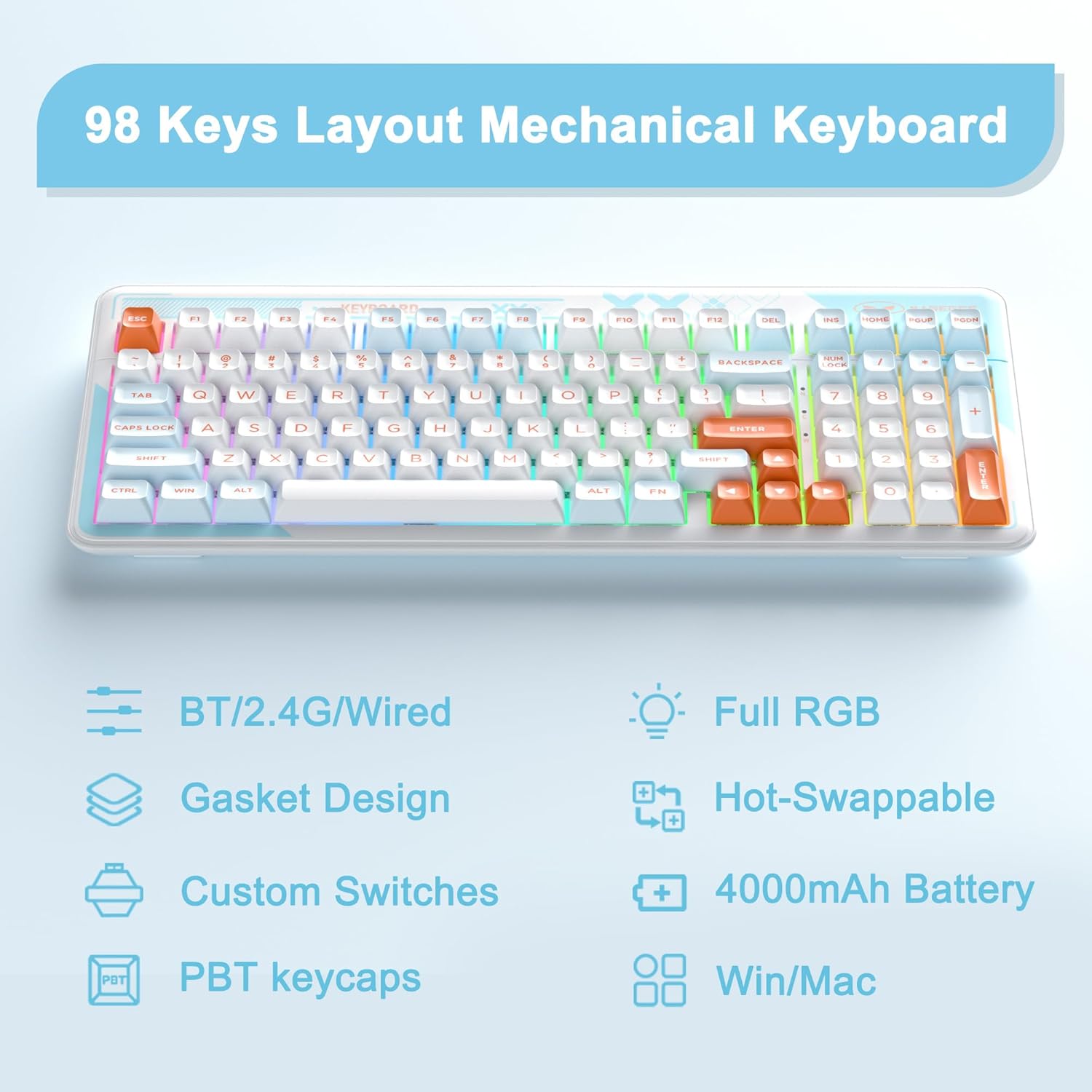
Image 3.1: Key features of the Cloud98 keyboard.

בילד 3.2: עקספּלאָדירט view illustrating the gasket-mounted design and internal components.

בילד 3.3: נאָענט־אַרויף view of a Blue Whale mechanical switch.

Image 3.4: Detail of the dual-color injection PBT keycaps.
4. סעטאַפּ און קאַנעקשאַן
4.1. ווייערד מאָדע (USB-C)
- Locate the USB-C port on the keyboard (typically on the top edge).
- פֿאַרבינדט איין עק פֿון דעם צוגעשטעלטן USB-C קאַבל צום קלאַוויאַטור.
- פֿאַרבינדט דעם אַנדערן עק פֿונעם USB-C קאַבל צו אַ פֿאַראַן USB פּאָרט אויף אײַער קאָמפּיוטער.
- די קלאַוויאַטור וועט אויטאָמאַטיש דערקענט ווערן און גרייט פֿאַר באַנוץ.
- דרוק fn+5 for 3 seconds to ensure the keyboard is in wired mode.

Image 4.1: Connecting the USB-C cable to the keyboard.
4.2. 2.4GHz ווירעלעס מאָדע
- Locate the 2.4GHz USB receiver, usually stored in a compartment on the bottom of the keyboard.
- צאַפּן די 2.4 גהז וסב ופנעמער אין אַ בנימצא וסב פּאָרט אויף דיין קאָמפּיוטער.
- Turn on the keyboard using the power switch (if present, typically on the back or side).
- דריקן און האַלטן fn+4 for 3 seconds to enter 2.4GHz pairing mode. The indicator light will flash.
- אַמאָל קאָננעקטעד, די גראדן ליכט וועט האַלטן פלאַשינג און בלייַבן האַרט.

Image 4.2: The 2.4GHz USB receiver.
4.3. בלועטאָאָטה מאָדע
- פאַרזיכערן די קלאַוויאַטור איז פּאַוערד אויף.
- דריקן און האַלטן fn+1, fn+2, אָדער fn+3 for 3 seconds to enter Bluetooth pairing mode for the respective profile. The indicator light will flash quickly.
- אויף אייער דעווייס (קאמפיוטער, טאַבלעט, סמאַרטפאָון), אַקטיווירט בלועטוט און זוכט פֿאַר נײַע דעווייסעס.
- Select "MageGee Cloud98" (or similar name) from the list of available devices to pair.
- Once paired, the indicator light will flash slowly when reconnecting, and then remain solid.
- צו בייטן צווישן פארבינדענע בלוטוט דעווייסעס, דריקט קורץ fn+1, fn+2, אָדער fn+3.

Image 4.3: Visual guide for triple mode connection.
5. אַפּערייטינג ינסטרוקטיאָנס
5.1. RGB באַקלייט קאָנטראָל
The Cloud98 keyboard features full RGB backlighting with 19 RGB modes, 9 monochrome modes, and a custom mode. Use the following key combinations to control the lighting:
- Fn + ← (לינקער פײַל): Switch backlight flowing direction.
- Fn + → (רעכטס פײַל): Switch backlight color (single color mode).
- Fn + - (Minus): Decrease backlight flowing speed.
- Fn + = (Equals): Increase backlight flowing speed.
- Fn + Del: דרייען די באַקלייט אויף/אויס
- Fn + פּלאַץ: Switch backlight color (RGB mode).
- Fn + ינס: Switch backlight modes.
- Fn + ↑ (ארויף פײַל): פֿאַרגרעסערן די ברייטקייט פֿון דער באַקלייט.
- Fn + ↓ (אַראָפּ פײַל): פֿאַרקלענערן די ברייטקייט פֿון דער באַקלייט.

Image 5.1: Keyboard layout showing RGB backlight control key combinations.
5.2. הייס-סוואַפּאַבל סוויטשיז
The Cloud98 keyboard supports hot-swappable switches, allowing you to change switches without soldering. This feature enables customization of typing feel and sound.
- אַראָפּנעמען שליסל-קאַפּ: ניצט דעם צוגעשטעלטן קלאַוויאַטור-אויסציער צו פֿאָרזיכטיק אַראָפּנעמען דעם געוואונטשענעם קלאַוויאַטור.
- אַראָפּנעמען סוויטש: ניצט דעם צוגעשטעלטן סוויטש-צוציער צו פארזיכטיק כאפן די אויבערשטע און אונטערשטע קליפס פונעם סוויטש און ציעט עס גלייך ארויף.
- אריינשטעלן נייעם סוויטש: Align the pins of the new switch with the holes on the PCB. Ensure the pins are straight. Gently push the switch down until it clicks into place. Do not force it to avoid bending pins.
- פאַרבייַטן קלאַוויאַטור: Press the keycap onto the new switch stem.
באַמערקונג: Ensure the keyboard is disconnected or powered off before changing switches to prevent accidental input or damage.
5.3. WIN Key Lock Function
To prevent accidental presses of the Windows key during gaming, you can lock it. Press Fn + געווינען to toggle the WIN key lock function. An indicator light may illuminate when the WIN key is locked.
5.4. N-Key Rollover
The Cloud98 supports N-Key Rollover, meaning all keys pressed simultaneously will be registered. This is particularly beneficial for fast typists and gamers.

Image 5.2: Illustration of N-Key Rollover capability.
6. באַטאַרייע און טשאַרדזשינג
The Cloud98 keyboard is equipped with a 4000mAh battery, providing extended usage in wireless modes.
- טשאַרדזשינג: Connect the keyboard to a USB power source using the provided USB-C cable. The charging indicator light will show the charging status.
- באַטאַרייע לעבן: The keyboard can last up to 200 hours with the backlight off. Battery life will vary depending on backlight usage and connection mode.
- נידעריק באַטערי ינדיקאַטאָר: The keyboard may indicate low battery status through a flashing light or reduced functionality. Charge the keyboard promptly when this occurs.

Image 6.1: Information regarding the 4000mAh battery capacity.
7. וישאַלט
געהעריגע אויפהאלטונג גאראנטירט די לאנגעוויטי און עפעקטיווקייט פון אייער קלאַוויאַטור.
- רייניקונג קלאַוויאַטור קאַפּס: Use a keycap puller to remove keycaps. Clean them with a mild soap solution and a soft cloth, then dry thoroughly before reattaching.
- רייניקונג פון די קלאַוויאַטור גוף: ניצט אַ ווייכע, טרוקענע שטאָף צו ווישן די קלאַוויאַטור ייבערפלאַך. פֿאַר שווערע שמוץ, אַ ביסל טרוקןamp מען קען ניצן אַ שטאָף, אַזוי אַז קיין נאַס זאָל נישט אַרײַנגיין אין דער קלאַוויאַטור.
- באַזייַטיקונג פון שטויב: ניצט קאמפרעסט לופט צו באַזײַטיקן שטויב און שמוץ פון צווישן די קלאַוויאַטורן און סוויטשעס.
- סטאָרידזש: האַלט די קלאַוויאַטור אין אַ קיל, טרוקן אָרט אַוועק פון דירעקט זונשייַן און עקסטרעמע טעמפּעראַטורן.
8. טראָובלעשאָאָטינג
If you encounter issues with your MageGee Cloud98 keyboard, please refer to the following common solutions:
| פּראָבלעם | לייזונג |
|---|---|
| Keyboard not responding in wired mode. | Ensure the USB-C cable is securely connected to both the keyboard and the computer. Try a different USB port or cable. Confirm the keyboard is in wired mode (Fn + 5 for 3s). |
| 2.4GHz wireless connection unstable or not connecting. | Ensure the 2.4GHz USB receiver is plugged in. Press and hold Fn + 4 for 3 seconds to re-pair. Move the receiver closer to the keyboard. Check for interference from other wireless devices. |
| בלועטאָאָטה קשר ישוז. | Ensure Bluetooth is enabled on your device. Press and hold Fn + 1/2/3 for 3 seconds to enter pairing mode. Remove previous pairings from your device and try again. Ensure the keyboard battery is charged. |
| באַקלייט אַרבעט נישט אָדער איז שטעקן געבליבן. | Press Fn + Del to toggle the backlight. Adjust brightness with Fn + ↑/↓. Try switching backlight modes with Fn + Ins. Ensure the keyboard battery is charged. |
| Specific keys not working. | If hot-swappable, carefully remove the keycap and switch. Re-seat the switch firmly, ensuring pins are not bent. If the issue persists, try replacing the switch. |
| Keyboard randomly disconnects. | Ensure the battery is sufficiently charged. For wireless modes, ensure the receiver/device is within range and free from interference. Update drivers if available. |
9. ספּעסאַפאַקיישאַנז
| שטריך | דעטאַל |
|---|---|
| מאָדעל נומער | Cloud98 |
| קאַנעקטיוויטי | בלועטוט, 2.4GHz ווירעלעס, USB-C מיט ווייערס |
| קלאַוויאַטור טיפּ | מעטשאַניקאַל |
| באַקלייט | Full RGB |
| קייקאַפּ מאַטעריאַל | פּבט (פּאַליבוטילענע טערעפטהאַלאַטע) |
| ספּעציעלע שטריך | Ergonomic, Gasket Mounted, Hot-Swappable |
| באַטאַרייע קאַפּאַציטעט | 4000 מאַה |
| פּראָדוקט דימענשאַנז | 16.5 X 7.87 X 1.57 אינטשעס (41.9 X 19.99 X 3.99 סענטימעטער) |
| פּונקט וואָג | 2.66 פונט (1.21 קג) |
| קאַמפּאַטאַבאַל דעוויסעס | Laptop, PC, Android, Mac |
| אַפּערייטינג סיסטעמס | Win2000, Win XP, Win ME, Vista, Win7, Win8, Win10, Android, Linux, Mac |
10. וואָראַנטי און שטיצן
MageGee products come with a standard warranty. For specific warranty details, please refer to the warranty card included with your product or visit the official MageGee website. If you encounter any issues not covered in this manual or require further assistance, please contact MageGee customer support through their official channels.
You can typically find support contact information on the manufacturer's webוועבזייטל אדער אויף דער פּראָדוקט פּאַקאַדזשינג.


