1. הקדמה
The AVMTON Wireless Gaming Mouse is designed for comfortable and efficient use with personal computers, laptops, and other compatible devices. Featuring a honeycomb shell for lightweight design, RGB backlighting, and a rechargeable battery, this mouse offers a responsive and ergonomic experience. It connects wirelessly via a 2.4GHz USB receiver, providing a stable connection for both office tasks and light gaming.

Image 1.1: The AVMTON Wireless Gaming Mouse shown alongside its 2.4GHz USB receiver. The mouse features a black honeycomb shell design and vibrant RGB lighting.
2. סעטאַפּ
2.1 אויספּאַקן און קאָמפּאָנענטן
ביים אויספּאַקן דעם קעסטל, זיכער מאַכן אַז אַלע קאָמפּאָנענטן זענען פאַראַן:
- AVMTON Wireless Gaming Mouse
- 2.4GHz USB Receiver (typically stored in the mouse's bottom compartment)
- וסב טיפּע- C טשאַרדזשינג קאַבלע
2.2 פֿאַרבינדן די מויז
- געפינט דעם USB ופנעמער וואָס געפינט זיך אין דעם אָפּטייל אויף דער אונטערשטער טייל פון דער מויז.
- אַראָפּנעמען די וסב ופנעמער פון די מויז.
- צאַפּן די וסב ופנעמער אין אַ בנימצא וסב פּאָרט אויף דיין קאָמפּיוטער אָדער לאַפּטאַפּ.
- Turn on the mouse using the power switch located on the bottom of the mouse. The mouse should automatically connect to the receiver.
2.3 ערשט טשאַרדזשינג
The mouse comes with a built-in rechargeable battery. For optimal performance, it is recommended to fully charge the mouse before its first use. The mouse can be used while it is charging.

Image 2.1: The AVMTON Wireless Gaming Mouse connected to a laptop via its Type-C charging cable. The image highlights the convenience of charging while using the mouse.
3. אַפּערייטינג ינסטרוקטיאָנס
3.1 Mouse Button Functions
The AVMTON Wireless Gaming Mouse features several buttons for enhanced functionality:
- לינקס קנעפּל: נאָרמאַלע קליק פונקציע.
- רעכט קנעפּל: נאָרמאַלע רעכט-קליק פונקציע.
- סקראָל ראָד: Scrolls content up or down. Can also be pressed for middle-click functionality.
- DPI קנעפּל: אַדזשאַסטירט די מויז סענסיטיוויטי (DPI).
- פֿאָרווערטס קנעפּל: נאַוויגירט פאָרויס אין web בראַוזערז אָדער file עקספּלאָרערס.
- צוריק קנעפּל: נאַוויגירט צוריק אין web בראַוזערז אָדער file עקספּלאָרערס.
- מאַכט סוויטש: טורנס די מויז אויף אָדער אַוועק.
- ליכט באַשטימען: Controls the RGB lighting.

Image 3.1: A detailed diagram illustrating the various buttons and components of the AVMTON Wireless Gaming Mouse, including the DPI button, scroll wheel, forward/backward buttons, and power/light switches.
3.2 דפּי אַדזשאַסטמאַנט
The mouse offers three adjustable DPI (Dots Per Inch) levels to control cursor speed and sensitivity. Press the DPI button (located behind the scroll wheel) to cycle through the settings: 800 DPI, 1200 DPI (default), and 1600 DPI. Choose the sensitivity that best suits your task, whether for precise work or faster movements in games.
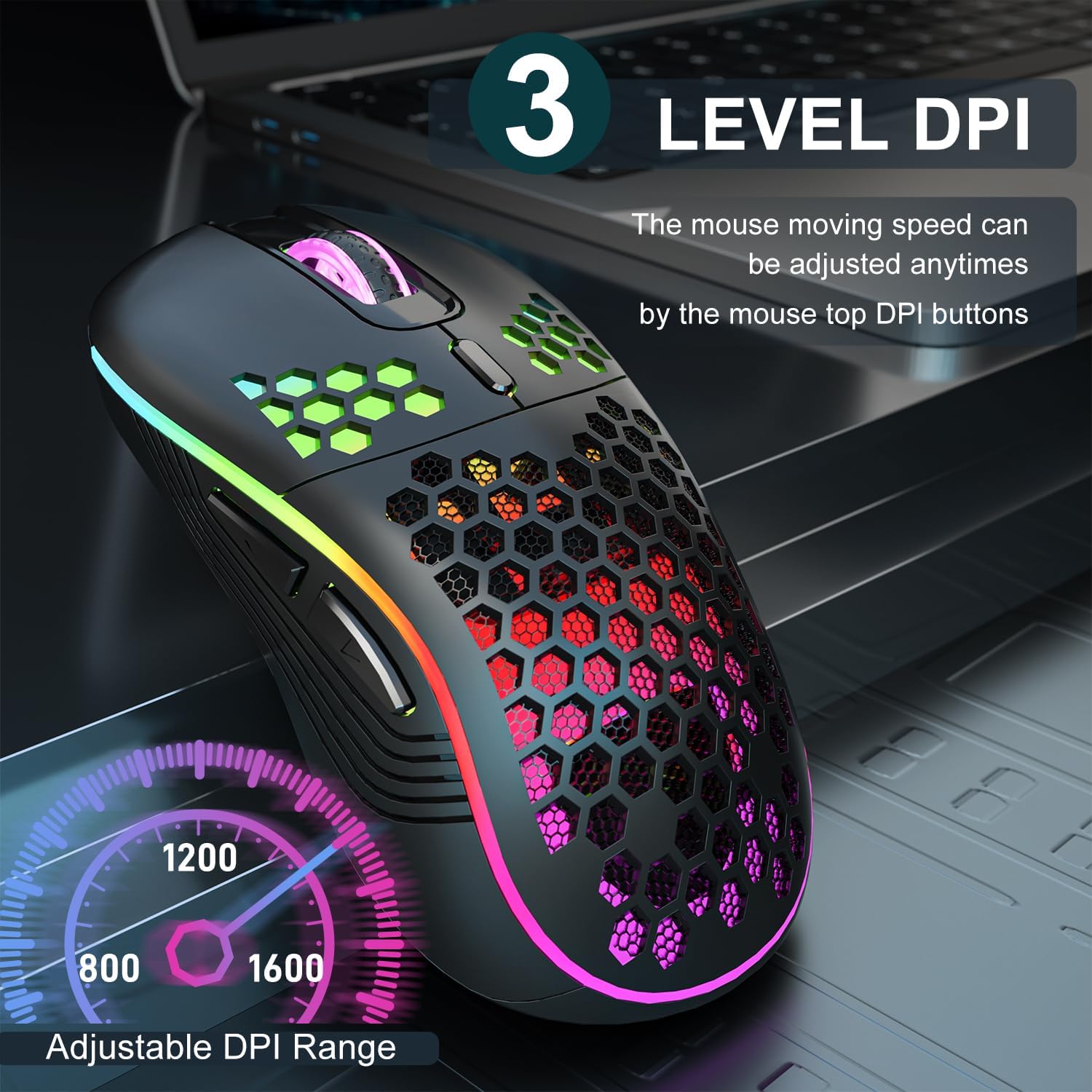
Image 3.2: The AVMTON Wireless Gaming Mouse with an overlay indicating the three adjustable DPI levels: 800, 1200, and 1600. This allows users to easily switch mouse sensitivity.
3.3 RGB באַקלייטונג קאָנטראָל
The mouse features customizable RGB lighting. Use the dedicated light switch on the bottom of the mouse to turn the RGB lighting on or off. Turning off the RGB lighting can help conserve battery life.
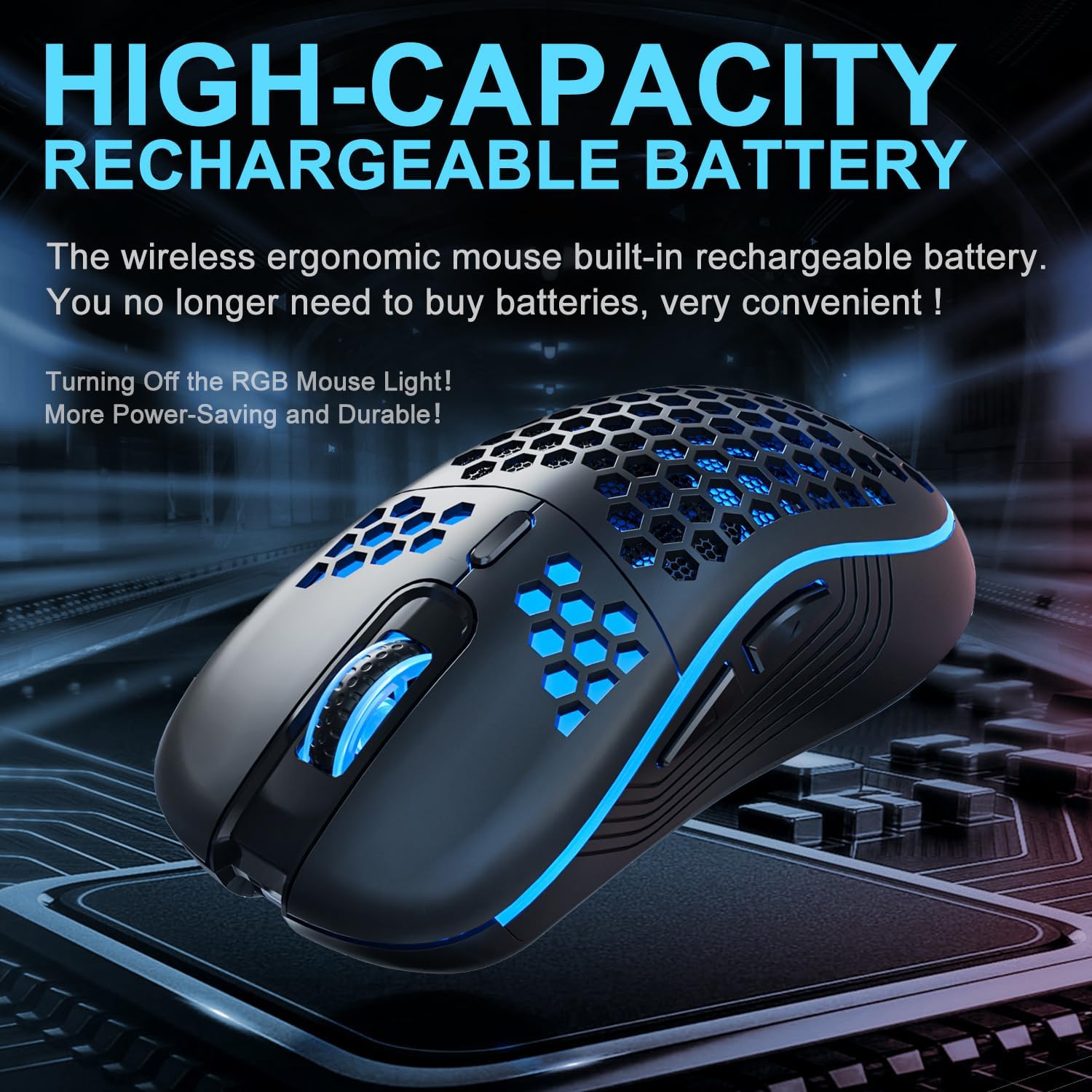
Image 3.3: The AVMTON Wireless Gaming Mouse illuminated with blue RGB lighting, highlighting its aesthetic features and rechargeable battery capacity.
3.4 מאַכט שפּאָרן מאָדע
To conserve battery, the mouse automatically enters a power-saving mode after a period of inactivity. To reactivate the mouse, simply move it or click any button.
3.5 קאַמפּאַטאַבילאַטי
The AVMTON Wireless Gaming Mouse is widely compatible with various operating systems, including Windows 2000, XP, Vista, 7, 8, 10, 11, Linux, and Mac OS. It is designed for use with personal computers and laptops.

Image 3.4: Visual representation of the mouse's wide compatibility with Windows, Linux, and Mac OS operating systems.
4. וישאַלט
4.1 טשאַרדזשינג די באַטאַרייע
When the mouse battery is low, connect the provided USB Type-C charging cable to the mouse's charging port and the other end to a USB power source (e.g., computer USB port, USB wall adapter). The mouse can be used normally while charging.
4.2 רייניקן די מויז
To maintain optimal performance and appearance, clean the mouse regularly. Use a soft, dry cloth to wipe the surface. For stubborn dirt, a slightly damp cloth can be used, ensuring no liquid enters the mouse. Avoid using harsh chemicals or abrasive materials.
5. טראָובלעשאָאָטינג
- מויז ענטפערט נישט:
- Ensure the USB receiver is securely plugged into a working USB port.
- Verify that the mouse's power switch is in the 'ON' position.
- Check the battery level and charge the mouse if necessary. - קורסאָר באַוועגונג איז נישט סטאַביל אָדער פּאַמעלעך:
- Adjust the DPI setting using the DPI button.
- Ensure the mouse is used on a clean, non-reflective surface. A mouse pad is recommended.
- Recharge the mouse if the battery is low. - RGB לייטינג ארבעט נישט:
- Ensure the light switch on the bottom of the mouse is in the 'ON' position.
- The mouse may be in power-saving mode; move or click to wake it up. - Latency during large games:
- This mouse is primarily designed for office scenarios and small games. Large, graphically intensive games may experience some latency due to the wireless connection and mouse specifications.
6. ספּעסאַפאַקיישאַנז
| סאָרט | AVMTON |
| מאָדעל נאָמען | וויירליס מויז |
| קאַנעקטיוויטי טעכנאָלאָגיע | יו-עס-בי (2.4 גי-הרץ ווירעלעס) |
| באַוועגונג דעטעקשאַן טעכנאָלאָגיע | אָפּטיש |
| דפּי לעוועלס | 800 / 1200 (Default) / 1600 |
| באַטערי טיפּ | ריטשאַרדזשאַבאַל ליטהיום פּאָלימער (אַרייַנגערעכנט) |
| באַטערי דורכשניטלעך לעבן | 6 months (approx.) |
| טשאַרדזשינג פּאָרט | וסב טיפּ-C |
| ספּעציעלע פֿעיִקייטן | Honeycomb Design, RGB Backlight, Lightweight, 6 programmable Buttons |
| האַנט אָריענטירונג | אַמבידעקסטראַס |
| מאַטעריאַל | פּלאַסטיק |
| קאַמפּאַטאַבאַל אַס | Windows 2000 / XP / Vista / 7 / 8 / 10 / 11, Linux, Mac OS |
| פּעקל דימענשאַנז | 13.7 X 8.7 X 4.9 סענטימעטער |
| פּונקט וואָג | 140 ג |
7. וואָראַנטי און שטיצן
Specific warranty details are not provided within this manual. For warranty information, technical support, or any inquiries regarding your AVMTON Wireless Gaming Mouse, please refer to the product packaging or contact AVMTON customer service directly through their official webפּלאַץ אָדער די זיצער ווו די פּראָדוקט איז פּערטשאַסט.


