1. הקדמה
This manual provides detailed instructions for the FUNLAB Grily Hall Effect Wireless Controller. Please read this manual thoroughly before use to ensure proper operation and to maximize your gaming experience. This controller is designed for use with Nintendo Switch, Switch OLED, and Switch Lite consoles, as well as PC, Steam Deck, iOS, and Android devices.

This image displays the pink FUNLAB Grily Hall Effect Wireless Controller from a top-down perspective, showcasing its cat paw pattern design and button layout.
2. פּראָדוקט פֿעיִקייטן
- Hidden-til-lit Display: Unique design where patterns illuminate when the LED is active, remaining subtle when off.
- Polychrome Breathing LED: Features 7 LED colors with 4 lighting modes: breathing, quick flash, vibration lighting, and always-on.
- האַל עפֿעקט דזשויסטיקס: Provides precise and sensitive control, reducing mechanical wear and preventing stick drift.
- Sensing Motion & Turbo Function: Equipped with precise motion control and a turbo function for continuous input.
- לאנג באַטאַרייע לעבן: Built-in 3.7V/950mAH Lithium battery offers up to 12.5 hours of gameplay with lights off.
- Programmable Back Paddle Buttons: Two customizable back buttons for enhanced control and personalized gameplay.
- ערגאָנאָמיק פּלאַן: Shaped for comfortable handling during extended gaming sessions.
- ווייבריישאַן פֿונקציע: גיט אימערסיווע האַפּטישע באַמערקונגען בעת גאַמעפּלייַ.
- ברייט קאַמפּאַטאַבילאַטי: Supports Nintendo Switch (2/OLED/Lite), Windows PC, Steam Deck, iOS, and Android devices.
2.1 Detailed Feature Overview

This image illustrates the controller's unique hidden-til-lit display, where the cat paw patterns glow when the internal LEDs are active, creating a distinct visual effect.

The image highlights the controller's 7-color breathing LED feature, demonstrating various lighting modes such as always-on, breathing, quick flash, and vibrating.

This diagram illustrates the Hall Effect joystick technology, emphasizing its precision and resistance to stick drift compared to traditional joysticks.

The image displays the controller's battery specifications, indicating a 12-hour playing time and a 950mAh battery capacity.
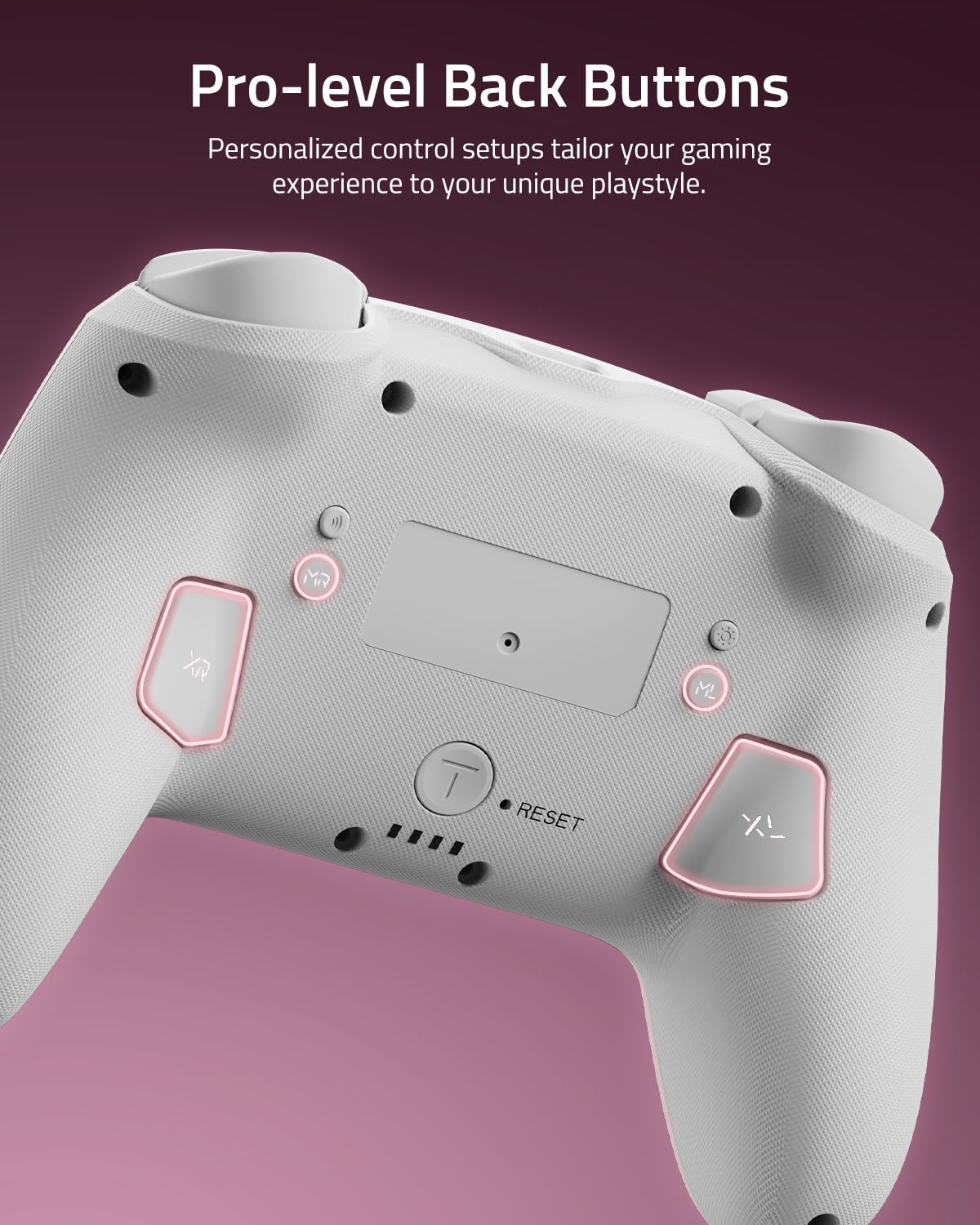
די נאָענטע בילד view shows the two programmable back paddle buttons (XL and XR) located on the underside of the controller, designed for custom assignments.
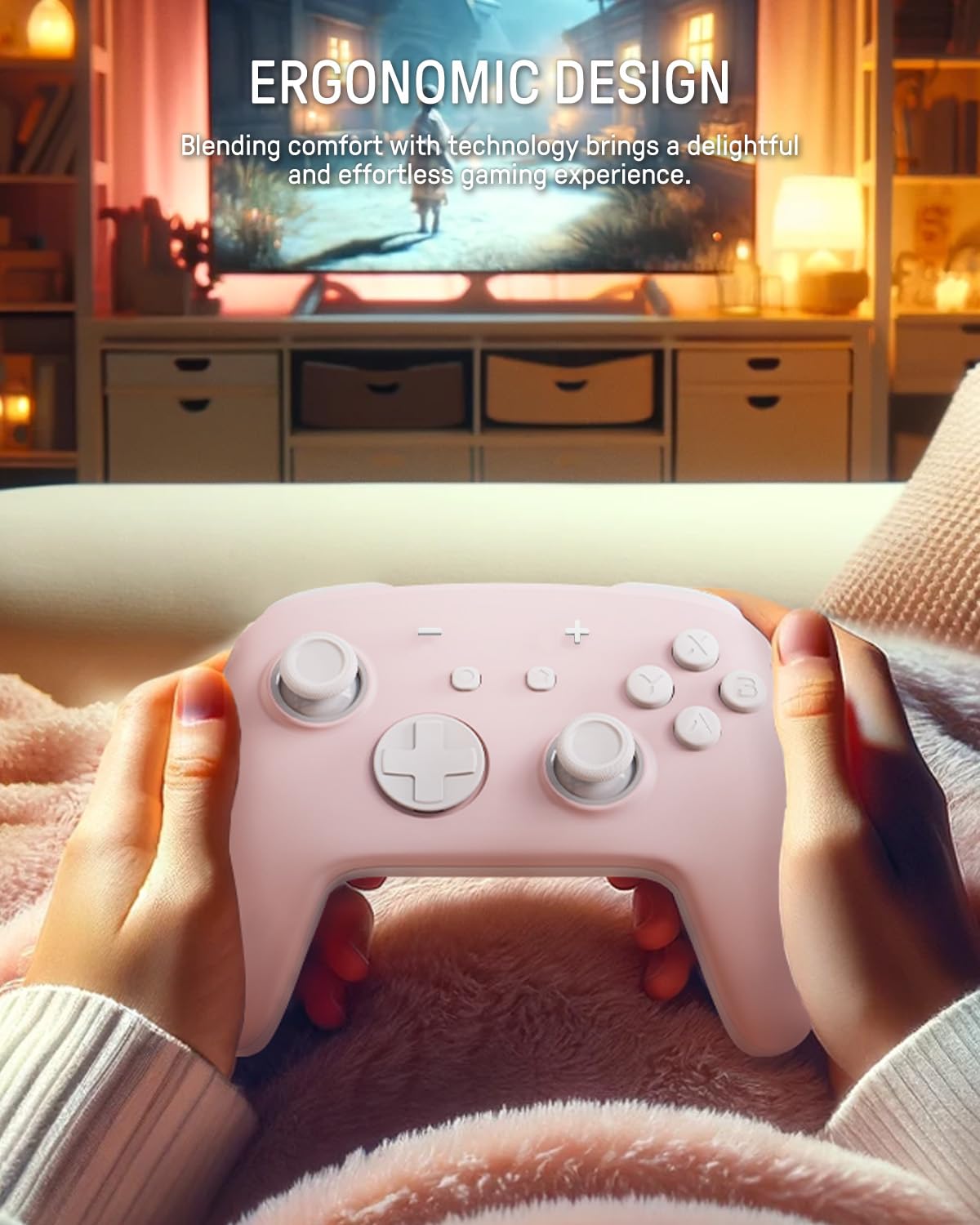
The image depicts a person holding the controller, highlighting its ergonomic shape designed for comfortable and extended gameplay.
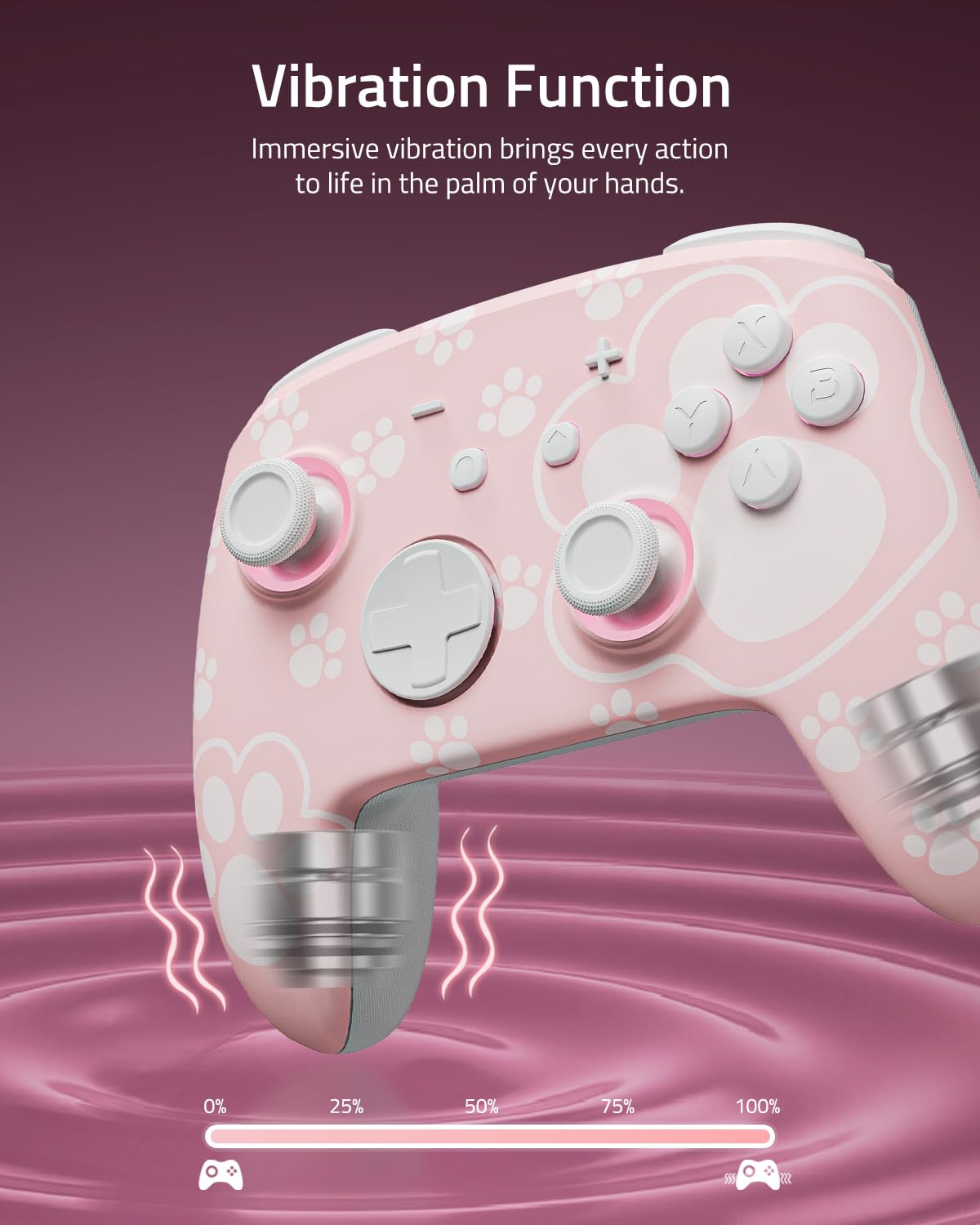
This image visually represents the controller's vibration function, with intensity levels shown to indicate immersive haptic feedback.

The image demonstrates the controller's broad compatibility with multiple platforms, including Nintendo Switch systems, Windows PCs, Steam Deck, iOS, and Android devices.
3. סעטאַפּ און קאַנעקשאַן
3.1 טשאַרדזשינג די קאָנטראָללער
Before first use, fully charge the controller. Connect the included USB-C cable to the controller's charging port and the other end to a USB power source (e.g., Nintendo Switch dock, PC, or USB wall adapter). The LED indicators will show charging status and turn off or change color when fully charged.
3.2 Pairing with Nintendo Switch
- סעלעקטירן פֿון די היים מעניו קאָנטראָללער > טוישן גריפּ / סדר.
- אויף די קאָנטראָללער, דריקן און האַלטן די פּערינג קנעפּל (usually a small button on the top or back) for a few seconds until the indicator lights begin to flash rapidly.
- Once paired, the player indicator LED(s) on the controller will remain lit.
3.3 Pairing with PC (Windows)
- זייט זיכער אז אייער קאמפיוטער האט בלועטוט ענייבאַלד.
- גיין צו סעטטינגס > דיווייסאַז > בלועטאָאָטה און אנדערע דעוויסעס > לייג בלועטאָאָטה אָדער אנדערע מיטל.
- אויסקלייַבן בלועטאָאָטה.
- אויף די קאָנטראָללער, דריקן און האַלטן די פּערינג קנעפּל until the indicator lights flash rapidly.
- Select the controller from the list of available devices on your PC.
3.4 Pairing with iOS Devices
- אויף אייער iOS דעווייס, גייט צו סעטטינגס > בלועטאָאָטה און אַקטיווירן בלועטוט.
- אויף די קאָנטראָללער, דריקן און האַלטן די פּערינג קנעפּל until the indicator lights flash rapidly.
- Select the controller from the list of available devices on your iOS device.
3.5 פּאָרן מיט אַנדרויד דעוויסעס
- אויף אייער אַנדרויד מיטל, גייט צו סעטטינגס > קאָננעקטעד דעוויסעס > בלועטאָאָטה און אַקטיווירן בלועטוט.
- אויף די קאָנטראָללער, דריקן און האַלטן די פּערינג קנעפּל until the indicator lights flash rapidly.
- Select the controller from the list of available devices on your Android device.
4. אָפּעראַציע
4.1 Basic Button Layout
The controller features standard gamepad buttons including A/B/X/Y, D-pad, Left/Right Joysticks, L/R, ZL/ZR, Home, Capture, Plus (+), Minus (-), and two programmable back paddle buttons (XL, XR).
4.2 Adjusting LED Lighting Modes
דרוק די ליכט קנעפּל (refer to controller diagram for location) to cycle through the 7 LED colors. To change lighting modes (breathing, quick flash, vibration lighting, always-on), consult the specific instructions provided with your controller or the manufacturer's website for the exact button combination.
4.3 ניצן די טורבאָ פונקציע
The Turbo function allows for rapid, continuous input of a button press. To activate Turbo for a button:
- דריקן און האַלטן די טורבאָ קנעפּל.
- While holding Turbo, press the desired action button (e.g., A, B, X, Y, L, R, ZL, ZR).
- Release both buttons. The selected action button will now continuously input when held.
To deactivate Turbo for a button, repeat the process. To clear all Turbo settings, press and hold the Turbo button for 5 seconds.
4.4 Programming Back Paddle Buttons (XL, XR)
The XL and XR back paddle buttons can be assigned to replicate other button inputs or perform macro sequences. Refer to the specific programming instructions that came with your controller, as the method may vary. Typically, this involves a combination of holding a programming button (often labeled 'M' or 'MR') and pressing the desired input button(s).
4.5 Motion Control Functionality
The controller supports motion control for compatible games. Ensure the controller is paired correctly with your device. Calibration may be required within the game or system settings if motion controls are not responding accurately.
5. וישאַלט און קער
5.1 רייניקונג
- Use a soft, dry cloth to wipe the controller's surface.
- פֿאַר שווערן שמוץ, אַ ביסל דampyi די שטאָף מיט וואַסער אָדער אַ מילד, ניט-אַברייסיוו רייניקונג.
- Avoid using harsh chemicals, solvents, or abrasive materials, as these can damage the controller's finish.
- לאָזט נישט אַרײַן פליסיקייטן אין די עפענונגען פֿונעם קאָנטראָללער.
5.2 סטאָרידזש
- האַלט דעם קאָנטראָללער אין אַ קיל, טרוקן אָרט אַוועק פון דירעקט זונשייַן און עקסטרעמע טעמפּעראַטורן.
- If storing for an extended period, ensure the controller is fully charged before storage and recharge it periodically (e.g., every 3-6 months) to maintain battery health.
- Keep the controller away from dust and moisture.
6. טראָובלעשאָאָטינג
6.1 פֿאַרבינדונג פּראָבלעמען
- קאָנטראָללער פֿאַרבינדט זיך נישט: Ensure the controller is charged. Try re-pairing the controller by following the setup instructions for your specific device.
- אומגעריכטע פֿאַרבינדונג: Move closer to the console/device. Ensure there are no strong interference sources (e.g., Wi-Fi routers, other Bluetooth devices) nearby.
- Controller not recognized: Restart your console/device and the controller, then attempt pairing again.
6.2 קאָנטראָללער רעאַגירט נישט
- No input: Check battery level. If the battery is low, charge the controller.
- קנעפּלעך רעאַגירן נישט: Perform a soft reset by pressing the small reset button (if available, often located in a pinhole on the back) with a thin object like a paperclip.
6.3 LEDs Not Working
- זייט זיכער אז דער קאנטראלער איז אנגעצונדן.
- דרוק די ליכט קנעפּל to cycle through colors and modes.
- If still unresponsive, try resetting the controller.
6.4 באַטעריע לאָדט זיך נישט אויף
- Verify the USB-C cable is securely connected to both the controller and the power source.
- פּרוּווט אַ אַנדערש וסב-C קאַבלע אָדער מאַכט אַדאַפּטער.
- Ensure the power source is active and providing sufficient power.
6.5 שטעקן דריפט
While Hall Effect joysticks are designed to prevent stick drift, if you experience any unintended input from the joysticks, try the following:
- Recalibrate the joysticks through your console's or device's system settings.
- Ensure the controller's firmware is up to date (check the FUNLAB webוועבזייטל פֿאַר דערהייַנטיקונגען).
7. ספּעסאַפאַקיישאַנז
| שטריך | דעטאַל |
|---|---|
| מאָדעל | Grily Hall Effect Controller |
| דימענשאַנז | 5.91 X 2.36 X 4.33 אינטשעס |
| וואָג | 8.8 אונסעס |
| באַטערי | 1 Lithium Ion battery (included), 3.7V/950mAH |
| באַטערי לעבן | ביז 12.5 שעה (ליכט אויסגעלאשן) |
| קאַנעקטיוויטי | ווירעלעסס (בלועטאָאָטה) |
| קאַמפּאַטאַבילאַטי | Nintendo Switch (2/OLED/Lite), Windows PC, Steam Deck, iOS, Android |
| ספּעציעלע פֿעיִקייטן | Hall Effect Joysticks, Polychrome LED, Turbo Function, Programmable Back Buttons, Motion Control |
8. שטיצע אינפֿאָרמאַציע
For further assistance, product registration, or warranty information, please visit the official FUNLAB website or contact customer support through the retailer where the product was purchased.
פאַבריקאַנט: FUNLAB
ערשטער דאַטע בנימצא: 4 נאוועמבער 2023


