1. הקדמה
This manual provides comprehensive instructions for the setup, operation, maintenance, and troubleshooting of your Monoprice 40-inch Ultrawide 1440P Productivity Monitor (Model 144394). Please read this manual thoroughly before using the monitor to ensure proper functionality and to prevent damage.
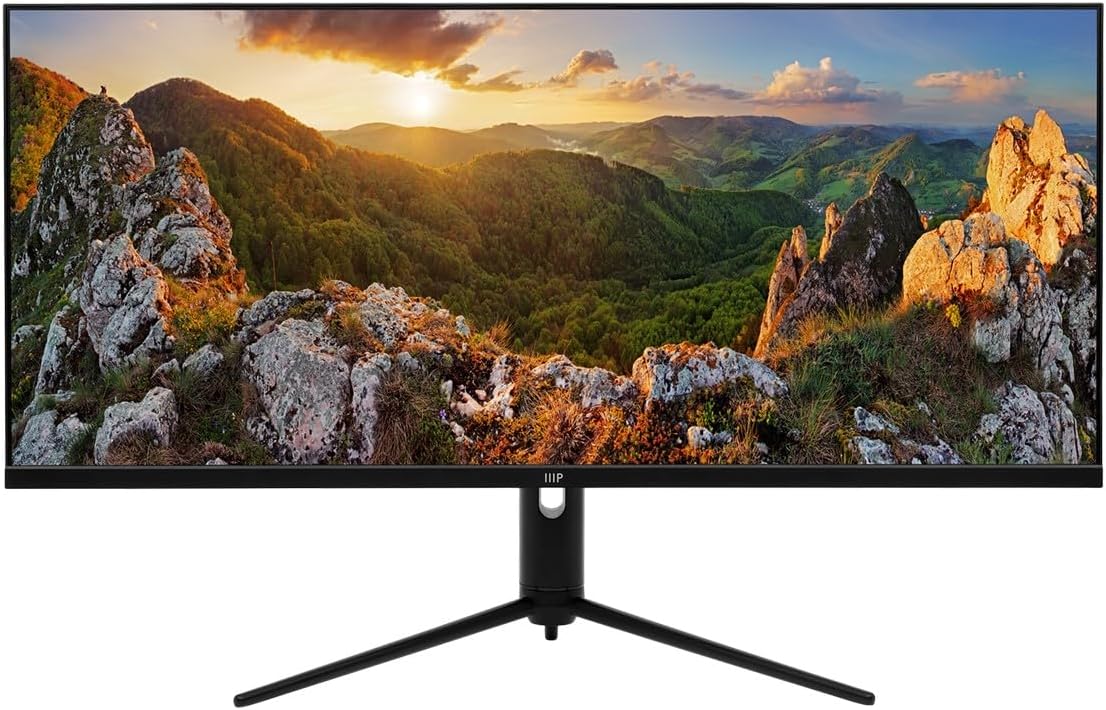
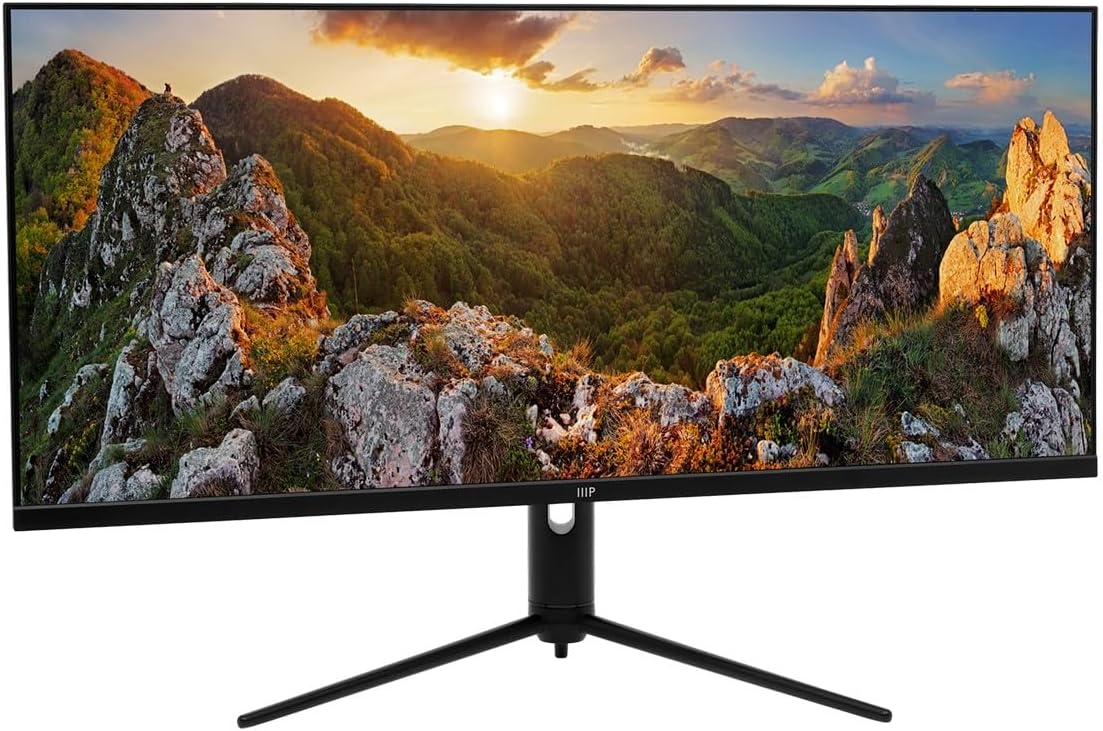
The Monoprice CrystalPro 40-inch Ultrawide Monitor is designed to enhance productivity with its expansive 3440x1440P (UWQHD) resolution and 144Hz refresh rate. Featuring an IPS panel, it delivers accurate colors and wide viewing angles, making it suitable for various professional and personal applications.
2. זיכערקייַט אינפֿאָרמאַציע
באַמערקט די פאלגענדע זיכערהייט מיטלען צו ענשור זיכער אָפּעראַציע און צו פאַרלענגערן די לעבן פון דיין מאָניטאָר:
- שטעלט נישט אויס דעם מאָניטאָר צו רעגן, פייכטקייט, אדער עקסטרעמע טעמפּעראַטורן.
- ויסמיידן פּלייסינג די מאָניטאָר אין דירעקט זונשייַן אָדער לעבן היץ קוואלן.
- זיכער מאַכן אַז די ווענטילאַציע אַרום דעם מאָניטאָר איז ריכטיק. בלאָקירט נישט די ווענטילאַציע עפענונגען.
- ניצט נאָר דעם מאַכט אַדאַפּטער וואָס ווערט צוגעשטעלט מיטן מאָניטאָר.
- Disconnect the power cable from the outlet during lightning storms or when unused for long periods.
- פרובירט נישט צו סערוויסן דעם מאָניטאָר אַליין. לאָזט איבער אַלע סערוויסינג צו קוואַליפֿיצירטע פּערסאָנעל.
- האַלט דעם מאָניטאָר אַוועק פון שטאַרקע מאַגנעטישע פעלדער.
- Handle the screen with care. Do not press or scratch the display surface.
3. פּעקל אינהאַלט
Please verify that all items listed below are present in your package. If any items are missing or damaged, contact Monoprice customer support.
- Monoprice 40-inch Ultrawide Monitor
- מאָניטאָר שטאַנד (באַזע און האַלדז)
- מאַכט אַדאַפּטער און קאַבלע
- HDMI קאַבלע
- דיספּלייפּאָרט (DP) קאַבל
- USB-A to USB-B Cable (for USB hub functionality)
- באַניצער מאַנואַל (דעם דאָקומענט)
- (Note: The product listing mentions "CD". Please check your package for any included software or drivers on a CD, though most modern systems download drivers online.)
4. סעטאַפּ
4.1. אַסעמבאַל די שטיין
פֿאָלגט די סטעפּס צו באַפֿעסטיקן דעם שטאַנד צו אייער מאָניטאָר:
- לייגט פֿאָרזיכטיק דעם מאָניטאָר מיטן פּנים אַראָפּ אויף אַ ווייכער, ריינער ייבערפֿלאַך כּדי צו פֿאַרמייַדן קראַצן.
- באַפעסטיקט דעם שטאַנד האַלדז צו דער הינטערשטער זייט פון מאָניטאָר, אויסגלייַכנדיק די מאָנטירונג פונקטן. באַפעסטיקט מיט שרויפן אויב צוגעשטעלט.
- באַפעסטיקט דעם שטאַנד באַזע צום דנאָ פון דעם שטאַנד האַלדז. פֿעסט צו דעם גראָבן שרויף אָדער די שרויפן פֿון דעם דנאָ פֿון דער באַזע.
- Once assembled, carefully lift the monitor and place it upright on a stable, flat surface.
4.2. קאַנעקטינג קאַבלעס
Before connecting any cables, ensure both the monitor and your computer are powered off.
- מאַכט קשר: פֿאַרבינדט דעם מאַכט אַדאַפּטער צום מאָניטאָר'ס מאַכט אַרייַנגאַנג, און דערנאָך שטעקט דעם מאַכט קאַבל אין אַ וואַנט אַוטלעט.
- ווידעא קשר:
- For optimal performance (3440x1440P at 144Hz), use the provided דיספּלייַפּאָרט (דפּ) cable to connect the monitor to your computer's graphics card.
- Alternatively, use an HDMI cable. Note that HDMI may support up to 100Hz refresh rate at 3440x1440P, depending on the HDMI version and your graphics card.
- The monitor also supports וסב-C video input. Connect a compatible USB-C cable from your device to the monitor's USB-C port.
- יו-עס-בי כאַב פֿאַרבינדונג: To enable the monitor's USB-A ports, connect the provided USB-A to USB-B cable from your computer's USB port to the monitor's USB-B upstream port.
- אַודיאָ רעזולטאַט: If desired, connect external speakers or headphones to the monitor's 3.5mm audio output jack.


4.3. ערשטע אויפשטעל
נאכדעם וואס איר האט פארבונדן אלע נויטיגע קייבלס:
- מאַכט אויף דיין קאָמפּיוטער.
- דריק דעם מאַכט קנעפּל אויפן מאָניטאָר. די מאַכט אינדיקאַטאָר ליכט זאָל אָנצינדן.
- The monitor should automatically detect the input signal. If not, you may need to manually select the input source using the On-Screen Display (OSD) menu.
5. אַפּערייטינג די מאָניטאָר
5.1. מאַכט אויף / אויסגעלאשן
Press the power button, typically located on the bottom or back of the monitor, to turn the monitor on or off. The power indicator light will show the monitor's status.
5.2. אויף-סקרין ווייַז (אָסד) מעניו
The OSD menu allows you to adjust various monitor settings. Navigation is typically done using a joystick or a series of buttons located on the back or bottom of the monitor. While the OSD interface may require some familiarity, it provides access to all display controls.
- Press the OSD button (or joystick center) to open the main menu.
- ניצט די נאַוויגאַציע קנעפּלעך (אָדער דזשויסטיק) צו באַוועגן זיך דורך מעניו אָפּציעס.
- Press the select button (or joystick center) to enter a sub-menu or confirm a selection.
- Press the exit button (or move joystick left) to go back or exit the OSD.
5.3. ינפּוט סעלעקציע
To switch between connected devices (e.g., PC via DisplayPort, console via HDMI), access the OSD menu and navigate to the "Input" or "Source" section. Select the desired input.
5.4. בילד סעטטינגס
Adjust display characteristics through the OSD menu:
- ברייטנאַס / קאַנטראַסט: אַדזשאַסטירן די אַלגעמיינע לומינאַנס און דעם חילוק צווישן ליכטיקע און טונקעלע געביטן.
- קאָליר טעמפּעראַטור: אויסקלייבן פאר-דעפינירטע קאליר מאָדעס (למשל, וואַרעם, קיל, באַניצער) אדער סטרויערן RGB ווערטן מאַנועל.
- בילד מאָדע: Choose from various presets optimized for different content (e.g., Standard, Game, Movie, Text).
- HDR: Enable or disable HDR (High Dynamic Range) functionality. Ensure your content and graphics card support HDR for optimal results.
5.5. דערפרישן קורס
The monitor supports a 144Hz refresh rate. To ensure your system is utilizing this, verify the refresh rate setting in your operating system's display settings:
- Windows: Right-click on the desktop > Display settings > Advanced display settings > Display adapter properties for Display [X] > Monitor tab > Screen refresh rate.
- macOS: System Settings > Displays > Refresh Rate.
באַמערקונג: Achieving 144Hz at 3440x1440P typically requires a DisplayPort connection. HDMI may be limited to 100Hz or lower depending on the specific HDMI version and connected device.
5.6. ערגאָנאָמישע אַדזשאַסטמאַנץ
The monitor stand allows for ergonomic adjustments to optimize your viewדערפאַרונג:
- טילט: אַדזשאַסטירן דעם עקראַן'ס ווערטיקאַלן ווינקל (פאָרווערטס/צוריק).
- הייך אַדזשאַסטמאַנט: הייבט אויף אדער נידעריגערט דעם מאָניטאָר צו אויגן הייך.
- סוויוול: דריי דעם מאָניטאָר האָריזאָנטאַל אויף זײַן באַזע.


6. וישאַלט
געהעריגע אויפהאלטונג גאראנטירט די לאנגעוויטי און אפטימאלע פערפארמאנס פון אייער מאניטאר:
- רייניקונג די פאַרשטעלן: ווישט אָפּ דעם עקראַן מיט אַ ווייכן, לינט-פֿרײַעם שטאָף. פֿאַר שווערע פֿלעקן, ווישט לײַכט.ampווישט דעם שטאָף מיט וואַסער אָדער אַ ספּעציאַליזירטן עקראַן רייניגער. שפּריצט קיינמאָל נישט רייניגער גלייך אויפן עקראַן.
- רייניקונג פון די Casing: ניצט אַ ווייכע, טרוקענע שטאָף צו ווישן דעם מאָניטאָרasinז. פֿאַרמײַדן אַברייסיוו רייניגער אָדער סאָלווענטן.
- ווענטילאַטיאָן: Ensure the ventilation openings on the back of the monitor are clear of dust and obstructions.
- מאַכט אַוועק: Always power off and unplug the monitor before cleaning or when not in use for extended periods.
7. טראָובלעשאָאָטינג
אויב איר טרעפט פּראָבלעמען מיט אייער מאָניטאָר, זעט די פאלגענדע געוויינטלעכע פּראָבלעמען און לייזונגען:
| פּראָבלעם | מעגלעך סיבה / לייזונג |
|---|---|
| קיין בילד אויף פאַרשטעלן |
|
| בילד איז פארשוואומען אדער פארדרייט |
|
| No sound from monitor speakers (if applicable) or audio jack |
|
| USB ports on monitor not working |
|
| מאָניטאָר פליקערט אָדער ווייזט אַרטיפאַקץ |
|
8. ספּעסאַפאַקיישאַנז
The following table outlines the technical specifications of the Monoprice 40-inch Ultrawide 1440P Productivity Monitor:
| שטריך | דעטאַל |
|---|---|
| מאָדעל נומער | 144394 |
| פאַרשטעלן גרייס | 40 אינטשעס |
| טאַפליע טיפּ | IPS |
| מאַקס האַכלאָטע | 3440 רענטגענ 1440 (UWQHD) |
| דערפרישן קורס | 144 הז |
| אַספּעקט פאַרהעלטעניש | 21:9 |
| HDR שטיצן | HDR600 |
| קאָליר גאַמע | NTSC 105%, DCI-P3 95%, sRGB 99%, Adobe RGB 89% |
| קאַנעקטיוויטי | 2x HDMI, 1x DisplayPort, 1x USB-C, 1x Audio Out, 1x USB-B (Upstream) |
| וסב פּאָרץ | 1x USB 2.0 (Downstream, requires USB-B upstream connection to PC) |
| פאַרשטעלן ייבערפלאַך | גלאָסי |
| וואָג | 31.9 פונט (מיט שטאַנד) |
| קאָליר | שוואַרץ |
9. וואָראַנטי און שטיצן
For warranty information, technical support, or service inquiries, please refer to the warranty card included with your product or visit the official Monoprice webזייטל. האַלט אייער קויף קוויטל ווי אַ באַווייַז פון קויפן פֿאַר וואָראַנטי קליימז.
Monoprice Customer Support: www.monoprice.com/support


