1. הקדמה
This manual provides essential information for setting up, operating, and maintaining your ViewSonic VG3456A 34-inch Ultrawide QHD 1440p IPS Monitor. Please read it thoroughly before use.
די ViewSonic VG3456A is designed to enhance productivity with its 34-inch ultrawide 21:9 WQHD (3440x1440p) IPS display and integrated docking capabilities. It features 100W USB-C power delivery, Gigabit Ethernet, and ergonomic adjustments for a streamlined workspace.
2. זיכערקייַט אינפֿאָרמאַציע
Observe the following safety guidelines to ensure proper operation and prevent damage:
- Ensure the monitor is placed on a stable, level surface.
- בלאָקירט נישט די ווענטילאַציע עפענונגען אויף דעם מאָניטאָר.
- ניצט נאָר די מאַכט אַדאַפּטער און קייבלס וואָס ווערן צוגעשטעלט דורך דעם פאַבריקאַנט.
- פֿאַרמײַדט אויסשטעלן דעם מאָניטאָר צו פֿײַכטקייט אָדער עקסטרעמע טעמפּעראַטורן.
- Disconnect power before cleaning the monitor.
3. וואָס איז אין דער קעסטל
באַשטעטיקן אַז אַלע זאכן זענען פאַראַן אין דער פּראָדוקט פּאַקאַדזשינג:
- ViewSonic VG3456A Monitor
- מאַכט קאַבלע
- HDMI קאַבלע
- וסב טיפּע- C קאַבלע
- שנעל אָנהייב גייד

Image: The contents of the ViewSonic VG3456A monitor box, showing the monitor, power cable, HDMI cable, USB Type-C cable, and a Quick Start Guide.
4. סעטאַפּ
4.1. שטיין אַסעמבלי
The monitor features an easy-to-install quick-release stand. Attach the base to the upright section, then secure the stand to the monitor. Refer to the included Quick Start Guide for detailed steps.

Image: A diagram illustrating the simple, tool-free assembly of the monitor stand, highlighting the quick-release mechanism.
4.2. פֿאַרבינדן אייערע דעווייסעס
The VG3456A offers versatile connectivity options:
- USB-C קאַנעקשאַן: Connect your laptop or compatible device using the provided USB Type-C cable. This single cable can provide video, audio, data transfer, and up to 100W power delivery to your device.
- HDMI/דיספּלייפּאָרט: Use an HDMI or DisplayPort cable to connect to other video sources.
- עטהערנעט (RJ45): Connect an Ethernet cable to the RJ45 port for reliable network connectivity.
- וסב טיפּ-א: Utilize the integrated USB hub for connecting peripherals like keyboards, mice, or external storage.

בילד: א דעטאַלירטע view of the monitor's rear panel, highlighting the HDMI, DisplayPort, 100W USB Type-C, 15W USB Type-C, USB Type-A, and RJ45 Ethernet ports.

Image: A laptop connected to the monitor with a single USB-C cable, illustrating how the monitor acts as a docking station to reduce cable clutter.
4.3. מאַכט אויף
Connect the power cable to the monitor and a power outlet. Press the power button located on the monitor's front or bottom bezel.
4.4. Video: USB Type-C Connectivity Overview
Video: This video demonstrates the single-cable USB Type-C connectivity of ViewSonic monitors, showing how it simplifies connections for power, video, and data transfer.
5. אפערירן אייער מאָניטאָר
5.1. אויף-סקרין ווייַז (אָסד) מעניו
Navigate the OSD menu using the buttons on the monitor's bezel to adjust settings such as brightness, contrast, color, input source, and ViewMode presets.
5.2. ערגאָנאָמישע אַדזשאַסטמאַנץ
The VG3456A features an ergonomic stand allowing for tilt, swivel, and height adjustments to optimize your viewטרייסט:
- טילט: Adjust the screen's vertical angle (up to 40 degrees).
- סוויוול: Rotate the screen horizontally.
- הייך אַדזשאַסטמאַנט: Raise or lower the screen to your preferred height.

Image: An illustration of the monitor's ergonomic capabilities, including tilt, swivel, and height adjustment, designed for user comfort.
5.3. vDisplayManager Software
The integrated vDisplayManager software provides quick and easy OSD control and customized screen templates for efficient multi-tasking. This software is available for download from the manufacturer's webפּלאַץ.

Image: A visual representation of the vDisplayManager software interface, demonstrating its features for managing display settings and screen layouts.
5.4. אויג זאָרג טעכנאָלאָגיע
The monitor incorporates eye care technologies such as a Blue Light Filter and Flicker-Free display to reduce eye strain during extended use.

Image: A graphic explaining the monitor's eye care features, including Blue Light Filter and Flicker-Free technology, designed to enhance viewאין טרייסט.
6. וישאַלט
6.1. רייניקן דעם עקראַן
ווישט אָפּ דעם עקראַן מיט אַ ווייכן, לינט-פֿרײַעם שטאָף. פֿאַר שווערע פֿלעקן, ווישט לײַכט.ampווישט דעם שטאָף מיט וואַסער אָדער אַ מילדן, נישט-אַבראַוויזיוון עקראַן רייניגער. פֿאַרמייַדט צו שפּריצן פליסיק גלייך אויף דעם עקראַן.
6.2. רייניקן דעם Casing
ניצט אַ ווייכע, טרוקענע שטאָף צו רייניקן דעם מאָניטאָרasinז. ניצט נישט שטאַרקע דיטערדזשענטן אדער אַברייסיוו רייניגער.
7. טראָובלעשאָאָטינג
7.1. קיין בילד נישט אויפן עקראַן
- זיכער מאַכן אַז דער מאַכט קאַבל איז זיכער פארבונדן צום מאָניטאָר און אַ מאַכט ווענטיל.
- Verify that the video cable (USB-C, HDMI, or DisplayPort) is properly connected to both the monitor and your device.
- קאָנטראָלירט צי די ריכטיקע אַרייַנגאַנג מקור איז אויסגעקליבן אין די OSD מעניו.
- Confirm your device is powered on and outputting a video signal.
7.2. Power Delivery Issues (USB-C)
- Ensure your device supports USB-C Power Delivery and is compatible with the monitor's 100W output.
- Try reconnecting the USB-C cable.
- If issues persist, try a different USB-C cable or power cycle the monitor and your device.
7.3. Network Connectivity Issues (RJ45)
- Verify the Ethernet cable is securely connected to the monitor and your network router/switch.
- Check your device's network settings.
8. ספּעסאַפאַקיישאַנז
| שטריך | דעטאַל |
|---|---|
| פאַרשטעלן גרייס | 34 אינטשעס |
| האַכלאָטע | 3440 רענטגענ 1440 (WQHD) |
| אַספּעקט פאַרהעלטעניש | 21:9 |
| טאַפליע טיפּ | IPS |
| דערפרישן קורס | 100 הז |
| USB-C מאַכט עקספּרעס | אַרויף צו 100 וו |
| קאַנעקטיוויטי | 2x HDMI 2.0, 1x DisplayPort (in), 1x 100W USB Type-C, 1x 15W USB Type-C, 4x USB Type-A, 1x Ethernet (RJ45) |
| ספּיקערז | 2 קס 5-וואט ינאַגרייטיד ספּיקערז |
| ערגאָנאָמיקס | טילט, דריי, הייך אַדזשאַסטמענט |
| VESA בארג קאַמפּאַטאַבאַל | יאָ (100 קס 100 מם) |
| דימענשאַנז (LxWxH) | 9.3 X 32.2 X 21.02 אינטשעס |
| פּונקט וואָג | 19.4 פונט |
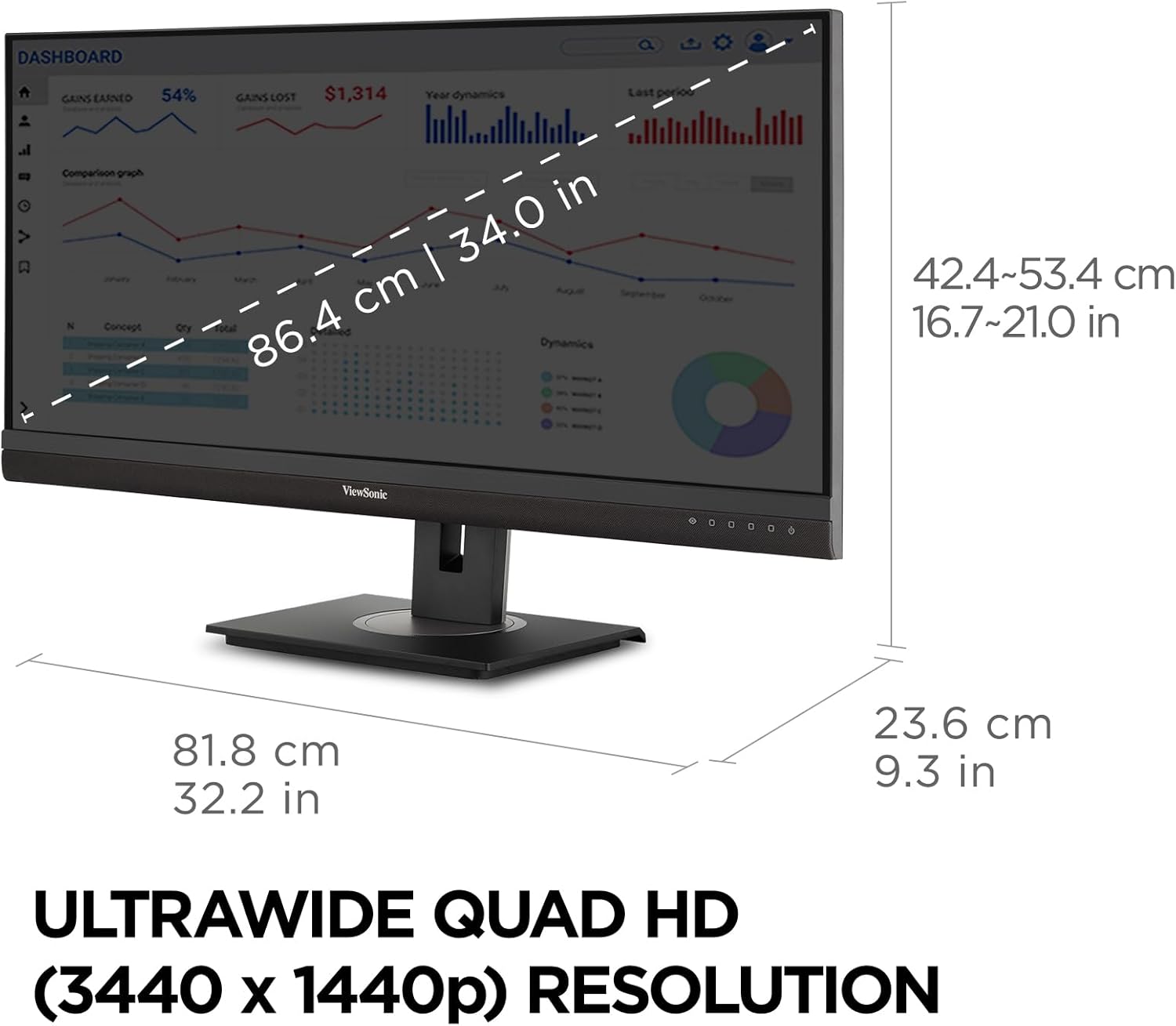
Image: A diagram illustrating the physical dimensions of the monitor, including screen size and overall measurements.
9. וואָראַנטי
די ViewSonic VG3456A monitor comes with a 3-Year Limited Warranty. For detailed warranty terms and conditions, please refer to the official Viewסאָניק webוועבזייטל אדער די וואָראַנטי קאַרטל וואָס איז אַרייַנגערעכנט מיט דיין פּראָדוקט.
Image: An icon representing the 3-year warranty provided with the product.
10. שטיצן
For technical assistance, product registration, or further information, please visit the official ViewSonic support webפּלאַץ: וווווו.viewsonic.com/us/support.
איר קענט אויך קאָנטאַקט ViewSonic customer support directly for assistance.


