1. פּראָדוקט איבערview
The Tera HW0004 Barcode Scanner is a versatile 1D laser scanner designed for efficient data capture in various environments such as supermarkets, retail stores, and logistics. It offers flexible connectivity options and multiple operating modes to suit different user needs.
- Versatile 2-in-1 Transmission: Supports both 2.4GHz wireless and USB 2.0 wired connections. Compatible with Windows and Mac OS, and integrates with common software like Word, Excel, and Novell.
- צוויי אַרבעט מאָדעס: Features Instant Upload Mode for real-time data transfer and Storage Upload Mode for offline scanning and later upload.
- צאַפּן און שפּיל: Requires no driver or software installation for quick setup.
- 1D באַרקאָד שטיצע: Capable of scanning various 1D printed barcodes including Code 39, UPC-A/UPC-E, EAN13, EAN8, Code 93, Code 128, Codabar, Industrial/Interleaved 2 of 5, MSI, Code11, ISBN/ISSN, and Matrix 2 of 5. Note: Does not scan 2D codes (e.g., QR, PDF417) or barcodes from screens.
2. פּעקל אינהאַלט
ביים עפענען דעם פעקל, זיכער מאכן אז אלע קאמפאנענטן זענען דא:
- Tera Barcode Scanner (HW0004)
- 2.4GHz ווירעלעס USB דאָנגלע
- וסב 2.0 קאַבלע
- אַדזשאַסטאַבאַל שטיין
- באַניצער מאַנואַל (דעם דאָקומענט)
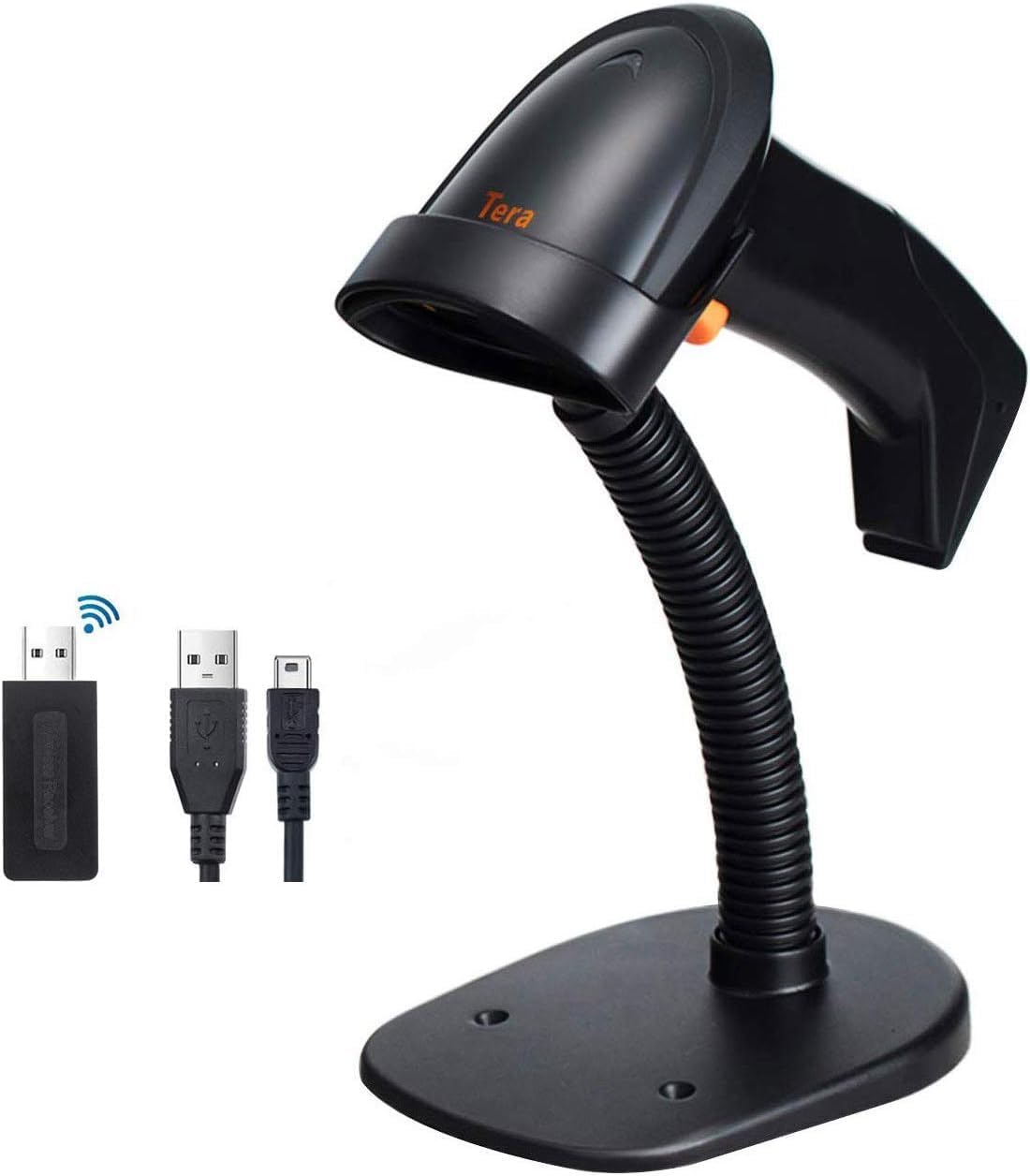
Image: The Tera HW0004 barcode scanner, its wireless USB dongle, USB cable, and the included stand.
3. סעטאַפּ און קאַנעקשאַן
The Tera HW0004 scanner is designed for easy plug-and-play operation, requiring no complex driver installations.
3.1. דראָטלאָזע פֿאַרבינדונג (2.4GHz)
- Insert the 2.4GHz wireless USB dongle into an available USB port on your computer or device.
- Turn on the barcode scanner. It will automatically pair with the dongle.
- דער סקאַנער איז איצט גרייט פֿאַר וויירלעס אָפּעראַציע.

Image: The barcode scanner connected to a laptop via the wireless dongle, illustrating the plug-and-play setup.
3.2. Wired Connection (USB 2.0)
- Connect one end of the provided USB 2.0 cable to the scanner's USB port.
- Connect the other end of the USB 2.0 cable to an available USB port on your computer or device.
- The scanner will be recognized as a standard HID keyboard device and is ready for use.
The scanner is compatible with various operating systems, including Windows XP, Windows 7, Windows 8, Windows 10, Android, and Linux.
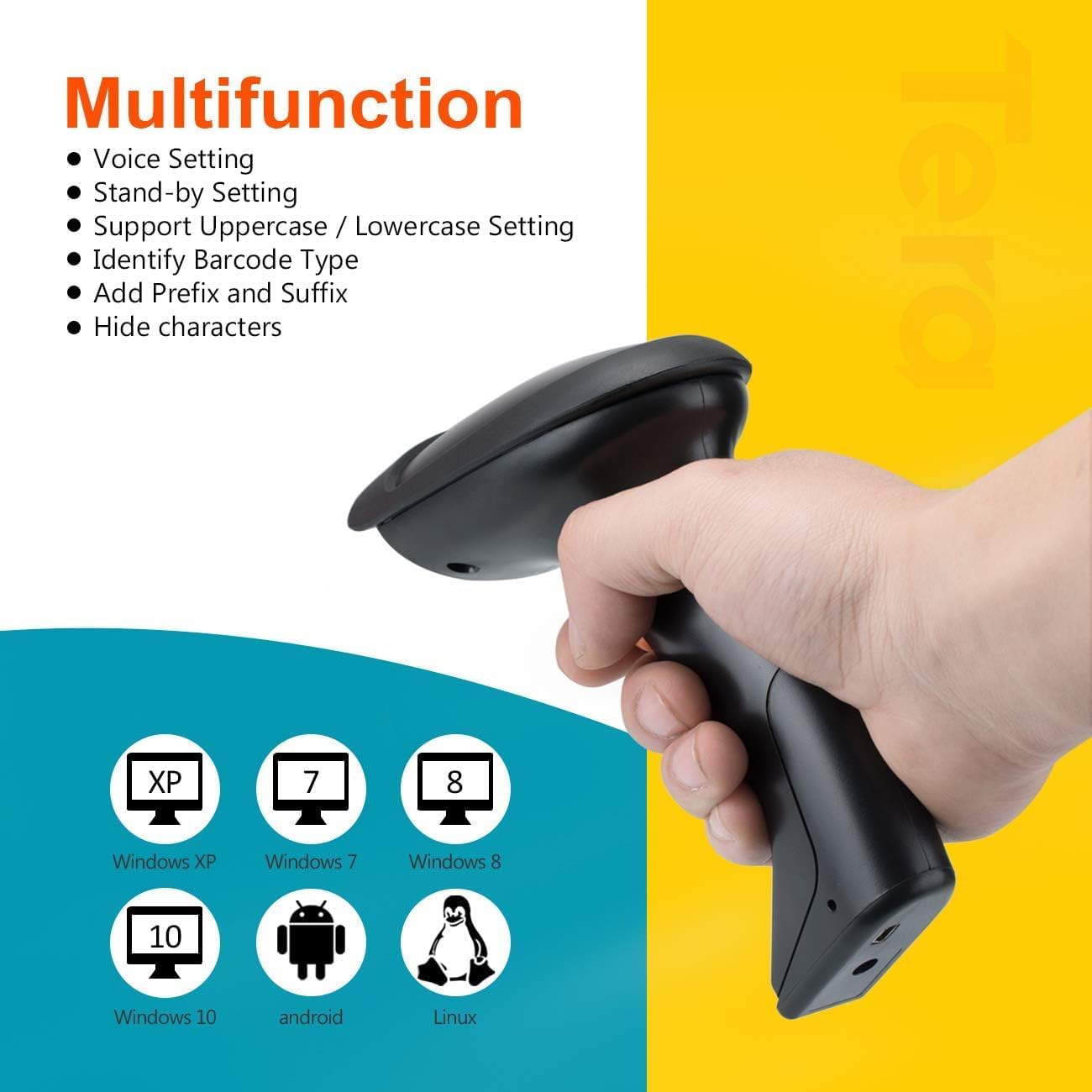
Image: The scanner demonstrating compatibility with multiple operating systems.
4. אפערירן דעם סקענער
4.1. סקענען מאָדעס
דער סקאַנער שטיצט צוויי הויפּט סקאַנינג מאָדעס:
- שליסל טריגער מאָדע: Press the trigger button to activate the laser and scan a barcode. Release the button to stop scanning.
- קעסיידערדיק סקאַנינג מאָדע: The scanner continuously emits the laser, allowing for hands-free scanning when placed on the stand. This mode is ideal for high-volume scanning.
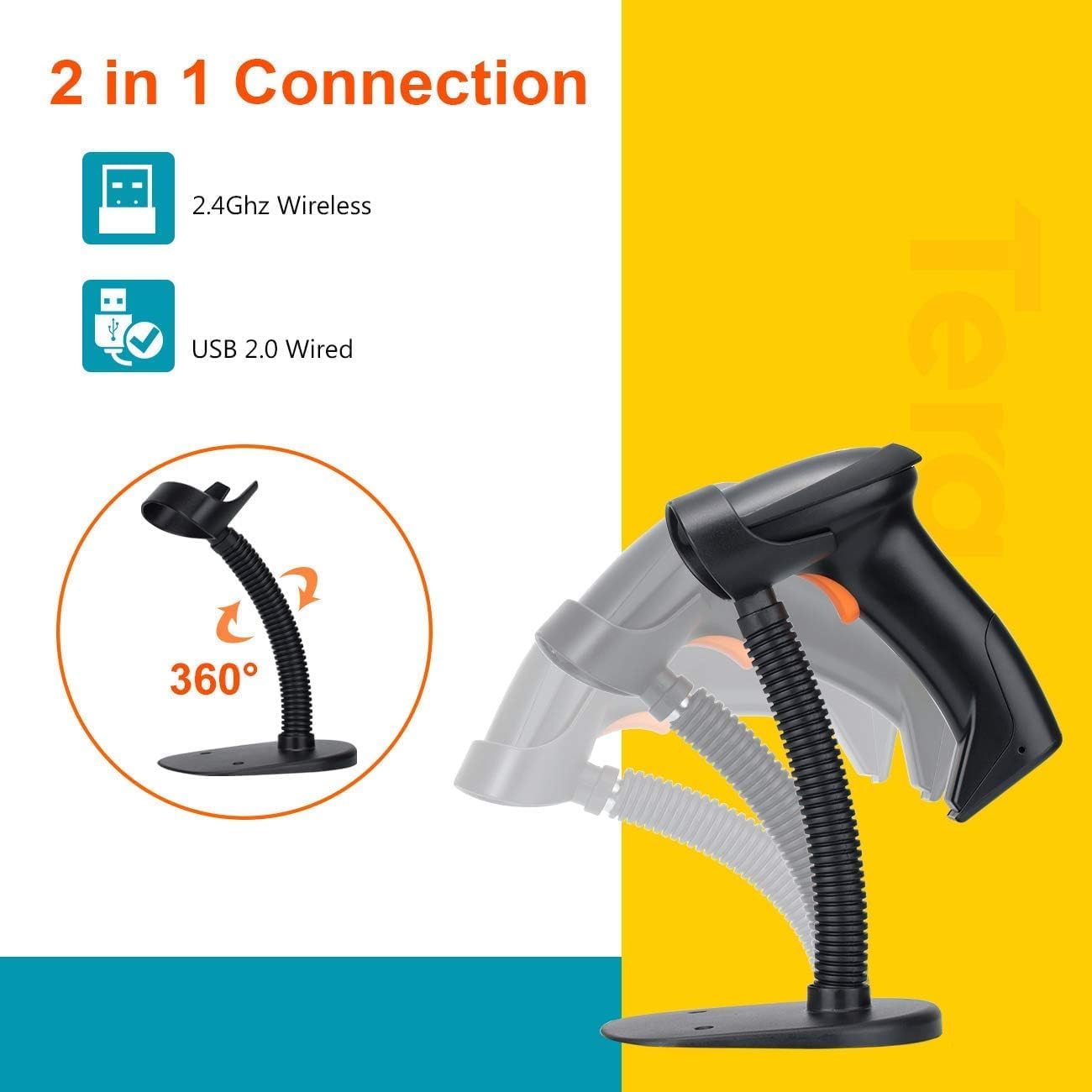
Image: The scanner on its adjustable stand, highlighting its 360-degree rotation and dual connection capabilities.
4.2. דאַטן אַרויפֿלאָדן מאָדעס
The scanner offers two methods for uploading scanned data:
- רעגע צופֿעליקער מאָדע: Barcodes are synchronously uploaded to your connected device immediately after scanning. This is the default mode for real-time data entry.
- Storage Upload Mode: Barcodes are stored in the scanner's built-in 16MB memory. This mode is useful for scanning outside the wireless signal range. Data can be uploaded to your device later when needed.
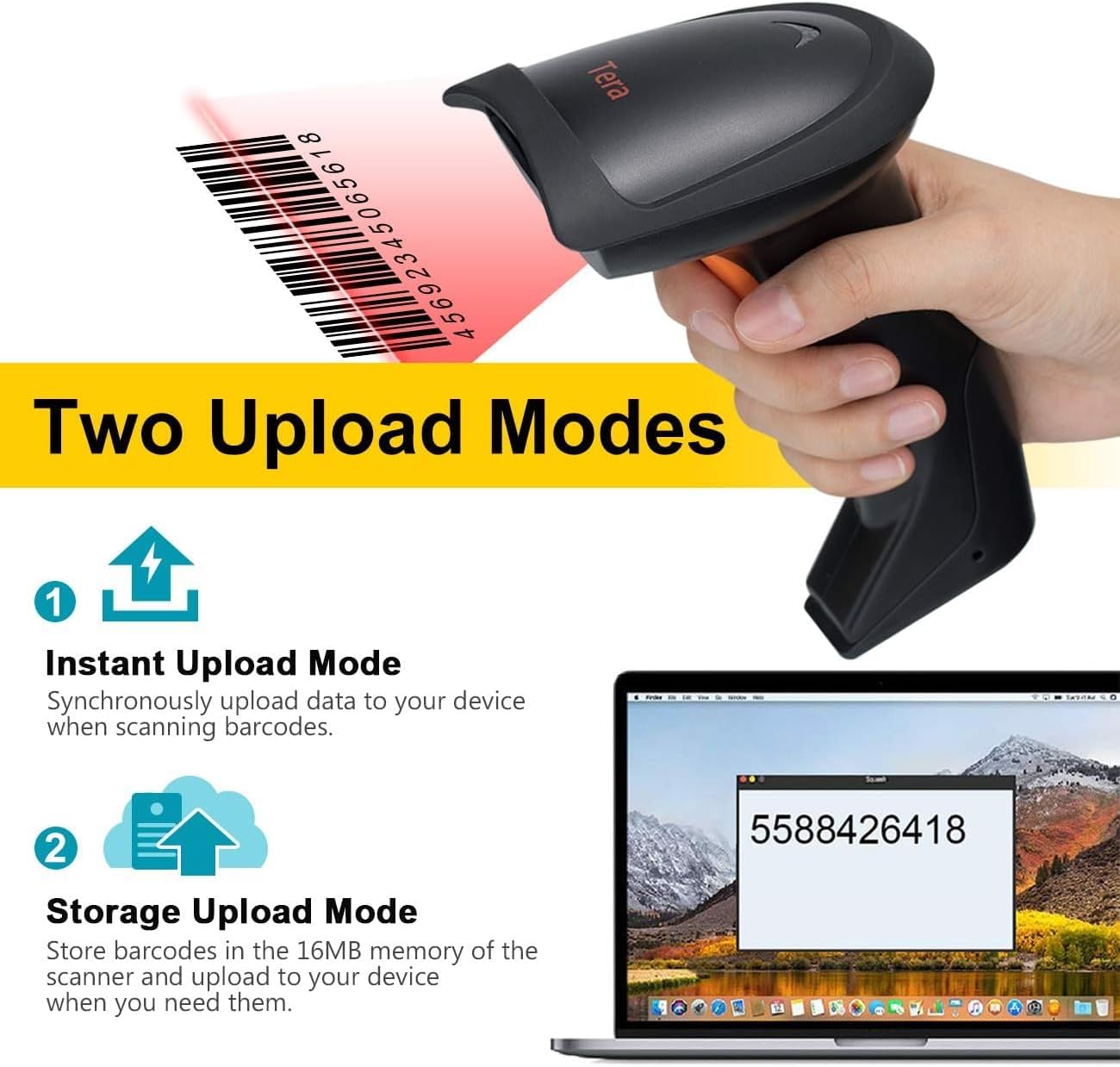
Image: A visual representation of the two data upload modes: Instant Upload and Storage Upload.
4.3. Supported Barcodes and Languages
The scanner supports a wide range of 1D printed barcodes and multiple languages for output:
- געשטיצטע 1D באַרקאָדס: Code 39, UPC-A/UPC-E (Include Complement Code), EAN13, EAN8, Code 93, Code 128, Codabar, Industrial/Interleaved 2 of 5, MSI, Code11, ISBN/ISSN, Matrix 2 of 5.
- Unsupported Codes: 2D codes (e.g., QR, PDF417) and barcodes displayed on screens.
- געשטיצט שפראכן: English, Spanish, German, Japanese, French, Italian.

Image: The scanner highlighting its multi-language support and the types of 1D barcodes it can read.
4.4. Multifunction Settings
The scanner offers several configurable settings to enhance its functionality:
- קול באַשטעטיקן
- Stand-by Setting
- Support Uppercase / Lowercase Setting
- Identify Barcode Type
- Add Prefix and Suffix to scanned data
- באַהאַלטן אותיות
Refer to the detailed programming guide (usually a separate document or a section within a comprehensive manual) for instructions on how to configure these settings by scanning specific setup barcodes.
5. וישאַלט
געהעריגע אויפהאלטונג גאראנטירט די לאנגעוויטי און אפטימאלע פערפארמאנס פון אייער בארקאוד סקענער.
- רייניקונג: Use a soft, dry, lint-free cloth to clean the scanner's exterior. For the scanning window, use a lens cleaning cloth and a mild, non-abrasive cleaning solution if necessary. Avoid harsh chemicals or abrasive materials.
- סטאָרידזש: האַלט דעם סקאַנער אין אַ קיל, טרוקן אָרט אַוועק פון דירעקט זונשייַן און עקסטרעמע טעמפּעראַטורן.
- באַטערי זאָרגן: As the scanner is battery-powered, ensure it is charged regularly. Avoid fully discharging the battery frequently to prolong its lifespan. If storing for an extended period, charge the battery to about 50% and store in a cool, dry place.
- האַנדלינג: פֿאַרמײַדט צו לאָזן דעם סקאַנער פאַלן אָדער אים אויסשטעלן צו שטאַרקע קלאַפּן, וואָס קענען שעדיקן אינעווייניקסטע קאָמפּאָנענטן.
6. טראָובלעשאָאָטינג
If you encounter issues with your Tera HW0004 barcode scanner, refer to the following common troubleshooting steps:
| פּראָבלעם | מעגלעך סיבה | לייזונג |
|---|---|---|
| סקאַנער טוט זיך נישט אָן. | נידעריגע באַטעריע אָדער פּראָבלעם מיט מאַכט. | Charge the scanner using the USB cable. Ensure the cable is properly connected to a power source. |
| קיין דאַטן אַרויסגאַבע נאָך סקאַנינג. | Incorrect connection mode, scanner not paired, or application issue. |
|
| Scanner beeps but no data. | Barcode not recognized or corrupted. |
|
| וויירלעס פֿאַרבינדונג נישט סטאַביל. | אריינמישונג אדער דיסטאַנץ פּראָבלעמען. |
|
If the problem persists, please contact Tera customer support for further assistance.
7. ספּעסאַפאַקיישאַנז
| שטריך | דעטאַל |
|---|---|
| מאָדעל | HW0004 |
| סאָרט | טעראַ |
| קאַנעקטיוויטי טעכנאָלאָגיע | 2.4GHz Wireless, USB 2.0 Wired |
| סקאַננער טיפּ | 1D Laser Handheld Linear Bar Code Reader |
| שטיצט באַרקאָדעס | Code 39, UPC-A/UPC-E, EAN13, EAN8, Code 93, Code 128, Codabar, Industrial/Interleaved 2 of 5, MSI, Code11, ISBN/ISSN, Matrix 2 of 5 |
| Unsupported Barcodes | 2D codes (QR, PDF417), barcodes from screens |
| קאַמפּאַטאַבאַל דעוויסעס | דעסקטאָפּ, לאַפּטאָפּ |
| קאַמפּאַטאַבאַל אַפּערייטינג סיסטעמס | Windows XP/7/8/10, Mac OS, Android, Linux |
| מאַכט מקור | באַטאַרייע פּאַוערד |
| פּונקט וואָג | 8 אונס (בעערעך 227 גראַמז) |
| פּעקל דימענשאַנז | 7.9 x 3.9 x 3.2 אינטשעס (אומגעפער 20.1 x 9.9 x 8.1 ס״מ) |
| פאַבריקאַנט | טעראַ |
| ערשטער דאַטע בנימצא | 4 סעפטעמבער 2023 |
8. וואָראַנטי און שטיצן
Specific warranty information for the Tera HW0004 Barcode Scanner is typically provided with the product packaging or available on the manufacturer's official website. Please refer to these resources for detailed warranty terms and conditions.
For technical support, troubleshooting beyond this manual, or inquiries regarding product functionality, please visit the official Tera webזייטל אדער קאנטאקטירן זייער קאסטומער סערוויס דעפארטמענט. קאנטאקט אינפארמאציע קען געווענליך געפונען ווערן אויף דער פראדוקט פארפאקונג אדער דעם פאבריקאנט'ס webפּלאַץ.
You can visit the Tera Store on Amazon for more information: Tera Store
9. אַפּפּליקאַטיאָן סינעריאָוז
The Tera HW0004 barcode scanner is suitable for a variety of applications, including but not limited to:
- לאָגיסטיקס
- וואַרעהאָוסע מאַנאַגעמענט
- Supermarkets and Convenient Stores
- ביבליאָטעקן
- Retail Industry
- Postal Industry
- באַנקס
- מעדיצינישע אינסטיטוציעס

בילד: עקסamples of environments where the barcode scanner can be effectively utilized.


