1. הקדמה
Thank you for choosing the ONIKUMA CW908 Wired Gaming Mouse. This manual provides detailed instructions on how to set up, operate, maintain, and troubleshoot your new gaming mouse. Please read this manual carefully before use to ensure optimal performance and longevity of your device.
2. פּראָדוקט איבערview
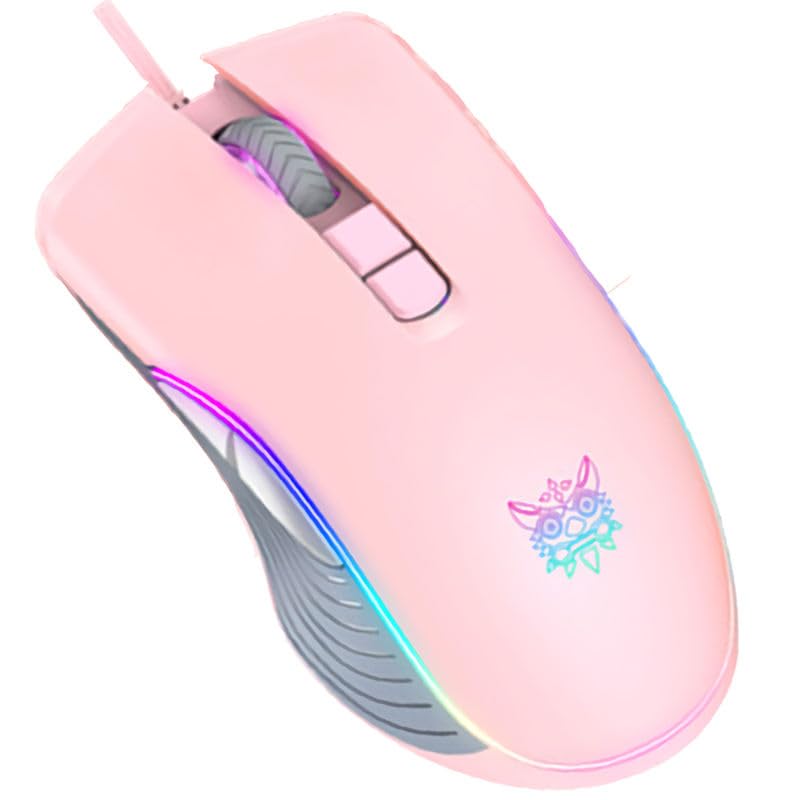
The ONIKUMA CW908 is a high-performance wired gaming mouse designed for comfort and precision. It features 7 programmable buttons, adjustable DPI up to 7200, and vibrant RGB lighting. Its ergonomic and lightweight design ensures comfortable use during extended gaming sessions.
2.1 מויז קאָמפּאָנענטן
- לינקער קליק קנעפל: נאָרמאַלע ערשטיקע קליק פונקציע.
- רעכט קליק קנעפל: נאָרמאַלע צווייטיקע קליק פונקציע.
- סקראָל ראָד: פֿאַר סקראָלן און מיטל-קליק פונקציע.
- DPI אַדזשאַסטמענט קנעפּל: גייט דורך די DPI סעטטינגס.
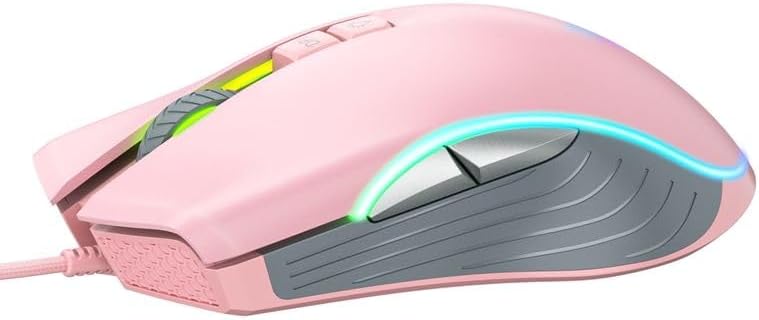
- פֿאָרווערטס קנעפּל: נאַוויגירט פאָרויס אין web בראַוזערז אָדער אַפּליקאַציעס.
- צוריק קנעפּל: נאַוויגירט צוריק אין web בראַוזערז אָדער אַפּליקאַציעס.
- RGB לייטינג: Integrated LED lighting for aesthetic appeal.
- וסב קאַנעקטער: פֿאַר אַ דראָטיקער פֿאַרבינדונג צו דיין קאָמפּיוטער.
2.2 פּראָדוקט בילדער
3. סעטאַפּ אינסטרוקציעס
Setting up your ONIKUMA CW908 mouse is a simple plug-and-play process.
- אויספּאַקן די מויז: נעמט פֿאָרזיכטיק אַרויס די מויז פֿון איר פֿאַרפּאַקונג.
- פאַרבינדן צו קאָמפּיוטער: Plug the USB connector of the mouse into an available USB port on your personal computer or laptop.
- דרייווער ינסטאַלירונג: Your operating system (Windows 7, Windows 98, Linux, or newer versions) should automatically detect and install the necessary drivers. This process may take a few moments.
- גרייט פֿאַר נוצן: Once the drivers are installed, the mouse will be ready for immediate use. The RGB lighting will illuminate.
4. אַפּערייטינג ינסטרוקטיאָנס
The ONIKUMA CW908 mouse offers intuitive controls for both general use and gaming.
4.1 יקערדיק אָפּעראַציע
- Move the mouse on a flat surface to control the cursor on your screen.
- Use the Left Click Button for primary actions (e.g., selecting items, opening fileס).
- Use the Right Click Button for secondary actions (e.g., opening context menus).
- Roll the Scroll Wheel up or down to navigate through documents or web pages. Press the Scroll Wheel for its middle-click function.
4.2 דפּי אַדזשאַסטמאַנט
The mouse features an adjustable DPI (Dots Per Inch) setting, allowing you to change cursor sensitivity on the fly. The CW908 supports up to 7200 DPI.
- דרוק די דפּי אַדזשאַסטמאַנט קנעפּל (usually located behind the scroll wheel) to cycle through different DPI levels.
- Each press will switch to a predefined DPI setting, indicated by a change in the RGB lighting color or pattern (if applicable).
- Select the DPI level that best suits your task, whether it's precise aiming in games or fast navigation across multiple monitors.
4.3 זייַט בוטטאָנס
The Forward and Backward buttons on the side of the mouse provide quick navigation.
- די פאָרויס קנעפּל typically moves forward in web בראַוזערז אָדער file עקספּלאָרערס.
- די צוריק קנעפּל typically moves backward in web בראַוזערז אָדער file עקספּלאָרערס.
5. קאַסטאַמייזינג סעטטינגס
While the ONIKUMA CW908 offers plug-and-play functionality, advanced customization for button remapping or more intricate RGB control may require dedicated software. Please check the official ONIKUMA website for any available software downloads specific to the CW908 model.
- DPI סעטטינגס: As mentioned, the DPI button cycles through preset levels. Software, if available, may allow for custom DPI steps.
- קנעפּל פּראָגראַממינג: With compatible software, the 7 buttons can often be remapped to perform specific functions, macros, or keyboard shortcuts, enhancing your gaming and productivity.
- RGB לייטינג: Software can provide more granular control over RGB effects, colors, and brightness, beyond the default cycling modes.
6. וישאַלט
Proper maintenance ensures the longevity and performance of your gaming mouse.
- רייניקונג: ניצט אַ ווייכע, טרוקענע שטאָף צו ווישן די ייבערפלאַך פון דער מויז. פֿאַר שווערע שמוץ, אַ ביסל ווייכער מאַכןampווישט דעם שטאָף מיט וואַסער אָדער אַ מילדער רייניקונג לייזונג. פֿאַרמייַדט שטרענגע כעמיקאַליעס.
- סענסאָר רייניקונג: Occasionally, dust or debris may accumulate around the optical sensor on the underside of the mouse. Use a cotton swab or compressed air to gently clean the sensor area.
- קאַבלע זאָרגן: Avoid sharply bending or pulling the USB cable. Store the mouse in a way that prevents the cable from being crimped or damaged.
- סטאָרידזש: ווען נישט אין באַנוץ, האַלט די מויז אין אַ ריינער, טרוקענער סביבה אַוועק פון עקסטרעמע טעמפּעראַטורן.
7. טראָובלעשאָאָטינג
If you encounter issues with your ONIKUMA CW908 mouse, refer to the following common problems and solutions:
| פּראָבלעם | מעגלעך סיבה | לייזונג |
|---|---|---|
| מויז ניט ריספּאַנדינג | לויזע USB פֿאַרבינדונג, דעפֿעקטיווער USB פּאָרט, דרייווער פּראָבלעם. | Ensure USB cable is securely plugged in. Try a different USB port. Restart your computer. Check Device Manager for driver status. |
| קורסאָר באַוועגונג איז נישט סטאַביל אָדער שפּרינגיק | שמוציקער אָפּטישער סענסאָר, נישט פּאַסיקע מויז-פּאַד ייבערפלאַך. | Clean the optical sensor on the underside of the mouse. Use a clean, uniform-colored mouse pad. |
| די DPI קנעפּל טוישט זיך נישט די סענסיטיוויטי | Button malfunction, software conflict. | Ensure the mouse is properly connected. If using custom software, check its settings. Try on another computer to rule out system issues. |
| RGB לייטינג טוט נישט אַרבעטן | Power issue, software setting. | Ensure the mouse is receiving power via USB. If using custom software, check lighting settings. |
8. ספּעסאַפאַקיישאַנז
| שטריך | דעטאַל |
|---|---|
| סאָרט | ONIKUMA |
| מאָדעל | CW908 |
| קאַנעקטיוויטי טעכנאָלאָגיע | וסב ווייערד |
| באַוועגונג דעטעקטיאָן | אָפּטיש |
| דפּי (דאַץ פּער אינטש) | ביז 7200 (אַדזשאַסטאַבאַל) |
| נומער פון קנעפּלעך | 7 |
| ספּעציעלע פֿעיִקייטן | LED Lighting (RGB), Comfortable Design, Lightweight |
| רעקאַמענדיד נוצן | גיימינג |
| קאַמפּאַטאַבאַל דעוויסעס | פערזענלעכער קאמפיוטער, לעפטאפ |
| אַפּערייטינג סיסטעם קאַמפּאַטאַבילאַטי | Linux, Windows 7, Windows 98 (and newer Windows versions) |
| סטייל | מאָדערן |
| קאָליר | ראָזעווע |
9. וואָראַנטי און שטיצן
ONIKUMA products are manufactured to high-quality standards. For specific warranty information, please refer to the warranty card included with your product or visit the official ONIKUMA website. If you require technical support or have questions not covered in this manual, please contact ONIKUMA customer service through their official channels.