1. הקדמה
This manual provides essential information for setting up, operating, and maintaining your NiPoGi P1 Mini PC. The NiPoGi P1 is a compact and efficient desktop computer designed for various professional and personal uses, including home, school, and office environments.
It features an AMD Ryzen 4300U processor, 16GB DDR4 RAM, and a 512GB M.2 2280 SSD, pre-installed with Windows 11 Pro. The device supports triple 4K@60Hz display output and offers robust connectivity options including Wi-Fi 5 and Bluetooth 4.2.
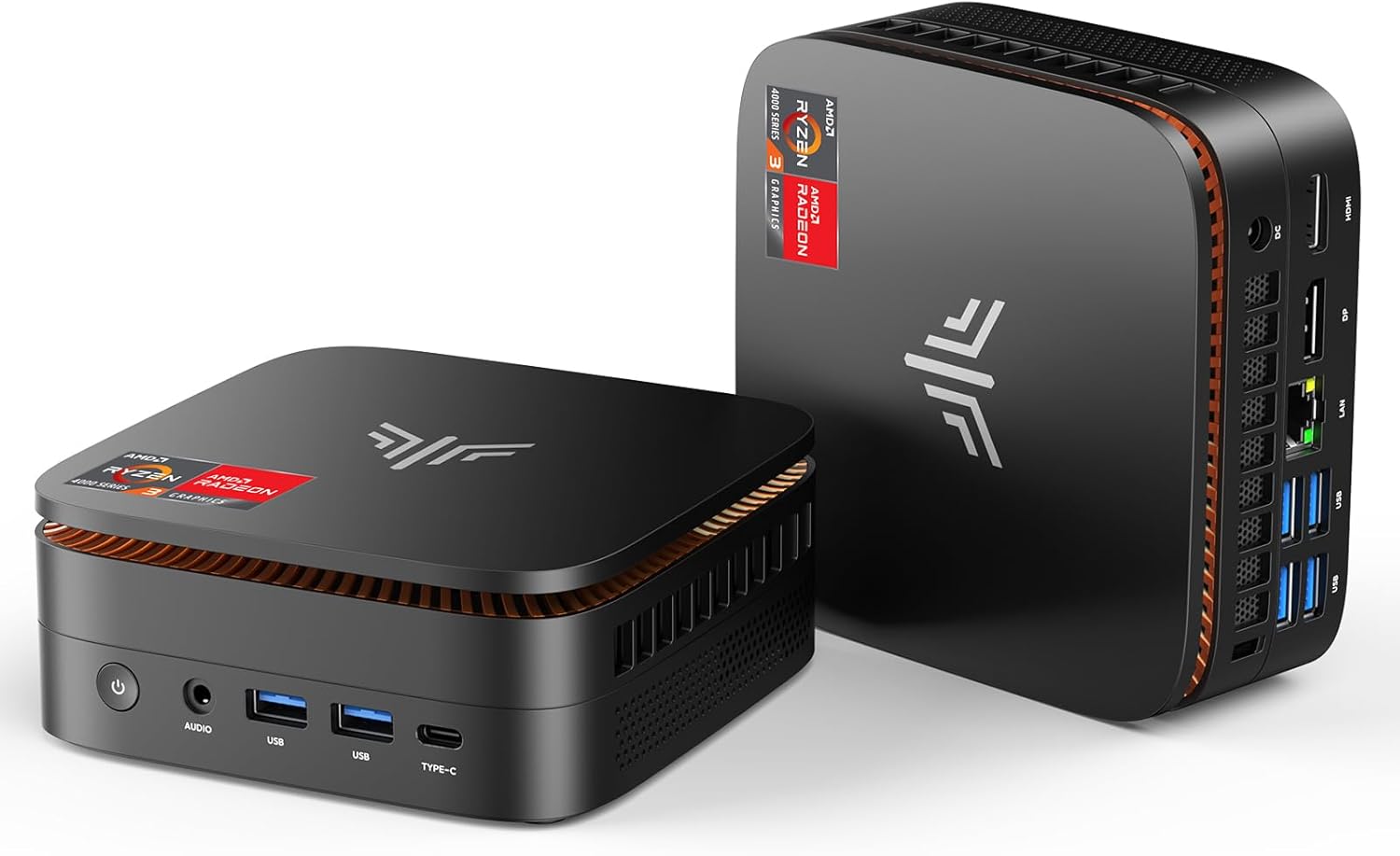
Figure 1: NiPoGi P1 Mini PC, showcasing its compact design and front ports.

פיגורע 2: איבערview of NiPoGi P1 Mini PC's core features including AMD Ryzen 4300U, 16GB DDR4, 512GB SSD, Wi-Fi 5, Bluetooth 4.2, and triple 4K display support.
Video 1: NiPoGi P1 Mini PC Product Overview. דאס פריערview video provides a brief visual introduction to the Mini PC's design and main functionalities.
2. סעטאַפּ
2.1 Initial Boot and System Configuration
Upon the first startup, you will be prompted to select your preferred language and country. Following this, you will need to create a user account to complete the initial Windows 11 Pro setup.
2.2 BIOS Settings for Automatic Power On
To configure the Mini PC to automatically power on after a power outage:
- Power on the Mini PC.
- גלייך דריקן די ויסמעקן key on your keyboard to enter the BIOS setup utility.
- נאַוויגירן צו די שטיוול option using the arrow keys.
- Locate the "Restore AC Power Loss" setting.
- Change its value from "Power Off" to "מאַכט אויף".
- Go to the "Save & Exit" tab.
- Select "Save Changes and Exit" and confirm by selecting "Yes".
Video 2: BIOS Setting for Auto Power On. This preview video demonstrates the steps to enable automatic power-on after a power loss.
2.3 Operating System Reinstallation (Advanced)
If you need to reinstall the operating system, follow these steps:
- Prepare a USB flash drive (16GB or larger).
- Download the necessary OS files from the provided link (if applicable) or official sources.
- Format the USB drive to NTFS file system and rename it to "WINPE".
- Copy the unzipped OS system files to the formatted USB drive.
- Insert the prepared USB drive into the Mini PC.
- Power on the Mini PC and repeatedly press F7 to enter the boot device selection menu.
- Select the USB drive (e.g., "UEFI: WINPE") to boot from it and initiate the OS installation process.
Video 3: How to Install the System with U Disk. This preview video guides you through the process of preparing a USB drive and reinstalling the operating system.
2.4 טריפל דיספּליי סעטאַפּ
The NiPoGi P1 supports connecting up to three displays simultaneously via HDMI 2.0, DisplayPort 1.4, and USB 3.2 Type-C. This allows for enhanced multitasking and visual experiences.
To configure dual or triple displays:
- Connect your monitors to the available HDMI, DisplayPort, and/or Type-C ports.
- אַמאָל קאָננעקטעד, דריקן WIN + P on your keyboard to quickly open the projection settings.
- Choose your desired display mode:
- דופּליקאַט: Shows the same content on all connected displays.
- פאַרלענגערן: Extends your desktop across multiple displays, allowing for different content on each screen.
- רגע פאַרשטעלן בלויז: Displays content only on the secondary monitor.

Figure 3: Illustration of the NiPoGi P1 Mini PC connected to three 4K displays, demonstrating its multi-monitor capability.
Video 4: How to Set Up Different or Same Views on Dual Screen Display. This preview video demonstrates how to configure your dual monitor setup for extended or duplicated views.
3. אַפּערייטינג ינסטרוקטיאָנס
3.1 קאַנעקטיוויטי
The NiPoGi P1 Mini PC offers a comprehensive set of interfaces for various peripherals and network connections:
- וסב פּאָרץ: 2x USB 3.2 Gen 2 (10 Gbps) and 4x USB 3.2 Gen 1 for high-speed data transfer and peripheral connections.
- ווידעא אַוטפּוץ: 1x HDMI 2.0, 1x DisplayPort 1.4, and 1x USB 3.2 Gen 2 Type-C (with DP1.4 video output) for triple 4K@60Hz display support.
- נעץ: RJ45 1000M Ethernet port for stable wired network connection.
- ווירעלעסס: Dual-band Wi-Fi 5 (802.11a/b/g/n/ac) for fast and stable wireless internet, and Bluetooth 4.2 for connecting wireless devices like keyboards, mice, and headphones.
- אַודיאָ: 3.5mm audio jack.

פיגורע 4: דעטאַילעד view of the NiPoGi P1 Mini PC's various input/output ports, including USB, HDMI, DisplayPort, Type-C, LAN, and audio jack.
3.2 אַוואַנסירטע פֿעיִקייטן
The Mini PC supports several advanced features for convenience and flexibility:
- וועקן אויף לאַן (WoL): Allows you to wake up the computer remotely over a network connection.
- PXE שטיוול: Enables booting the computer from a network server.
- RTC Wake: Allows scheduling the computer to wake up at a specific time.
- אַוטאָ מאַכט אויף: Configures the computer to automatically power on when AC power is restored (refer to Section 2.2 for setup).
4. וישאַלט
4.1 קאָאָלינג סיסטעם
The NiPoGi P1 Mini PC is equipped with an efficient dual-fan cooling system designed for optimal heat dissipation while maintaining quiet operation (below 38 dB). This ensures stable performance even under load.

Figure 5: Diagram illustrating the internal dual-fan cooling system of the NiPoGi P1 Mini PC, highlighting efficient heat dissipation.
4.2 סטאָרידזש יקספּאַנשאַן
The Mini PC features two M.2 2280 SSD slots (one for SATA/NVMe PCIe 3.0 and one for SATA), allowing flexible storage expansion up to 4TB. You can also add a 2.5-inch SSD or HDD in the empty base for additional storage.

Figure 6: Visual representation of the NiPoGi P1 Mini PC's storage expansion capability, showing the addition of an SSD.
5. טראָובלעשאָאָטינג
5.1 Blue Screen Error (CRITICAL_PROCESS_DIED)
If you encounter a "CRITICAL_PROCESS_DIED" blue screen error, it may indicate a system file corruption. In such cases, a clean reinstallation of Windows is recommended. Please refer to Section 2.3 for detailed instructions on how to reinstall the operating system using a USB drive.
5.2 מאַכט ינטעראַפּשאַן
If the Mini PC does not power on automatically after a power interruption, ensure that the "Restore AC Power Loss" setting in the BIOS is set to "Power On". Refer to Section 2.2 for instructions on configuring this setting.
6. ספּעסאַפאַקיישאַנז
| שטריך | דעטאַל |
|---|---|
| סאָרט | NiPoGi |
| מאָדעל נומער | P1 |
| פּראַסעסער פאַבריקאַנט | אַמד |
| טיפּ פון פּראַסעסער | Ryzen 3 (AMD Ryzen 4300U) |
| פּראַסעסער ספּיד | 3.7 GHz (Max Turbo Frequency) |
| באַראַן קאַפּאַציטעט | 16 גיגאבייט DDR4 (אויסברייטבאר ביז 64 גיגאבייט) |
| שווער דרייוו קאַפּאַציטעט | 512 GB SSD (Expandable up to 4 TB) |
| גראַפיקס קאָופּראַסעסער | AMD Radeon Graphics 1400MHz (Integrated) |
| מאַקס האַכלאָטע | 3840 x 2160 (4K@60Hz) |
| קאַנעקטיוויטי | Wi-Fi 5 (802.11a/b/g/n/ac), Bluetooth 4.2, Gigabit Ethernet (RJ45) |
| פּאָרץ | 2x USB 3.2 Gen 2, 4x USB 3.2 Gen 1, 1x HDMI 2.0, 1x DisplayPort 1.4, 1x USB 3.2 Type-C (DP1.4), 1x 3.5mm Audio Jack, 1x DC IN |
| אָפּערייטינג סיסטעם | Windows 11 פּראָ |
| דימענשאַנז | 12.8 X 12.8 X 5.1 סענטימעטער |
| וואָג | 500 ג |
| מאַכט קאַנסאַמשאַן | 15 Watts (TDP 28W) |
7. וואָראַנטי און שטיצן
NiPoGi offers lifetime technical support for your P1 Mini PC. Additionally, the product comes with a 12-month satisfaction guarantee. For any inquiries or assistance, please contact NiPoGi customer support.


