1. הקדמה
Thank you for choosing the arVin Mobile Gaming Controller D6. This manual provides detailed instructions for setting up, operating, and maintaining your controller to ensure an optimal gaming experience across various platforms. Please read this manual thoroughly before first use.

Image 1: arVin Mobile Gaming Controller D6 with a smartphone.
2. פּראָדוקט איבערview
2.1 שליסל פֿעיִקייטן
- Multi-Device קאַמפּאַטאַבילאַטי: Supports iOS 13.0+, Android 6.0+, Windows 7.0+, Switch, PS3, PS4. (PS5 compatibility limited to PS4/PS3 games).
- Wide Game Support: Compatible with most cloud gaming services (Nvidia GeForce Now, Xbox Cloud, Amazon Luna, Google Stadia, Rainway, Moonlight), Apple Arcade, and MFi games.
- Remote Play Functionality: Supports streaming PC games via Steam Link, and console games via PS Remote Play and Xbox Remote Play.
- אַוואַנסירטע קאָנטראָלס: Features Hall Effect joysticks for high precision and durability, and 256-level analog triggers for precise input.
- Enhanced Feedback: Dual vibration motors and 6-axis gyroscope for immersive gameplay (features not supported on iOS/Android).
- טורבאָ פונקציע: 3-level Turbo mode for customizable rapid-fire actions.
- Ergonomic & Stretchable Design: Accommodates phones from 5-7.1 inches, with a recessed design for phone lenses and bezel-less access to volume.
- לאנג באַטאַרייע לעבן: Built-in 600mAh rechargeable battery provides up to 15 hours of gaming.
2.2 קאָנטראָללער קאָמפּאָנענטן

Image 2: Key Description of the arVin Mobile Gaming Controller D6.
Refer to Image 2 for the location of the following components:
- L3 Left Joystick: Left analog stick with push-down button.
- Direction Keys (D-Pad): Up, Down, Left, Right directional input.
- קנעפּל פֿאַר טוישן מאָדע: For changing connection modes.
- V3 Mode Button: Specific mode button.
- Bluetooth Mode Button: For initiating Bluetooth pairing.
- SELECT קנעפּל: אויסקלייַבן פֿונקציע.
- אָנהייב קנעפּל: Start function.
- TURBO קנעפּל: Activates and sets Turbo function.
- R3 Right Joystick: Right analog stick with push-down button.
- A/B/X/Y קנעפּלעך: נאָרמאַלע אַקציע קנעפּלעך.
- LB/RB: לינקע און רעכטע באַמפּער קנעפּלעך.
- LT/RT: Left and Right Trigger buttons.
- באַשטעטיק קנעפּל: Small button for resetting the controller (located near the charging port).
- טיפּ C טשאַרדזשינג פּאָרט: For charging the controller.
- ינדיקאַטאָר ליכט: Displays connection status and charging status.
3. סעטאַפּ
3.1 טשאַרדזשינג די קאָנטראָללער
Before first use, fully charge the controller. Connect the provided Type-C charging cable to the controller's charging port and a suitable USB power source. The indicator light will show charging status and turn off when fully charged.

Image 3: Charging port and indicator light location.
3.2 Inserting Your Device
The controller features a stretchable design to accommodate mobile devices from 5 to 7.1 inches in length. Gently pull the two sides of the controller apart and carefully place your smartphone or tablet into the central slot. Ensure your device is securely seated.

Image 4: Stretchable design and phone case compatibility.
3.3 בלועטאָאָטה פּערינג
צו פאַרבינדן די קאָנטראָללער צו דיין מיטל:
- מאַכן זיכער אַז די קאָנטראָללער איז טשאַרדזשינג.
- דריקן און האַלטן די בלועטאָאָטה מאָדע קנעפּל (refer to Image 2) until the indicator light flashes rapidly, indicating it is in pairing mode.
- On your device (iOS/Android phone/tablet, PC, Switch), go to Bluetooth settings and search for available devices.
- Select "arVin Controller D6" (or similar name) from the list to pair. The indicator light will become solid when successfully connected.
- For Switch, PS3/PS4, or Xbox connections, specific mode buttons (V3 Mode, Switch Mode) may need to be pressed in combination with the Bluetooth button. Refer to the quick start guide included in the product packaging for specific platform pairing instructions.
4. אַפּערייטינג ינסטרוקטיאָנס
4.1 Multi-Platform Compatibility
The arVin D6 controller is designed for broad compatibility:
- iOS/Android/PC: פֿאַרבינדן זיך דורך בלועטוט.
- נינטענדאָו סוויטש: Connect via Bluetooth using the Switch Mode.
- PS3/PS4: Connect via Bluetooth. Note: For PS5, only PS4/PS3 games are supported.
- עקסבאקס: פֿאַרבינדן זיך דורך בלועטוט.

Image 5: Multi-platform compatibility overview.
4.2 Game Support and Remote Play
This controller supports a wide range of gaming options:
- Controller Supported App Games: Play popular titles like Call of Duty Mobile (CODM), Genshin Impact, Minecraft, Diablo Immortal, Asphalt 9: Legends, and Asphalt 8: Airborne.
- וואָלקן גיימינג: Enjoy games on services such as Nvidia GeForce Now, Xbox Cloud, Amazon Luna, Google Stadia, Rainway, and Moonlight.
- Apple Arcade & MFi Games: Fully compatible with games designed for Apple Arcade and MFi standards.
- רימאָוט שפּיל: Transform your mobile device into a portable console by using Steam Link for PC games, PS Remote Play for PlayStation games, and Xbox Remote Play for Xbox games. Ensure your phone and game console are connected to the same local area network (LAN) for remote play.

Image 6: Remote Play options.

Image 7: Supported app games and cloud gaming services.
4.3 Hall Effect Joysticks and Analog Triggers
The controller is equipped with advanced input mechanisms:
- האַל עפֿעקט דזשויסטיקס: Provide 360° precise control with high accuracy and extended lifespan (up to 5 million uses), minimizing drift issues.
- Analog Triggers: Offer 256 levels of pressure sensitivity for fine control in racing and shooting games, ensuring low latency and fast feedback.

Image 8: Hall Effect Joysticks and Analog Triggers.
4.4 טורבאָ פונקציע
The 3-level Turbo function allows for rapid, repeated input of a button press:
- To Set Turbo: דריקן און האַלטן די TURBO button, then press the desired function button (e.g., A button). The setting is complete.
- To Activate Auto Turbo: דרוק די TURBO button and the function button again. The controller will automatically repeat the button press without continuous holding.
- To Cancel Turbo: דרוק די TURBO button and the function button a third time to disable the auto-repeat function.

Image 9: Turbo Combo Function setup.
4.5 Dual Vibration and 6-Axis Gyroscope
For supported platforms (Switch, PS3/PS4, PC), the controller offers enhanced sensory feedback:
- דואַל ווייבריישאַן מאָטאָרן: Provide haptic feedback, immersing you further into the game.
- 6-אַקס גיראָסקאָפּ: Enables high-precision directional control, allowing for quick reactions and an improved gaming experience.
באַמערקונג: These features (Dual Vibration and 6-Axis Gyroscope) are ניט געשטיצט on iOS and Android devices.
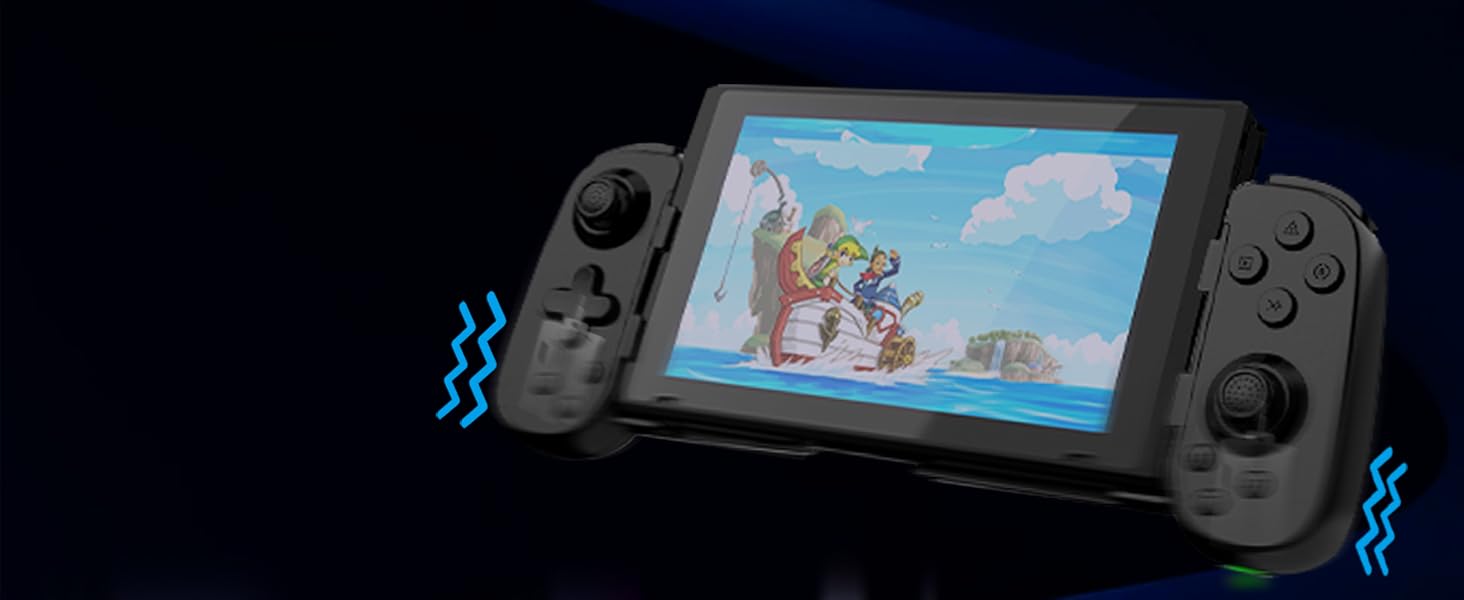
Image 10: Dual Vibration and 6-Axis Gyroscope features.
5. וישאַלט
Proper care will extend the life of your controller:
- רייניקונג: ניצט אַ ווייכע, טרוקענע שטאָף צו רייניקן דעם קאָנטראָללער. פֿאַרמייַדט ניצן שטרענגע כעמיקאַלן אָדער אַברייסיוו מאַטעריאַלן.
- סטאָרידזש: האַלט דעם קאָנטראָללער אין אַ קיל, טרוקן אָרט אַוועק פון דירעקט זונשייַן און עקסטרעמע טעמפּעראַטורן.
- באַטערי זאָרגן: To preserve battery health, avoid fully discharging the controller frequently. Charge it regularly, even if not in use for extended periods.
- ויסמיידן פּראַל: לאָזט נישט אַראָפּ דעם קאָנטראָללער און שטעלט נישט אויס דעם קאָנטראָללער צו שטאַרקע קלאַפּן, ווײַל דאָס קען שעדיקן אינעווייניקסטע קאָמפּאָנענטן.
6. טראָובלעשאָאָטינג
If you encounter issues with your arVin Mobile Gaming Controller D6, please refer to the following common solutions:
- קאָנטראָללער פֿאַרבינדט זיך נישט/פֿאַרבינדט זיך נישט:
- זיכער מאַכן אַז דער קאָנטראָללער איז גאָר אויפגעלאָדן.
- באַשטעטיקן אַז בלועטאָאָטה איז ענייבאַלד אויף דיין מיטל.
- Make sure the controller is in pairing mode (indicator light flashing rapidly).
- Try unpairing and re-pairing the controller from your device's Bluetooth settings.
- ריסטאַרט ביידע דיין מיטל און די קאָנטראָללער.
- קנעפּלעך/דזשויסטיקס רעאַגירן נישט:
- Check if the controller is properly connected to your device.
- Ensure the game you are playing supports controller input.
- If experiencing 'joystick drift' (unintended movement), try resetting the controller using the small reset button (refer to Image 3). If the issue persists, it may indicate a hardware fault.
- טורבאָ פונקציע אַרבעט נישט:
- Review the Turbo function setup steps in Section 4.4.
- Ensure you are pressing the correct combination of buttons.
- Vibration/Gyroscope Not Working on iOS/Android:
- These features are not supported on iOS and Android devices. This is normal operation.
- Remote Play Issues:
- Confirm that your mobile device and the console/PC are connected to the same local area network (LAN).
- Check your network connection stability.
אויב די טריט לייזן נישט אייער פראבלעם, ביטע קאנטאקטירט קאסטומער סופארט.
7. ספּעסאַפאַקיישאַנז
| מאָדעל | D6 (Standard Version) |
| דימענשאַנז | 8.66 X 3.98 X 1.93 אינטשעס (220 X 101 X 49 מם) |
| פּונקט וואָג | 8.5 אונסעס (241 גראַמז) |
| באַטאַרייע קאַפּאַציטעט | 600 מאַה |
| באַטערי לעבן | ביז 15 שעה (אויף א פולער אָפּצאָל) |
| קאַנעקטיוויטי | בלועטאָאָטה 5.0 |
| Supported Device Length | 5 - 7.1 אינטשעס (127 - 180 מ״מ) |
| Supported Phone Case Thickness | אַרויף צו 1.57 אינטשעס (40 מם) |
| פאַבריקאַנט | ShenZhen ShanWan Technology Co., Ltd. |
8. וואָראַנטי און שטיצן
For warranty information, please refer to the documentation included with your product packaging or contact your retailer. If you require technical assistance or have questions not covered in this manual, please contact arVin customer support through the retailer's platform or the official arVin webפּלאַץ.


