1. הקדמה
This manual provides detailed instructions for the setup, operation, and maintenance of your INPHIC M6Pro Wireless Tri-Mode Ergonomic Mouse. Please read this manual thoroughly before using the product to ensure proper functionality and longevity.
2. פּראָדוקט איבערview
The INPHIC M6Pro is a versatile wireless mouse designed for comfort and efficiency. It features multiple connectivity options, customizable performance, and smart features to enhance your computing experience.
שליסל פֿעיִקייטן:
- צווייענדיק קאַנעקטיוויטי: Supports both 2.4G wireless and Bluetooth 5.0 connections for flexible device pairing.
- ערגאָנאָמיק פּלאַן: Right-handed design with a 39mm height, wide thumb rest, and non-slip grips for enhanced comfort and stability during extended use.
- Customizable Performance: Offers 5-speed DPI adjustment ranging from 800 to 2400 DPI, allowing you to tailor cursor sensitivity. Features silent click buttons for quiet operation.
- סמאַרט פֿעיִקייטן: Includes RGB lighting effects, a stepped battery indicator, and optimized three-dimensional side buttons designed to prevent accidental clicks.
- מאַכט עפעקטיווקייַט: Equipped with a 500mAh rechargeable battery and a convenient Type-C charging port for prolonged use.
3. פּעקל אינהאַלט
- INPHIC M6Pro Wireless Mouse
- USB ריסיווער (געהאַלטן אין דער מויז)
- וסב-C טשאַרדזשינג קאַבלע
- באַניצער מאַנואַל
4. סעטאַפּ
4.1 אויפלאָדן די מויז
Before first use, fully charge the mouse. Connect the provided USB-C charging cable to the Type-C port on the front of the mouse and to a USB power source.

Image: The INPHIC M6Pro mouse being charged via its Type-C port. The battery indicator lights are visible, showing charging status.
The battery indicator lights will flash in a cycle while charging. Once fully charged, all battery indicator lights will remain steadily lit.
Video: Demonstrates the mouse charging process, showing the battery indicator lights flashing during charging and remaining solid when fully charged.
4.2 2.4G וויירלעס פֿאַרבינדונג
- געפינט דעם USB ופנעמער וואָס געפינט זיך אין דעם אָפּטייל אין אונטערשטן טייל פון דער מויז.
- צאַפּן די וסב ופנעמער אין אַ בנימצא וסב פּאָרט אויף דיין קאָמפּיוטער.
- Turn on the mouse using the ON/OFF switch located at the bottom.
- Ensure the mode switch at the bottom is set to the '2.4G' position (red light will be on). The mouse should automatically connect to your device.
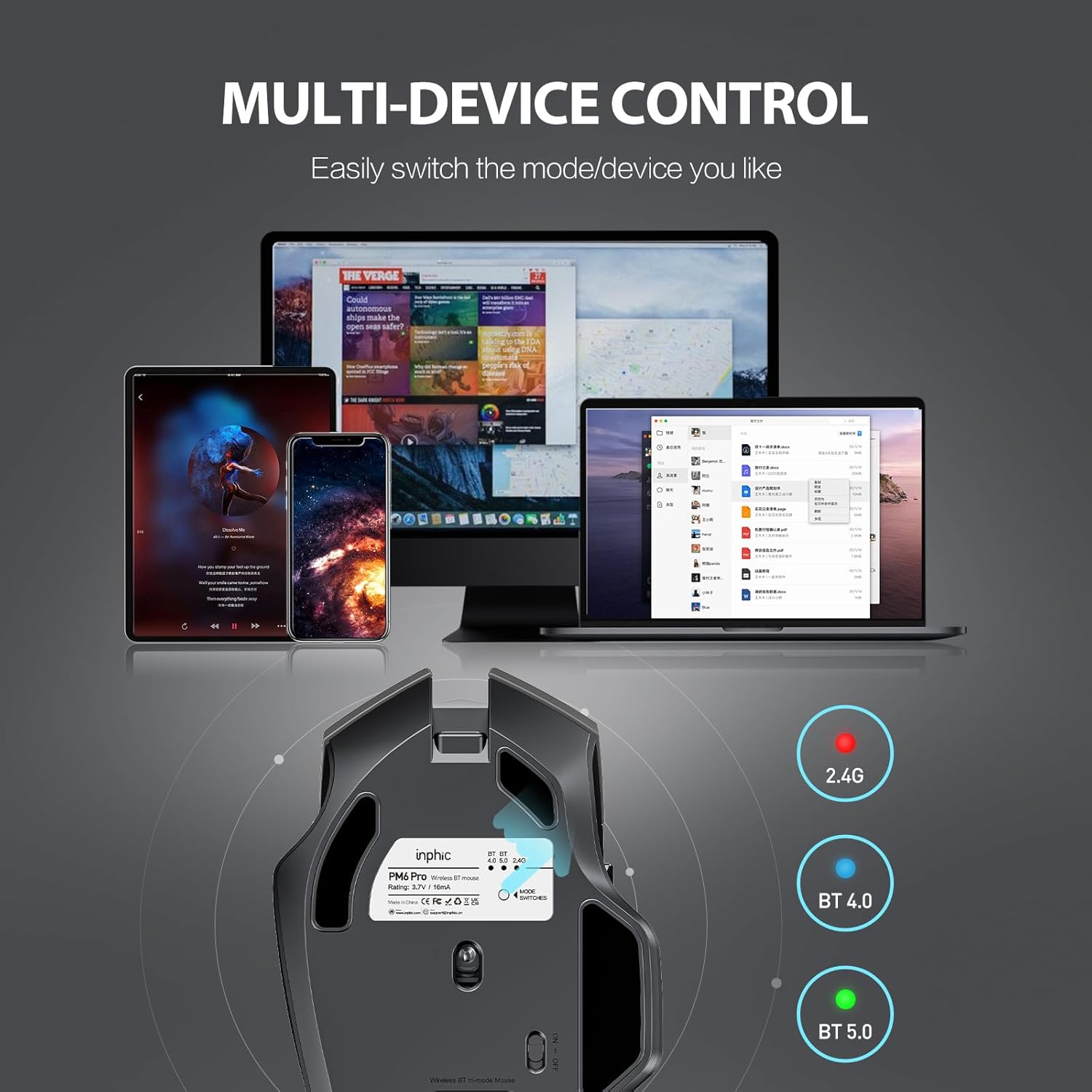
Image: The underside of the mouse, highlighting the USB receiver storage and the mode switch for 2.4G, BT 4.0, and BT 5.0 connections.
4.3 Bluetooth Connection (BT 5.0 / BT 4.0)
- Turn on the mouse using the ON/OFF switch at the bottom.
- Short-press the 'MODE SWITCHES' button at the bottom to cycle through connection modes until the desired Bluetooth indicator (BT 5.0 or BT 4.0) lights up.
- For pairing, long-press the 'MODE SWITCHES' button until the selected Bluetooth indicator light flashes rapidly. This indicates the mouse is in pairing mode.
- On your device (computer, tablet, etc.), go to Bluetooth settings and search for new devices. Select 'INPHIC M6Pro' (or similar name) to pair.
Video: Demonstrates how to switch between 2.4G and Bluetooth modes (BT 4.0, BT 5.0) and enter pairing mode by pressing the mode switch button on the mouse's underside.
5. אַפּערייטינג ינסטרוקטיאָנס
5.1 דפּי אַדזשאַסטמאַנט
The mouse features a DPI switch button located behind the scroll wheel. Press this button to cycle through 5 DPI settings (800, 1200, 1600, 2000, 2400 DPI) to adjust cursor sensitivity to your preference.

Image: A diagram illustrating the location of the DPI switch button and other buttons on the mouse.
5.2 קנעפּל פאַנגקשאַנז
The INPHIC M6Pro mouse is equipped with 6 buttons:
- לינקס שליסל: נאָרמאַלע לינקס-קליק פונקציע.
- רעכט שליסל: נאָרמאַלע רעכט-קליק פונקציע.
- סקראָל ראָד: סקראלט ארויף/אראפ, און דינט ווי א מיטל-קליק קנעפל.
- דפּי סוויטש: אַדזשאַסטירט קורסאָר סענסיטיוויטי (DPI).
- פֿאָרווערטס קנעפּל: נאַוויגירט פאָרויס אין web בראַוזערז אָדער file עקספּלאָרערס.
- צוריק קנעפּל: נאַוויגירט צוריק אין web בראַוזערז אָדער file עקספּלאָרערס.

בילד: דעטאַלירט view of the mouse's underside, showing the power switch, LED indicator, and USB receiver slot.
5.3 Ergonomic Design and Silent Operation
The mouse features a curved, skin-like material design for a comfortable grip, reducing hand strain during prolonged use. The widened thumb rest further enhances comfort and control.
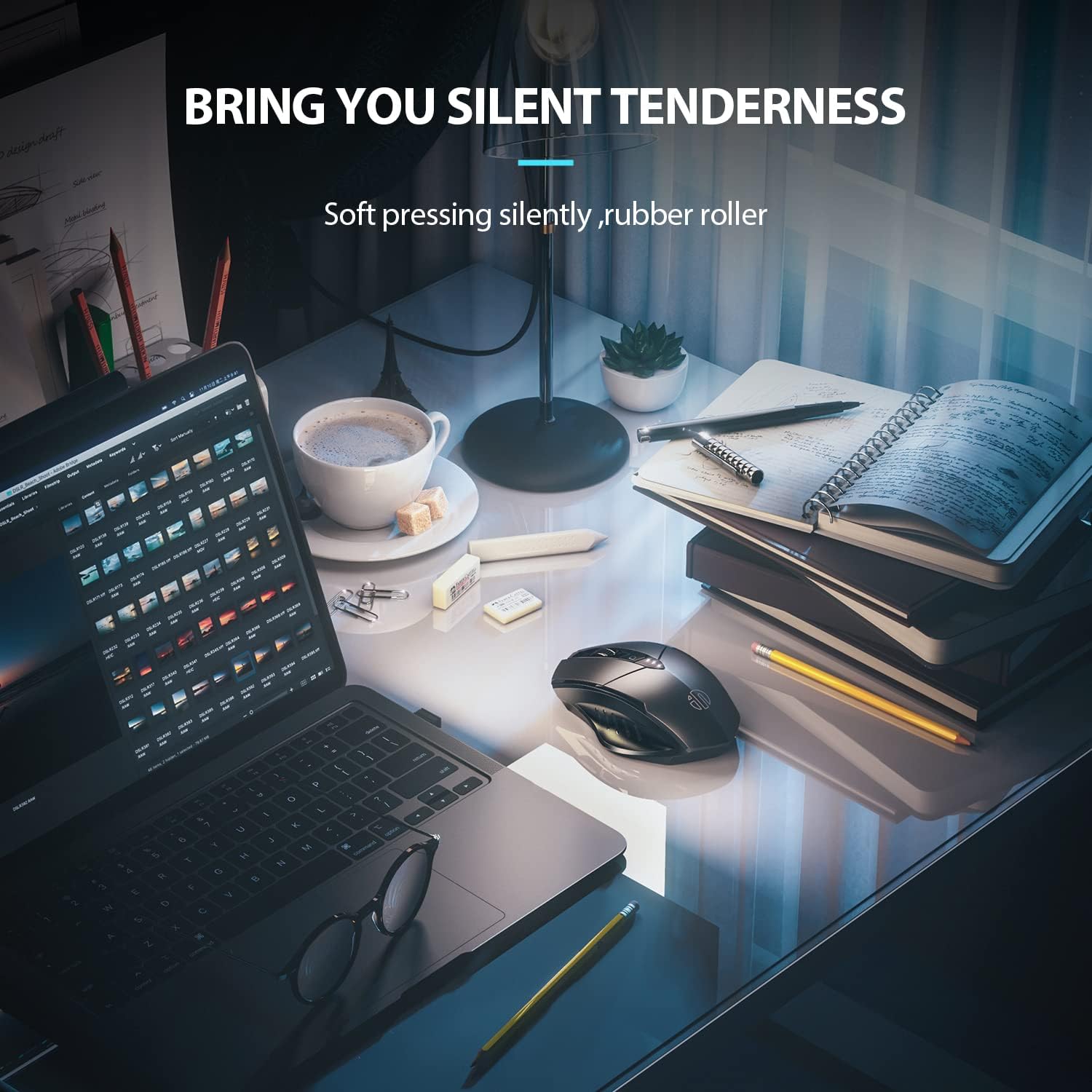
Image: The ergonomic shape of the mouse, designed for a comfortable user experience.

Image: A close-up showing the widened thumb rest for a more comfortable grip.
The left and right click buttons are designed for silent operation, allowing you to work without disturbing others.

Image: Illustrates the silent click feature of the mouse, ideal for quiet environments.
6. וישאַלט
To ensure the longevity and optimal performance of your INPHIC M6Pro mouse, follow these maintenance guidelines:
- רייניקונג: ניצט אַ ווייכע, טרוקענע שטאָף צו ווישן די מויז. פֿאַר שווערע שמוץ, אַ ביסל ווייכער מאַכןampווישט דעם שטאָף מיט וואַסער אָדער אַ מילדער רייניקונג לייזונג. פֿאַרמייַדט שטרענגע כעמיקאַלן אָדער אַברייסיוו מאַטעריאַלן.
- סטאָרידזש: When not in use for extended periods, turn off the mouse to conserve battery life. Store it in a cool, dry place away from direct sunlight and extreme temperatures.
- באַטערי זאָרגן: Avoid fully discharging the battery frequently. Charge the mouse when the battery indicator shows low power.
- וסב ופנעמער: Keep the USB receiver in its designated storage slot at the bottom of the mouse when traveling to prevent loss.
7. טראָובלעשאָאָטינג
If you encounter issues with your INPHIC M6Pro mouse, refer to the following common solutions:
| פּראָבלעם | מעגלעך סיבה | לייזונג |
|---|---|---|
| Mouse not responding (2.4G) | USB receiver not properly connected or mouse is off. | Ensure the USB receiver is securely plugged into a USB port. Turn on the mouse and ensure the mode switch is set to 2.4G. Try a different USB port. |
| מויז רעאַגירט נישט (בלוטעט) | Not paired, out of range, or incorrect Bluetooth mode selected. | Ensure the mouse is in the correct Bluetooth mode (BT 5.0 or BT 4.0) and in pairing mode (flashing light). Re-pair the mouse with your device. Ensure the mouse is within 10 meters of your device. |
| קורסאָר באַוועגונג איז נישט סטאַביל אָדער פּאַמעלעך | Low battery, incorrect DPI setting, or dirty sensor. | Charge the mouse. Adjust the DPI setting using the DPI button. Clean the optical sensor at the bottom of the mouse with a soft cloth. |
| Buttons not clicking or unresponsive | Low battery or connection issue. | Charge the mouse. Re-establish the connection (2.4G or Bluetooth). |
| די באַטאַרייע איז נישט טשאַרדזשינג | דעפעקטיווער קאַבל אָדער מאַכט מקור. | Try a different USB-C cable and a different USB power source. Ensure the cable is properly connected to the mouse's Type-C port. |
8. ספּעסאַפאַקיישאַנז
| שטריך | דעטאַל |
|---|---|
| מאָדעל נומער | M6Pro |
| קאַנעקטיוויטי טעכנאָלאָגיע | 2.4G ווירעלעס, בלועטוט 5.0, בלועטוט 4.0 (טרי-מאָד) |
| באַוועגונג דעטעקשאַן טעכנאָלאָגיע | אָפּטיש |
| דפּי סעטטינגס | 800 , 1200 , 1600 , 2000 , 2400 |
| קנעפּלעך | 6 (לינקס, רעכטס, סקראָל ראָד, DPI סוויטש, פאָרווערטס, צוריק) |
| באַטערי טיפּ | Rechargeable Lithium Polymer (500mAh) |
| טשאַרדזשינג פּאָרט | טיפּ-C |
| פּראָדוקט דימענשאַנז | 4.65 X 1.57 X 0.04 אינטשעס |
| פּונקט וואָג | 3.35 אונסעס |
| קאַמפּאַטאַבאַל אַפּערייטינג סיסטעמס | Windows Vista/7 and above, Mac OS X 10.10 and above, iOS 13 and above, Android 5.0 and above, Linux kernel 2.6+, Chrome OS |
9. וואָראַנטי און שטיצן
INPHIC products are designed for reliability and performance. For warranty information or technical support, please refer to the contact details provided with your product packaging or visit the official INPHIC webזייטל. האַלט אייער קויף קוויטל ווי אַ באַווייַז פון קויפן פֿאַר וואָראַנטי קליימז.


