1. הקדמה
This manual provides detailed instructions for the setup, operation, and maintenance of your KiiBoom Phantom 81 V2 Mechanical Gaming Keyboard. Please read this manual thoroughly before using the product to ensure optimal performance and longevity.

Image: The KiiBoom Phantom 81 V2 Mechanical Gaming Keyboard, showcasing its transparent design and RGB backlighting.
2. פּעקל אינהאַלט
באַשטעטיקן אַז אַלע זאכן זענען פאַראַן אין פּעקל:
- KiiBoom Phantom 81 V2 Mechanical Gaming Keyboard
- וסב קאַבלע
- קייקאַפּ פּולער
- Switch Puller (often integrated with keycap puller)
- עקסטרע סוויטשעס (געווענליך 2)
3. שליסל פֿעיִקייטן
The KiiBoom Phantom 81 V2 keyboard incorporates several advanced features:
- 75% אויסלייג: קאָמפּאַקטער דיזיין וואָס האַלט אָן וויכטיקע שליסלען.
- Transparent Acrylic Frame: Durable and aesthetically unique.
- Gasket Mount Design: Enhances typing feel and sound.
- PC Mounting Plate: Optimized for flexibility and sound profile.
- Full-key Hot-swappable PCB: ערמעגליכט גרינגע סוויטש אויסטויש אָן סאָלדערן.
- South-facing RGB LEDs: Provides vibrant backlighting with reduced glare.
- טריפּל מאָדע קאָנעקטיוויטי: Supports Type-C Wired, Bluetooth 5.0, and 2.4GHz wireless connections.
- קריקאָנלאָדלעך באַטערי: 4000mAh capacity for extended wireless use.
- קאַמפּאַטאַבילאַטי: גאָר קאָמפּאַטיבל מיט מעק און ווינדאָוז אָפּערייטינג סיסטעמען.

בילד: אן איבערview graphic highlighting the KiiBoom Phantom 81 V2's main features including 75% layout, tri-mode, hot-swappable, gasket-mounted, PC plate, plate-mounted stabilizers, south-facing RGB, and acrylic design.

Image: A detailed exploded diagram illustrating the internal gasket structure of the KiiBoom Phantom 81 V2 keyboard, showing components like the metal knob, acrylic top case, switches, PC plate, sandwich cotton, switch pad, PCB, acrylic bottom case, metal nameplate, and keyboard pads.

Image: A close-up of the KiiBoom Phantom 81 V2 keyboard highlighting its transparent acrylic case and PC keycaps with an ASA profile, ווייַזןasing the clear design.
4. סעטאַפּ
4.1 ערשט טשאַרדזשינג
Before first use, connect the keyboard to a USB power source using the provided USB-C cable. The keyboard will charge automatically. A full charge is recommended for optimal battery life.
4.2 קאָנעקטיוויטי מאָדעס
The Phantom 81 V2 supports three connection modes:
- Type-C Wired Mode: Connect the USB-C cable directly to your computer. Switch the mode selector on the back of the keyboard to "USB".
- בלועטוט 5.0 מאָדע:
- Switch the mode selector on the back of the keyboard to "BT".
- דרוק fn+1, fn+2, אָדער fn+3 to select a Bluetooth profile. The indicator light will flash, indicating pairing mode.
- On your device (computer, tablet, smartphone), search for Bluetooth devices and select "KiiBoom Phantom 81".
- אַמאָל פארבונדן, וועט די אינדיקאַטאָר ליכט אויפהערן צו בלינקען.
- 2.4GHz ווירעלעסס מאָדע:
- Switch the mode selector on the back of the keyboard to "2.4G".
- שטעקט אריין דעם 2.4GHz USB ריסיווער אין א פאראן USB פארט אויף אייער קאמפיוטער.
- דרוק fn+4. The keyboard will automatically connect to the receiver. The indicator light will stop flashing once connected.

Image: A close-up of the KiiBoom Phantom 81 V2's side, showing the USB-C port and the physical switches for selecting between USB, Win/Mac, Bluetooth, and 2.4G wireless modes.
4.3 אָפּערייטינג סיסטעם קאָמפּאַטיביליטי
The keyboard is compatible with both Windows and macOS. Use the dedicated switch on the back of the keyboard to select the appropriate operating system mode (WIN/MAC) for optimal key mapping.

Image: A visual representation of the KiiBoom Phantom 81 V2 keyboard being used with various operating systems, including macOS, Windows, and Android, indicating broad compatibility.
5. אַפּערייטינג ינסטרוקטיאָנס
5.1 RGB באַקלייטונג קאָנטראָל
The Phantom 81 V2 features south-facing RGB LEDs for customizable backlighting. Use the following key combinations to adjust the lighting effects:
- פֿן + \ |: Toggle Backlight Mode
- Fn + DEL: Toggle Backlight Direction
- Fn + ↑: ברייטנאַס +
- Fn + ↓: Brightness -
- Fn + →: Speed +
- Fn + ←: Speed -

Image: A diagram illustrating the key combinations for controlling the south-facing RGB backlights on the KiiBoom Phantom 81 V2 keyboard, including mode, direction, brightness, and speed adjustments.
5.2 Surrounding Sidelights Control
The keyboard also features customizable sidelights. Use the following key combinations to adjust them:
- Fn + P: Toggle Sidelight Mode
- Fn+B: Toggle Sidelight Color
- Fn + X: Sidelight Brightness +
- Fn+Z: Sidelight Brightness -
- Fn + V: Sidelight Speed +
- Fn + C: Sidelight Speed -

Image: A diagram illustrating the key combinations for controlling the surrounding sidelights on the KiiBoom Phantom 81 V2 keyboard, including mode, color, brightness, and speed adjustments.
5.3 מולטיפונקטיאָנאַל קנופּ
The knob located on the top right of the keyboard provides quick access to media controls and can be customized:
- Rotate clockwise: Volume +
- Rotate counter-clockwise: Volume -
- דרוק: Mute / Unmute
- Long Press: Customizable Functions (refer to software for configuration)

Image: A close-up of the KiiBoom Phantom 81 V2's multifunctional knob, detailing its functions for volume control, mute, and customizable options.
5.4 Checking Battery Power
צו קאָנטראָלירן די איצטיקע באַטאַרייע מדרגה, דריק Fn + Backspace. The indicator lights will display the approximate battery percentage.

Image: A diagram showing how to check the battery power of the KiiBoom Phantom 81 V2 keyboard by pressing Fn+Backspace, with visual indicators for 20%, 50%, and 100% charge levels.
5.5 הייס-סוואַפּאַבל סוויטשיז
The Phantom 81 V2 features a full-key hot-swappable PCB, allowing you to change mechanical switches without soldering. This keyboard is compatible with both 3-pin and 5-pin mechanical switches.
- ניצט דעם צוגעשטעלטן קלאַוויאַטור-אויסציער צו פֿאָרזיכטיק אַראָפּנעמען דעם געוואונטשענעם קלאַוויאַטור.
- Use the provided switch puller to gently grasp the switch from its top and bottom clips. Pull straight up to remove the switch from the PCB.
- גלייכט אויס די פּינס פון דעם נייעם סוויטש מיט די לעכער אויף דער פּקב. מאַכט זיכער אַז די פּינס זענען גלייך כּדי נישט צו בייגן זיך.
- דריק דעם נייעם סוויטש פעסט אין פלאץ ביז עס קליקט.
- לייג צוריק צו דעם שליסל.

בילד: א נאָענטע בילד view of the KiiBoom Phantom 81 V2 keyboard with a keycap and switch removed, demonstrating the hot-swappable PCB plate compatible with 3-pin or 5-pin mechanical switches.

Image: A hand using a switch puller tool to remove a switch from the KiiBoom Phantom 81 V2 keyboard, illustrating the hot-swappable feature.
Different switch types offer varying typing experiences:
- KiiBoom Pink Switch: Linear type, Actuation Force: 38±15gf, Bottom Force: 42±15gf, Total Travel: 3.80±0.2mm, Pre Travel: 1.6±0.4mm.
- KiiBoom Purple Switch: Linear type, Actuation Force: 45±15gf, Bottom Force: 55±15gf, Total Travel: 3.80±0.2mm, Pre Travel: 1.6±0.4mm.
- KiiBoom Crystal Switch: Linear type, Actuation Force: 55±15gf, Bottom Force: 60±15gf, Total Travel: 3.60±0.2mm, Pre Travel: 1.6±0.4mm.

Image: A close-up of KiiBoom Purple Switches, illustrating their transparent design.

Image: A close-up of KiiBoom Pink Switches, illustrating their transparent design.

Image: A close-up of KiiBoom Crystal Switches, illustrating their transparent design.
5.6 ווייכווארג קאַסטאַמייזיישאַן
Advanced customization for key remapping, macro creation, and lighting effects can be achieved through the dedicated KiiBoom software. Please visit the official KiiBoom website to download the latest software version for your keyboard model.
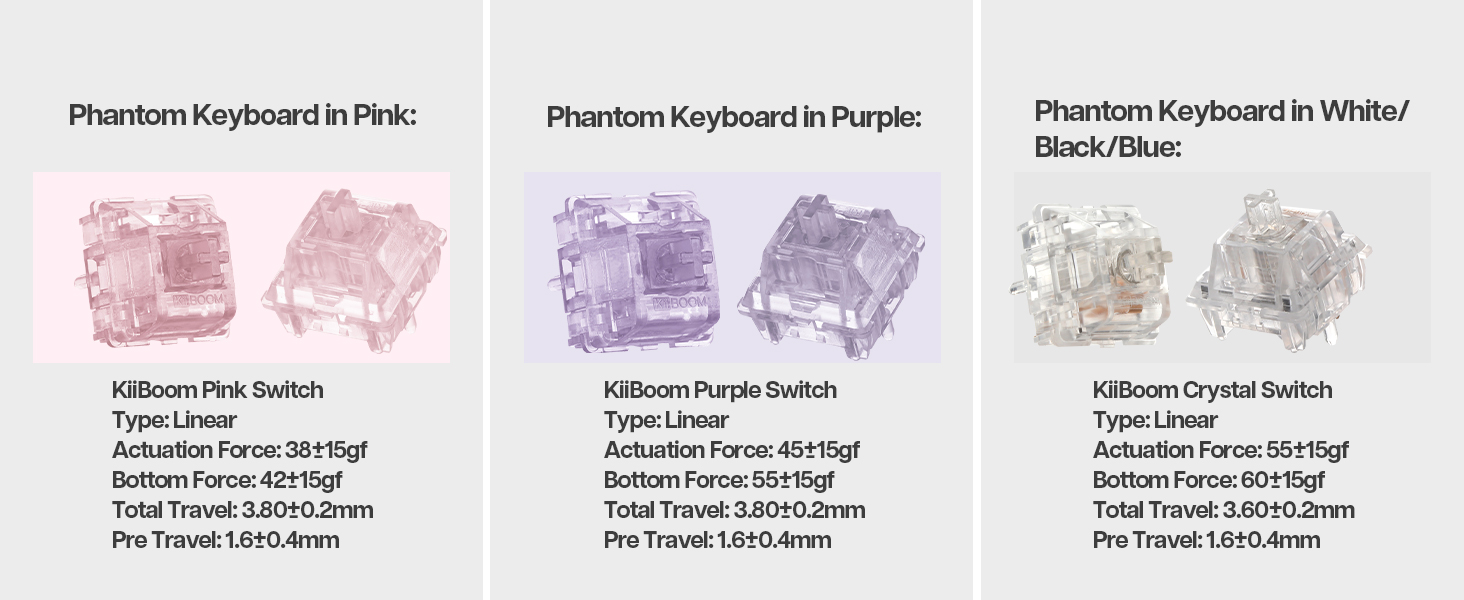
Image: A laptop screen displaying the KiiBoom software interface for customizing key settings, lighting, and other functions of the Phantom 81 V2 keyboard.
6. וישאַלט
6.1 רייניקונג
- שליסל קאַפּס: Use the keycap puller to remove keycaps. Clean them with a mild soap solution and a soft cloth. Ensure they are completely dry before reattaching.
- קלאַוויאַטור גוף: ניצט אַ ווייכן, לינט-פֿרייע שטאָף, אַ ביסל ווייכערampened with water or a mild cleaning solution, to wipe the acrylic body. Avoid abrasive materials or harsh chemicals.
- צווישן שליסלען: ניצט קאמפרעסט לופט צו באזייטיגן שטויב און דעבריס פון צווישן די סוויטשעס.
6.2 אַלגעמיינע קער
- Avoid exposing the keyboard to extreme temperatures, direct sunlight, or high humidity.
- Do not spill liquids on the keyboard. If a spill occurs, immediately disconnect power and allow it to dry completely before attempting to use it again.
- Handle with care to prevent drops or impacts that could damage the transparent acrylic.
7. טראָובלעשאָאָטינג
| אַרויסגעבן | מעגלעך לייזונג |
|---|---|
| די קלאַוויאַטור רעאַגירט נישט אין וויירלעס מאָדע. |
|
| די RGB לייטינג ארבעט נישט אדער איז נישט ריכטיג. |
|
| שליסלען רעגיסטרירן זיך נישט אדער טייפן נישט צוויי מאל. |
|
| באַטאַרייע דריינז געשווינד. |
|
8. ספּעסאַפאַקיישאַנז
| שטריך | דעטאַל |
|---|---|
| מאָדעל | Phantom 81 V2 |
| אויסלייג | 75% |
| קאַנעקטיוויטי | 2.4 גיגאהערץ ווירעלעס, בלועטוט 5.0, יו-עס-בי-סי מיט ווייערס |
| באַטאַרייע קאַפּאַציטעט | 4000mAh (V2 version) |
| באַקלייט | דרום-פארענדיקט RGB |
| הייס-סוואַפּפּאַבלע | Yes, compatible with 3-pin/5-pin mechanical switches |
| קאַסע מאַטעריאַל | אַקריליק |
| פּלאַטע מאַטעריאַל | פּאָליקאַרבאָנאַטע (פּיסי) |
| פּונקט וואָג | 4.53 פונט (אומגעפער 2.05 ק"ג) |
| פּעקל דימענשאַנז | 16.61 X 10.91 X 2.91 אינטשעס |
| קאַמפּאַטאַבאַל דעוויסעס | גיימינג קאנסאל, לעפטאפ, פיסי, סמארטפאן, טאבלעט |
9. וואָראַנטי און שטיצן
For warranty information and technical support, please refer to the official KiiBoom webזייטל אדער קאנטאקט זייער קאסטומער סערוויס גלייך. האלט אייער באווייז פון קויפן פאר יעדע גאראנטיע טענות.
Official KiiBoom Webפּלאַץ: KiiBoom Store on Amazon (for general brand information and potential support links).


