הקדמה
This manual provides instructions for the Alienware AW520H Wired Gaming Headset. It covers setup, operation, maintenance, and troubleshooting to ensure optimal performance and longevity of your device.
The Alienware AW520H headset is designed to deliver precision audio with Hi-Res certified drivers and Dolby Atmos spatial audio support, integrated into a comfortable and adjustable design.
וואָס איז אין די קעסטל
באַשטעטיקן אַז אַלע קאָמפּאָנענטן זענען פאַראַן אין דער פּאַקעט:
- Alienware AW520H Wired Gaming Headset
- דאָקומענטאַציע (באַניצער מאַנואַל, וואָראַנטי אינפֿאָרמאַציע)
פּראָדוקט איבערview
Familiarize yourself with the key components and features of your Alienware AW520H headset.
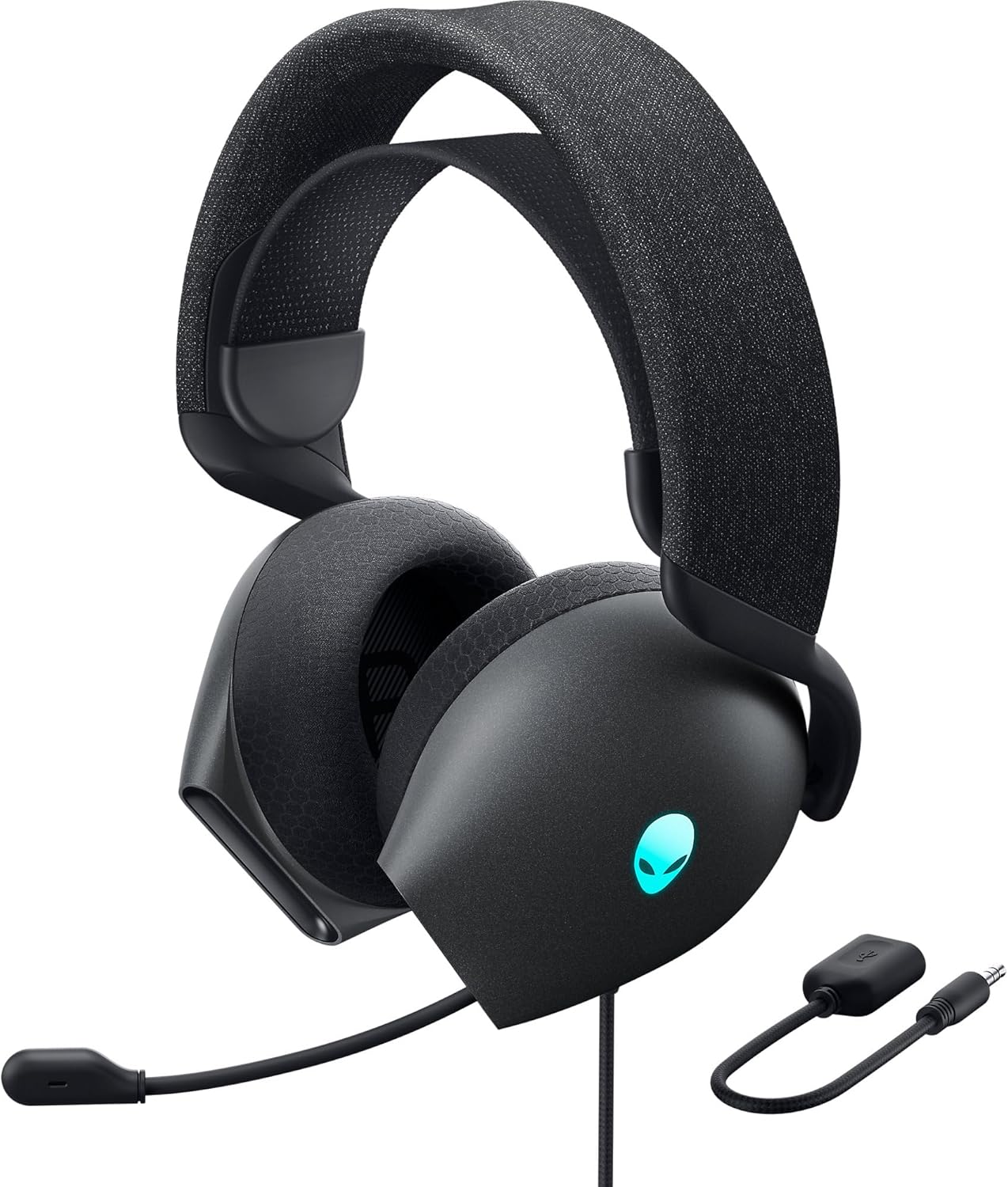

שליסל פֿעיִקייטן:
- Hi-Res Certified Drivers: Delivers clear and rich sound across a wide frequency range.
- Dolby Atmos Spatial Audio: Provides precise positional audio for an immersive experience.
- AI-Driven Noise Cancellation Microphone: Retractable boom mic focuses on your voice, reducing ambient noise.
- באַקוועם פּלאַן: Features soft memory foam ear pads with breathable fabric and an adjustable suspension headband for extended wear.
- AlienFX RGB Lighting: Customizable RGB lighting on the earcups, controllable via Alienware Command Center.
- ווערסאַטאַל קאַנעקטיוויטי: Supports both USB and 3.5mm connections for broad compatibility.
סעטאַפּ
Follow these steps to set up your Alienware AW520H headset.
1. קאַנעקטינג די העאַדסעט
The AW520H offers flexible connectivity options:
- 3.5 מם אַודיאָ דזשאַק: Connect the 3.5mm cable directly to your PC, gaming console controller, or any other compatible device with a 3.5mm audio port. This provides basic audio and microphone functionality.
- USB קשר: For full functionality, including Dolby Atmos spatial audio and AlienFX RGB lighting customization, connect the headset via USB to your PC. This typically involves using a 3.5mm to USB adapter if your PC does not have a combined audio jack.


2. Software Installation (Optional, for full features)
To unlock the full potential of your headset, including Dolby Atmos and AlienFX RGB lighting customization, install the Alienware Command Center software on your PC. This software allows for personalized audio profiles און לייטינג יפעקץ.
- Download the latest version of Alienware Command Center from the official Alienware support webפּלאַץ.
- גיי די ינסטראַקשאַנז אויף דעם עקראַן צו פאַרענדיקן די ינסטאַלירונג.
- Connect your headset via USB to ensure it is recognized by the software.
אַפּערייטינג ינסטראַקשאַנז
אַודיאָ קאָנטראָלס
The headset features integrated controls for convenient audio management:
- באַנד ראָד: Located on the earcup, rotate the wheel to increase or decrease the audio volume.
- מיקראָפאָן שטום קנעפּל: Press the button on the earcup to mute or unmute the microphone.

מיקראָפאָן באַניץ
The AW520H features an AI-driven noise-canceling retractable boom microphone:
- פארלענגערן/צוריקציען: Gently pull the microphone boom out from the earcup to extend it for use. Push it back into the earcup to retract it when not needed.
- פּאַזישאַנינג: For optimal voice clarity, position the microphone approximately 1-2 inches from your mouth.
- ראַש קאַנסאַליישאַן: The AI-driven noise cancellation automatically works to filter out ambient sounds, focusing on your voice.

אַדזשאַסטינג פֿאַר קאָמפאָרט
The headset is designed for comfort during long gaming sessions:
- Suspension Headband: Slide the suspension headband up or down to find the ideal fit for your head size.
- Earcup Rotation: The earcups can slightly pivot to conform to the shape of your ears.
- Memory Foam Ear Pads: The soft memory foam ear pads with breathable fabric provide cushioning and ventilation.

AlienFX RGB Lighting
Customize the RGB lighting on your headset using the Alienware Command Center software:
- עפֿענען די Alienware Command Center.
- Navigate to the lighting settings for your AW520H headset.
- Select desired colors, effects, and brightness levels.
- Ensure the headset is connected via USB for lighting customization.
וישאַלט
געהעריקע אויפהאלטונג גאראנטירט די לאנגעוויטי און פאָרשטעלונג פון אייער כעדסעט.
- רייניקונג: ניצט אַ ווייכע, טרוקענע שטאָף צו ווישן די אויערקעפּלעך און קאָפּבאַנד. פֿאַר שווערן שמוץ, אַ ביסל טרוקןamp מען קען ניצן אַ שטאָף, אָבער פֿאַרמייַדן איבעריקע פֿײַכטקייט. ניצט נישט קיין שטרענגע כעמיקאַלן אָדער אַברייסיוו רייניגער.
- סטאָרידזש: Store the headset in a clean, dry place away from extreme temperatures and direct sunlight. Retract the microphone when not in use to protect it.
- קאַבלע זאָרגן: Avoid sharp bends or kinks in the audio cable. Do not pull on the cable to disconnect the headset.
- אויער פּאַדס: The ear pads are made of breathable fabric and memory foam. While durable, they are not designed for frequent removal. If replacement is needed, consult Alienware support.
טראָובלעשאָאָטינג
If you encounter issues with your Alienware AW520H headset, refer to the following common solutions:
קיין אַודיאָ אָדער נידעריקע באַנד
- טשעק קאַנעקשאַנז: Ensure the 3.5mm cable or USB connection is securely plugged into both the headset and your device.
- באַנד לעוועלס: Verify that the volume wheel on the headset is turned up. Check the audio output settings on your PC or console to ensure the headset is selected as the default output device and volume is not muted.
- ווייכווארג/דרייווערס: If connected via USB, ensure Alienware Command Center is installed and updated. Check your operating system's sound settings for driver issues.
- פּרובירן אויף אן אנדער מיטל: Connect the headset to a different device (e.g., smartphone, another PC) to determine if the issue is with the headset or the original device.
מיקראָפאָן איז נישט ארבעטן
- טשעק די שטום קנעפל: זיכער מאַכן אַז דער מיקראָפאָן מיוט קנעפּל אויף די כעדסעט איז נישט אַקטיוויזירט.
- מיקראָפאָן שטעלע: Verify the microphone boom is fully extended and positioned correctly.
- אַרייַנשרייַב סעטטינגס: Check your PC or console's sound input settings to ensure the headset microphone is selected as the default input device. Adjust microphone volume levels.
- אַפּפּליקאַטיאָן סעטטינגס: Some applications (e.g., Discord, Zoom) have their own microphone settings. Verify the correct microphone is selected within these applications.
- ווייכווארג/דרייווערס: If connected via USB, ensure Alienware Command Center is installed and updated.
AlienFX RGB Lighting Not Working
- USB קשר: Ensure the headset is connected via USB to your PC. RGB lighting functionality requires a USB connection.
- אַליענווער קאָמאַנד צענטער: Verify that Alienware Command Center is installed and running. Check the lighting settings within the software for the headset.
- ווייכווארג דערהייַנטיקן: Ensure Alienware Command Center and headset firmware are up to date.
ספּעסאַפאַקיישאַנז
| שטריך | דעטאַל |
|---|---|
| מאָדעל נאָמען | AW520H |
| קאַנעקטיוויטי טעכנאָלאָגיע | Wired (USB, 3.5 mm Jack) |
| אַודיאָ דרייווער טיפּ | דינאַמיש דרייווער |
| אָפטקייַט ענטפער | 40 קילאָהערץ (40,000 הערץ) |
| ימפּידאַנס | 32 Ohm |
| ראַש קאָנטראָל | Active Noise Cancellation (AI-driven for mic) |
| מיקראָפאָן | Retractable, Unidirectional |
| קאָנטראָלס | Volume Control, Microphone Mute (On-headset) |
| אויער פּלייסמאַנט | איבער אויער |
| פאָרם פאַקטאָר | אויף אויער |
| מאַטעריאַל | Memory foam, breathable fabric |
| קאָליר | Dark Side of the Moon |
| פּראָדוקט דימענשאַנז | 7.28 X 4.35 X 8.46 אינטשעס |
| פּונקט וואָג | 11.8 אונסעס |
| פאַבריקאַנט | Dell |
| קאַמפּאַטאַבאַל דעוויסעס | Windows, wired devices |
וואָראַנטי און שטיצן
For warranty information and technical support, please refer to the documentation included with your product or visit the official Alienware support webפּלאַץ.
פאַבריקאַנט: Dell
מאָדעל נומער: AW520H
ערשטער דאַטע בנימצא: 30 יוני 2023
For further assistance, please contact Alienware customer support through their official channels.


