1. הקדמה
This manual provides comprehensive instructions for the iClever MD179 Multi-Device Wireless Mouse. It covers setup, operation, maintenance, and troubleshooting to ensure optimal performance and a seamless user experience. Please read this manual thoroughly before using the product.
2. פּעקל אינהאַלט
באַשטעטיקן אַז אַלע זאכן זענען פאַראַן אין דיין פּעקל:
- iClever MD179 Wireless Mouse
- USB 2.4GHz Receiver (stored inside the mouse)
- וסב-C טשאַרדזשינג קאַבלע
- באַניצער מאַנואַל (דעם דאָקומענט)
3. פּראָדוקט איבערview
Familiarize yourself with the mouse's components and controls:

פיגורע 1: iClever MD179 Mouse Button Layout
- רעכט קליק קנעפל: נאָרמאַל רעכט-קליק פאַנגקשאַנאַליטעט.
- לינקער קליק קנעפל: נאָרמאַלע לינקס-קליק פאַנגקשאַנאַליטעט.
- Scroll Wheel / Middle Click Button: For scrolling and middle-click actions.
- פֿאָרווערטס קנעפּל: נאַוויגירט פאָרויס אין web בראַוזערז אָדער file explorers (Windows only).
- צוריק קנעפּל: נאַוויגירט צוריק אין web בראַוזערז אָדער file explorers (Windows only).
- DPI סוויטש קנעפּל: אַדזשאַסטירט קורסאָר סענסיטיוויטי (DPI).
- מאַכט באַשטימען אויף / אַוועק געפינען זיך אויף דער אונטערשטער טייל פון דער מויז צו עס אנצינדן אדער אויסלעשן.
- 2.4GHz / Bluetooth 1 / Bluetooth 2 Channel Indicator: Displays the active connection mode.
4. סעטאַפּ
4.1 אויפלאָדן די מויז
Before initial use, fully charge the mouse.
- Connect the provided USB-C cable to the charging port on the front of the mouse and to a USB power source (e.g., computer USB port, USB wall adapter).
- די טשאַרדזשינג אינדיקאַטאָר ליכט וועט זיך אָנצינדן בעת טשאַרדזשינג און זיך אויסלעשן ווען עס איז גאָר אויפגעלאָדן.
- A full charge typically provides up to 2 months of use, depending on usage.
- The mouse can be used wirelessly while it is charging.
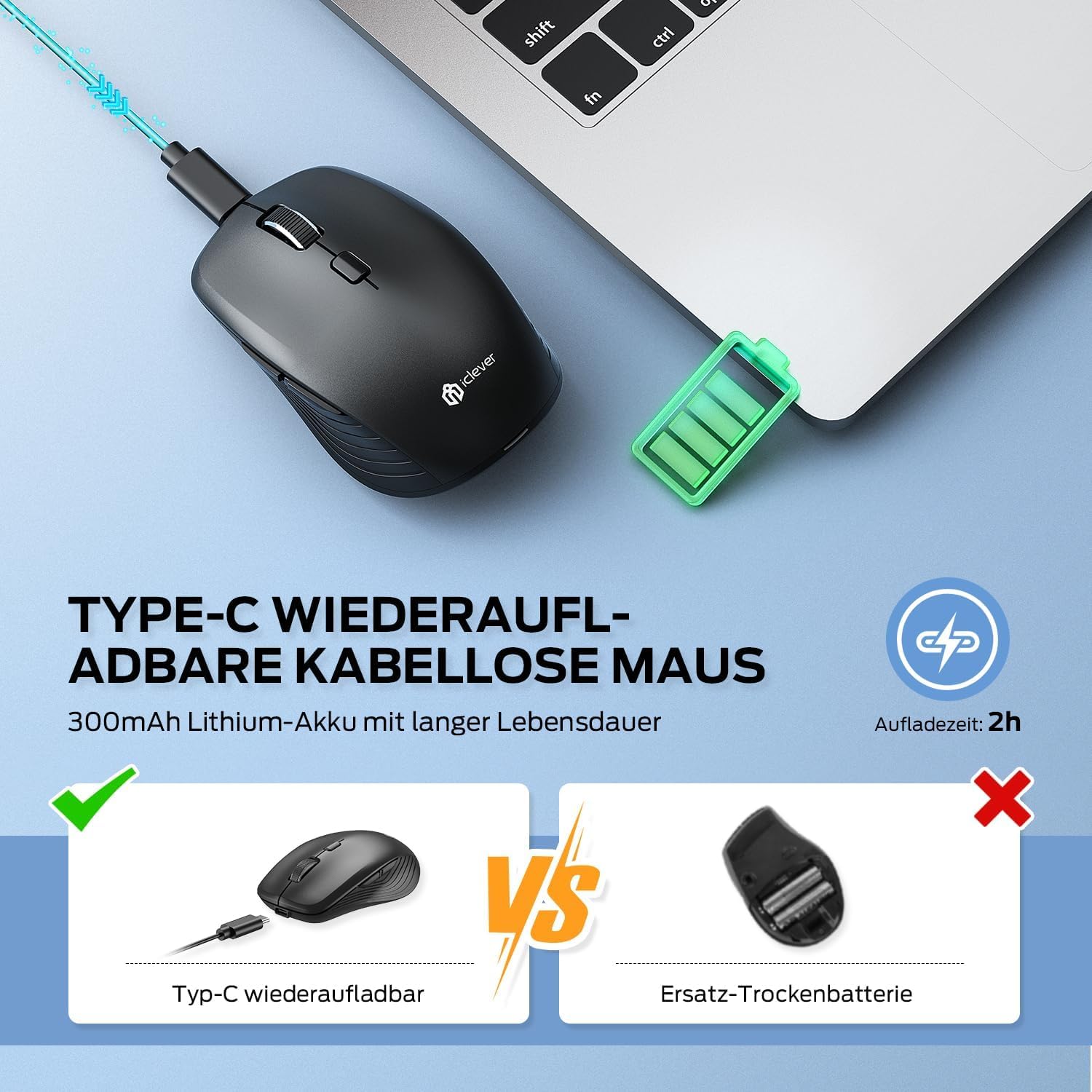
פיגורע 2: USB-C Rechargeable Feature
4.2 פֿאַרבינדן זיך דורך 2.4GHz ווירעלעס
For a stable and quick connection:
- Locate the USB 2.4GHz receiver. It is stored in a compartment under the magnetic top cover of the mouse. Gently lift the top cover to access it.
- אַרייַנלייגן די וסב ופנעמער אין אַ בנימצא וסב פּאָרט אויף דיין קאָמפּיוטער.
- צינדט אָן די מויז מיטן אָן/אויס קנעפּל אויף דער אונטערשטער זייט.
- Switch the connection mode to 2.4GHz (refer to the channel indicator on the bottom).
- די מויז זאָל זיך אויטאָמאַטיש פֿאַרבינדן.

פיגורע 3: קאַנעקשאַן אָפּציעס
4.3 פֿאַרבינדן זיך דורך בלועטוט (BT1 / BT2)
The mouse supports two Bluetooth connections:
- צינדט אָן די מויז מיטן אָן/אויס קנעפּל אויף דער אונטערשטער זייט.
- Switch the connection mode to either Bluetooth 1 (BT1) or Bluetooth 2 (BT2) using the channel switch button on the bottom. The indicator light will confirm the selected channel.
- Press and hold the channel switch button for 3-5 seconds until the indicator light flashes rapidly. This indicates the mouse is in pairing mode.
- On your device (PC, Mac, laptop, tablet), go to Bluetooth settings.
- זוכן פֿאַר "iClever MD179" or a similar name in the list of available devices and select it to pair.
- Repeat these steps for a second Bluetooth device using the other Bluetooth channel (BT2).

פיגורע 4: מולטי-מיטל קאַנעקטיוויטי
4.4 וועקסלען צווישן דעוויסעס
צו באַשטימען צווישן קאָננעקטעד דעוויסעס:
- Use the channel switch button on the bottom of the mouse to cycle between the 2.4GHz, Bluetooth 1, and Bluetooth 2 connections.
- The indicator light will confirm the currently active channel.
5. אַפּערייטינג ינסטרוקטיאָנס

פיגורע 5: Mouse in Use with Multiple Devices
5.1 דפּי אַדזשאַסטמאַנט
Adjust the cursor sensitivity to match your preference or task:
- Press the DPI switch button (button 6 in Product Overview) to cycle through the available DPI settings: 800, 1200, 1600, and 2400 DPI.
- The indicator light may flash briefly to confirm the DPI change.
- Higher DPI settings result in faster cursor movement across the screen.
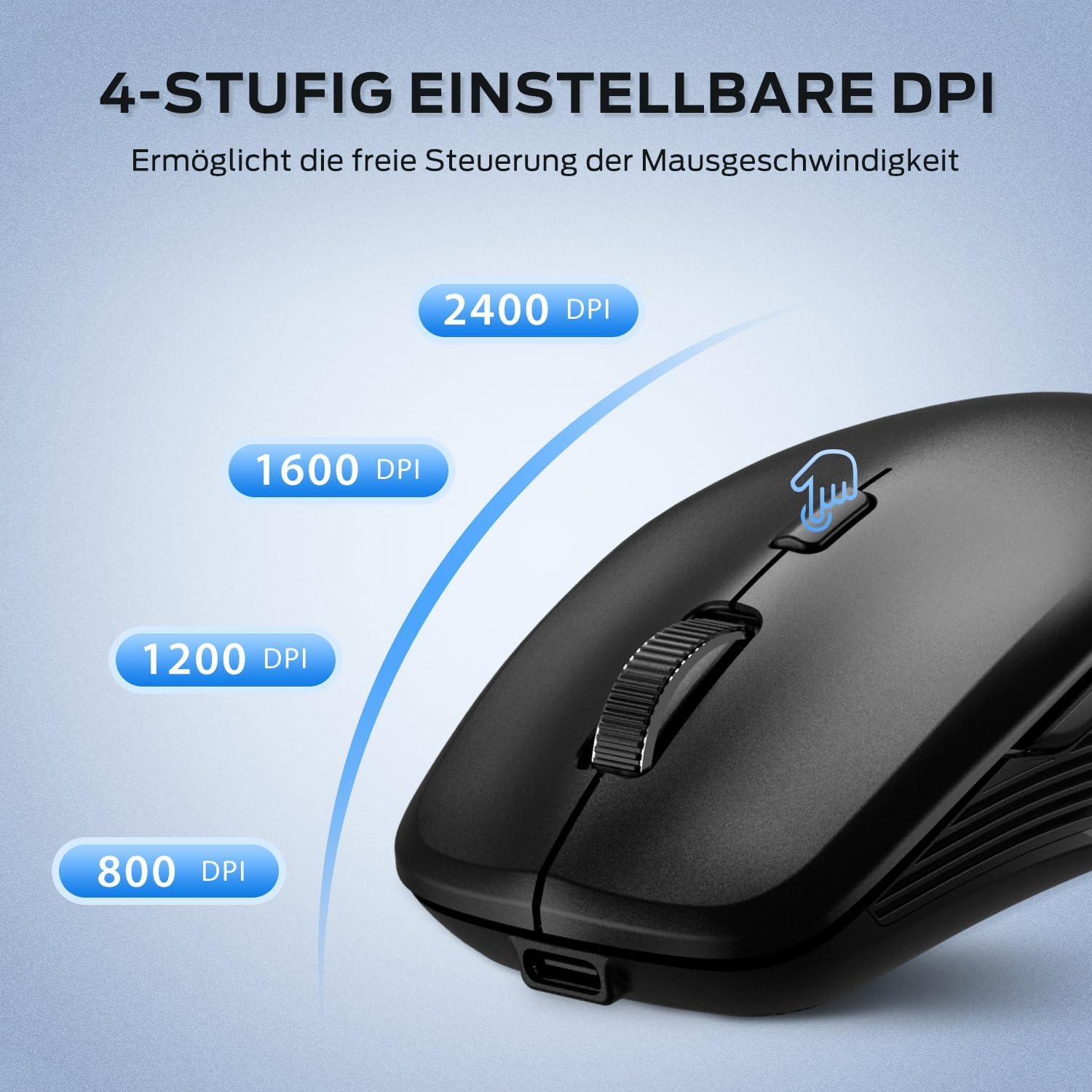
פיגורע 6: אַדזשאַסטאַבאַל DPI סעטטינגס
5.2 שטילע קליק פֿונקציע
The iClever MD179 mouse is designed with silent left and right click buttons to minimize noise, making it ideal for quiet environments such as libraries, offices, or late-night use at home.

פיגורע 7: Silent Click Benefits
5.3 Side Buttons (Forward/Back)
The forward and back buttons (buttons 4 and 5 in Product Overview) provide convenient navigation in web בראַוזערז און file explorers. Please note that these buttons are primarily functional on Windows operating systems. Their functionality may vary or require specific software configuration on macOS or other operating systems.
5.4 מאַכט מאַנאַגעמענט
The mouse incorporates features to optimize battery life:
- אָטאַמאַטיק שלאָפן מאָדע: The mouse will enter an automatic sleep mode after a period of inactivity to conserve power. Move the mouse or click any button to wake it up.
- אויף/אַוועק באַשטימען: For extended periods of non-use, it is recommended to turn off the mouse completely using the ON/OFF switch (button 7 in Product Overview) located on the bottom.
6. וישאַלט
6.1 רייניקונג
To keep your mouse in optimal condition:
- Gently wipe the mouse surface with a soft, slightly damp שטאָף.
- פֿאַרמײַדן ניצן שאַרפֿע כעמיקאַלן, אַברייסיוו רייניגער, אָדער סאָלווענטן, ווײַל די קענען שאַטן די ייבערפֿלאַך.
- זיכער מאַכן אַז קיין פליסיקייט זאָל נישט אַרייַן אין די אינעווייניקסטע קאָמפּאָנענטן פון דער מויז.
- Periodically clean the optical sensor on the bottom of the mouse with a dry cotton swab to ensure accurate tracking.
6.2 באַטערי קער
Proper battery care extends the lifespan of your mouse:
- Charge the mouse regularly and avoid letting the battery fully deplete frequently.
- If storing the mouse for an extended period, charge it to approximately 50% and turn it off using the power switch.
- Avoid exposing the mouse to extreme temperatures, which can affect battery performance.

פיגורע 8: יו-עס-בי ופנעמער סטאָרידזש
7. טראָובלעשאָאָטינג
If you encounter issues with your iClever MD179 mouse, refer to the following common solutions:
- מויז ענטפערט נישט:
- Ensure the mouse is powered on using the ON/OFF switch.
- קאָנטראָלירט די באַטאַרייע מדרגה און לאָדנט אויף די מויז אויב נייטיק.
- For 2.4GHz connection: Verify the USB receiver is securely plugged into a working USB port and the mouse is set to 2.4GHz mode. Try a different USB port.
- For Bluetooth connection: Ensure Bluetooth is enabled on your device, the mouse is in the correct Bluetooth mode (BT1/BT2), and it is paired correctly. Try removing the mouse from your device's Bluetooth list and re-pairing it.
- ריסטאַרט דיין קאָמפּיוטער אָדער מיטל.
- קורסאָר באַוועגונג איז נישט סטאַביל אָדער פּאַמעלעך:
- רייניקט דעם אָפּטישן סענסאָר אויף דער אונטערשטער טייל פֿון דער מויז.
- זייט זיכער אַז איר ניצט די מויז אויף אַ פּאַסיקער ייבערפלאַך (נישט-רעפלעקטיוו, נישט-טראַנספּאַרענט).
- Adjust the DPI setting to a higher value using the DPI switch button if the cursor is too slow.
- קען נישט טוישן צווישן דעווייסעס:
- Ensure the channel switch button on the bottom of the mouse is pressed firmly.
- Verify that each device is correctly connected to its respective channel (2.4GHz, BT1, BT2).
8. ספּעסאַפאַקיישאַנז
| שטריך | באַשרייַבונג |
|---|---|
| סאָרט | iClever |
| מאָדעל | MD179 Bluetooth Mouse |
| פּראָדוקט דימענשאַנז | 10.1 X 6.1 X 3.4 סענטימעטער |
| פּונקט וואָג | 70 גראַמז |
| אַפּערייטינג סיסטעם קאַמפּאַטאַבילאַטי | Windows, macOS, ChromeOS |
| ייַזנוואַרג פּלאַטפאָרמע | לינוקס, מעק, פּיסי |
| קאַמפּאַטאַבאַל דעוויסעס | פּיסי, טאַבלעט |
| ספּעציעלע פֿעיִקייטן | Wireless, Silent Click, Multi-Device Connectivity |
| מאַכט מקור | באַטעריע געטריבן (אויפֿלאָדן דורך USB-C) |
| קאַנעקטיוויטי טעכנאָלאָגיע | בלועטוט, 2.4 גיגאהערץ ווירעלעס |
| באַוועגונג סענסאָר טעכנאָלאָגיע | אָפּטיש |
| האַנט אָריענטירונג | אַמבידעקסטראַס |
| דפּי סעטטינגס | 800 / 1200 / 1600 / 2400 דפּי |
| באַטאַרייע קאַפּאַציטעט | 300 mAh Lithium |
9. וואָראַנטי און שטיצן
iClever products are designed for reliability and performance. For detailed warranty information, technical support, or service inquiries, please visit the official iClever webזייטל אדער קאנטאקט זייער קאסטומער שטיצע גלייך. האלט אייער קויף קוויטל פאר גאראנטיע קליימס.


