1. הקדמה
The SteelSeries GameDAC Gen 2 is a high-resolution audio amplifier designed to enhance your gaming audio experience on PC, PlayStation 5, and PlayStation 4. Featuring an ESS Sabre Quad-DAC, AI Noise Cancellation, and 360° Spatial Audio, this device delivers detailed and immersive sound. This manual provides instructions for setup, operation, maintenance, and troubleshooting to ensure optimal performance.
2. פּראָדוקט איבערview
Familiarize yourself with the components and features of your GameDAC Gen 2.
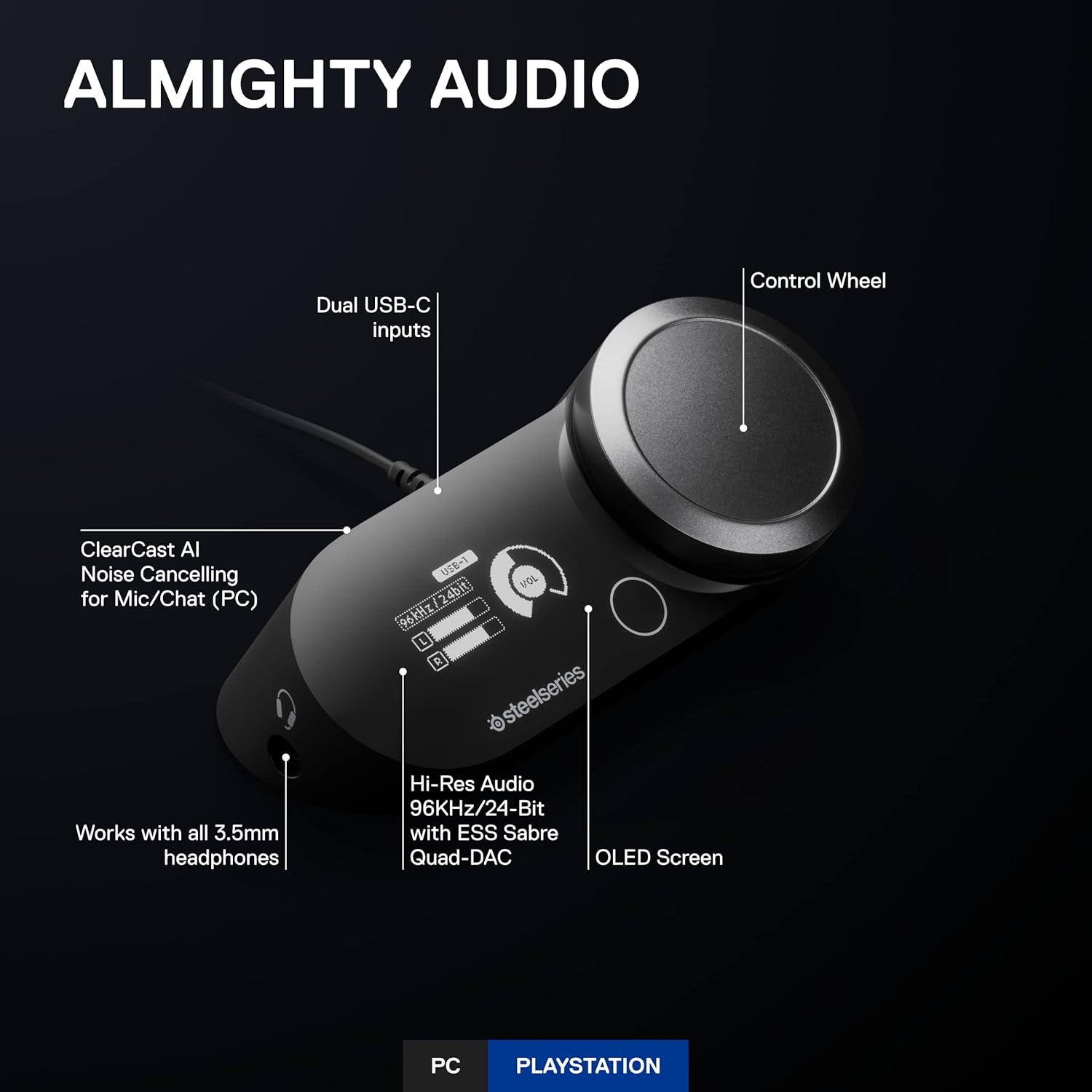
Image 2.1: GameDAC Gen 2 Front View with Labeled Components. דאָס בילד ווײַזט די אויבן-אַראָפּ view of the GameDAC Gen 2, highlighting its key features: Dual USB-C inputs, Control Wheel, OLED Screen, Hi-Res Audio with ESS Sabre Quad-DAC, ClearCast AI Noise Cancellation for Mic/Chat (PC), and the 3.5mm headphone jack.

Image 2.2: GameDAC Gen 2 Rear View מיט פּאָרטן. This image shows the rear panel of the GameDAC Gen 2, indicating the USB 1, USB 2, Line Out, and Line In ports for various connections.
שליסל פֿעיִקייטן:
- ESS Sabre Quad-DAC: Delivers 78% purer signal compared to GameDAC Gen 1, supporting 96KHz/24-Bit resolution for detailed audio.
- OLED פאַרשטעלן: Provides intuitive control and display of settings.
- קאָנטראָל ראָד: For adjusting volume and navigating menus.
- Dual USB-C Inputs: Allows connection to two systems simultaneously.
- ClearCast AI Noise Cancellation (PC): Utilizes AI algorithms to remove background noise from microphone input and incoming chat.
- 360° Spatial Audio: Immersive surround sound for enhanced gaming awareness.
- כעדסעט קאַמפּאַטאַבילאַטי: Works with any headset wired via a 3.5mm cable, including the Arctis Nova Pro (sold separately).
3. סעטאַפּ אינסטרוקציעס
3.1 קאַנעקטינג צו פּיסי
- Connect one end of the provided USB-C to USB-A cable to the USB 1 or USB 2 port on the back of the GameDAC Gen 2.
- Connect the other end of the cable to an available USB port on your PC.
- Connect your headset to the 3.5mm headphone jack on the front of the GameDAC Gen 2.
- Download and install the SteelSeries GG software from the official SteelSeries website. This software is required for full functionality, including AI Noise Cancellation and advanced audio customization.
- Ensure the GameDAC Gen 2 is selected as the default audio output and input device in your PC's sound settings.
3.2 פֿאַרבינדן זיך צו פּלייסטיישאַן (PS5/PS4)
- Connect one end of the provided USB-C to USB-A cable to the USB 1 or USB 2 port on the back of the GameDAC Gen 2.
- Connect the other end of the cable to an available USB port on your PlayStation console.
- Connect your headset to the 3.5mm headphone jack on the front of the GameDAC Gen 2.
- On your PlayStation, navigate to Settings > Sound > Audio Output and select "GameDAC Gen 2" as the output device. For microphone input, select "GameDAC Gen 2" under Input Device.
3.3 Multi-System Connect
The GameDAC Gen 2 allows you to connect two systems simultaneously and switch between them with ease.
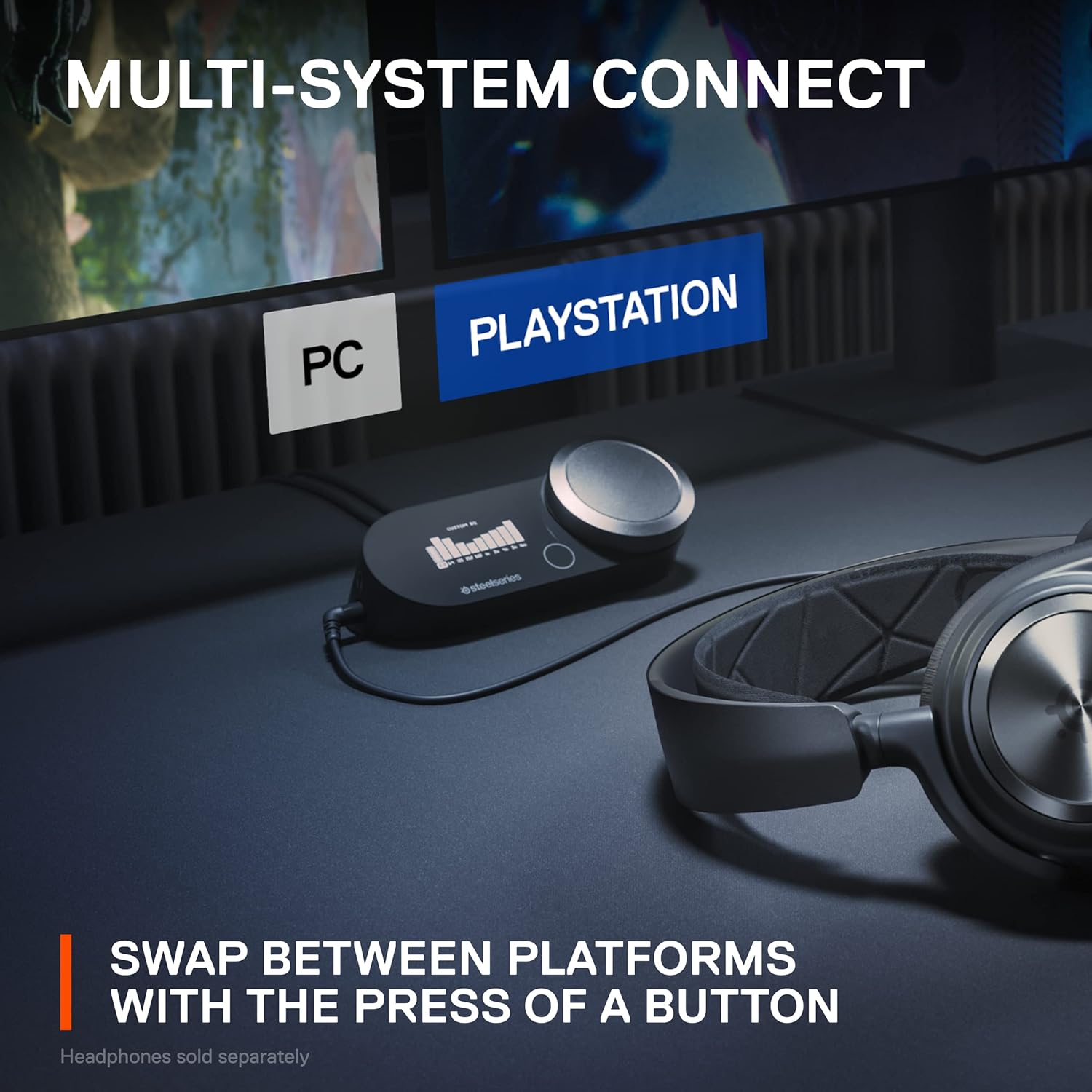
Image 3.1: Multi-System Connection Example. This image illustrates the GameDAC Gen 2 connected to both a PC and a PlayStation console, demonstrating the ability to switch between platforms. Headphones are shown connected to the GameDAC.
- Connect your primary system (e.g., PC) to USB 1 and your secondary system (e.g., PlayStation) to USB 2.
- Use the OLED screen and control wheel on the GameDAC Gen 2 to select the desired input (USB 1 or USB 2) to switch between systems.
4. אַפּערייטינג ינסטרוקטיאָנס
4.1 גרונטלעכע אַודיאָ קאָנטראָל
The large control wheel on the GameDAC Gen 2 primarily adjusts the master volume. Pressing the wheel often accesses menu options on the OLED screen.
4.2 AI Noise Cancellation (PC Only)
For PC users, the ClearCast AI feature significantly reduces background noise from your microphone and cleans up incoming chat audio. This feature is managed through the SteelSeries GG software.
- Open the SteelSeries GG software on your PC.
- Navigate to the Sonar section.
- Adjust the AI Noise Cancellation settings for both your microphone and incoming audio as desired.
4.3 360° Spatial Audio
Experience immersive soundscapes with 360° Spatial Audio, allowing you to pinpoint in-game sounds with greater accuracy.

Image 4.1: 360° Spatial Audio Experience. This image depicts a gamer wearing headphones, surrounded by glowing orange rings, visually representing the immersive 360° spatial audio experience.
The GameDAC Gen 2 is fully compatible with Tempest 3D Audio for PS5 and Microsoft Spatial Sound for PC and Xbox. Ensure these features are enabled in your console or PC's sound settings for the best experience.
4.4 פּאַראַמעטריק עק
פּערסאָנאַליזירן דיין אַודיאָ פּראָfile with the built-in Parametric EQ to suit your preferences or specific game types.

Image 4.2: Parametric EQ Display. This image shows the OLED screen of the GameDAC Gen 2 displaying a custom equalizer profile, allowing users to fine-tune audio frequencies.
Access EQ settings via the OLED screen menu. You can select from preset profiles or create your own custom settings.
5. וישאַלט
To ensure the longevity and optimal performance of your GameDAC Gen 2, follow these simple maintenance guidelines:
- רייניקונג: Use a soft, dry cloth to wipe down the exterior of the device. Avoid using abrasive cleaners, solvents, or harsh chemicals.
- סטאָרידזש: Store the GameDAC Gen 2 in a cool, dry place away from direct sunlight and extreme temperatures when not in use.
- קאַבלע פאַרוואַלטונג: Avoid sharp bends or excessive pulling on cables to prevent damage to connectors and wires.
6. טראָובלעשאָאָטינג
If you encounter issues with your GameDAC Gen 2, refer to the following troubleshooting steps:
6.1 קיין קלאַנג אַרויסגאַנג
- טשעק קאַנעקשאַנז: Ensure all USB and 3.5mm headset cables are securely connected to both the GameDAC Gen 2 and your system.
- באַנד מדרגה: Verify that the volume on the GameDAC Gen 2 and your system is not muted or set too low.
- סיסטעם אַודיאָ סעטטינגס: Confirm that "GameDAC Gen 2" is selected as the default audio output device in your PC's or PlayStation's sound settings.
- ווייכווארג / פירמוואַרע: Ensure SteelSeries GG software is installed (for PC) and that the GameDAC Gen 2 firmware is up to date.
6.2 מיקראָפאָן אַרבעט נישט
- טשעק כעדסעט קאַנעקשאַן: Ensure your headset's microphone is properly connected and not muted.
- System Input Settings: Verify that "GameDAC Gen 2" is selected as the default audio input device in your PC's or PlayStation's sound settings.
- Software Settings (PC): Check microphone settings within SteelSeries GG Sonar to ensure it's enabled and not muted.
6.3 Hissing Noise or Static
- ערד לופּ: If using a USB microphone or other peripherals, a ground loop isolator may be necessary to eliminate electrical interference.
- Cable Interference: Ensure USB cables are not running parallel to power cables or other sources of electromagnetic interference.
- געווינען סעטטינגס: אויב די amplifier gain is set very high without audio playing, a slight hiss might be perceptible. Adjust gain levels as needed.
6.4 Unable to Switch Between Systems
- באַשטעטיקן קאַנעקשאַנז: Ensure both systems are properly connected to the USB 1 and USB 2 ports.
- OLED Menu: Use the control wheel to navigate the OLED menu and explicitly select the desired input source.
7. ספּעסאַפאַקיישאַנז
- מאָדעל: GameDAC גענ 2
- ASIN: B0C3PGTYVR
- פאַבריקאַנט: SteelSeries
- פּראָדוקט דימענשאַנז: 1.69 X 4.53 X 3.25 אינטשעס
- נומער וואָג: 9.5 אונסעס
- אַודיאָ האַכלאָטע: Up to 96KHz/24-Bit
- DAC טיפּ: ESS Sabre Quad-DAC
- קאַנעקטיוויטי: Dual USB-C inputs, 3.5mm headphone jack, Line Out, Line In
- קאַמפּאַטאַבילאַטי: PC, PlayStation 5, PlayStation 4
8. וואָראַנטי און שטיצן
For detailed warranty information and technical support, please visit the official SteelSeries webפּלאַץ:
איר קענט געפֿינען אָפֿט געשטעלטע פֿראַגעס, דרייווער דאַונלאָודז, פֿירמווער דערהייַנטיקונגען, און קאָנטאַקט אינפֿאָרמאַציע פֿאַר קונה סערוויס אויף זייער שטיצע בלאַט.


