1. הקדמה
The HP Smart Tank 5106 is a versatile multifunction inkjet printer designed for efficient printing, scanning, and copying. This printer features an integrated ink tank system for high-volume, low-cost printing. It supports wireless connectivity, allowing for convenient printing from various devices. This manual provides essential information for setting up, operating, maintaining, and troubleshooting your HP Smart Tank 5106 printer.
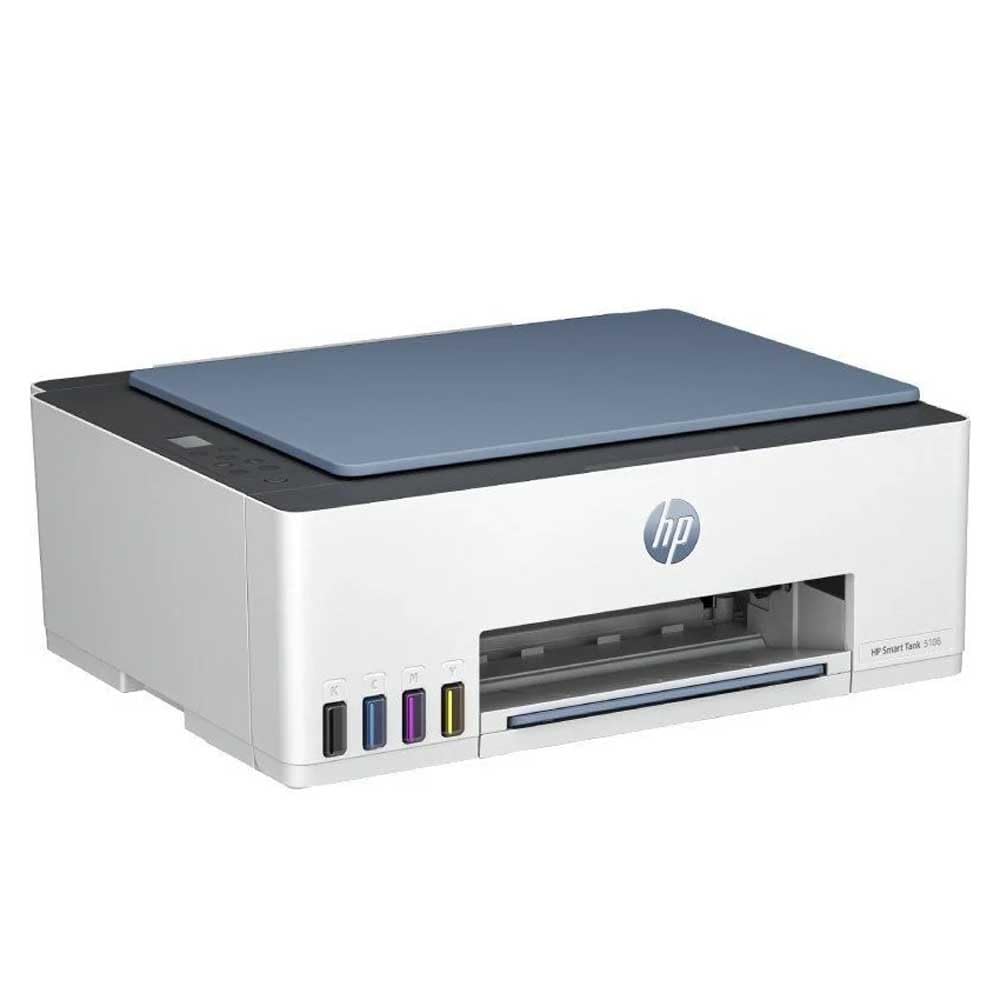
פיגורע 1: פראָנט view of the HP Smart Tank 5106 Multifunction Printer. This image shows the printer's overall design, including the output tray and the HP logo.
2. סעטאַפּ
2.1 אַנפּאַקינג די פּרינטער
- אַראָפּנעמען די דרוקער פון זייַן פּאַקקאַגינג.
- אַראָפּנעמען אַלע פּראַטעקטיוו טעיפּס און פּאַקינג מאַטעריאַלן פֿון די אויסערלעכע און אינעווייניקסטע זייט פֿון דעם דרוקער. זעט די שנעל-שטאַרט גייד פֿאַר ספּעציפֿישע לאָקאַציעס.
- שטעלט דעם דרוקער אויף א סטאַבילער, גלאַטער ייבערפלאַך.
2.2 אָנפֿילן די טינט טאַנקען
The HP Smart Tank 5106 uses an integrated ink tank system. Follow these steps to fill the ink tanks:
- Open the ink tank cover located on the left side of the printer.
- Open the cap of the ink tank you wish to fill (Black, Cyan, Magenta, Yellow).
- Uncap the corresponding HP ink bottle and invert it over the tank's nozzle. The ink will flow automatically into the tank. Do not squeeze the bottle.
- Once the tank is full, remove the bottle and close the tank cap securely.
- Repeat for all other ink tanks.
- נאָענט די טינט טאַנק דעקן.
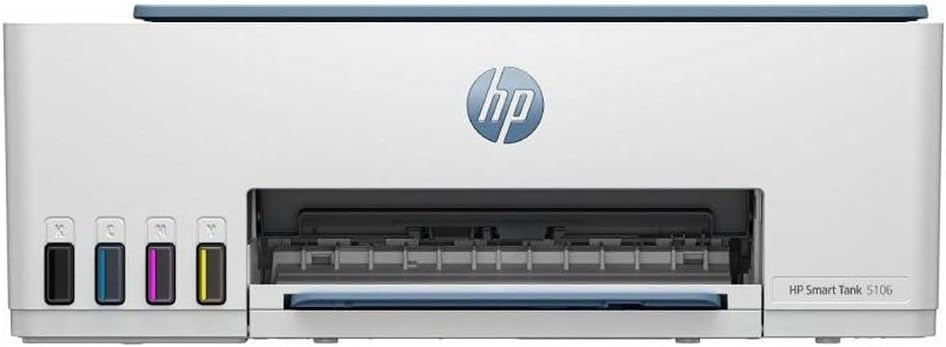
פיגורע 2: פראָנט view of the HP Smart Tank 5106, highlighting the visible ink tanks on the left side for easy monitoring and refilling.
2.3 Connecting Power and Initial Power On
- Connect the power cord to the printer's power port and then to an electrical outlet.
- דרוק די מאַכט קנעפּל צו קער אויף די דרוקער.
- Follow the on-screen instructions on the printer's control panel for initial setup, including language selection and print head alignment.

פיגורע 3: דערציען view of the HP Smart Tank 5106, showing the power input and USB port for connectivity.
2.4 ווייכווארג אינסטאַלאַציע און נעץ פֿאַרבינדונג
- אָפּלאָדירן די HP סמאַרט אַפּ from your device's app store (iOS, Android) or from hpsmart.com for Windows/macOS.
- Open the HP Smart app and follow the prompts to add your printer.
- Select your Wi-Fi network and enter the password when prompted to connect the printer to your wireless network.
- Alternatively, connect the printer to your computer using a USB cable for a wired connection.
3. אַפּערייטינג ינסטרוקטיאָנס
3.1 לאָודינג פּאַפּיר
- Pull out the input tray and extend the paper guides.
- Load a stack of plain white paper into the input tray with the print side facing down.
- Adjust the paper guides until they rest gently against the edges of the paper stack.
- שטופּ צוריק דעם אַרייַנשרייַב טאַץ אין דעם דרוקער.
3.2 דרוקן דאקומענטן
- פֿון אייער קאָמפּיוטער אָדער מאָבילן מיטל, עפֿנט דאָס דאָקומענט אָדער בילד וואָס איר ווילט דרוקן.
- אויסקלייַבן די דרוקן option (usually found under File menu or by pressing Ctrl+P/Cmd+P).
- Choose your HP Smart Tank 5106 printer from the list of available printers.
- Adjust print settings such as paper size, print quality, and number of copies. For duplex printing, select the two-sided printing option if available in your print dialog.
- דריקט דרוקן.
3.3 קאפירן דאקומענטן
- Place the document face-down on the scanner glass, aligning it with the guide.
- פאַרמאַכן די סקאַננער דעקל.
- On the printer's control panel, select the קאָפּי אָפּציע.
- Choose the number of copies and whether you want a color or black-and-white copy.
- דרוק די אָנהייבן קאָפּירן קנעפּל.
3.4 סקענען דאקומענטן
- לייגט דעם דאָקומענט מיטן פּנים אַראָפּ אויף דעם סקענער גלאָז.
- פאַרמאַכן די סקאַננער דעקל.
- Open the HP Smart app on your computer or mobile device.
- אויסקלייַבן די סקאַן אָפּציע.
- Adjust scan settings such as resolution, color mode, and destination folder.
- דריקט סקאַן to begin the process. The scanned document will be saved to your specified location.
4. וישאַלט
4.1 Monitoring and Refilling Ink Levels
Regularly check the ink levels through the transparent ink tanks on the front of the printer or via the HP Smart app. Refill ink tanks as described in Section 2.2 when levels are low to prevent print quality issues.
4.2 Cleaning Print Heads
If you notice streaky or faded prints, the print heads may need cleaning. This can be done through the printer's control panel or the HP Smart app. Refer to the app's maintenance section for detailed instructions.
4.3 Cleaning the Printer Exterior and Scanner Glass
- ווישט ווי די אויסערליכע זייט פון דעם דרוקער מיט א ווייכן, לינט-פרייען שטאָף.
- פֿאַר די סקאַנער גלאָז, ניצט אַ ווייכע שטאָף לייכט ווייכער געמאַכטampened with glass cleaner. Avoid spraying cleaner directly onto the glass.
4.4 פירמוואַרע דערהייַנטיקונגען
Ensure your printer's firmware is up to date for optimal performance and security. Firmware updates can be managed through the HP Smart app.
5. טראָובלעשאָאָטינג
5.1 פּראָסט ישוז און סאַלושאַנז
- דרוקער רעאגירט נישט: Check power connections, ensure the printer is turned on, and verify network connectivity (Wi-Fi or USB). Restart both the printer and your computer/router.
- פּאַפּיר דזשאַמז: Carefully open all access doors and remove any jammed paper. Ensure paper is loaded correctly and not overfilled.
- נעבעך דרוק קוואַליטעט: Perform print head cleaning and alignment through the HP Smart app or printer control panel. Check ink levels and refill if necessary. Use appropriate paper type and quality settings.
- קאַנעקטיוויטי פּראָבלעמס: Ensure your printer and device are on the same Wi-Fi network. Restart your router. If using USB, try a different port or cable.
5.2 טעות אַרטיקלען
If an error message appears on the printer's display or in the HP Smart app, consult the HP support website or the app's help section for specific troubleshooting steps related to that error code.
5.3 Resetting the Printer
In some cases, a factory reset may resolve persistent issues. Refer to the HP support documentation for your specific model for instructions on how to perform a factory reset, as this can vary and may clear network settings.
6. ספּעסאַפאַקיישאַנז
| שטריך | באַשרייַבונג |
|---|---|
| מאָדעל נאָמען | סמאַרט טאַנק 5106 |
| פּראָדוקט דימענשאַנז | 50.3 ד רענטגענ 125.7 וו רענטגענ 121.4 ה סענטימעטער |
| וואָג | 7.01 קילאָגראַמס |
| קאַנעקטיוויטי טעכנאָלאָגיע | וסב, ווי-פי |
| דרוק טעכנאָלאָגיע | ינגקדזשעט |
| ספּעציעלע שטריך | טאָוטשסקרעען |
| מאַקסימום דרוק גיכקייט (קאָליר) | 15 בלעטער פּער מינוט |
| מאַקסימום דרוק גיכקייט (מאָנאָכראָם) | 16 בלעטער פּער מינוט |
| מאַקסימום קאָפּי גיכקייט (מאָנאָכראָם) | 16 בלעטער פּער מינוט |
| מאַקסימום בלאַט קאַפּאַציטעט | 100 |
| דופּלעקס פּרינטינג | יא |
| מאַקס מידיאַ גרייס | Legal (216 x 356 mm) |
| סקאַננער טיפּ | פלאַטבעד |
| מאַקסימום קאָליר דרוק רעזאָלוציע | 600 דפּי |
| מאַקסימום שוואַרץ און ווייס דרוק רעזאָלוציע | 1200 רענטגענ 1200 דפּי |
| קאַמפּאַטאַבאַל דעוויסעס | Computers, Laptops, Tablets, Smartphones |
7. וואָראַנטי און שטיצן
7.1 פּראָדוקט וואָראַנטי
Your HP Smart Tank 5106 printer comes with a standard manufacturer's warranty. Please refer to the warranty card included in your product packaging or visit the official HP website for detailed information regarding warranty terms, conditions, and duration in your region.
7.2 טעכניש שטיצן
For technical assistance, troubleshooting beyond this manual, or to order replacement parts and supplies, please contact HP Customer Support. You can find contact information and online resources on the official HP support webפּלאַץ:
- HP שטיצן Webפּלאַץ: support.hp.com
- HP סמאַרט אַפּ: The app provides access to troubleshooting tools, support articles, and direct contact options.
When contacting support, please have your printer's model number (Smart Tank 5106) and serial number ready. The serial number is typically located on a label on the back or bottom of the printer.