1. הקדמה
Thank you for choosing the Delton Ergonomic Vertical Rechargeable Wireless Mouse S12. This manual provides detailed instructions for setting up, operating, and maintaining your new mouse. Designed for comfort and efficiency, this vertical mouse promotes a more natural hand and wrist posture, reducing strain during extended computer use.
Please read this manual thoroughly before use to ensure optimal performance and longevity of your device.
2. פּעקל אינהאַלט
באַשטעטיקן אַז אַלע זאכן זענען פאַראַן אין דיין פּעקל:
- Delton Ergonomic Vertical Wireless Mouse
- USB Dongle (2.4GHz receiver)
- וסב טשאַרדזשינג קאַבלע
- באַניצער מאַנואַל (דעם דאָקומענט)
3. פּראָדוקט איבערview
The Delton S12 mouse features an ergonomic vertical design, six programmable buttons, and adjustable DPI settings for precise control. It connects wirelessly via a 2.4GHz USB dongle and is powered by a rechargeable battery.

Image: The Delton S12 Ergonomic Vertical Wireless Mouse, shown with its accompanying USB dongle.
3.1 ערגאָנאָמישער פּלאַן
The vertical orientation of the mouse is designed to align your hand and wrist in a natural handshake position, which can help reduce muscle strain and discomfort often associated with traditional mice.

Image: A hand comfortably gripping the Delton vertical mouse, demonstrating the natural, ergonomic wrist position it promotes.
3.2 ווירעלעסס קאַנעקטיוויטי
The mouse connects wirelessly to your device via a 2.4GHz USB dongle, offering a stable connection up to 30 feet (10 meters). This provides flexibility and reduces cable clutter.

Image: The Delton vertical mouse wirelessly connected to a laptop, with the USB dongle inserted into the laptop's port.
3.3 קריקאָנלאָדלעך באַטערי
Equipped with a built-in rechargeable Lithium-Ion battery, the mouse offers up to 30 days of daily use and 12 months of standby time on a single charge. It can also be used while charging.

Image: The Delton vertical mouse being charged via a USB cable, illustrating its rechargeable feature.
3.4 Six Buttons Functionality
The mouse features six responsive buttons for enhanced productivity:
- לינקס דריקט
- רעכט גיט
- Scroll Wheel (with click function)
- דפּי סוויטש קנעפּל
- פאָרויס קנעפּל
- צוריק קנעפּל

Image: A detailed diagram highlighting the location and function of the six buttons on the Delton vertical mouse.
3.5 Customizable DPI Levels
Adjust the mouse sensitivity with three DPI settings: 800, 1200, and 2400. An indicator light changes color to show the current DPI level.
- בלוי: 800 דפּי
- רויט: 1200 דפּי
- גרין: 2400 דפּי
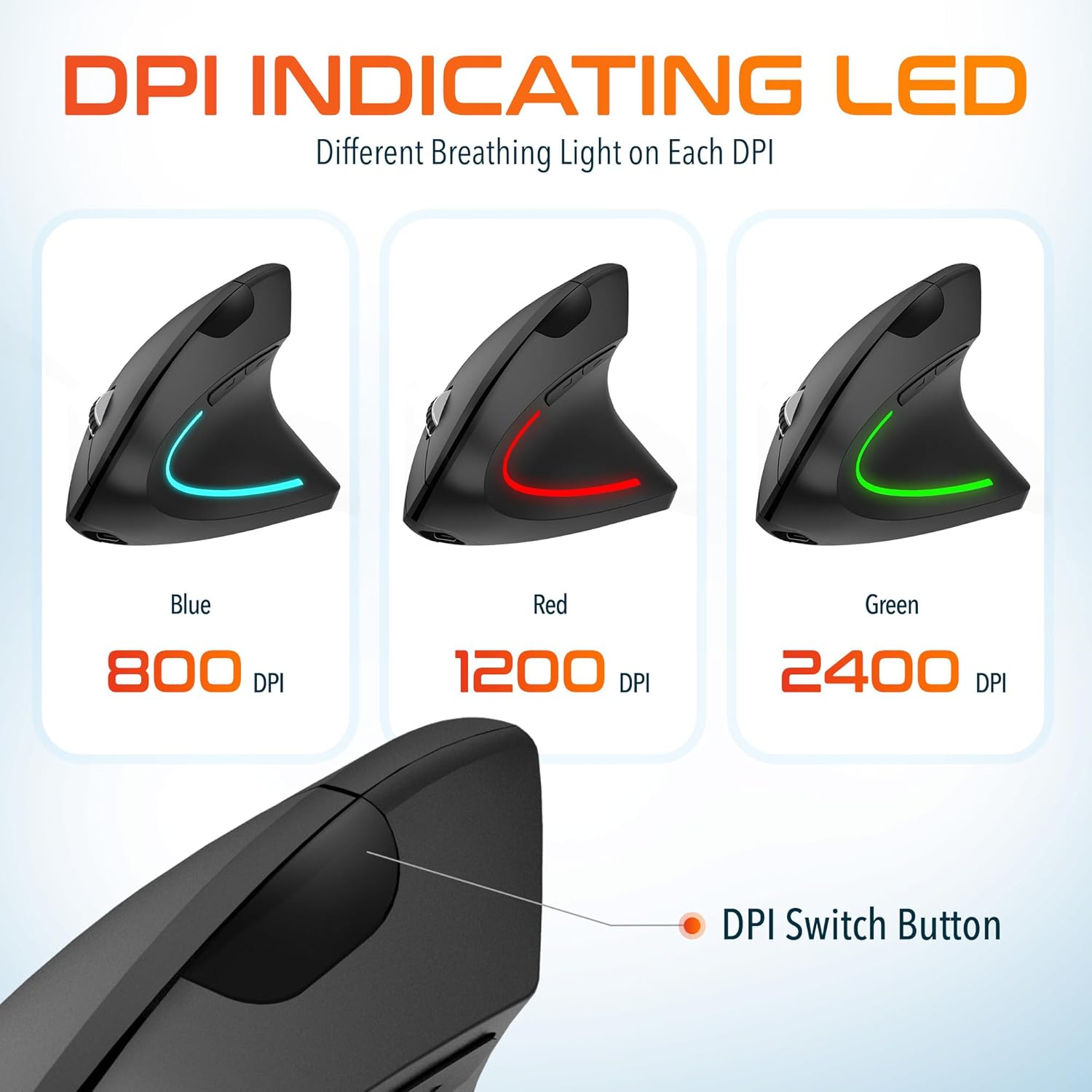
Image: The Delton vertical mouse displaying its LED indicator in blue (800 DPI), red (1200 DPI), and green (2400 DPI) to show current sensitivity settings.
4. סעטאַפּ אינסטרוקציעס
4.1 אויפלאָדן די מויז
- Connect the provided USB charging cable to the charging port on the front of the mouse.
- Plug the other end of the USB cable into a USB power source (e.g., computer USB port, wall adapter, power bank).
- The LED indicator will illuminate during charging and turn off when fully charged. A full charge typically takes approximately 1 hour.
4.2 Connecting the USB Dongle
- Locate the USB dongle, usually stored in a compartment on the underside of the mouse.
- Insert the USB dongle into an available USB port on your computer (PC, Laptop, Mac, Chromebook).
- The system will automatically detect and install the necessary drivers. This process may take a few moments.
4.3 פּאַוערינג אויף / אַוועק
Locate the power switch on the underside of the mouse. Slide the switch to the 'ON' position to power on the mouse. Slide it to 'OFF' when not in use to conserve battery life.
5. אַפּערייטינג ינסטרוקטיאָנס
5.1 דפּי אַדזשאַסטמאַנט
To change the mouse sensitivity (DPI), press the DPI switch button located on the top of the mouse, behind the scroll wheel. Each press cycles through the available DPI settings (800, 1200, 2400), indicated by the changing color of the LED light.
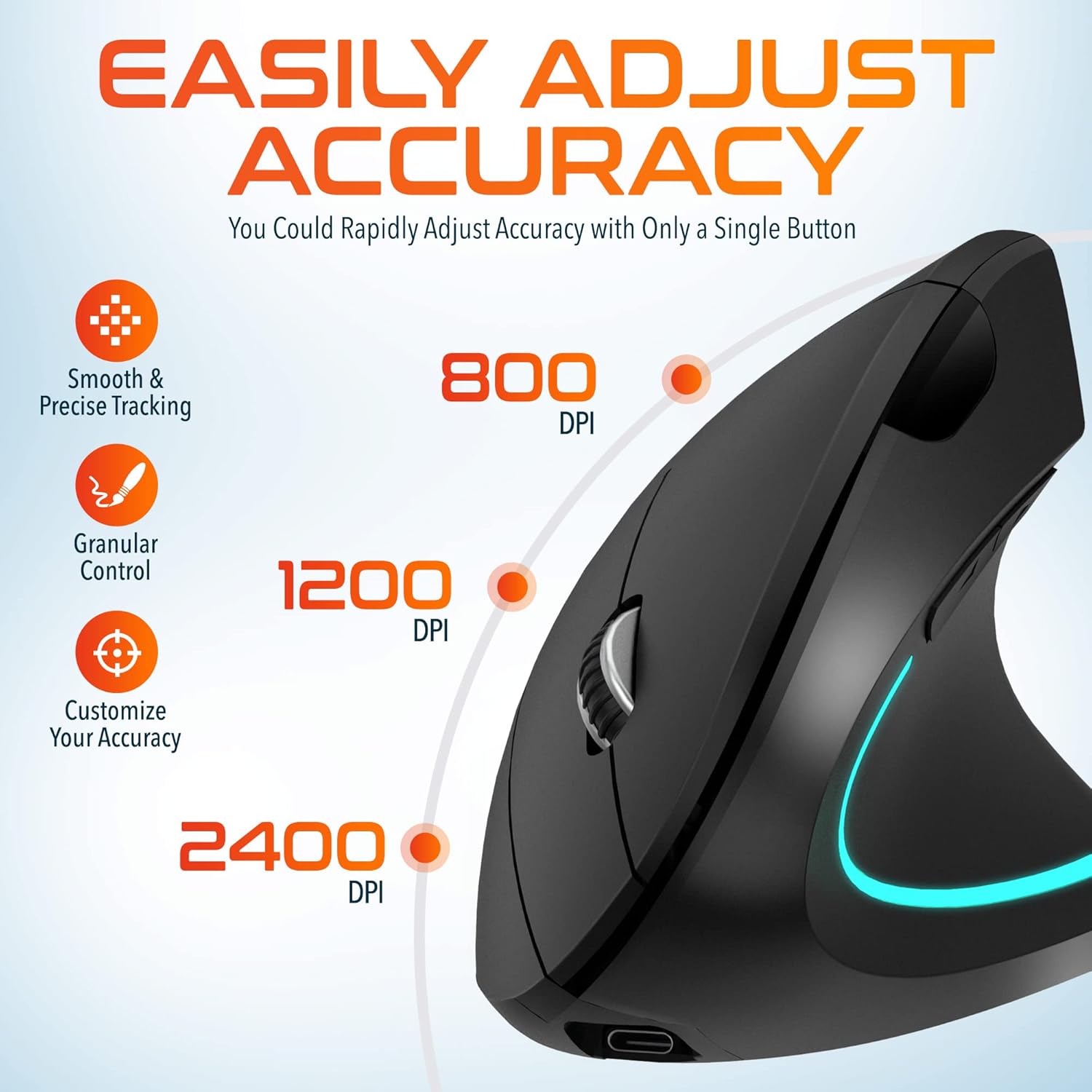
Image: A visual representation of the three adjustable DPI settings (800, 1200, 2400) and their corresponding cursor precision levels.
5.2 קנעפּל פאַנגקשאַנז
- לינק קליקט: נאָרמאַלע ערשטיקע קליק פונקציע.
- רעכט גיט: נאָרמאַלע צווייטיקע קליק פונקציע.
- סקראָל ראָד: סקראָלן אַרויף אָדער אַראָפּ דורך דאָקומענטן און web pages. Pressing the scroll wheel acts as a middle click.
- פֿאָרווערטס קנעפּל: נאַוויגירט פאָרויס אין web בראַוזערז אָדער file עקספּלאָרערס.
- צוריק קנעפּל: נאַוויגירט צוריק אין web בראַוזערז אָדער file עקספּלאָרערס.

בילד: א נאָענטע בילד view of the mouse's scroll wheel and the conveniently placed forward and backward shortcut keys.
6. וישאַלט
- רייניקונג: ניצט אַ ווייכע, טרוקענע שטאָף צו רייניקן די מויז. פֿאַר שווערע שמוץ, אַ ביסל ווייכער מאַכןampשווענק דעם שטאָף מיט וואַסער. פֿאַרמייַדט ניצן שאַרפע כעמיקאַלן אָדער אַברייסיוו מאַטעריאַלן.
- סטאָרידזש: When not in use for extended periods, store the mouse in a cool, dry place. Ensure the power switch is in the 'OFF' position to preserve battery life.
- באַטערי זאָרגן: Avoid fully discharging the battery frequently. Charge the mouse regularly to maintain battery health.
7. טראָובלעשאָאָטינג
| פּראָבלעם | מעגלעך סיבה | לייזונג |
|---|---|---|
| מויז ניט ריספּאַנדינג | Low battery; USB dongle not connected; Mouse not powered on; Driver issue | Charge the mouse; Ensure dongle is securely plugged in; Turn on the mouse; Try a different USB port; Restart computer |
| ינטערמיטאַנט קשר | Interference; Dongle too far from mouse; Low battery | Move mouse closer to dongle; Remove obstacles; Charge the mouse; Avoid using near other 2.4GHz devices |
| DPI טוישט זיך נישט | DPI button not pressed correctly; Mouse unresponsive | Press the DPI button firmly; Check battery and connection |
| מויז קורסאָר נישט סטאַביל | Dirty optical sensor; Uneven surface | Clean the optical sensor with a soft cloth; Use on a clean, flat mouse pad or surface |
8. ספּעסאַפאַקיישאַנז
| שטריך | דעטאַל |
|---|---|
| מאָדעל נומער | S12 |
| קאַנעקטיוויטי | 2.4GHz ווירעלעס (USB דאָנגל) |
| דפּי לעוועלס | 800 / 1200 / 2400 |
| קנעפּלעך | 6 (לינקס, רעכטס, סקראָל ראָד, DPI, פאָרווערטס, צוריק) |
| באַטערי טיפּ | ריטשאַרדזשאַבאַל ליטהיום יאָן (אַרייַנגערעכנט) |
| ווירעלעסס ראַנגע | אַרויף צו 30 פט (10 מעטער) |
| פּראָדוקט דימענשאַנז | 5 X 2.6 X 3.25 אינטשעס |
| פּונקט וואָג | 4.9 אונסעס |
| קאַמפּאַטאַבילאַטי | PC, Laptop, Mac, Chromebook (Windows, macOS, iOS) |
9. וואָראַנטי און שטיצן
Delton products are designed for reliability and performance. For warranty information or technical support, please refer to the contact details provided with your purchase or visit the official Delton webזייטל. האַלט אייער קויף קוויטל ווי אַ באַווייַז פון קויפן פֿאַר וואָראַנטי קליימז.


